Basic Fixes
- Restart Device: You can try restarting your device to see if it fixes the problem.
- Check battery health: If the battery health is below 80% and your iPhone keeps turning off, it’s time to replace the battery.
- Check if iPhone is overheating: If your iPhone gets hot and exceeds the usable temperature, the device may turn off to protect the components.
- Use original charging accessories: If you’re not using an MFi-certified (Made for iPhone) charging accessory, any issues your iPhone faces when charging can cause it to turn off.
- Update iPhone: Ensure to update the software on your iPhone for a bug-free experience.
That said, if the problem persists, try the below methods to fix the problem.
Fix 1: Disable Auto Lock
If your iPhone keeps turning the screen off, check if you’ve enabled auto-lock after a short duration. You can increase the duration or disable auto-lock.
Open Settings, go to Display and Brightness, and select Auto Lock. Either increase the duration after which your iPhone gets locked or use Never to disable auto lock.


Fix 2: Check the Case
If there’s something between your case and the side button on your iPhone – it may press the button and lock your phone. Moreover, check if you’re using a case that makes it easy to press the side button and lock your iPhone accidentally.
Fix 3: Check True Tone
If you cannot see your screen as you step outside in the bright sun, your iPhone isn’t locked but the display isn’t bright enough. You will have to enable True Tone so that the brightness of your screen is automatically increased.
Open the Settings app, go to Display and Brightness, and turn on True Tone.

However, if you have enabled True Tone and yet the brightness doesn’t increase – there’s a problem with the ambient light sensor on your device. You can keep it disabled and manually increase the brightness before you step outside.
If nothing works, reset your iPhone to the default settings.
Was this helpful?
Last updated on 01 May, 2024
Read Next
 3 Ways to Fix Windows 11 Screen Keeps Locking Automatically
Fix 1: Increase Lock Screen Timeout You can start by verifying the set lock screen timeout duration on your PC.
3 Ways to Fix Windows 11 Screen Keeps Locking Automatically
Fix 1: Increase Lock Screen Timeout You can start by verifying the set lock screen timeout duration on your PC.
 How to Stop iPhone Personal Hotspot From Turning On Automatically
https://youtu.be/RIBOWbQOnMU Fix 1.
How to Stop iPhone Personal Hotspot From Turning On Automatically
https://youtu.be/RIBOWbQOnMU Fix 1.
 4 Ways to Stop Bluetooth From Turning on Automatically on iPhone
Why Does My iPhone’s Bluetooth Keep Turning On?
4 Ways to Stop Bluetooth From Turning on Automatically on iPhone
Why Does My iPhone’s Bluetooth Keep Turning On?
 3 Ways to Stop iPhone Wi-Fi From Turning on Automatically
Fix 1: Turn Off Wi-Fi in Settings When you toggle off Wi-Fi from the Control Center, it only turns it off temporarily.
3 Ways to Stop iPhone Wi-Fi From Turning on Automatically
Fix 1: Turn Off Wi-Fi in Settings When you toggle off Wi-Fi from the Control Center, it only turns it off temporarily.
 What Does Locking the Taskbar Mean in Windows
Many features exist on our Windows PC that we seldom use.
What Does Locking the Taskbar Mean in Windows
Many features exist on our Windows PC that we seldom use.
 4 Ways to Fix Do Not Disturb Turning on Automatically on iPhone
Fix 1.
4 Ways to Fix Do Not Disturb Turning on Automatically on iPhone
Fix 1.
 5 Ways to Fix Android Phone Automatically Turning Down Volume
https://youtu.be/c3evW3GIp5w Basic Fixes Restart device: Restart your Android device to get rid of temporary bugs and glitches.
5 Ways to Fix Android Phone Automatically Turning Down Volume
https://youtu.be/c3evW3GIp5w Basic Fixes Restart device: Restart your Android device to get rid of temporary bugs and glitches.
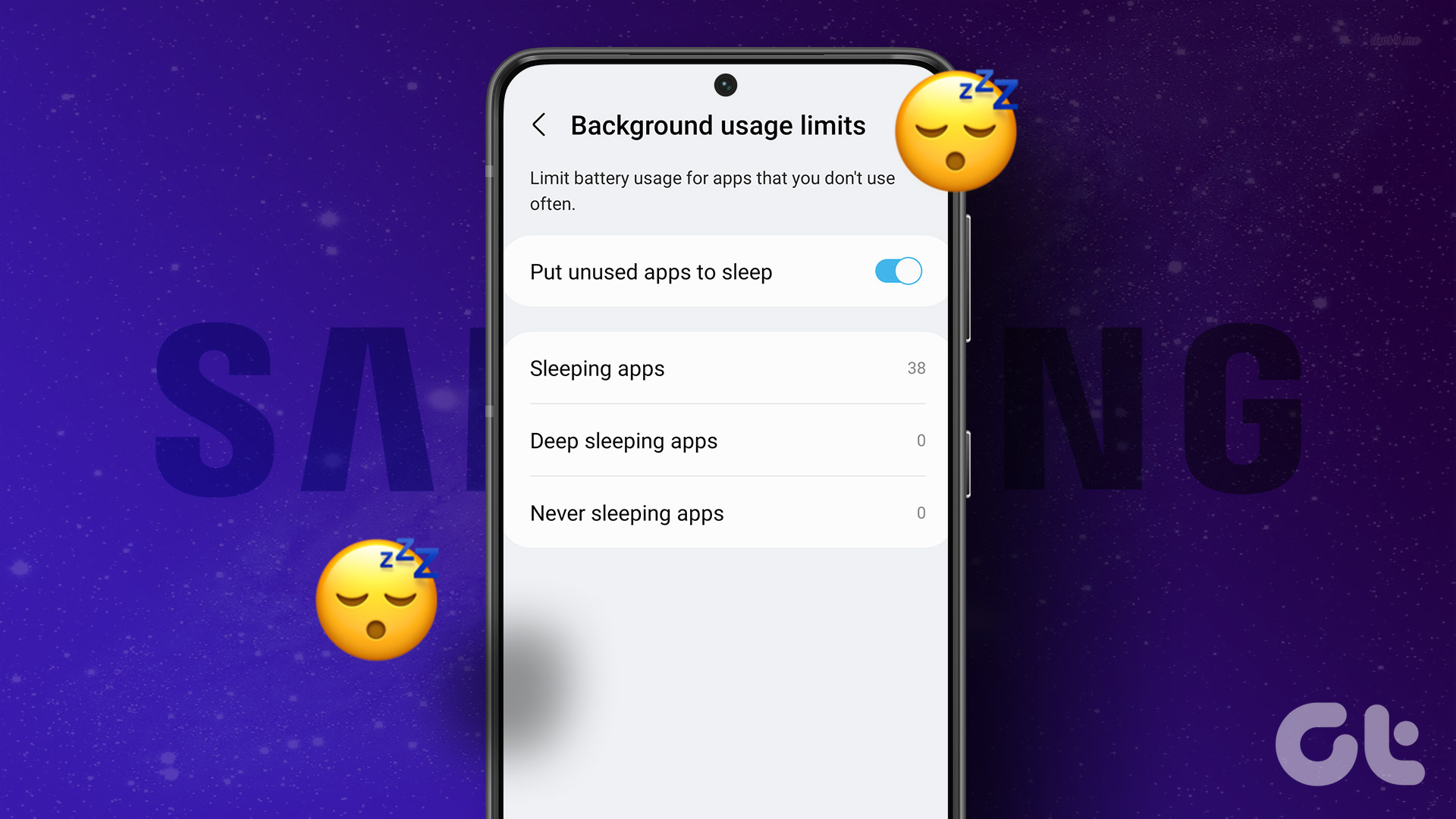 How to Manage Sleeping Apps on Samsung Galaxy Phone
https://youtu.be/OFcUJkAAt1s How to Put Apps to Sleep on Samsung Galaxy Phones One UI lets you put apps in Sleep or Deep Sleep state to limit their background activities.
How to Manage Sleeping Apps on Samsung Galaxy Phone
https://youtu.be/OFcUJkAAt1s How to Put Apps to Sleep on Samsung Galaxy Phones One UI lets you put apps in Sleep or Deep Sleep state to limit their background activities.
The article above may contain affiliate links which help support Guiding Tech. The content remains unbiased and authentic and will never affect our editorial integrity.