How to Share Video With Audio in Microsoft Teams
The feature to share your screen containing the video and its sound in Microsoft Teams is limited to the Windows app only. You cannot use it on Mac and mobile apps (Android and iOS). Also, you cannot share computer audio if you are using Whiteboard in Teams or while sharing a PowerPoint file.
Step 1: To share system audio in Microsoft Teams, click the Share icon in the bottom toolbar in a Microsoft Teams meeting.
Step 2: Several options will show up. First, check the box next to Include system audio and choose your sharing mode.

How to Present Video With Audio in Google Meet
Google allows you to share a Chrome tab in Meet, in which you can include the system audio. So others can hear whatever is playing in that particular tab.
Note: The functionality is limited to Chrome tabs only. You cannot share sound directly from your computer.
Step 1: To use this feature, open Chrome and play a video for which you want to share the sound in the meeting. If it looks fine, open Google Meet and join the meeting.
Step 2: Click the Present now button at the bottom and select a Chrome tab.

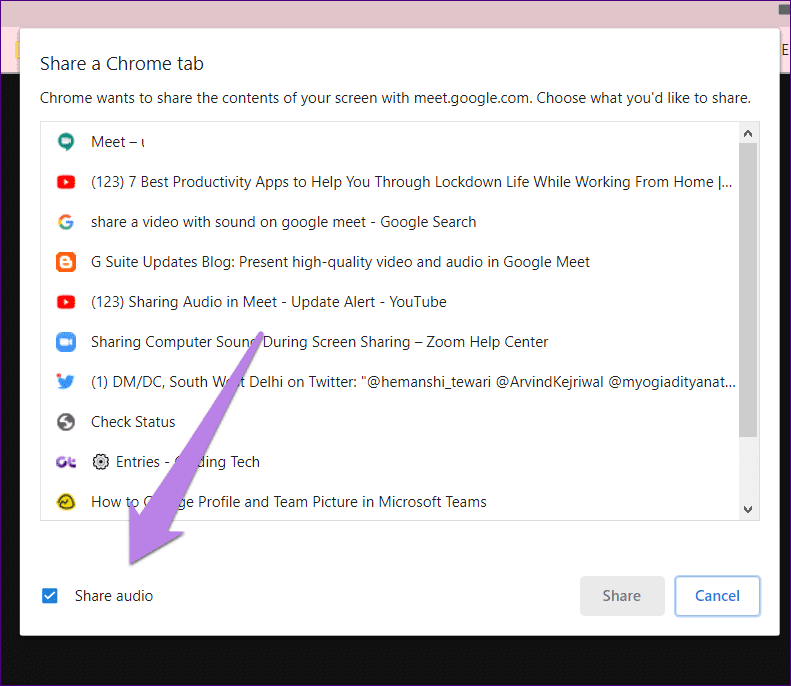
Step 3: Select the Chrome tab from the list of tabs open. Make sure that you check the box next to Share audio at the bottom. Then, click on Share.
How to Share Video With Audio on Zoom
Since the feature is available on desktop and mobile apps, check the steps separately.
Share Video With Sound on Zoom Desktop Apps
When you enable this feature, others will hear any audio playing on your computer.
Note: You cannot share computer sound when multiple screens are being shared on Zoom.
Step 1: Join a Zoom meeting and click on the Share Screen button present on the bottom toolbar.

Tip: Here’s a guide on how to know the Zoom meeting password.
Step 2: You will be shown the windows that you can share. Select the one containing your video. It can be from a browser or a video on your computer. Then, check the box next to Share computer sound at the bottom and press the Share button.

Note: When you share computer sounds, others will even hear the notification and other sounds on your PC.
Share Computer Audio in Zoom After Sharing the Screen
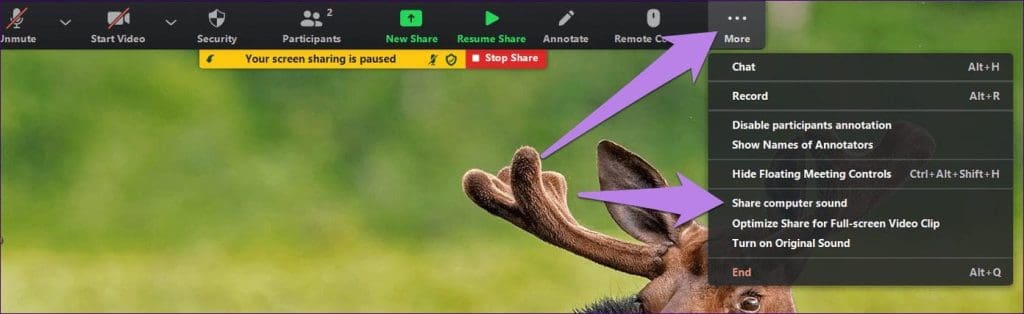
If you have already started sharing the screen, you don’t have to stop sharing to play computer audio. To share or stop the computer audio after you have started sharing the screen, hover your mouse over the top edge. A toolbar will appear. Click on the three-dot icon and select Share computer sound. Repeat the steps to disable the audio.
Share Video With Sound on Zoom Mobile Apps
While the screen-sharing functionality is available in Zoom’s Android app, you cannot share audio along with it. However, things differ with the app’s iOS version, which allows you to share your phone’s audio.
Step 1: Tap the Share content button at the bottom of a Zoom meeting. Then select Screen.
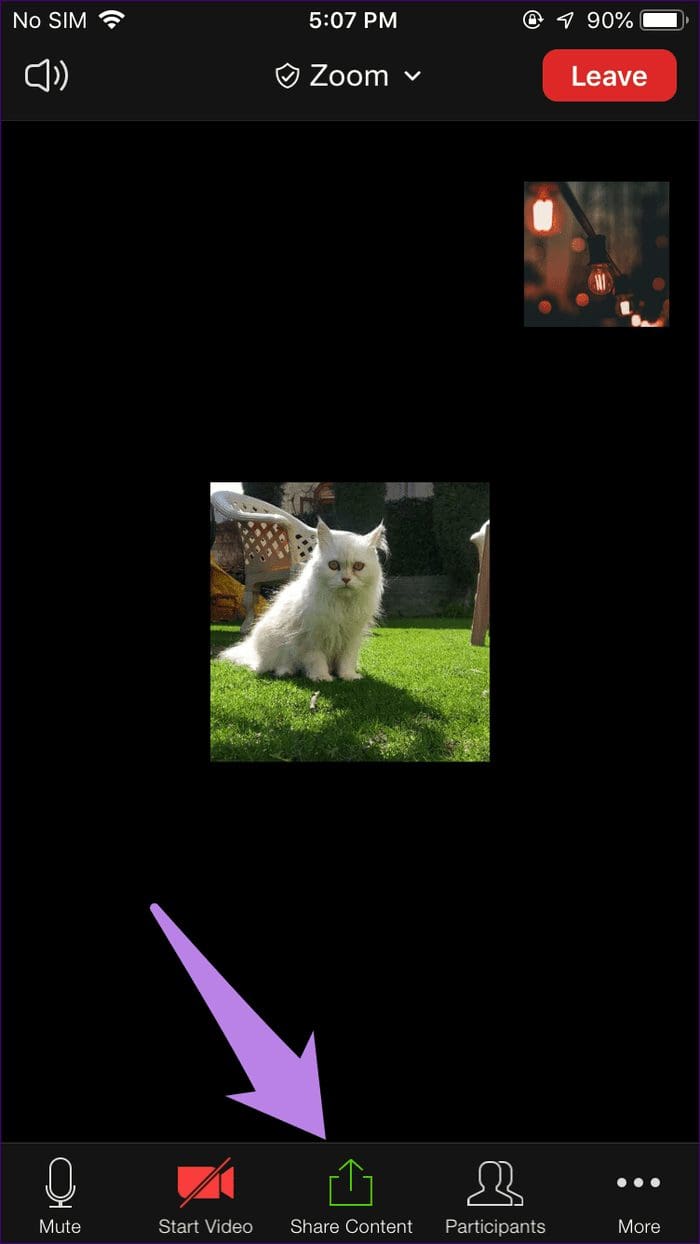

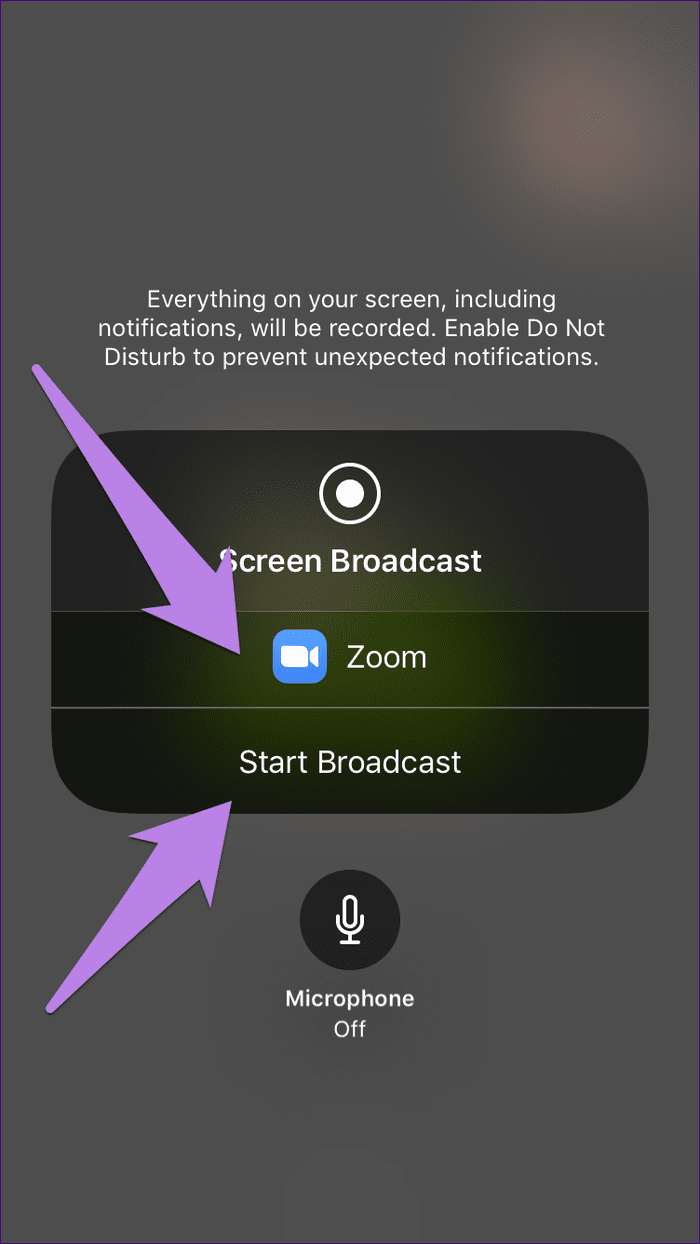
Step 2: A Screen Broadcast screen will appear. Tap on Zoom and press the Start Broadcast button. Now, play the audio or the video on your phone, and others will hear the same audio. To stop the broadcast, tap on the top edge of the screen and choose Stop from the pop-up menu that appears.

Bonus: How to Share Computer Sound in Zoom Without Sharing Screen
It is not mandatory to share screens while sharing computer audio. What if a user wants to play background music for the live video?
Fortunately, a way exists where you can share computer audio without displaying anything on the Zoom screen. Yes, you can even turn off your video. Other participants in the meeting will then only see your profile picture and hear the computer audio.
Step 1: Inside a Zoom meeting, click the Share screen option at the bottom.

Step 2: Click on the Advanced tab at the top. Then, select Music or Computer Sound Only and press the Share button.

Note: This setting works independently of the Mute and Show video options. The system audio will be shared even if you mute yourself.
FAQs
Can People Hear and See You While Sharing Sound?
That depends entirely on your camera and microphone settings. It’s up to you whether you want to enable them. Those settings are independent of the computer sound-sharing feature. So, you can even talk and play a video along with its sound simultaneously.
How to Change Audio Volume While Sharing Computer Sound?
If you change your system volume, the volume will be changed only on your side. It would be best if you changed the in-app volume to increase it for others. For instance, if you are playing a song through YouTube, increase the volume on YouTube.
What if I Cannot Hear Cannot Hear Audio From Others on Mobile in Zoom
If you cannot hear other’s audio (both from microphone and computer sound) on your mobile, ensure you have enabled the Join Audio option on your phone. To do so, tap the Join Audio option at the bottom of the meeting screen in the Zoom mobile app. Then, choose Call via Device audio.
Was this helpful?
Last updated on 31 July, 2024
Read Next
 How to Share Screen on Google Meet
How to Share Screen (Present) on Google Meet On Google Meet, you may share a window for a particular open app, your entire screen, or a single tab on your
How to Share Screen on Google Meet
How to Share Screen (Present) on Google Meet On Google Meet, you may share a window for a particular open app, your entire screen, or a single tab on your
 How to Share Your Screen in Google Meet on iPhone and iPad
How to Share Screen on Google Meet You can begin sharing your screen before you enter the meeting - use the Share screen option.
How to Share Your Screen in Google Meet on iPhone and iPad
How to Share Screen on Google Meet You can begin sharing your screen before you enter the meeting - use the Share screen option.
 7 Best Ways to Fix Microsoft Teams Won’t Share Screen
Microsoft Teams has come a long way since its inception, and they keep adding new features to their product all the time.
7 Best Ways to Fix Microsoft Teams Won’t Share Screen
Microsoft Teams has come a long way since its inception, and they keep adding new features to their product all the time.
 5 Ways to Fix Google Meet Video Not Working on Android
Try These Things First Force quit the app: The first thing to do is to completely stop the Google Meet app on your Android to cease any pending or stuck
5 Ways to Fix Google Meet Video Not Working on Android
Try These Things First Force quit the app: The first thing to do is to completely stop the Google Meet app on your Android to cease any pending or stuck
 How to Fix Microsoft Teams Notification Sound Not Working
On Windows Method 1: Check Notifications Options in the Settings App Step 1: Press the Windows + I keys shortcut to open the Settings app.
How to Fix Microsoft Teams Notification Sound Not Working
On Windows Method 1: Check Notifications Options in the Settings App Step 1: Press the Windows + I keys shortcut to open the Settings app.
 How to Change Microsoft Teams Notification Sound
Change Microsoft Teams Notification Sound on Android Step 1: Find and long-press the Microsoft Teams icon.
How to Change Microsoft Teams Notification Sound
Change Microsoft Teams Notification Sound on Android Step 1: Find and long-press the Microsoft Teams icon.
 How to Change Zoom App Ringtone and Notification Sound
How to Change Zoom Incoming Call Ringtone on Android, iPhone, and iPad If you use Zoom daily, you might be bored of its same ringtone or notification sound.
How to Change Zoom App Ringtone and Notification Sound
How to Change Zoom Incoming Call Ringtone on Android, iPhone, and iPad If you use Zoom daily, you might be bored of its same ringtone or notification sound.
 How to Schedule Google Meet in Microsoft Outlook
Method 1: Microsoft Outlook Web If you find the Outlook app on your PC too heavy, use the Outlook web, which is much faster for creating a Google Meet schedule.
How to Schedule Google Meet in Microsoft Outlook
Method 1: Microsoft Outlook Web If you find the Outlook app on your PC too heavy, use the Outlook web, which is much faster for creating a Google Meet schedule.
The article above may contain affiliate links which help support Guiding Tech. The content remains unbiased and authentic and will never affect our editorial integrity.