Method 1: Enable iCloud or Google Contacts
Sometimes, contacts on your iPhone can simply disappear with an accidental tap. Let’s fix this from the Settings and get your contacts back.
Step 1: Open Settings > Contacts > Accounts.
Tip: On the Contacts settings page, glance at the Default Account. For example, in my case, it says Gmail, which means any contact I create and save on my iPhone will also be saved to my Google account.
Step 2: Here are all the accounts that show Contacts on your iPhone. If your contacts are stored in iCloud, tap iCloud; otherwise, tap Gmail or others.
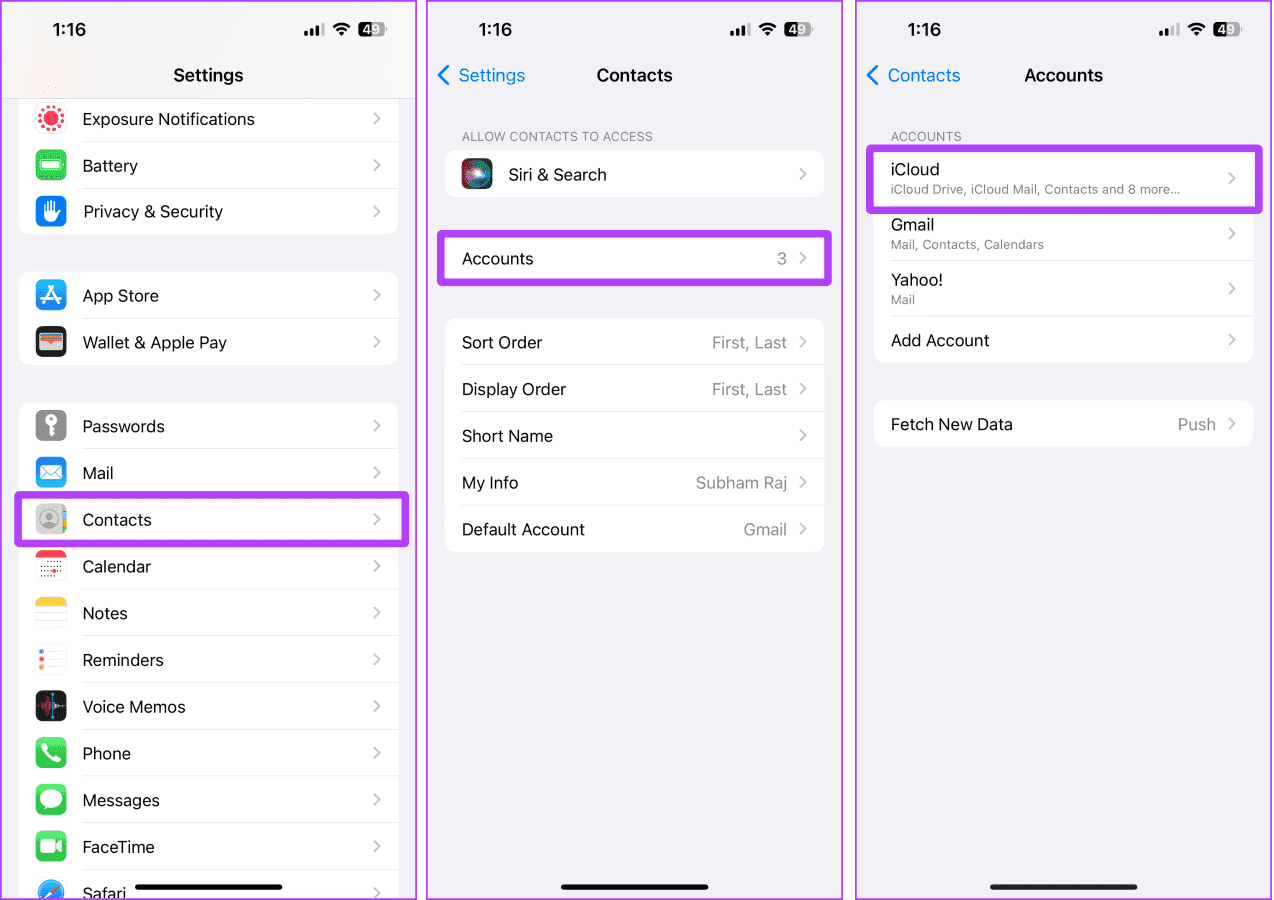
Tip: If you don’t know if the contacts that disappeared from your iPhone were saved on iCloud or Gmail, you can try enabling them individually.
Step 3: Tap iCloud again and tap Show All.
Step 4: Now, ensure the toggle for Contacts is enabled. Once done, press and hold the iCloud back button at the top left.
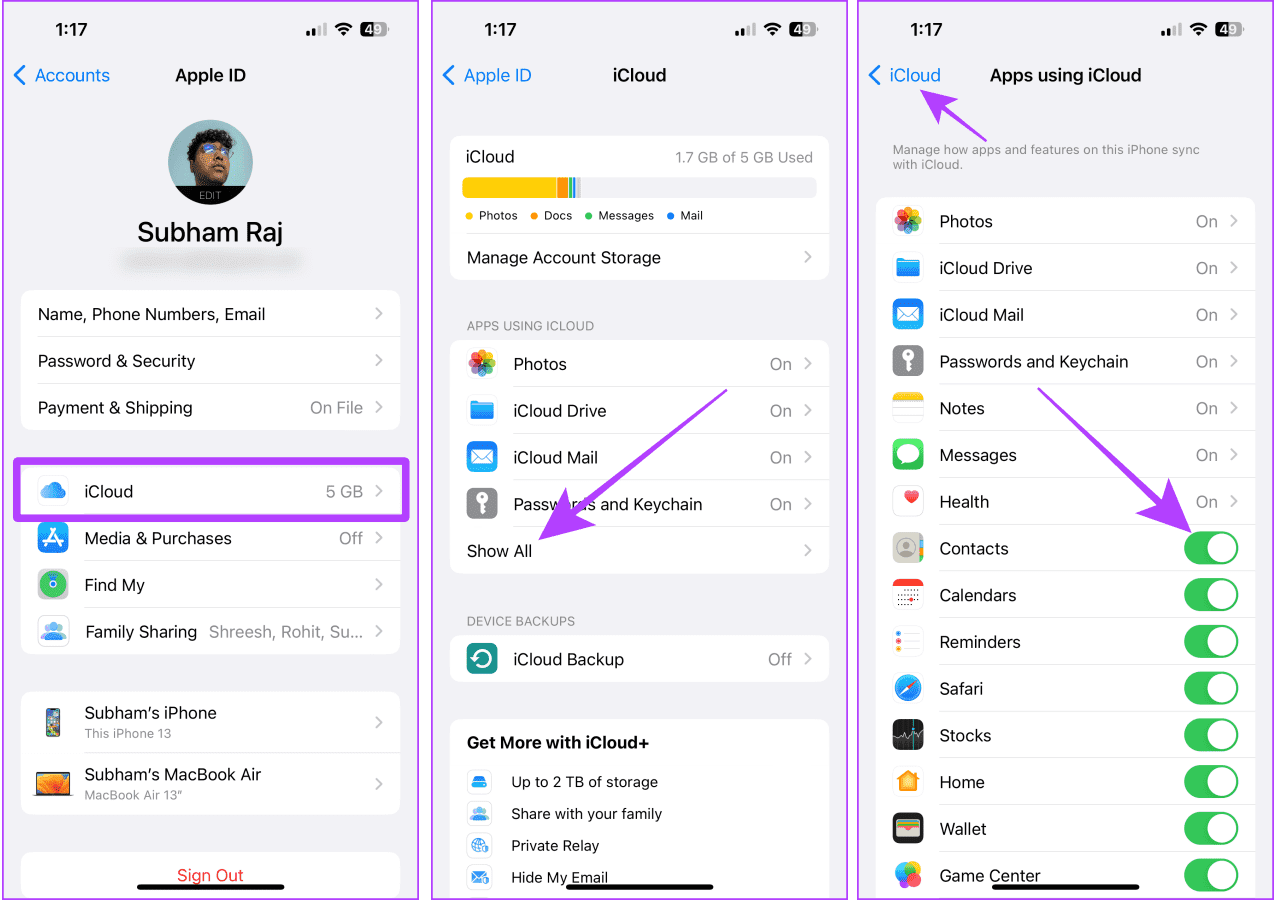
Step 5: A list of previous directories will open in a pop-up, tap Accounts > Gmail.
Step 6: Again, ensure that the Contacts toggle is enabled.
That’s it. Now, all the lost contacts should appear back on your iPhone.

Method 2: Get Contacts Back on iPhone From iCloud Website
If you have deleted a Contact that was saved to your iCloud account, iCloud on the web allows you to restore contacts without doing much.
Note: Before accessing iCloud on the web, ensure that accessing the iCloud Data on the web is enabled from your iPhone. Here’s how to do it.
Step 1: Launch Settings on your iPhone, tap your name/Apple ID, and go to iCloud.
Step 2: Scroll down and turn on the toggle for Access iCloud Data on the Web.

Let’s move to a Mac or PC for further steps to access iCloud on the web and follow these steps:
Step 1: Open iCloud in any browser on your Mac or PC and click Data Recovery.

Step 2: Click Restore Contacts.
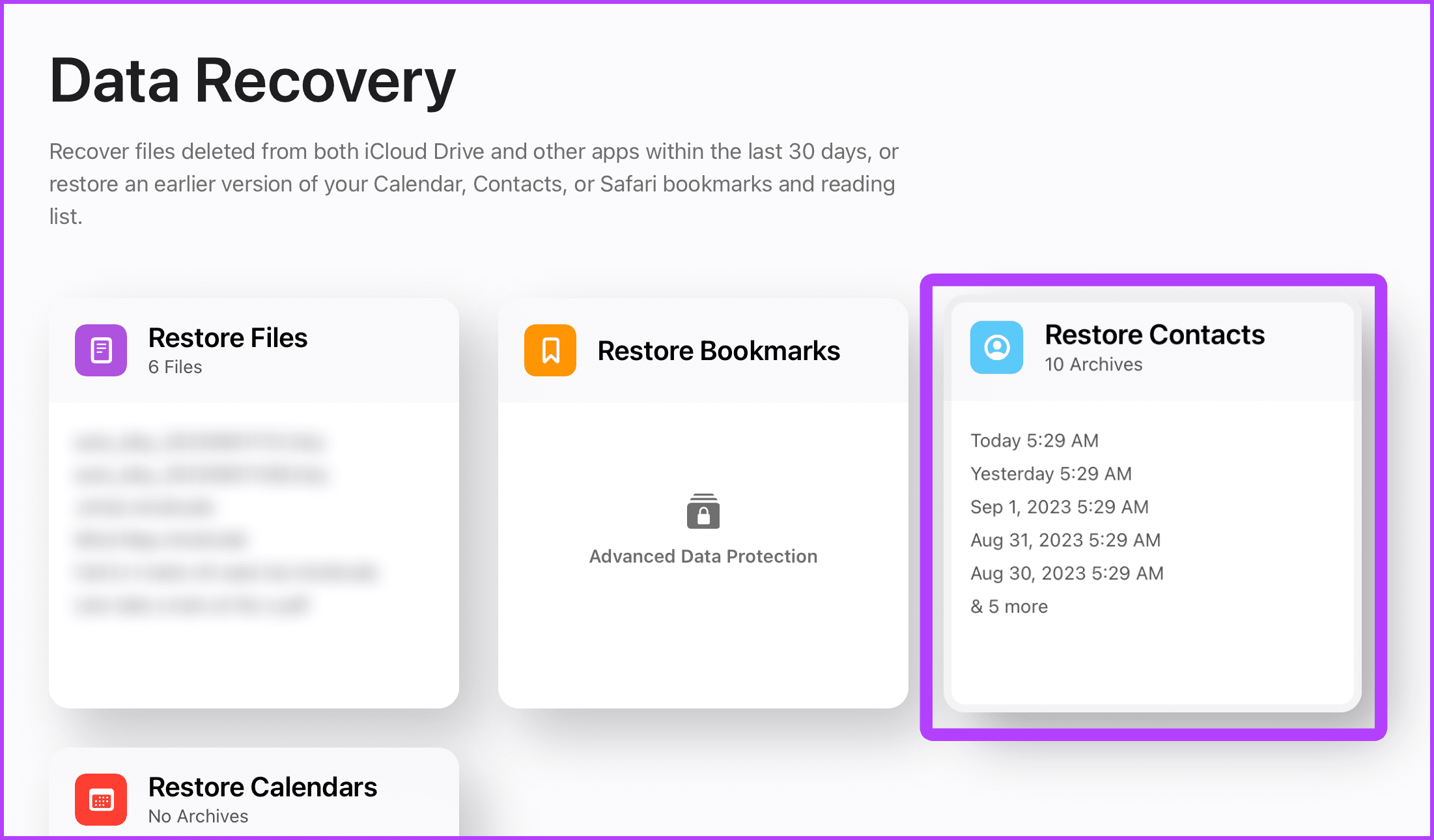
Step 3: A list of contacts archive will open. Click on Restore in front of the recent ones to restore it.

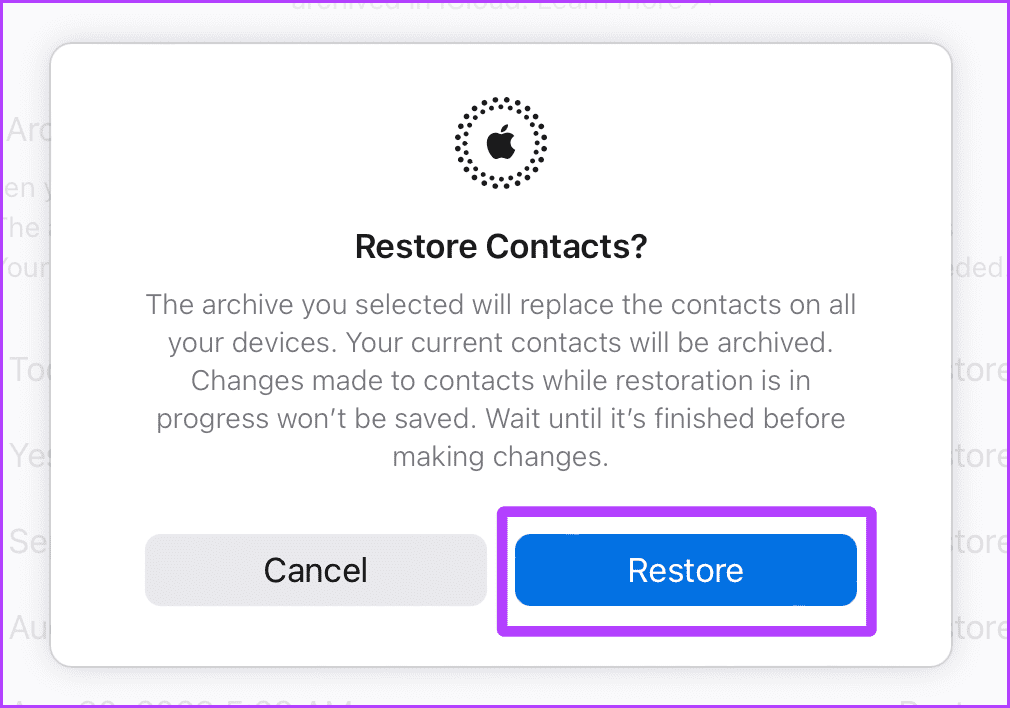
Step 4: Click Restore to confirm the restoration of Contacts.
If you cannot recover your iCloud contacts with the help of the method mentioned above, we suggest you contact Apple Support to get more assistance as soon as possible.
However, if it was Google contacts that you were looking to restore, let’s move on to the next section.
Method 3: Recover Deleted Google Contacts on iPhone
Google also allows you to recover deleted contacts, whether it was deleted from an iPhone or an Android.
Step 1: Open Google Contacts in any browser on your Mac or PC and click Trash.

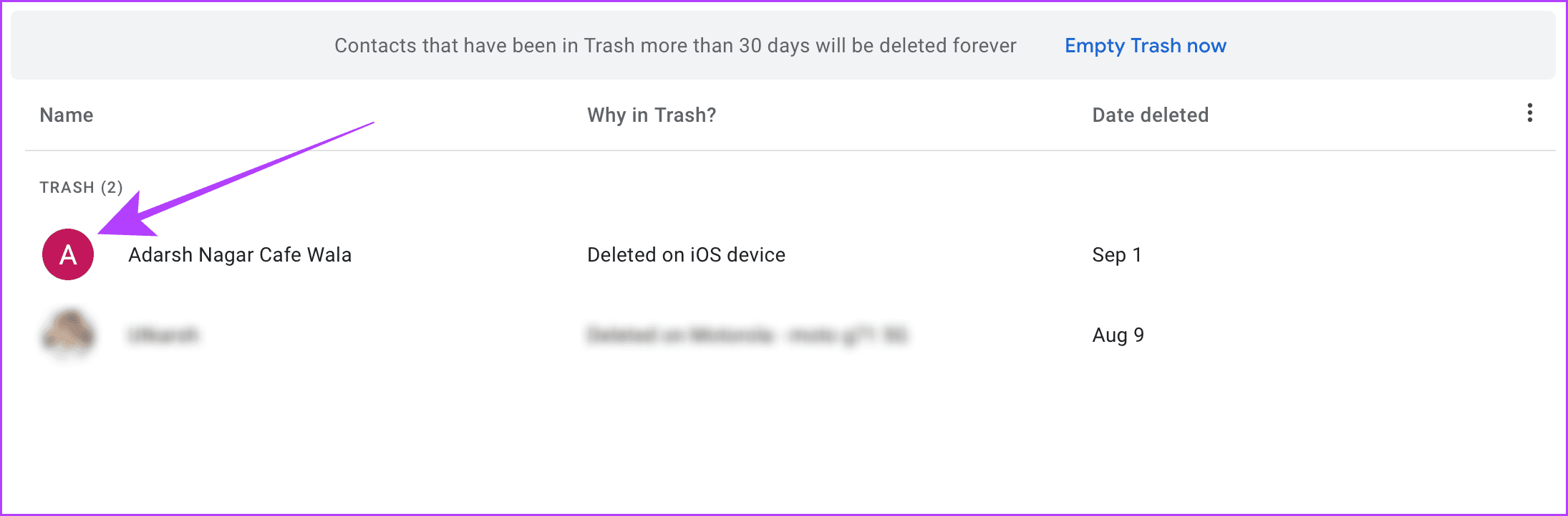
Step 2: Take your mouse pointer to the contact you want to restore and click to select it.
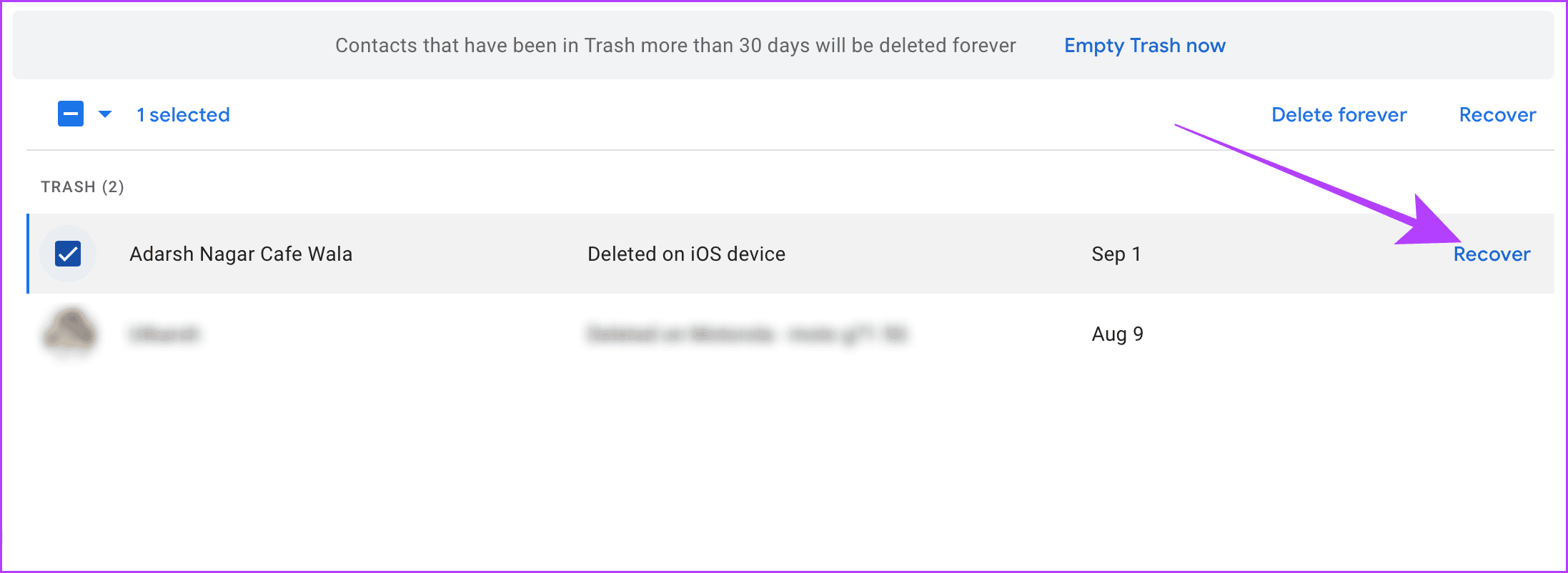
Step 3: Now, click Recover. The contact should reappear soon on your iPhone.
Method 4: Restore Contacts From iCloud Backup
You can also try restoring from iCloud backup. But do note that you will need to erase your device first and then follow the below steps to restore it from the iCloud backup. Your contact will get automatically restored to your iPhone, along with the device backup.
Note: This is a lengthy process, and you can’t use your device while erasing and restoring; hence, proceed cautiously.
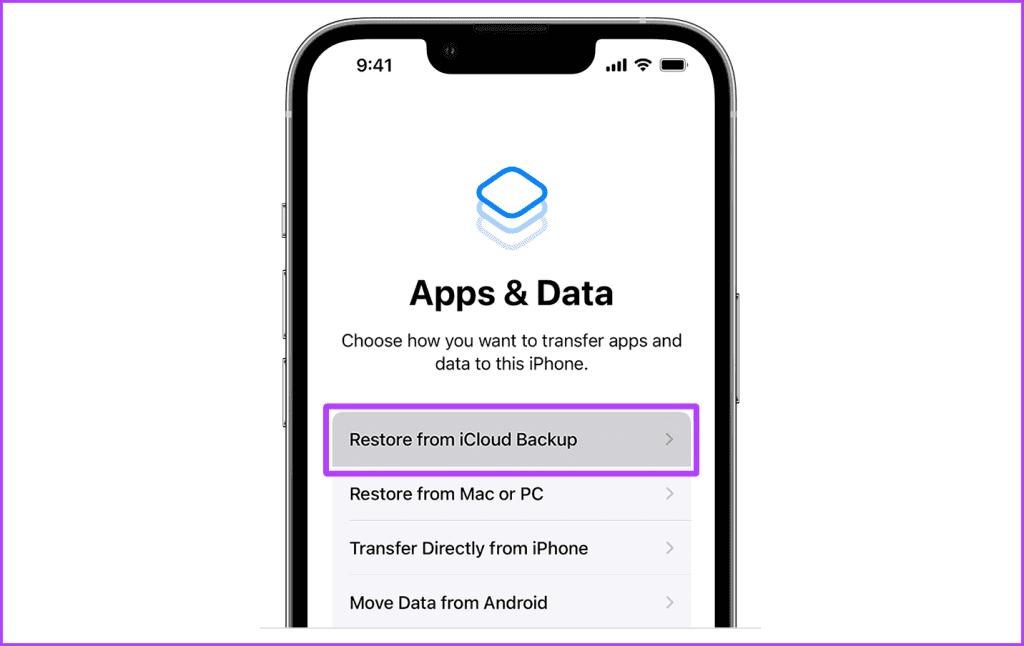
Step 1: Turn on your iPhone and follow the prompts until you see the Apps & Data page. Tap Restore from iCloud Backup.
Step 2: Now, sign in with the same Apple ID.
Step 3: Tap on a backup to restore it to your iPhone. And let the iPhone restore.
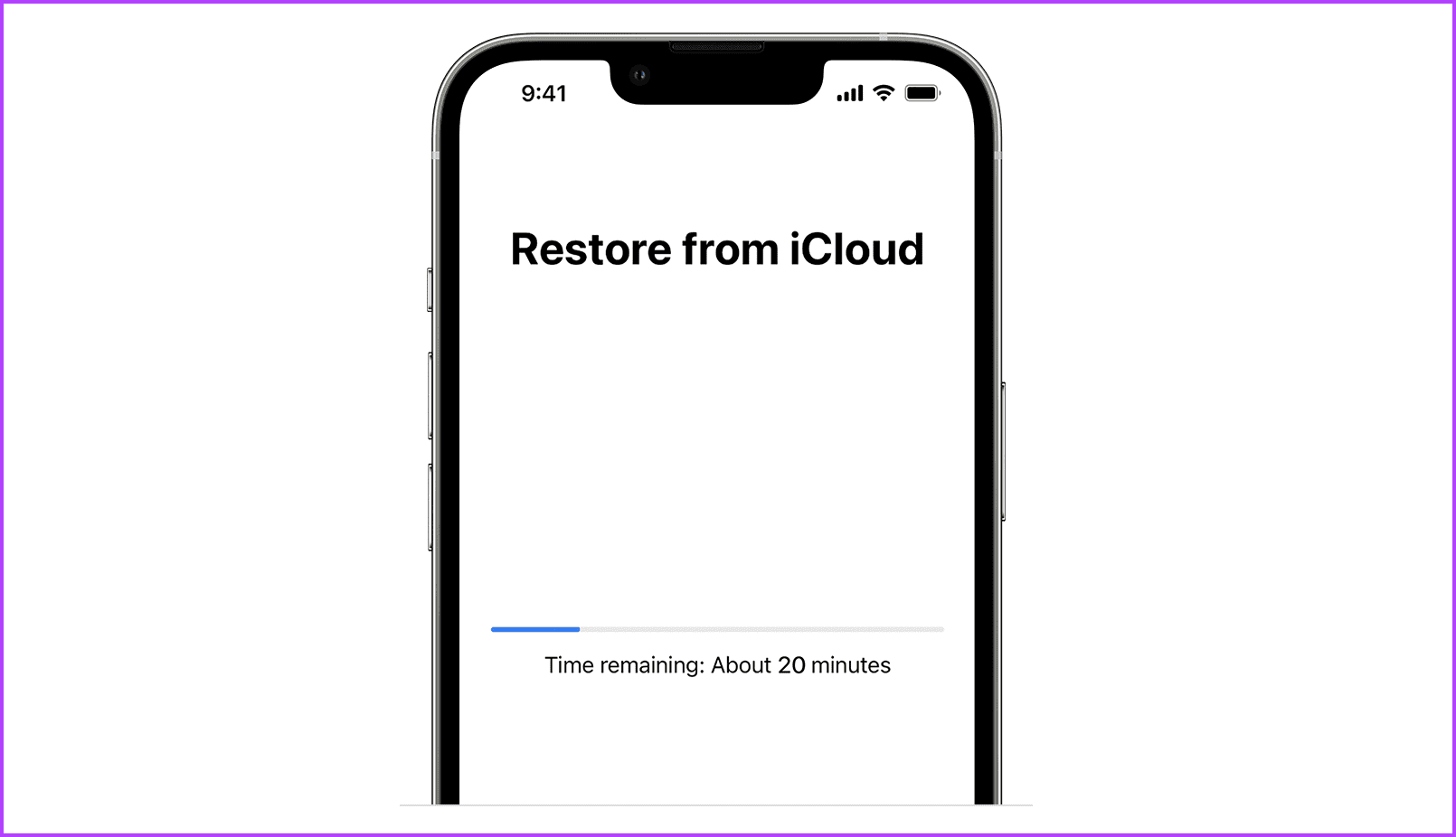
Once restore completes, follow the prompts to finish setup, and you will get your contacts back on your iPhone.
Method 5: Recover Deleted Contacts From PC or Mac Backup
If you want to retrieve deleted phone numbers on your iPhone without using iCloud, you can also use a Finder backup of your iOS device. However, you must have taken your iPhone backup recently to ensure you can retrieve the deleted contacts.
Note: This is time-consuming, and you can’t use your device while erasing and restoring; hence, proceed cautiously.
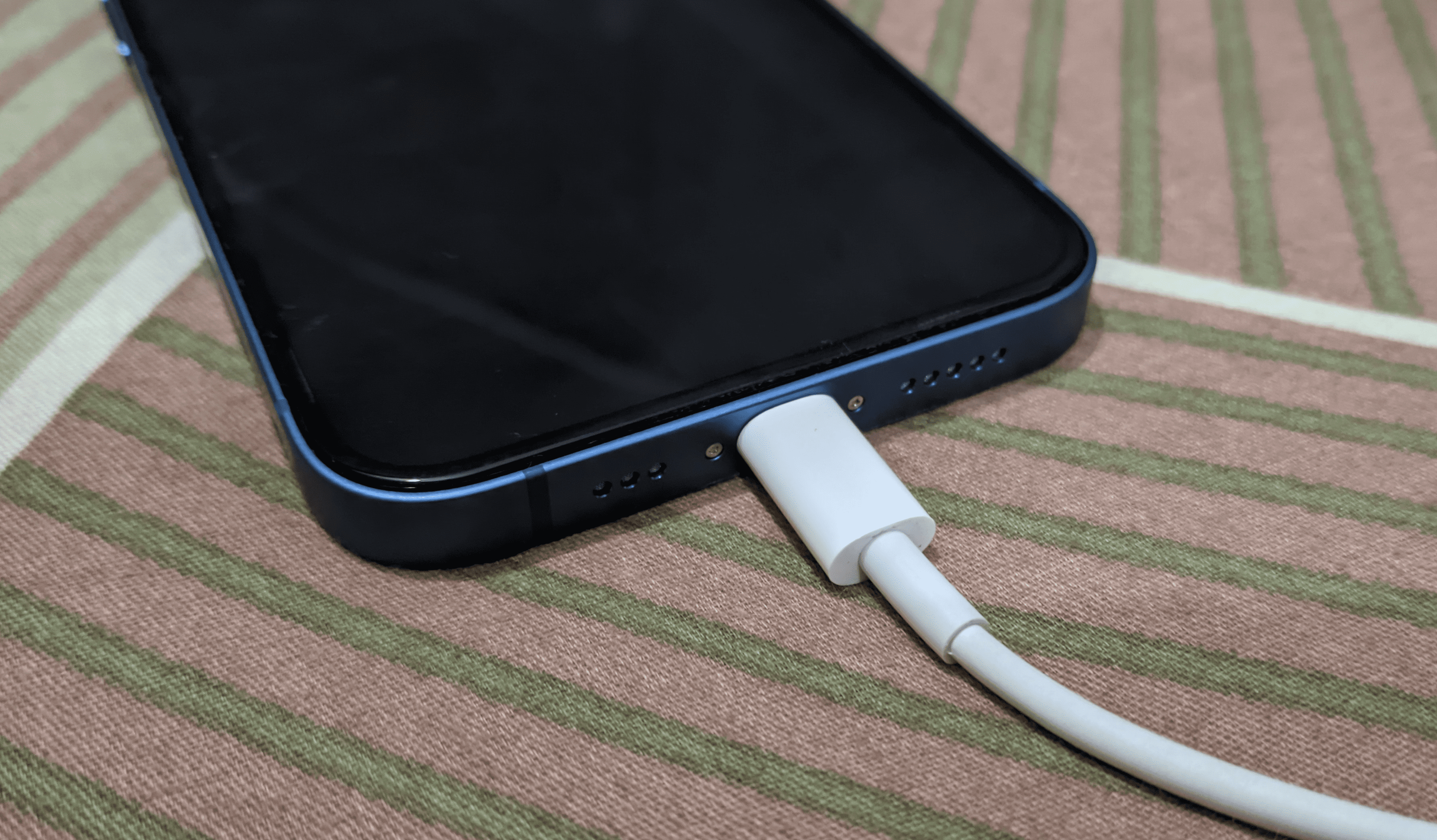
Step 1: Connect your iPhone to your Mac or PC with the help of a USB cable.
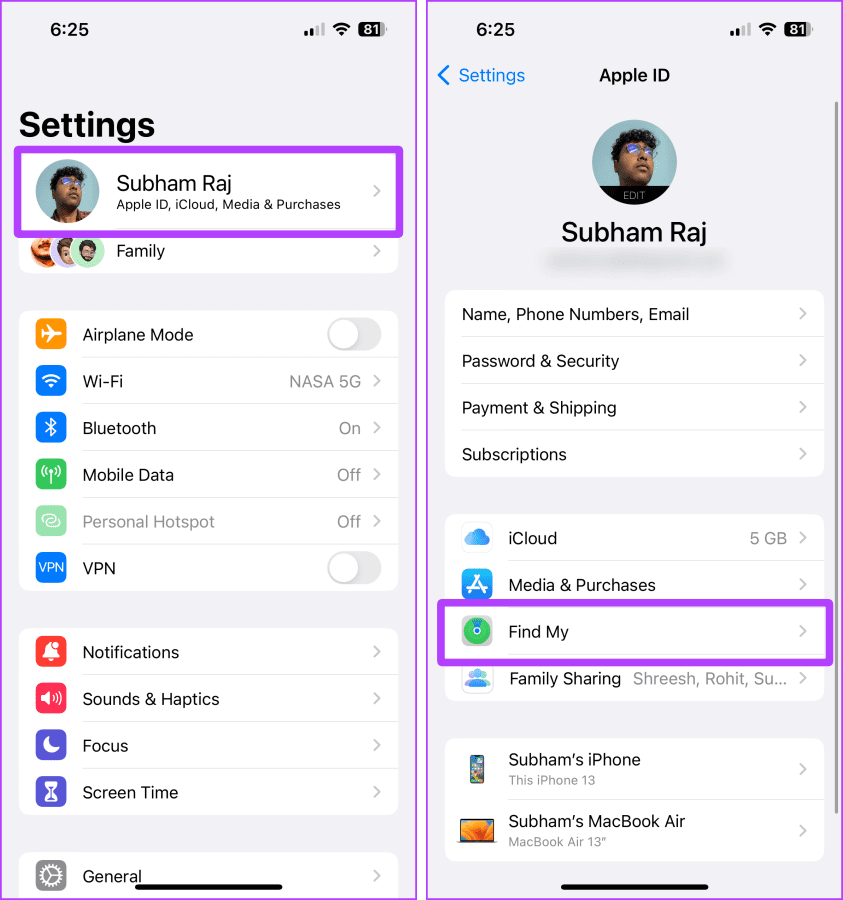
Step 2: Now open Settings on your iPhone and go to Name/Apple ID > Find My.
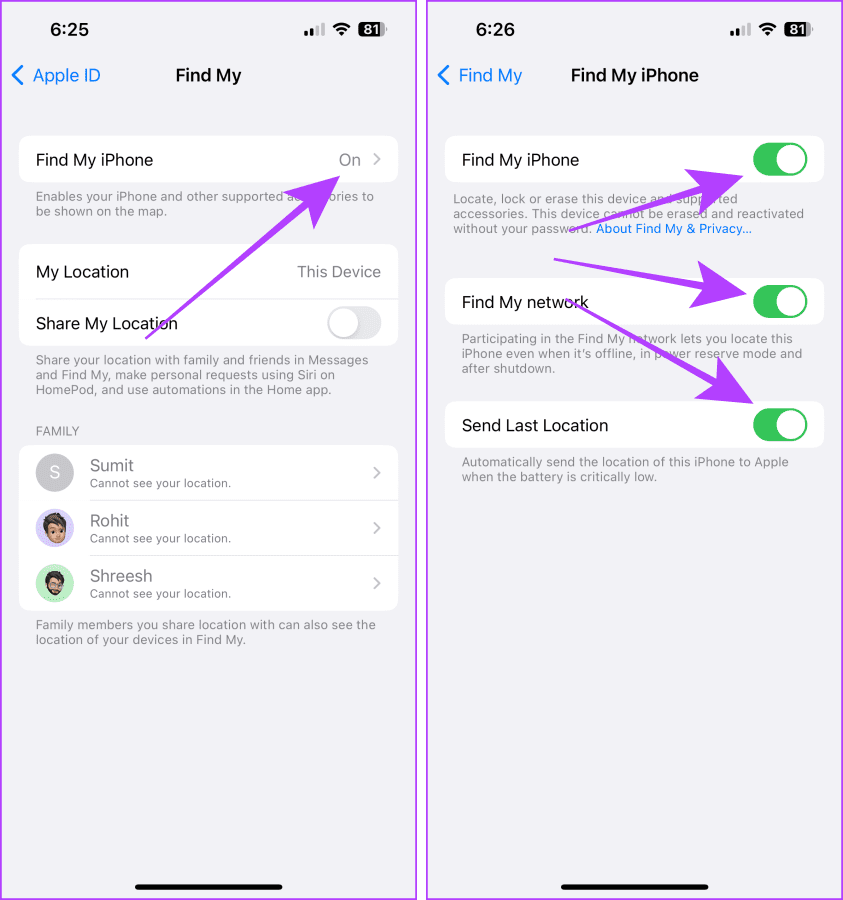
Step 3: Tap Find My iPhone.
Step 4: Now, turn off all the toggles on the Find My iPhone page, and enter the password for your Apple ID when prompted.
Now, move on to your Mac (computer) for further steps.
Step 5: Open Finder on your Mac and click on your iPhone from the sidebar.
Tip: If you are using a Mac with macOS Mojave or earlier or a PC, open iTunes instead of Finder.

Step 6: Now, click on Restore iPhone. Then, choose a backup to restore from and follow the prompts to restore it.
Once the restore is done, your iPhone will boot up with the restored contacts. And that’s it.

FAQs Related to Contacts on iPhone
You can restore the last ten versions of your iCloud contacts from the Restore Contacts archive.
No. A maximum of 10 versions of the contacts archive are usually available on iCloud; for further assistance, contact Apple Support.
They should appear shortly. Try restarting your iPhone or logging in and out of your Apple ID, and it should work.
Allow some time to sync; turn the battery saver off if enabled. And it should appear right away.
Also Read: How to add or remove contacts from Favorites on iPhone
Was this helpful?
Last updated on 29 August, 2024
Read Next
 How to Restore Deleted Contacts from Google
Method 1: Using the Google Contacts App If you use a Stock Android phone, it must have the Google Contacts app.
How to Restore Deleted Contacts from Google
Method 1: Using the Google Contacts App If you use a Stock Android phone, it must have the Google Contacts app.
 iCloud Contacts vs Google Contacts: Where Should You Save Contacts on Your iPhone
When you are using an Android phone, one prefers using Google Contacts to store and manage contacts.
iCloud Contacts vs Google Contacts: Where Should You Save Contacts on Your iPhone
When you are using an Android phone, one prefers using Google Contacts to store and manage contacts.
 Google Contacts vs Samsung Contacts: Which App Is Best for Saving and Managing Contacts
Apart from phones running Stock Android, all other Android phones have their own set of basic apps.
Google Contacts vs Samsung Contacts: Which App Is Best for Saving and Managing Contacts
Apart from phones running Stock Android, all other Android phones have their own set of basic apps.
 5 Fixes for “Not All Contacts Were Deleted” Error on iPhone
Fix 1: Delete Contact Using the Same App Used to Create It One of the most common reasons you may encounter the "Not all contacts were deleted" error on your
5 Fixes for “Not All Contacts Were Deleted” Error on iPhone
Fix 1: Delete Contact Using the Same App Used to Create It One of the most common reasons you may encounter the "Not all contacts were deleted" error on your
 How to Restore Accidentally Deleted Google Play Store
Fix 1: Check Hidden Apps The Play Store might be missing from your phone because you have hidden it accidentally.
How to Restore Accidentally Deleted Google Play Store
Fix 1: Check Hidden Apps The Play Store might be missing from your phone because you have hidden it accidentally.
 5 Ways to Retrieve Deleted Text Messages on iPhone
Method 1: Check the Recently Deleted Folder iOS lets you retrieve deleted text messages within 30 days.
5 Ways to Retrieve Deleted Text Messages on iPhone
Method 1: Check the Recently Deleted Folder iOS lets you retrieve deleted text messages within 30 days.
 5 Ways to Retrieve Deleted Call History on iPhone
Method 1: Using iCloud Backup Your iPhone takes a regular backup of your data.
5 Ways to Retrieve Deleted Call History on iPhone
Method 1: Using iCloud Backup Your iPhone takes a regular backup of your data.
 How to Use Google Contacts Instead of Samsung Contacts
Samsung Galaxy phones carry a lot of pre-loaded apps, and some of them you'll rarely use.
How to Use Google Contacts Instead of Samsung Contacts
Samsung Galaxy phones carry a lot of pre-loaded apps, and some of them you'll rarely use.
The article above may contain affiliate links which help support Guiding Tech. The content remains unbiased and authentic and will never affect our editorial integrity.