Did you hear that? Of course not, and that’s why you’re here. Some Windows 11 users report a loss of sound on their machine after making the shift from Windows 10 or following a Windows 11 system update.
Because it’s only the software that’s changed, the problems are software-based and most often have to do with the drivers. In this article, we’ll look at how to get sound flowing through your speakers again.
No Sound After Windows 11 Update – It’s All About the Software
There’s a lot involved with an operating system update. It’s quite a wonder that things go as smoothly as they do, considering all that’s being replaced and upgraded. If you’re struggling with sound on Windows 11 after an update or upgrade, some major causes could be:
- Drivers – Outdated drivers can conflict with newer system software or become incompatible.
- Corruption – Files (like drivers) can get lost or corrupted during the update process.
- Improper Updating – The Windows Update may fail or partially complete, leaving many problems.
Knowing the problem is good, but solving it is better.
Fix Windows 11 “No Sound” After Update
Here are some possible fixes to try to get sound back on your PC:
Obvious Checks and Fixes
It’s important not to forget these easily overlooked, yet crucial troubleshooters:
- Mute – Check your volume in the System Tray at the bottom right of the screen. If your Sound icon has an “X” through it, you’re on mute. Also, check the volume slider.
- Audio Device – Make sure your headphones or speakers are working. Plug them (or connect them) into a different device to confirm.
- Check Different Apps – Your web browser might be muted by Windows while your media player is fine. See whether the problem is local or universal.
- Updates – Make sure your PC is fully updated and all patches and hotfixes are applied.
- Restart – Restarting your machine can repair a lot of problems, even driver issues.
Windows Troubleshoot
Windows includes its own troubleshooting processes for different components. The Audio troubleshooter could help fix your problems. To use it:
1. Right-click the Sound icon in the System tray and choose “Troubleshoot sound problems” from the pop-up menu.
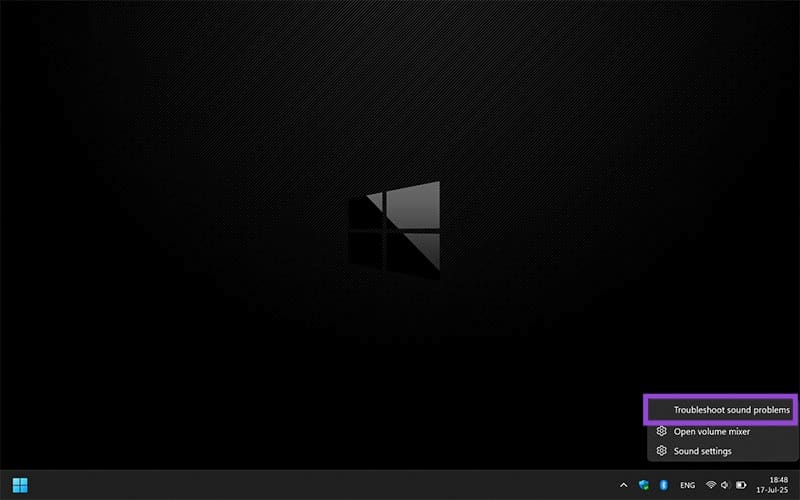
2. Follow the prompts. The troubleshooter will run and attempt to solve your problems.
Confirm Your Audio Device
Your speakers or headphones might be connected, but not recognized by Windows 11. Here’s how to confirm:
1. Right-click the Sound icon in your System Tray at the bottom right of the screen.
2. Select “Sound settings” from the pop-up menu.

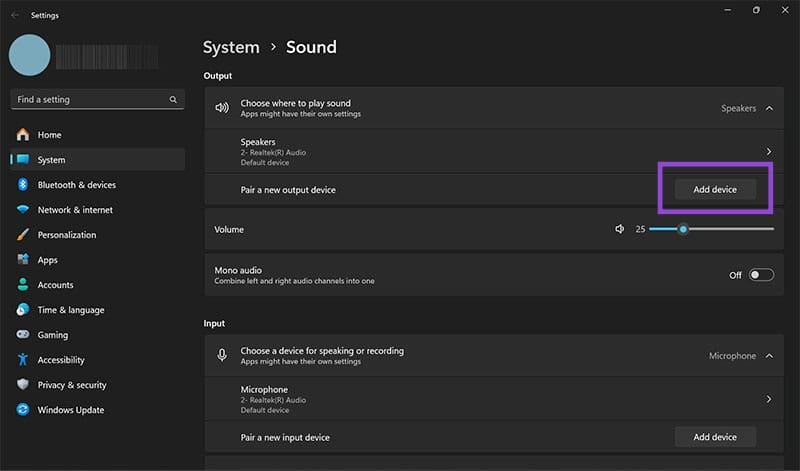
3. In the “Output” subsection, you’ll see your list of recognized audio devices. Click the circle next to the one you want and test it.


4. If you don’t see your device, you can try adding it by clicking the “Add device” button.
Restart Audio Services
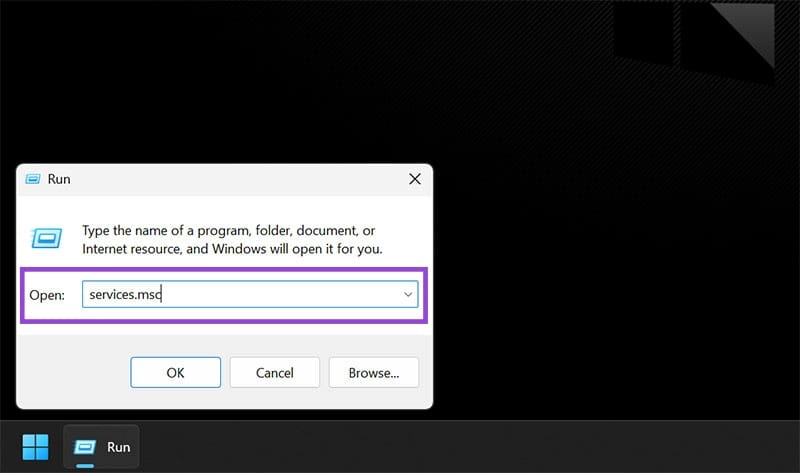
Instead of restarting your entire machine, you can just restart your Audio Services through services.msc. To do this:
1. Open the Run Dialog (Win + R) and enter “services.msc” and press (Ctrl + Shift + Enter) to run as an Admin.
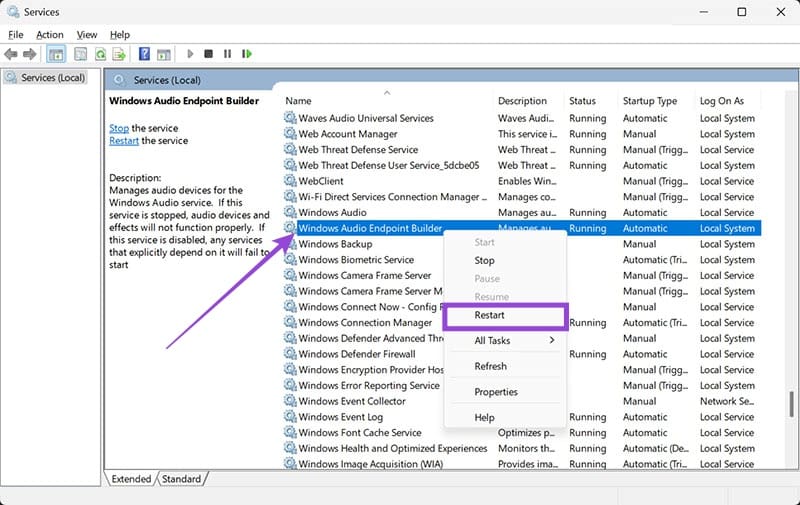
2. Navigate down to “Windows Audio Endpoint Builder.”
3. Right-click it and select “Restart.”
Disable Audio Enhancement
Windows 11 Audio Enhancement is designed to give better sound, but can also result in none. Try disabling it to see if it helps:
1. Open Settings (Win + I) and go to “System.”

2. Select “Sound” and navigate to the “Advanced” section.
3. Click “All sound devices” and select your output.

4. Navigate to the “Output settings” subsection and drag the “Enhance audio” slider to “Off.”

5. Test your device again.
Was this helpful?
Last updated on 19 July, 2025
Read Next
 3 Ways to Delete Old Windows Update Files From Windows 10 and 11
Method 1: Delete Old Windows Update Files via Settings The Storage section of the Settings app provides a detailed breakdown of all temporary files on your PC, including old Windows
3 Ways to Delete Old Windows Update Files From Windows 10 and 11
Method 1: Delete Old Windows Update Files via Settings The Storage section of the Settings app provides a detailed breakdown of all temporary files on your PC, including old Windows
 5 Best Ways To View Windows Update History In Windows 11
By constantly updating your Windows 11 operating system, you get access to new or improved features to deliver a better user experience.
5 Best Ways To View Windows Update History In Windows 11
By constantly updating your Windows 11 operating system, you get access to new or improved features to deliver a better user experience.
 7 Best Fixes for Windows Update Error 0x800f081f in Windows 11
Microsoft regularly releases Windows updates to introduce new features and fix known issues.
7 Best Fixes for Windows Update Error 0x800f081f in Windows 11
Microsoft regularly releases Windows updates to introduce new features and fix known issues.
 11 Ways to Fix Sound Not Working on Windows 11
While Windows 11 is Microsoft's most stable release to date, it's not without its flaws.
11 Ways to Fix Sound Not Working on Windows 11
While Windows 11 is Microsoft's most stable release to date, it's not without its flaws.
 6 Ways to Fix No Sound in Microsoft Edge on Windows 11
Common Fixes Unmute the Edge tab: If you've unknowingly muted a tab, unmute it by right-clicking the tab > Unmute tab.
6 Ways to Fix No Sound in Microsoft Edge on Windows 11
Common Fixes Unmute the Edge tab: If you've unknowingly muted a tab, unmute it by right-clicking the tab > Unmute tab.
 5 Ways to Change Sound Volume in Windows 11
Method 1: Use the Keyboard Shortcut You can use dedicated keyboard shortcuts to change Windows sound volume.
5 Ways to Change Sound Volume in Windows 11
Method 1: Use the Keyboard Shortcut You can use dedicated keyboard shortcuts to change Windows sound volume.
 What Is Spatial Sound in Windows 11: A Comprehensive Guide
The addition of streaming services like Netflix, Disney+, Prime Video, etc., has made good sound quality a necessity.
What Is Spatial Sound in Windows 11: A Comprehensive Guide
The addition of streaming services like Netflix, Disney+, Prime Video, etc., has made good sound quality a necessity.
 How to Enable or Disable Mouse Click Sound on Windows 11
Enable the Mouse Click Sound on Windows 11 If you're tired of your default mouse or trackpad click sound, setting a custom sound will enhance your navigation experience.
How to Enable or Disable Mouse Click Sound on Windows 11
Enable the Mouse Click Sound on Windows 11 If you're tired of your default mouse or trackpad click sound, setting a custom sound will enhance your navigation experience.
The article above may contain affiliate links which help support Guiding Tech. The content remains unbiased and authentic and will never affect our editorial integrity.