Basic Fixes:
- Clear the Gboard app cache: As you use Gboard, it collects data to enhance your experience. However, if there are any issues with this data, it can also spoil the experience. In this case, you can clear the cache for the Gboard app.
- Try using Safe Mode: If you can’t figure out why Gboard Voice Typing is not working, reboot your device in Safe Mode. This will turn off all third-party apps. Then, disable and again enable Microphone permission. Restart your phone again and check.
- Check for the Gboard app update: Apart from the app and device permissions, issues with the app’s software can also cause Voice Typing not to work as expected. So, check and install the latest app updates on your Android device.
- Reinstall the Gboard app: Uninstalling the Gboard app will delete all app settings, data, and features from your device. Your device will temporarily switch to a different keyboard. Then, reinstall the app to start afresh and check again.
Fix 1: Check App Permissions
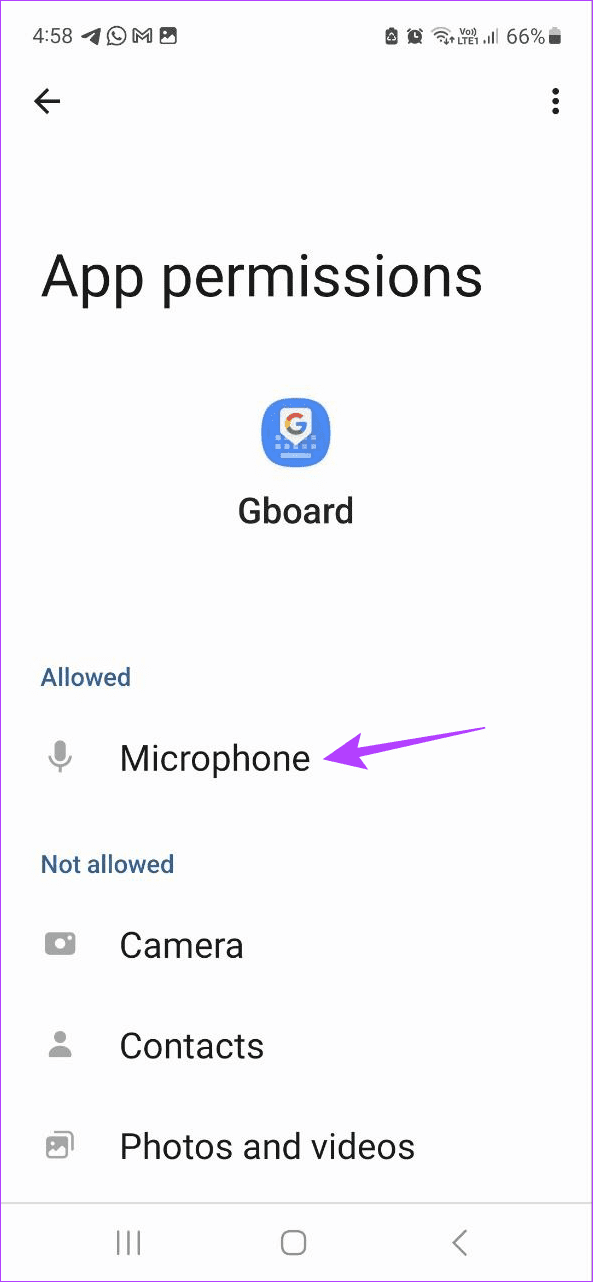
If Gboard can’t access your device’s microphone, you can’t use the Voice Typing feature. This is because the Gboard app uses the microphone to get voice inputs, which are then converted to text. So, check if the necessary permissions have been enabled using the below steps.
Step 1: Open Settings and tap on Apps. Tap on Gboard.

Step 2: Go to Permissions and tap on Microphone. Select the Allow only while using the app option.


Fix 2: Turn on Voice Typing
For you to use Gboard’s Voice Typing feature, it needs to be enabled within the app settings. So, if you can’t use this feature, first and foremost, ensure the relevant settings are turned on. Follow the below steps to do it.
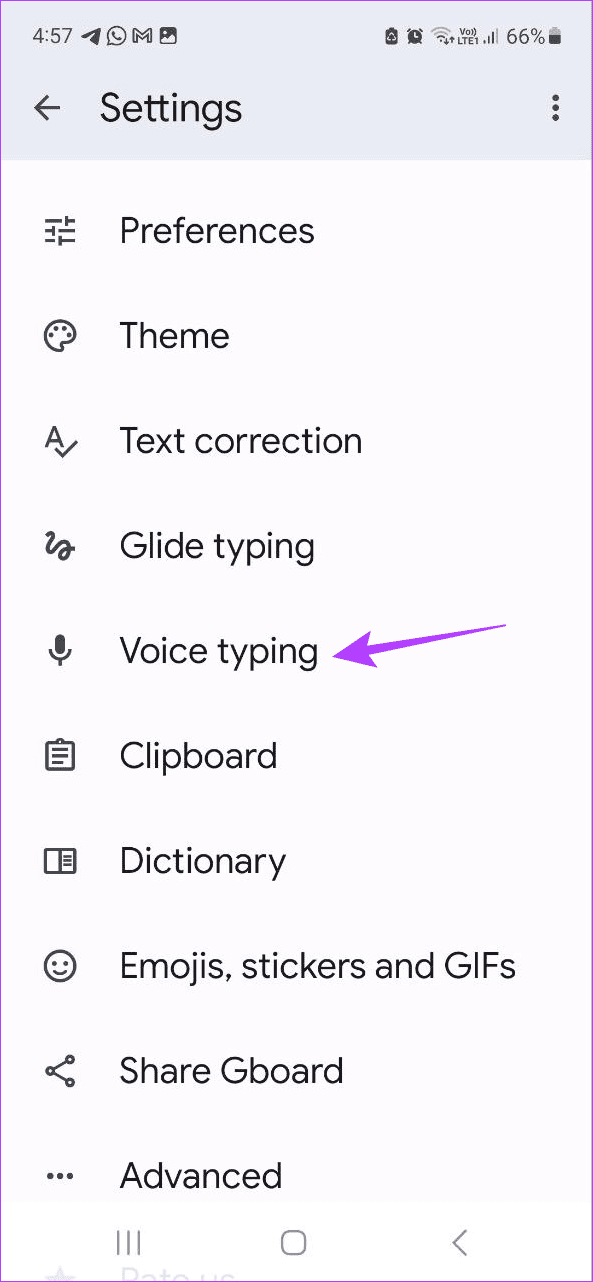
Step 1: Go to any app and open Gboard. Tap the Settings icon.
Step 2: Tap on Voice typing and turn the Use voice typing toggle on.


Also Read: How to fix voice-to-text not working on Android
Fix 3: Enable Microphone Access From Privacy Settings
Besides Gboard settings, your device’s privacy settings can also curtail microphone access. When this happens, you might still get the can’t enable voice typing error on Android. To check this, open the privacy settings and see if the necessary permissions are on. Follow the below steps to do it.
Step 1: Open Settings and tap on Security and privacy. Tap on Privacy.
Step 2: Go to the Controls and alerts section and turn on the toggle for Microphone access.

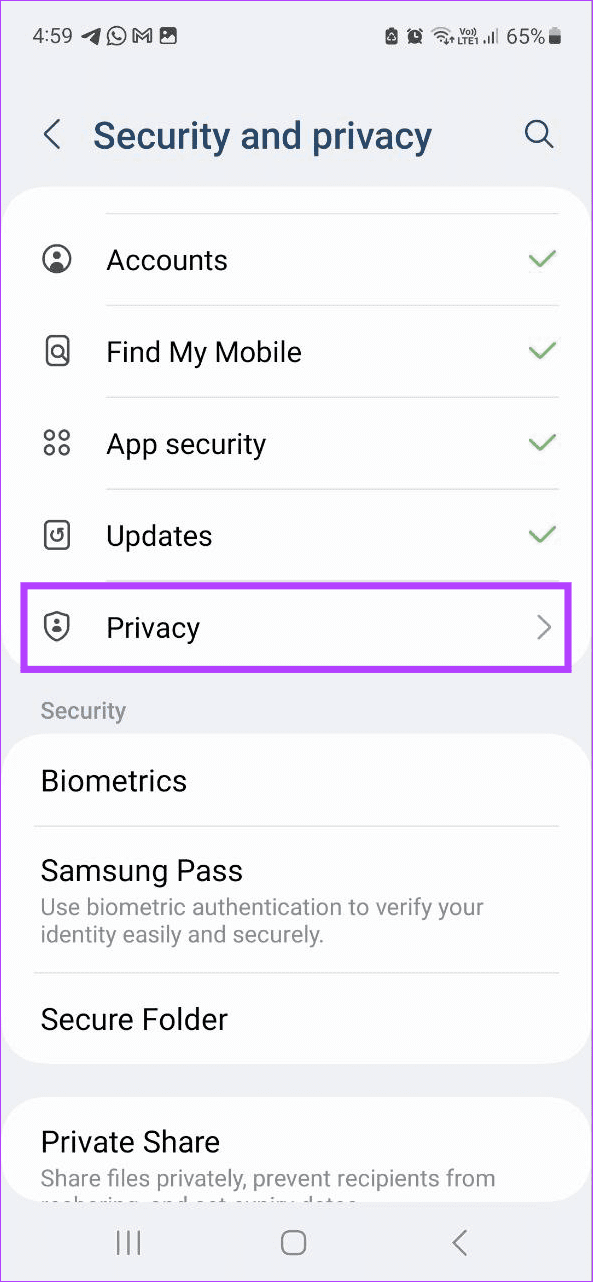

This will ensure the Gboard can use your device’s microphone as long as the relevant app permissions are enabled.
Fix 4: Reset App Preferences
As the name suggests, resetting app preferences will delete all custom settings, preferences, permissions, etc., and reset to default for all the apps installed on your device. The app data, however, will not be deleted. Do this if you still cannot use the Voice Typing feature on Gboard. Here’s how.
Step 1: Open Settings and tap on Apps. Tap the three-dot icon in the top-right corner.

Step 2: Tap on Reset app preferences. Tap on Reset to confirm.

Once done, close and restart all background apps. Then, reopen Gboard and try typing something using Voice Typing to check if the issue is resolved.
Was this helpful?
Last updated on 21 August, 2024
Read Next
 Top 4 Ways to Fix Google Docs Voice Typing Not Working
Voice Typing is one of the many hidden features of Google Docs that people are yet to use regularly.
Top 4 Ways to Fix Google Docs Voice Typing Not Working
Voice Typing is one of the many hidden features of Google Docs that people are yet to use regularly.
 How to Use Voice Typing on Google Docs on Mobile and Desktop
While Google Docs is primarily geared toward drafting formal letters, invites, meeting notes, and table of contents, you can also use it to jot down ideas or as a journal.
How to Use Voice Typing on Google Docs on Mobile and Desktop
While Google Docs is primarily geared toward drafting formal letters, invites, meeting notes, and table of contents, you can also use it to jot down ideas or as a journal.
 How to Disable or Enable Location Permission for Google Chrome
How to Disable or Enable Location in Chrome for Windows or macOS Step 1: Open Google Chrome on your PC.
How to Disable or Enable Location Permission for Google Chrome
How to Disable or Enable Location in Chrome for Windows or macOS Step 1: Open Google Chrome on your PC.
 3 Fixes for Keyboard Typing Wrong Characters in Windows 11
Basic Fixes: Check for faults and replace the bad keyboard: Ensure the keyboard is not faulty.
3 Fixes for Keyboard Typing Wrong Characters in Windows 11
Basic Fixes: Check for faults and replace the bad keyboard: Ensure the keyboard is not faulty.
 6 Ways to Fix Keyboard Typing Lag on Android
Basic Fixes: Let your phone cool down: After a long gaming season or extensive video recording, your Android phone might feel warm to touch on the sides.
6 Ways to Fix Keyboard Typing Lag on Android
Basic Fixes: Let your phone cool down: After a long gaming season or extensive video recording, your Android phone might feel warm to touch on the sides.
 3 Ways to Fix MIUI Dual Apps Permission Denied Error
Basic Fixes Restart device: Restarting your device can eliminate any bugs causing problems with the Dual Apps feature.
3 Ways to Fix MIUI Dual Apps Permission Denied Error
Basic Fixes Restart device: Restarting your device can eliminate any bugs causing problems with the Dual Apps feature.
 3 Fixes for Google Maps Voice Navigation Not Working on Android and iPhone
Basic Fixes Check volume: Check the volume level on your smartphone, and ensure it isn't low.
3 Fixes for Google Maps Voice Navigation Not Working on Android and iPhone
Basic Fixes Check volume: Check the volume level on your smartphone, and ensure it isn't low.
 How to Change Typing Language in WhatsApp on Android and iPhone
On iPhone Method 1: On Apple Keyboard Follow these steps to type in another language in WhatsApp on iPhone using the Apple keyboard: Step 1: Open a WhatsApp chat so
How to Change Typing Language in WhatsApp on Android and iPhone
On iPhone Method 1: On Apple Keyboard Follow these steps to type in another language in WhatsApp on iPhone using the Apple keyboard: Step 1: Open a WhatsApp chat so
The article above may contain affiliate links which help support Guiding Tech. The content remains unbiased and authentic and will never affect our editorial integrity.