What is Microsoft Excel without the power of its functions? Pretty frustrating, actually. Without them, you’re like a wizard without a wand. You want all those powers back. So, if you’re suddenly struggling with Microsoft Excel not recognizing functions, then keep reading. We’ve got a few fixes to try.
Microsoft Excel Not Recognizing Functions – Different Fixes for Different Issues
There can be a few reasons why your functions aren’t working or aren’t recognized. As such, we’ve assembled a few different troubleshooting tips to help you out.
Check Your Syntax and Spelling
Let’s start simple and perhaps a little obvious. Functions need proper syntax and spelling to, well, function. An extra “M” in (=SUM) might render the whole thing ineffective. Double-check your functions for spaces and spelling errors. Where possible, use Excel’s formula dropdown to minimize mistakes.
Regional Differences
A less obvious error is regional differences when it comes to formulae layouts. For example, in the U.S., commas are used as delimiters, in the UK (and British English countries), the semicolon is used. It’s important then to ensure your copy of Excel matches your region. Here’s how:
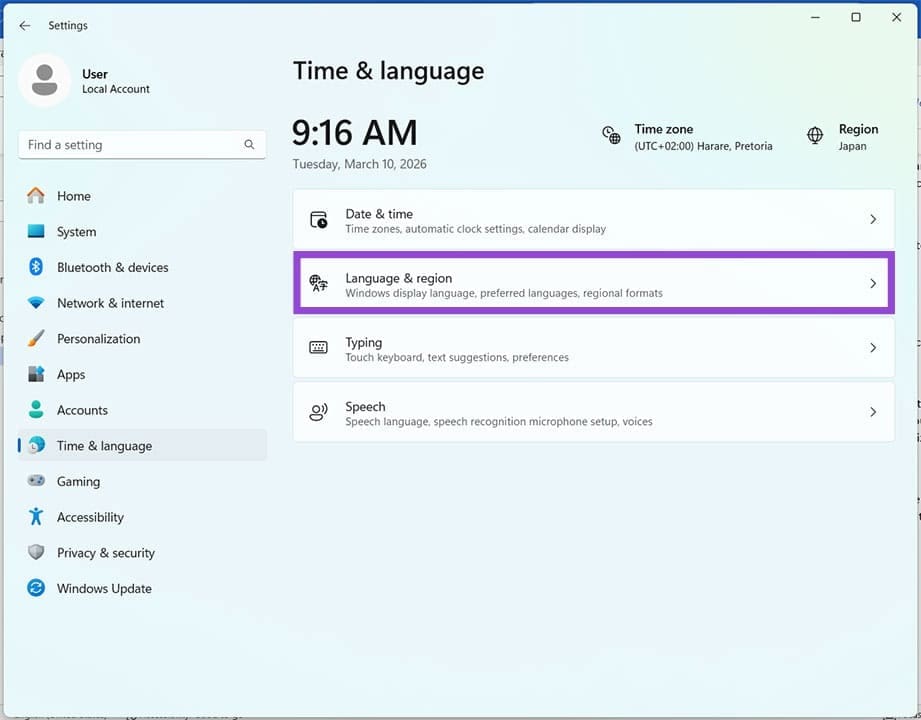
Step 1. Open Settings (Win + I) in Windows and head to “Time & Language” in the sidebar.
Step 2. Click on “Language & region.”
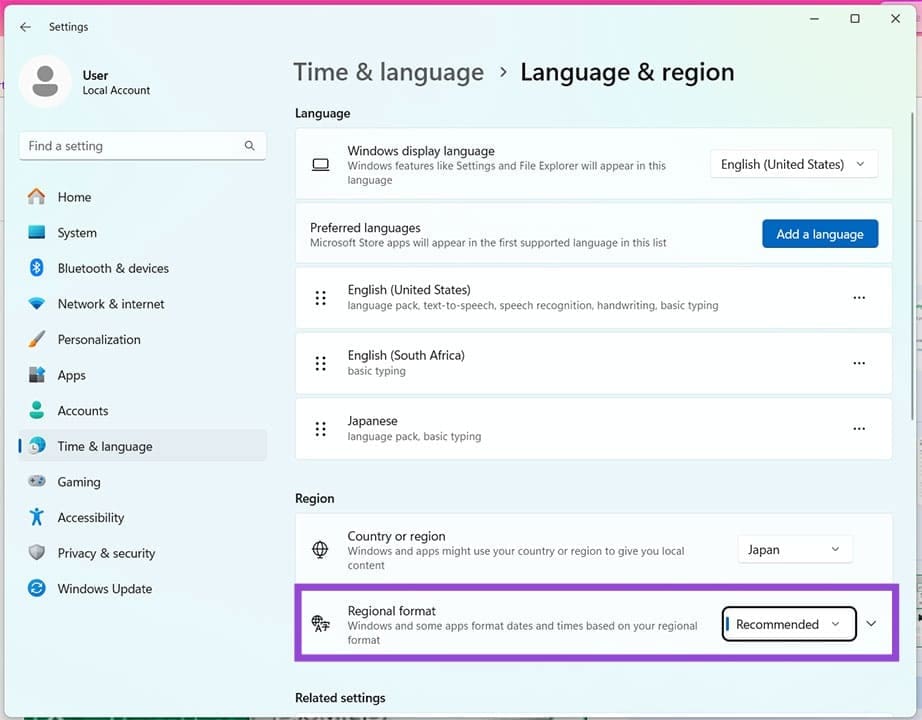
Step 3. Click “Regional Format” and choose your current region to be sure.
For Excel 365 users, you can change regional settings like so:
Step 1. Head to “Options” in the “File” tab.
Step 2. Under “Regional Settings,” choose your current locale and hit the “Change” button.
Ensure Proper Cell Format
It could be that your cell settings have changed, too. By default, cells are formatted as “General,” but wires can get crossed, and you can find yourself with cells reading percentages instead of currency. This is easy to fix:
Step 1. Select the cells your formulae are in and head to the “Home” tab in Excel.
Step 2. In the “Number” section, click the dropdown list and choose “General.”

Step 3. The cells should now be properly formatted for formulae.
Automatic Calculations
Sometimes when a function doesn’t calculate, it can mean that the automatic calculation tool has been turned off. Again, this is very easy to fix:
Step 1. Navigate to the “Formulas” tab.
Step 2. In the “Calculation” subsection, click “Calculation Options.”
Step 3. From the dropdown list, ensure that “Automatic” is checked.

Check Your Add-Ins
Not all functions are native to Excel by default. If you’re using additional function packs, such as the Analysis ToolPak, these need to be installed and enabled before use. To check if they are, do the following:
Step 1. Head to the “File” tab and click “Options” in the sidebar.
Step 2. In the Options window, click “Add-ins” in the sidebar.
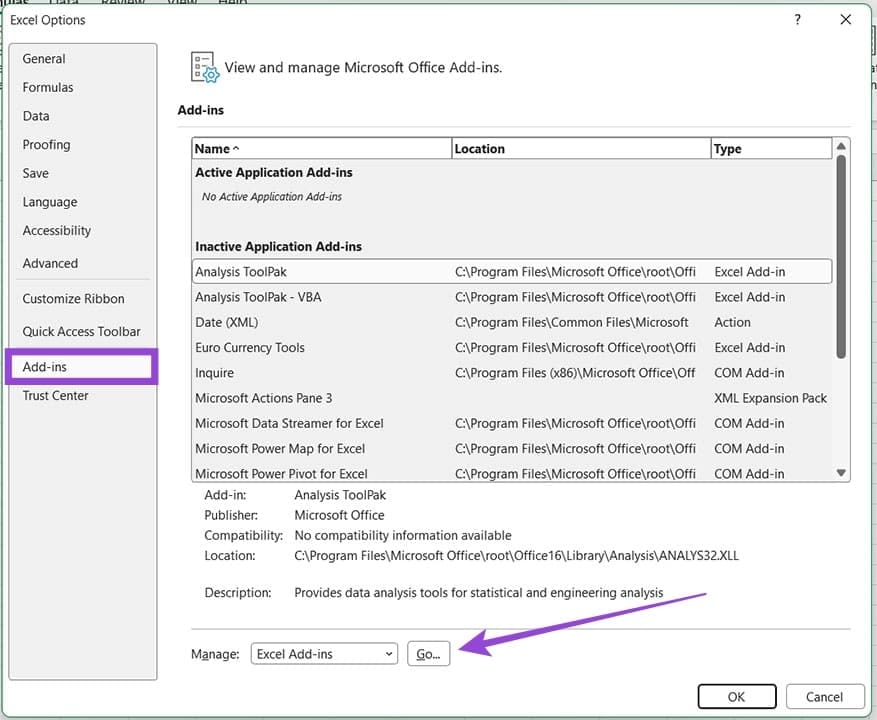
Step 3. Check the status of your add-ins. If you see yours as inactive, click the “Go” button near the bottom of the screen.
Step 4. In the new window, check the add-ins you want to enable and click “OK” to finalize.

Step 5. Check if your formulae are now recognized.
Was this helpful?
Last updated on 12 March, 2026
Read Next
 14 Essential Microsoft Excel Functions for Data Analysis
1.
14 Essential Microsoft Excel Functions for Data Analysis
1.
 How to Customize Functions You See in the Excel Status Bar
One of the best things about using Microsoft Excel to create and edit spreadsheets is that it keeps you updated about the status of your work.
How to Customize Functions You See in the Excel Status Bar
One of the best things about using Microsoft Excel to create and edit spreadsheets is that it keeps you updated about the status of your work.
 Top 9 Ways to Fix Windows 11 Computer Not Recognizing Headphones
Connecting your favorite pair of headphones allows you to isolate yourself from the surrounding noise and lets you focus on the task at hand.
Top 9 Ways to Fix Windows 11 Computer Not Recognizing Headphones
Connecting your favorite pair of headphones allows you to isolate yourself from the surrounding noise and lets you focus on the task at hand.
 6 Fixes if Windows 11 Is Not Recognizing USB Devices
Fix 1: Unlock and Trust the Device Some devices, like iPhones or Androids, have an added layer of authentication to verify user identity.
6 Fixes if Windows 11 Is Not Recognizing USB Devices
Fix 1: Unlock and Trust the Device Some devices, like iPhones or Androids, have an added layer of authentication to verify user identity.
 Top 7 Ways to Fix Steam Not Recognizing Controller on Windows 11
Select games on your PC are more fun with a controller rather than the keyboard and mouse combo.
Top 7 Ways to Fix Steam Not Recognizing Controller on Windows 11
Select games on your PC are more fun with a controller rather than the keyboard and mouse combo.
 Windows 11 Not Recognizing Printer – Three Fixes
It can be super annoying when your printer randomly decides to up and stop working in Windows 11.
Windows 11 Not Recognizing Printer – Three Fixes
It can be super annoying when your printer randomly decides to up and stop working in Windows 11.
 3 Fixes for Amazon Fire TV Stick 4K Not Recognizing USB Drive
Basic Fixes Avoid using largely sized USB drives: You need to avoid using USB drives that are larger than 128GB in size.
3 Fixes for Amazon Fire TV Stick 4K Not Recognizing USB Drive
Basic Fixes Avoid using largely sized USB drives: You need to avoid using USB drives that are larger than 128GB in size.
 5 Fixes for Apple Photos Not Recognizing Faces on iPhone
Fix 1: Disable and Re-Enable iCloud Photos Sync A common reason why the Apple Photos app may fail to recognize and organize photos by face is due to sync issues
5 Fixes for Apple Photos Not Recognizing Faces on iPhone
Fix 1: Disable and Re-Enable iCloud Photos Sync A common reason why the Apple Photos app may fail to recognize and organize photos by face is due to sync issues
The article above may contain affiliate links which help support Guiding Tech. The content remains unbiased and authentic and will never affect our editorial integrity.