Set Download Speed Using a Custom Throttle Profile
Chrome’s web development tools, DevTools, are insanely powerful configuration options that help developers test websites under various simulated situations, including differing network conditions. Below, we show you how DevTools allows you to set the download speed using a custom throttle.
Step 1: Launch the Chrome browser.
Step 2: To open Chrome DevTools, press Ctrl + Shift + I on Windows and Linux or Command + Option + I on Mac.
Step 3: Click the Network tab, expand No throttling, and click Add.
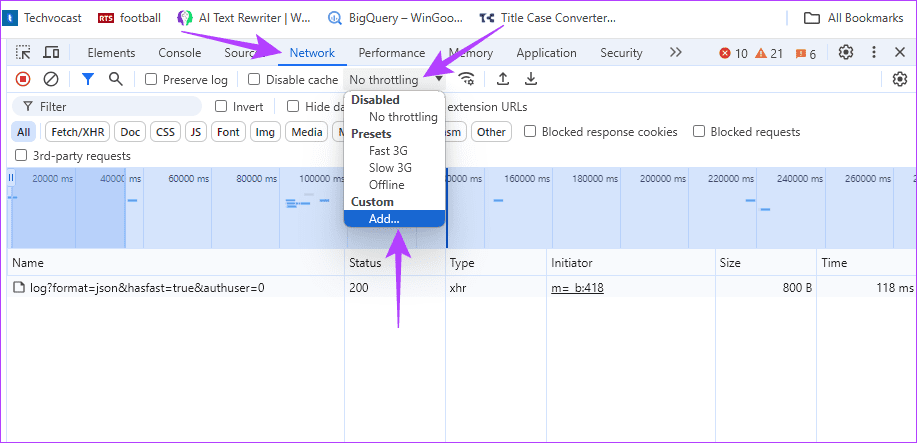
Step 4: Click the Add custom profile option.

Step 5: Fill out your Profile Name, Download, Upload, Latency, Packet Loss, Packet Queue Lenght, and Packet Reordering options as you please, then click Add.

Step 6: Now, select your newly added option on the No throttling option in Step 3.
When you reload the webpage, Chrome will simulate the network conditions defined in your custom profile, including the download speed you specified.
Note: You may set values for Upload speed and Latency (ms) optionally. Also, download speeds are measured in kilobits per second (kbps), not megabits per second (mbps). Since there are 8 bits in a byte, to convert Mbps to kbps, multiply by 8.
Activate Your Throttle Profile Before Downloading
To ensure that your settings don’t affect the downloading item, you should activate the throttle profile before starting a download. Follow the steps below.
Step 1: Launch the Chrome browser.
Step 2: To open Chrome DevTools, press Ctrl + Shift + I on Windows and Linux or Command + Option + I on Mac.
Step 3: Click the Network tab, expand the No throttling, and click your desired throttling profile.
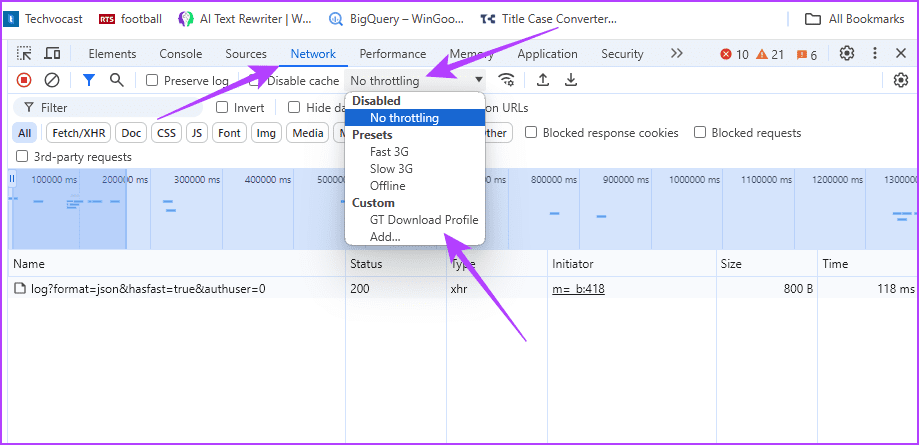
Step 4: Lastly, go and start your download.
Was this helpful?
Last updated on 27 August, 2024
Read Next
 How to Fix Apple Maps Not Showing the Speed Limit
Basic Fixes Switch to 5G: Navigation requires strong internet connectivity at all times.
How to Fix Apple Maps Not Showing the Speed Limit
Basic Fixes Switch to 5G: Navigation requires strong internet connectivity at all times.
 What is the Download Limit For Amazon Prime Video
Amazon’s relatively successful venture into the video streaming business alongwith few Original releases from their own production has found an audience across the globe and thanks to its Download and
What is the Download Limit For Amazon Prime Video
Amazon’s relatively successful venture into the video streaming business alongwith few Original releases from their own production has found an audience across the globe and thanks to its Download and
 4 Ways to Fix Slow Download Speed in Microsoft Edge for Windows
Basic Yet Essential Fixes Check internet speed: If your internet speed is slow or bandwidth is less, all downloads will get slow.
4 Ways to Fix Slow Download Speed in Microsoft Edge for Windows
Basic Yet Essential Fixes Check internet speed: If your internet speed is slow or bandwidth is less, all downloads will get slow.
 4 Ways to Fix Slow Download Speed in Epic Games Launcher on Windows 11
https://youtu.be/w8E4d-rCMUQ Basic Fixes: Check the Epic Server Status: Epic Games Launcher also relies on multiple servers to operate, and It’s possible that a server might be out of order or
4 Ways to Fix Slow Download Speed in Epic Games Launcher on Windows 11
https://youtu.be/w8E4d-rCMUQ Basic Fixes: Check the Epic Server Status: Epic Games Launcher also relies on multiple servers to operate, and It’s possible that a server might be out of order or
 9 Ways to Limit RAM Usage in Opera GX
https://youtu.be/OqVMVrGSoRY Method 1: Enable Opera GX’s Built-in RAM Limiter Enabling the built-in RAM limiter in Opera GX should be your first solution since this feature will manage how much memory
9 Ways to Limit RAM Usage in Opera GX
https://youtu.be/OqVMVrGSoRY Method 1: Enable Opera GX’s Built-in RAM Limiter Enabling the built-in RAM limiter in Opera GX should be your first solution since this feature will manage how much memory
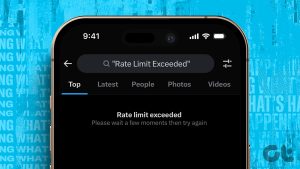 4 Ways to Fix “Rate Limit Exceeded” on X
What Does “Rate Limit Exceeded” Mean on X Recently, X/Twitter introduced usage limits to prevent data scraping on the platform.
4 Ways to Fix “Rate Limit Exceeded” on X
What Does “Rate Limit Exceeded” Mean on X Recently, X/Twitter introduced usage limits to prevent data scraping on the platform.
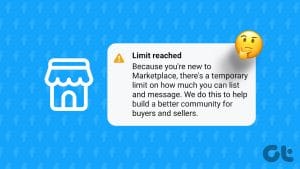 How to Get Rid of Facebook Marketplace Limit Reached Problem
Why Is Facebook Limiting My Account on Marketplace Like most e-commerce platforms, Facebook Marketplace has strict guidelines and rules to follow.
How to Get Rid of Facebook Marketplace Limit Reached Problem
Why Is Facebook Limiting My Account on Marketplace Like most e-commerce platforms, Facebook Marketplace has strict guidelines and rules to follow.
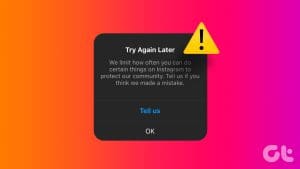 3 Fixes for “We Limit How Often You Can Do Certain Things on Instagram” Error
What Does the "We Limit How Often You Can Do Certain Things on Instagram" Error Mean Instagram takes various measures to protect its platform from the annoying and harmful presence
3 Fixes for “We Limit How Often You Can Do Certain Things on Instagram” Error
What Does the "We Limit How Often You Can Do Certain Things on Instagram" Error Mean Instagram takes various measures to protect its platform from the annoying and harmful presence
The article above may contain affiliate links which help support Guiding Tech. The content remains unbiased and authentic and will never affect our editorial integrity.