


How to Add Hashtags and Mention Someone in Instagram Bio
Although the feature is cool, many people aren’t able to add hashtags and profile links to their profile. Even worse, for some people, hashtags aren’t working in their bio. Are you one of those?
Before proceeding with the solutions, let’s first see how you can add hashtags and links to your Instagram bio.
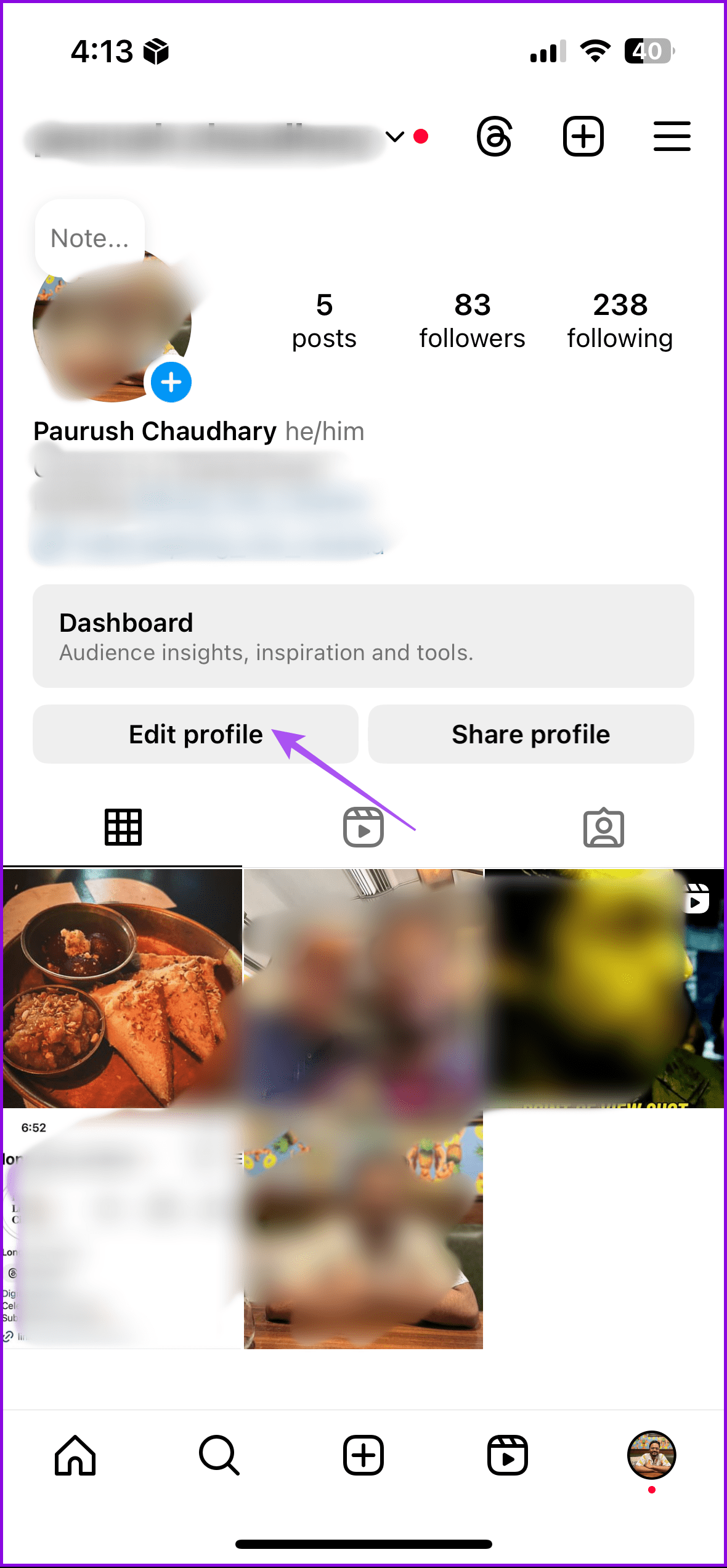
Step 1: Open the Instagram app > go to your profile.
Step 2: Tap on Edit Profile > select Bio.

Step 3: Enter your hashtag and profile link as you normally do in the comments. For instance, add # before a word to make it a hashtag and add @ followed by the profile name.
Instagram will automatically show the relevant hashtags and profile links. If you don’t find your hashtag, don’t worry; add the word preceded by # and tap the check icon to save it.
Step 4: Tap on Done at the top-right corner to save changes.
Also Read: Cool Instagram bio hacks you should know
Things to Know About Instagram Bio Hashtags and Mentions
- If you add a hashtag or profile in your bio, it will be shown as clickable text.
- Your Instagram Bio has a character limit of 150. So, add your hashtags and profile links accordingly.
- Avoid adding banned hashtags. A simple Google search will reveal the hashtags banned by Instagram.
- Once you add the profile link, the tagged person will receive a notification and can remove the profile. In this case, the profile mentioned will still be present in your bio, but it won’t be clickable.
- You can’t mention someone in your Instagram Bio if the person has restricted tags or mentions using profile privacy settings.
3 Fixes for Hashtags and Mentions Not Working in Instagram Bio
Fix 1: Clear App Cache
You can try clearing the app cache, which, if it gets corrupted, can disrupt the regular functioning of an app and its functions.
On iPhone
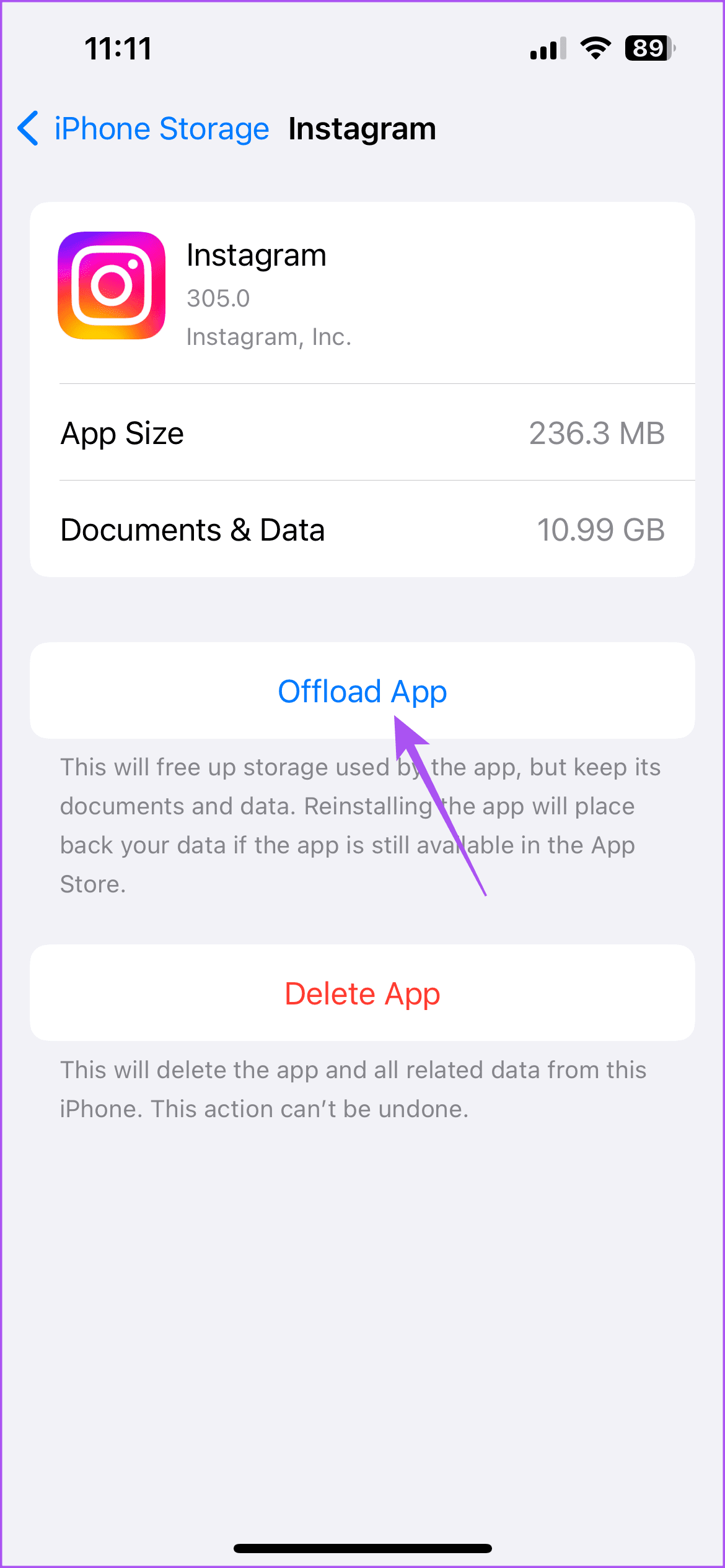
Open Settings > General > iPhone Storage > Instagram > Offload App > Offload. Now, reinstall Instagram.

On Android
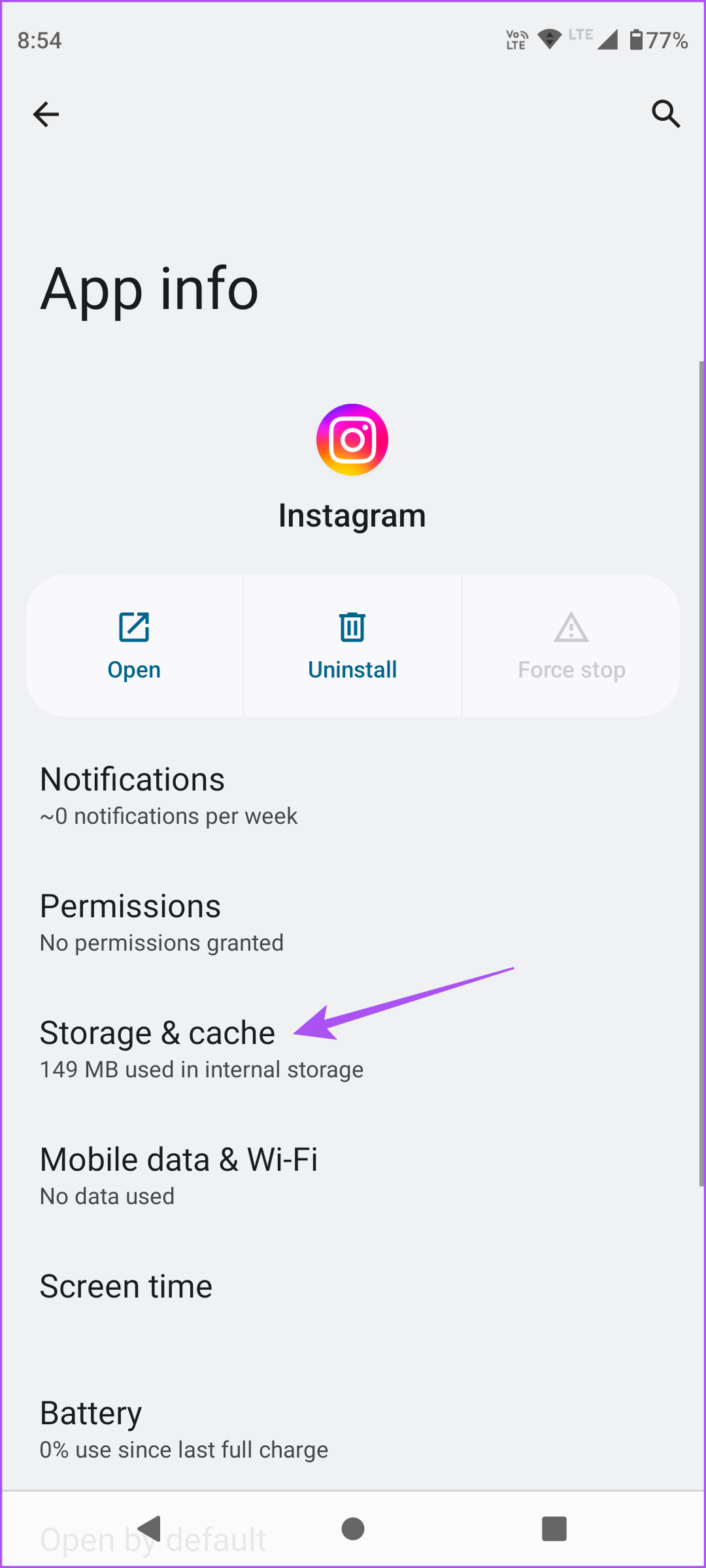
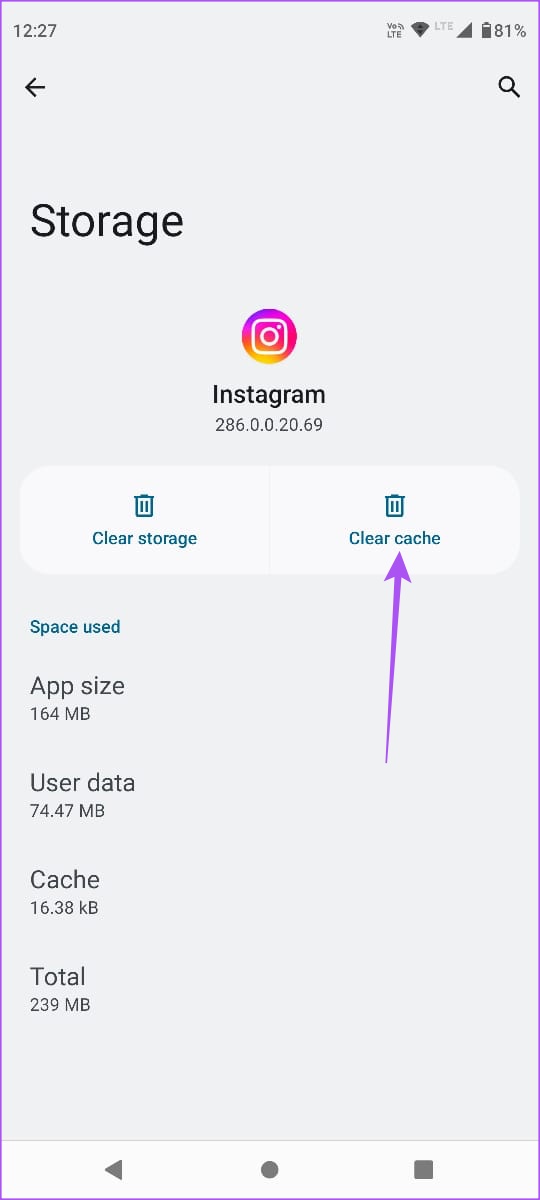
Open Instagram App Info > Storage & cache > Clear cache.
Fix 2: Check Account Status
Account Status on Instagram shows if your profile is following all community guidelines for posting on the platform. You can check it and see if there’s something wrong with it.
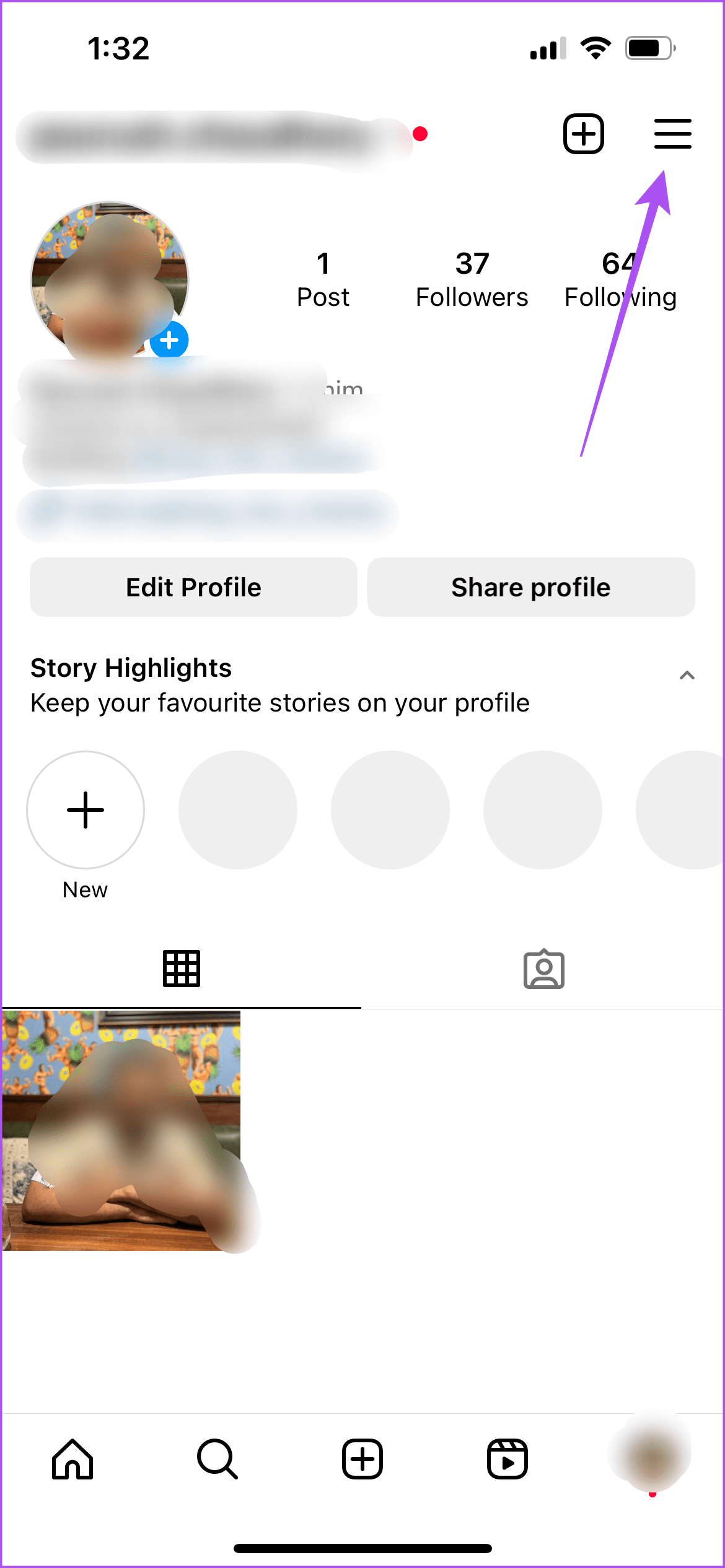
Open Instagram > hamburger menu on your profile page > Account Status.

Fix 3: Report to Instagram
You can report to Instagram about this issue using the app on your iPhone or Android phone. Instagram will get back to you via email and suggest a fix.
Was this helpful?
Last updated on 24 July, 2024
Read Next
 3 Ways to Fix Instagram Not Working, Loading, or Crashing
Fix 1: Reinstall Instagram Most apps release bug fixes through regular updates, and Instagram is no different.
3 Ways to Fix Instagram Not Working, Loading, or Crashing
Fix 1: Reinstall Instagram Most apps release bug fixes through regular updates, and Instagram is no different.
 How to Fix Instagram Save to Collection Not Working (And Other Tips)
Instagram lets you save posts so you can easily reference them later in the future.
How to Fix Instagram Save to Collection Not Working (And Other Tips)
Instagram lets you save posts so you can easily reference them later in the future.
 3 Ways to Fix Instagram Story Sound Not Working
Basic Troubleshooting Turn off silent mode or increase the volume - Instagram's sounds are automatically muted on silent mode.
3 Ways to Fix Instagram Story Sound Not Working
Basic Troubleshooting Turn off silent mode or increase the volume - Instagram's sounds are automatically muted on silent mode.
 3 Ways to Fix Instagram Filters and Effects Not Working
Try These Basic Fixes Use a VPN connection: If your region's privacy laws prohibit using filters, Instagram may display the "This effect is not available in your location" error.
3 Ways to Fix Instagram Filters and Effects Not Working
Try These Basic Fixes Use a VPN connection: If your region's privacy laws prohibit using filters, Instagram may display the "This effect is not available in your location" error.
 5 Ways to Fix Instagram Not Working on Mobile Data
Basic Fixes Check if Instagram is down: Check if Instagram is facing downtime.
5 Ways to Fix Instagram Not Working on Mobile Data
Basic Fixes Check if Instagram is down: Check if Instagram is facing downtime.
 5 Ways to Fix Instagram Links Not Working on Android and iPhone
https://youtu.be/GiuTlMN5gsg Try Basic Fixes Turn Off VPN: At times, using a VPN connection may prevent Instagram links from opening since it routes your traffic through various servers.
5 Ways to Fix Instagram Links Not Working on Android and iPhone
https://youtu.be/GiuTlMN5gsg Try Basic Fixes Turn Off VPN: At times, using a VPN connection may prevent Instagram links from opening since it routes your traffic through various servers.
 4 Ways to Fix Instagram Location Not Working on iPhone and Android
Basic Fixes Disable airplane mode: Disable airplane mode on your phone to capture your GPS location so that apps can use it.
4 Ways to Fix Instagram Location Not Working on iPhone and Android
Basic Fixes Disable airplane mode: Disable airplane mode on your phone to capture your GPS location so that apps can use it.
 3 Ways to Fix GIFs Not Working on Instagram
Basic Fixes: Check for Instagram app updates: Glitches from the previous app updates can prevent certain app functions from working properly.
3 Ways to Fix GIFs Not Working on Instagram
Basic Fixes: Check for Instagram app updates: Glitches from the previous app updates can prevent certain app functions from working properly.
The article above may contain affiliate links which help support Guiding Tech. The content remains unbiased and authentic and will never affect our editorial integrity.

