


How to Insert a Table of Contents in Microsoft Word (Windows and Mac)
As a part of the Office redesign, Microsoft revamped the Word app on the desktop. Follow the steps below to insert a table of contents in Microsoft Word on your desktop. The steps are similar for Windows and Mac.
Step 1: Open the Microsoft Word app.
Step 2: Select a document to insert a table of contents.
Step 3: Select the References tab at the top.

Step 4: Select Table of Contents from the left corner.

Step 5: Click on Headings style.
You can add a manual table of contents or select an automatic one. The Word software will take headings from your document and create one in the automatic table of contents.
If you want to type headings manually, select the third manual table from the list. We are going ahead with an automatic one, as we have already added headings to the document.
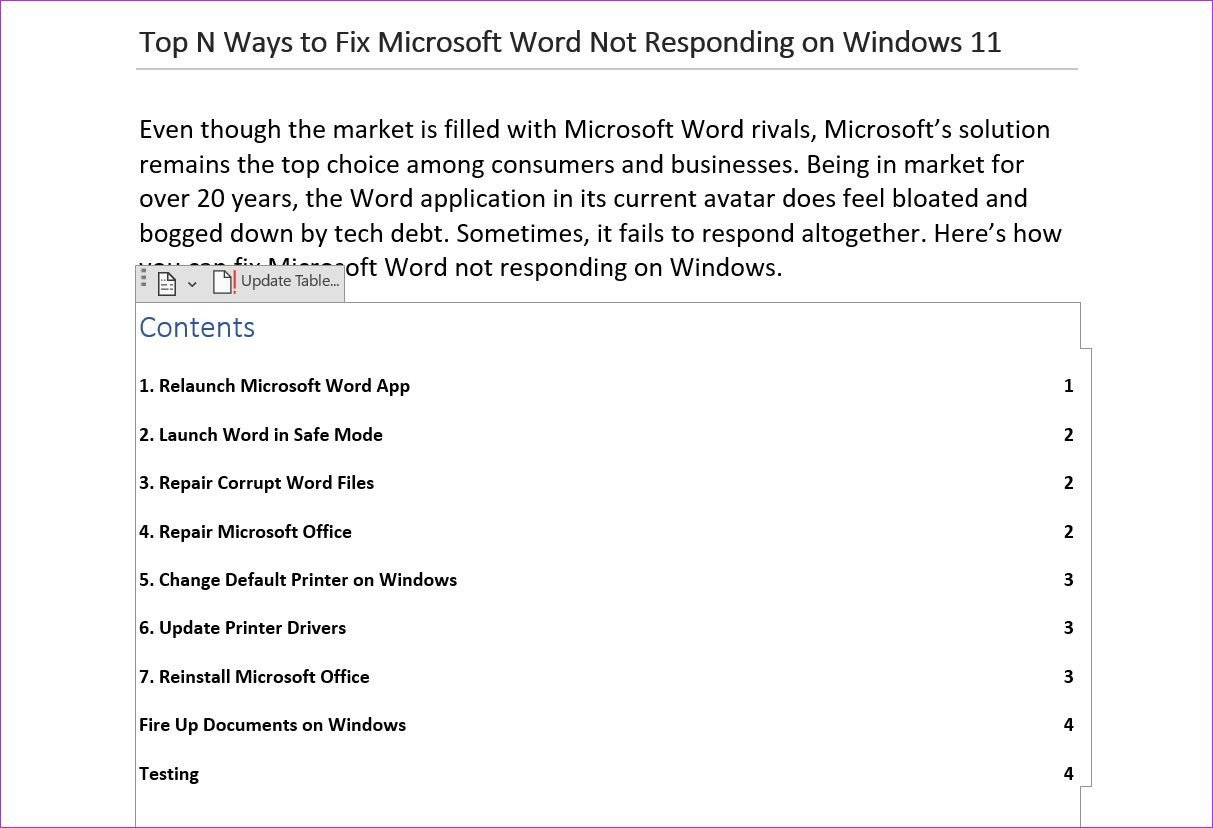
The table of contents appears in the document with page numbers.
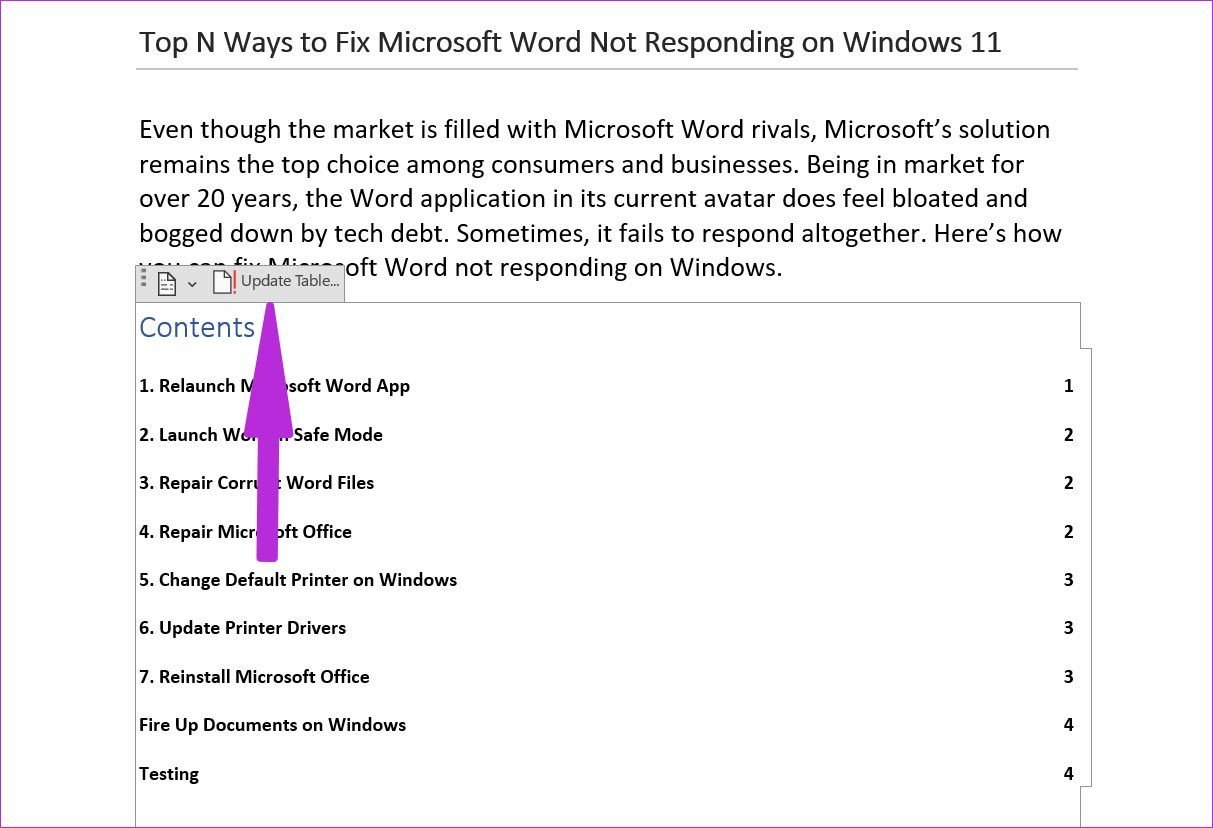
As you continue working on the document, you might add new headings. The default table of contents won’t update itself automatically here. You need to hover the mouse over it and select Update Table from a small pop-up menu.
Pro Tip: You can insert other elements like signatures or spreadsheets on Microsoft Word.
How to Customize Table of Contents in Microsoft Word
If you don’t like the default table of contents style, you can easily customize it based on your preference. Here’s how.
Step 1: From the Word document, select References and expand the table of contents menu.
Step 2: Select Custom Table of Contents from the menu.

Step 3: You can disable page numbers, change tab leader, customize the formats menu, and more.
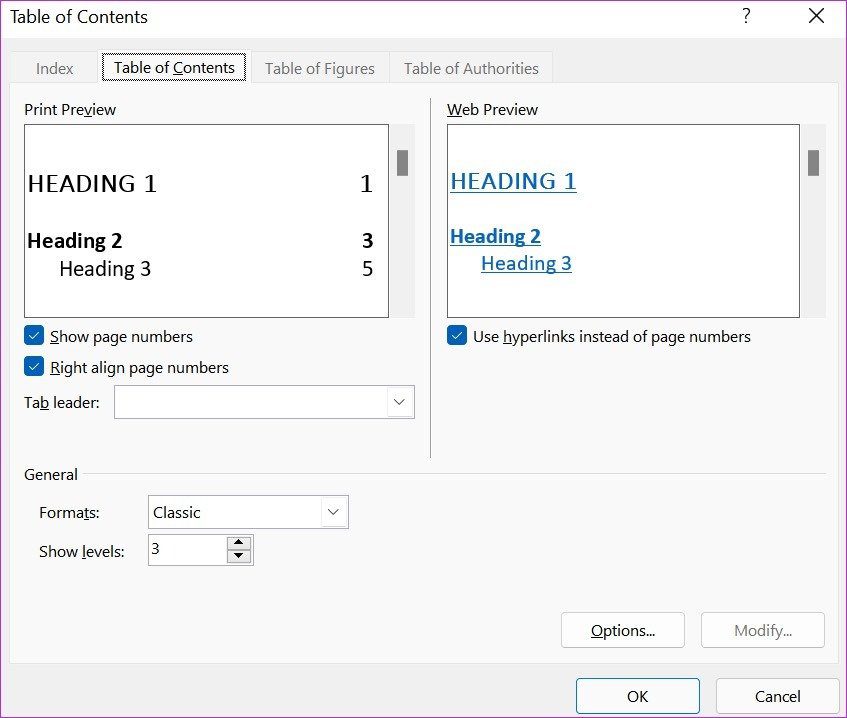
From the same menu, you can see the live web table of content previews. Users can also disable hyperlinks. Make changes based on your needs and hit OK at the bottom.
You will see an option to update the existing table of contents with a new style. Click Yes to create a new custom table of contents in Microsoft Word.
Was this helpful?
Last updated on 23 August, 2024
Read Next
 How to Create and Use Custom Table Templates in Microsoft Word
How to Create a Custom Table Template in Microsoft Word On Microsoft Word, there is a feature called Quick Tables.
How to Create and Use Custom Table Templates in Microsoft Word
How to Create a Custom Table Template in Microsoft Word On Microsoft Word, there is a feature called Quick Tables.
 How to Create and Insert a Signature in Microsoft Word
Microsoft Word is so versatile that you can use it for official documentation and creating invoices.
How to Create and Insert a Signature in Microsoft Word
Microsoft Word is so versatile that you can use it for official documentation and creating invoices.
 How to Insert Audio Files into Microsoft Word
Method 1: Using a Simple Drag and Drop The easiest way to insert audio in Microsoft Word is to use a simple drag-and-drop method.
How to Insert Audio Files into Microsoft Word
Method 1: Using a Simple Drag and Drop The easiest way to insert audio in Microsoft Word is to use a simple drag-and-drop method.
 How to Insert Videos in a Microsoft Word Document
How to Insert an Online Video in Microsoft Word Microsoft Word for desktop allows you to insert videos from Vimeo, YouTube, and SlideShare.
How to Insert Videos in a Microsoft Word Document
How to Insert an Online Video in Microsoft Word Microsoft Word for desktop allows you to insert videos from Vimeo, YouTube, and SlideShare.
 How to Insert and Edit a Page Border in Microsoft Word
How to Insert a Page Border in Microsoft Word There are different border settings and styles in Microsoft Word.
How to Insert and Edit a Page Border in Microsoft Word
How to Insert a Page Border in Microsoft Word There are different border settings and styles in Microsoft Word.
 5 Ways to Insert Tick Symbol in Word and Other Office Apps
Method 1: Using Emoji Panel Windows and Mac provide an emoji panel to access multiple emojis and symbols.
5 Ways to Insert Tick Symbol in Word and Other Office Apps
Method 1: Using Emoji Panel Windows and Mac provide an emoji panel to access multiple emojis and symbols.
 4 Ways to Insert an Arrow in Word Document
Method 1: How to Add Arrows in Word Using Shapes On PC or Mac Step 1: Open the Word document where you want to add an arrow.
4 Ways to Insert an Arrow in Word Document
Method 1: How to Add Arrows in Word Using Shapes On PC or Mac Step 1: Open the Word document where you want to add an arrow.
 How to Remove Table Formatting in Excel
Method 1: Clear Table Style When working with data tables, Excel often applies predefined styles that include various formatting elements such as colors, borders, and fonts.
How to Remove Table Formatting in Excel
Method 1: Clear Table Style When working with data tables, Excel often applies predefined styles that include various formatting elements such as colors, borders, and fonts.
The article above may contain affiliate links which help support Guiding Tech. The content remains unbiased and authentic and will never affect our editorial integrity.

