How to Set Up Snap Map
First, let’s see how you can access and set up Snap Map on Snapchat.
Step 1: Launch the Snapchat app on your Android or iPhone.
Step 2: Tap on the Snap Map button in the bottom left corner of the screen. If you’re accessing Snap Map for the first time, Snapchat will ask your permission before using your location. Tap on Enable Location to proceed.


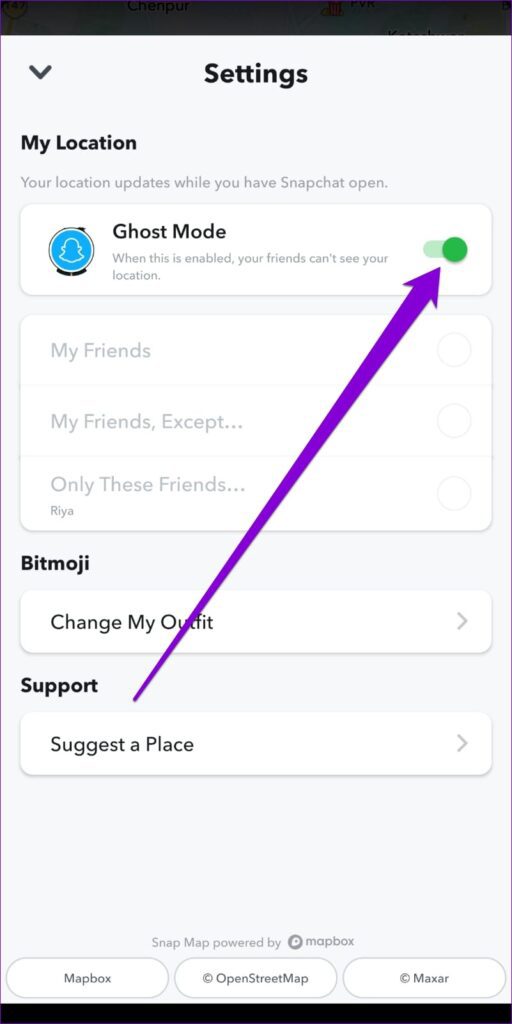
Step 3: Tap the gear icon at the top-right corner to access Snap Map settings. By default, Ghost Mode will be enabled, which means none of your friends can see your location.
Step 4: To share your location with friends, turn off Ghost Mode. Then, select whether you want to share your location with all your friends or a few of them.
If you wish to stop sharing your location at any point, turn on Ghost Mode again. You can choose to enable Ghost Mode for 3 hours, 24 hours, or indefinitely.


How to Use Snap Map
Once you are done setting up Snap Map, here’s what you can do with it.
Interact with Friends on Snap Map
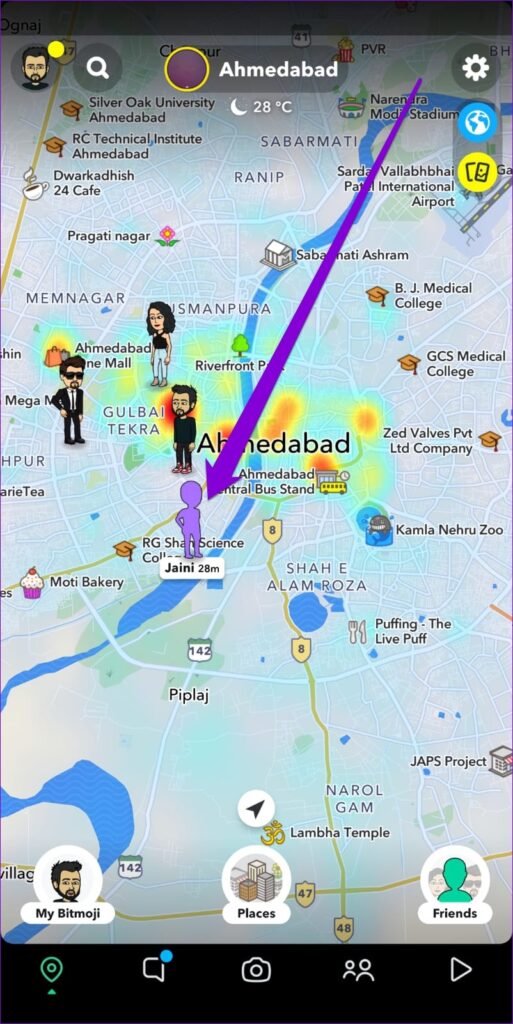
As you open Snap Map, you’ll see your friends who are currently sharing their location. You can tap on your friends’ Bitmoji to start chatting with them. If you can’t locate a friend on Snap Map, use the search tool at the top.


View Stories Around You
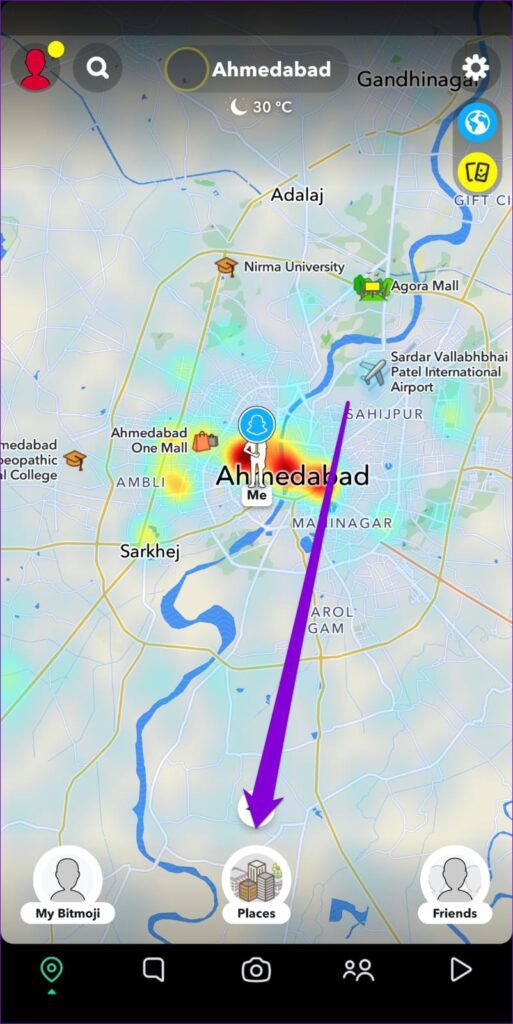
In Snap Map, you’ll notice heatmaps in specific locations, which indicate the number of snaps posted from that area. A blue patch signifies low activity, while a red or more intense heatmap represents a high volume of content being posted by a group of people.
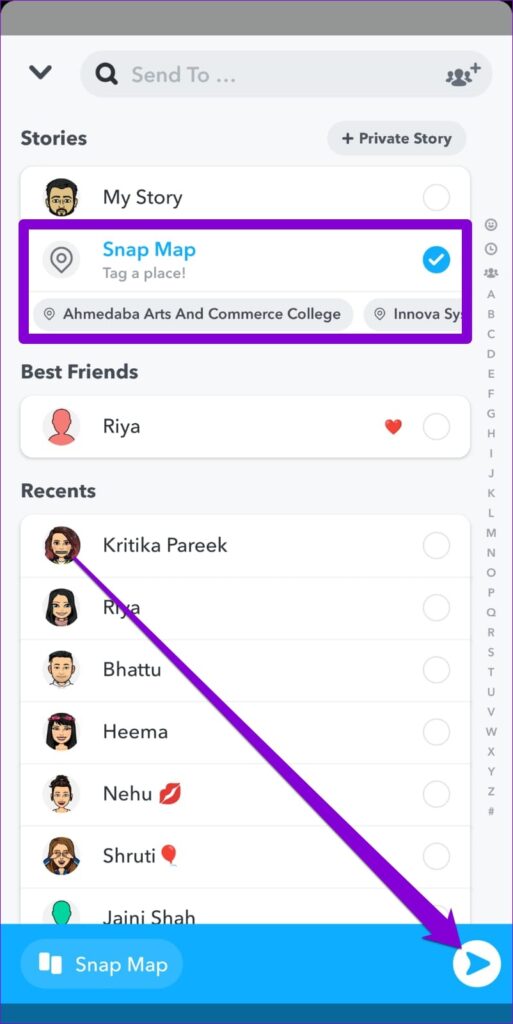
You can tap the heat map to view stories from a specific location. To post your own story on Snap Map, simply capture a snap and share it on the map.

Explore New Places
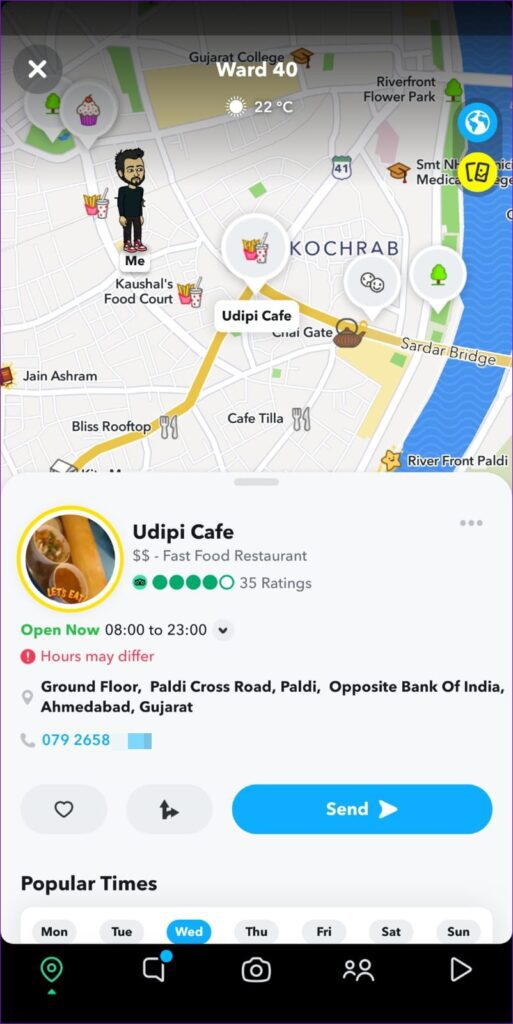
Tapping on the Places tray displays some of the most popular locations around your current area, as well as places you’ve favorited or visited recently. You can tap on a place to bring up details like address, contact information, ratings, and more.

Customize Your Bitmoji
Don’t like your Bitmoji? You can easily customize it by tapping the My Bitmoji option. Choose an activity to let your friends know what you’re currently doing. You can also tap Change Outfit to find new clothes for your character.


How to Share Live Location on Snap Map
Aside from the above, you can also share your live location with a friend or a family member for a set amount of time, allowing them to track you. Here’s how it works.
Step 1: Tap on your friend’s Bitmoji on Snap Map to visit their profile.
Step 2: Under Snap Map, tap on Share My Live Location and select the amount of time (15 minutes, 1 hour, or 8 hours) for which you want to share your live location.
Step 3: Your friend will receive a chat message with your live location. Your friend can tap on the Share My Live Location option to share their location with you. To stop sharing your location at any point, visit your friend’s profile and tap the Stop sharing button under Snap Map.


Was this helpful?
Last updated on 30 August, 2024
Read Next
 How to Send a Snap to Everyone at Once on Snapchat
If you're a regular Snapchatter, your Snaps sometimes become your calling card.
How to Send a Snap to Everyone at Once on Snapchat
If you're a regular Snapchatter, your Snaps sometimes become your calling card.
 How to Use Map View in Google Photos
How to See Your Photos in Google Photos Map View Google Photos creates an interactive heat map based on all the photos and videos you’ve captured in different places.
How to Use Map View in Google Photos
How to See Your Photos in Google Photos Map View Google Photos creates an interactive heat map based on all the photos and videos you’ve captured in different places.
 How to Create and Manage a Custom Map in My Maps and Google Drive
Most users are familiar with Google Maps, which offers real-time GPS navigation and information about landmarks and transport conditions.
How to Create and Manage a Custom Map in My Maps and Google Drive
Most users are familiar with Google Maps, which offers real-time GPS navigation and information about landmarks and transport conditions.
 How to Fix Windows Snap Assist Not Working
Windows Snap Assist is a productivity tool that portions your screen into quarters or halves, allowing you to have multiple applications open at once.If your Snap Assist isn’t behaving properly,
How to Fix Windows Snap Assist Not Working
Windows Snap Assist is a productivity tool that portions your screen into quarters or halves, allowing you to have multiple applications open at once.If your Snap Assist isn’t behaving properly,
 2 Ways to Fix Snap Layouts Not Working on Windows 11
Try Basic Fixes Use keyboard shortcuts to snap app windows: If you can't access the snap layout by hovering your mouse over the maximize icon, you can use keyboard shortcuts
2 Ways to Fix Snap Layouts Not Working on Windows 11
Try Basic Fixes Use keyboard shortcuts to snap app windows: If you can't access the snap layout by hovering your mouse over the maximize icon, you can use keyboard shortcuts
 How to Hide a Story from Someone on Snapchat
Snapchat on iOS and Android uses a similar UI.
How to Hide a Story from Someone on Snapchat
Snapchat on iOS and Android uses a similar UI.
 Why Can’t I Add Someone on Snapchat?
Why Am I Unable to Add Someone on Snapchat There can be many reasons you're unable to add someone on Snapchat.
Why Can’t I Add Someone on Snapchat?
Why Am I Unable to Add Someone on Snapchat There can be many reasons you're unable to add someone on Snapchat.
 Can You See When Someone Was Last Active on Snapchat
Snapchat has made a name for itself through its short-form content-sharing features.
Can You See When Someone Was Last Active on Snapchat
Snapchat has made a name for itself through its short-form content-sharing features.
The article above may contain affiliate links which help support Guiding Tech. The content remains unbiased and authentic and will never affect our editorial integrity.