


Add Someone in Your People Album
In the Photos album, you can add names to the people or even add new people. Below, we show you how to add a new person to the People album.
Step 1: Open the person’s photo whom you want to add to the People’s album.
Step 2: At the bottom, tap the Info icon (circled i icon).
Step 3: Tap the person’s face in a question mark (?) and Name This Person.
Step 4: Add a name, tap Next, and Done.


Find the Photos of a Specific Person in the Photos App
The Photos app on iPhone sorts the faces of people featured in your images into specific albums. Here’s how to find the photo of a specific person:
Step 1: Launch the Photos app and tap the Albums icon at the bottom.


Step 2: Scroll down to the People & Places section, then tap the People Album.

Step 3: Tap a person’s face to see all the photos they feature in.
Fix Wrongly Identified People in the Photos App
While the Photos app on iPhone may be able to identify faces and create specific albums for them, it may not be accurate. Sometimes, the wrong face may feature in someone else’s album. Here’s how to fix it.
Step 1: Launch the Photos app and tap the Albums icon at the bottom.
Step 2: Scroll down to the People & Places section, then tap the People Album.


Step 3: Tap a person’s face to see all the photos they feature in.
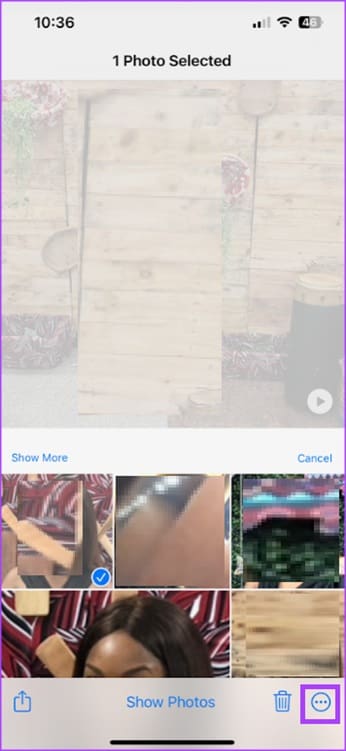
Step 4: Tap Select, then Show Faces.


Step 5: Tap a wrongly identified face to select it, then tap the More icon (three horizontal dots) at the bottom-right corner of the screen.
Step 6: Tap the This is Not This Person option from the menu that pops open.

Merge the Photos of the Same Person in Your People Album
The Photos app on iPhone may create multiple albums for one person. To merge all the photos into one group, here’s what you need to do:
Step 1: Launch the Photos app and tap the Albums icon at the bottom.
Step 2: Scroll down to the People & Places section, then tap the People Album.
Step 3: Tap the Select button at the top-right corner of the People album, select the faces of the people you want to merge, and tap Merge.


Step 4: Tap Yes to confirm that the faces belong to the same person.
Make Someone Favorites in Your People Album
Several faces may feature in your Photos App. Therefore, to make it easier to find pictures of people you interact with the most, you can favorite them. Here’s how to do so:
Step 1: Launch the Photos app and tap the Albums icon at the bottom.
Step 2: Scroll down to the People & Places section, then tap the People Album.
Step 3: Tap the heart icon next to the person’s photo, enter a name, tap Next, and Done.


Remove a Person From Your People Album
The Photos app on iPhone creates People albums based on the unique faces in your photo gallery. This means a random picture of a stranger may also have a separate album. Here’s how you can remove a person from your people album.
Step 1: Launch the Photos app and tap the Albums icon at the bottom.
Step 2: Scroll down to the People & Places section, then tap the People Album.
Step 3: Tap the Select button at the top right of the People album, tap the face of a person you want to remove, then Remove.


Was this helpful?
Last updated on 17 August, 2024
Read Next
 How Facebook Picks Your People You May Know
Facebook is known for its clever algorithms, which allow you to view posts that interest you the most, connect to people you’d love to connect with and use it the
How Facebook Picks Your People You May Know
Facebook is known for its clever algorithms, which allow you to view posts that interest you the most, connect to people you’d love to connect with and use it the
 4 Ways to Stop Random People From Adding You on Snapchat
Method 1: Disable Add by Email and Mobile Number If you have this option enabled, anyone who knows either your phone number or email ID will be able to add
4 Ways to Stop Random People From Adding You on Snapchat
Method 1: Disable Add by Email and Mobile Number If you have this option enabled, anyone who knows either your phone number or email ID will be able to add
 6 Ways to Search People on Telegram
Keeping in touch with friends and family has become easier, thanks to messaging apps like Telegram.
6 Ways to Search People on Telegram
Keeping in touch with friends and family has become easier, thanks to messaging apps like Telegram.
 How to Use the Good Morning Feature on Your iPhone
How to Enable Sleep Focus to See the Good Morning Screen When you have a sleep schedule and Sleep Focus enabled, your iPhone will show you a Good Morning screen.
How to Use the Good Morning Feature on Your iPhone
How to Enable Sleep Focus to See the Good Morning Screen When you have a sleep schedule and Sleep Focus enabled, your iPhone will show you a Good Morning screen.
 3 Fixes for iPhone Check In Feature Not Working or Unavailable
Basic Fixes: Ensure both devices are running iOS 17: Because the Check In feature is exclusive to iOS 17, to use it, both you and your contact must have iOS
3 Fixes for iPhone Check In Feature Not Working or Unavailable
Basic Fixes: Ensure both devices are running iOS 17: Because the Check In feature is exclusive to iOS 17, to use it, both you and your contact must have iOS
 5 Ways to Fix Google Photos App Not Showing All Photos
Basic Fixes Check your network connection - Ensure your phone is connected to a good internet connection.
5 Ways to Fix Google Photos App Not Showing All Photos
Basic Fixes Check your network connection - Ensure your phone is connected to a good internet connection.
 3 Fixes for iMessage Photos Not Showing in Photos App
Basic Fixes Force quit and relaunch Messages app: You can force quit and relaunch the Messages app to give it a fresh start on your iPhone.
3 Fixes for iMessage Photos Not Showing in Photos App
Basic Fixes Force quit and relaunch Messages app: You can force quit and relaunch the Messages app to give it a fresh start on your iPhone.
 How to Delete Photos From iPhone But Not From Google Photos
How to Delete Photos from iPhone But Keep Them in Google Photos Open Google Photos, swipe up the photo you want to delete, and select Delete from Device.
How to Delete Photos From iPhone But Not From Google Photos
How to Delete Photos from iPhone But Keep Them in Google Photos Open Google Photos, swipe up the photo you want to delete, and select Delete from Device.
The article above may contain affiliate links which help support Guiding Tech. The content remains unbiased and authentic and will never affect our editorial integrity.

