Use Message Reactions in Telegram on Mobile or Desktop
Here’s how to add emoji reactions to messages in the Telegram app on your mobile or desktop. Ensure the app has been updated to its latest version before proceeding with the steps. Do note that Telegram will notify your contact when you send a message reaction.
Step 1: Open Telegram on your iPhone or Android phone.
Step 2: Open the chat in which you want to send the message reaction.
Step 3: Long-press on the message and tap on the emoji to send your reaction.
The message reaction will be visible below the sender’s message. Alternatively, you can double-tap on a message to quickly share your emoji reaction.


You can get more options for emojis by tapping the arrow icon next to the default options. If you scroll down, you can even download new emoji packs to react to your Telegram messages.
To remove a message reaction, tap on your emoji reaction again below the sender’s message.
How to Change Quick Reaction Emoji in Telegram on Mobile or Desktop
Since you can quickly share a message reaction in Telegram, here’s how you can customize your quick reaction on your mobile or desktop app.
Step 1: Open Telegram on your iPhone or Android.
Step 2: Tap on Settings.
Step 3: Select Appearance (iPhone) or select Chat Settings (Android).
Step 4: Choose Stickers and Emoji > Quick Reaction.


You can now select your default quick reactions. This is helpful, especially when you want to like or unlike messages on Telegram.


Tip: You can refer to our post to know more about how to schedule messages on Telegram on mobile and desktop.
Was this helpful?
Last updated on 07 August, 2024
Read Next
 3 Fixes for Message Reactions Not Working on Instagram
Basic Fixes Log in again to your profile: If you cannot react to messages on Instagram, you can log out and sign in again on your iPhone or Android.
3 Fixes for Message Reactions Not Working on Instagram
Basic Fixes Log in again to your profile: If you cannot react to messages on Instagram, you can log out and sign in again on your iPhone or Android.
 How to Change Quick and Double-tap Reactions on Messenger
How to React to Messages on Facebook Messager With Any Emoji It's very easy to react to messages on Facebook Messenger with any emoji.
How to Change Quick and Double-tap Reactions on Messenger
How to React to Messages on Facebook Messager With Any Emoji It's very easy to react to messages on Facebook Messenger with any emoji.
 How to Change or Remove Reactions in WhatsApp Messages
How to Remove WhatsApp Emoji Reaction Let's say you have reacted to a message on WhatsApp using an emoji.
How to Change or Remove Reactions in WhatsApp Messages
How to Remove WhatsApp Emoji Reaction Let's say you have reacted to a message on WhatsApp using an emoji.
 How to Use Animated Reactions in Zoom
Enable and Use Animated Reactions in Zoom on Desktop To start using Animated Reactions during Zoom calls, you must enable the feature in the Zoom app on your computer.
How to Use Animated Reactions in Zoom
Enable and Use Animated Reactions in Zoom on Desktop To start using Animated Reactions during Zoom calls, you must enable the feature in the Zoom app on your computer.
 3 Fixes for Reactions Not Working in Facebook Messenger
Basic Fixes Log in again to your Facebook account: This will load all your chats and preferences again in the Facebook Messenger app.
3 Fixes for Reactions Not Working in Facebook Messenger
Basic Fixes Log in again to your Facebook account: This will load all your chats and preferences again in the Facebook Messenger app.
 How to Use Reactions in Messages on Android
How to Get Started With Message Reactions Before we begin with the steps to use Message Reactions, there are some prerequisites to consider.
How to Use Reactions in Messages on Android
How to Get Started With Message Reactions Before we begin with the steps to use Message Reactions, there are some prerequisites to consider.
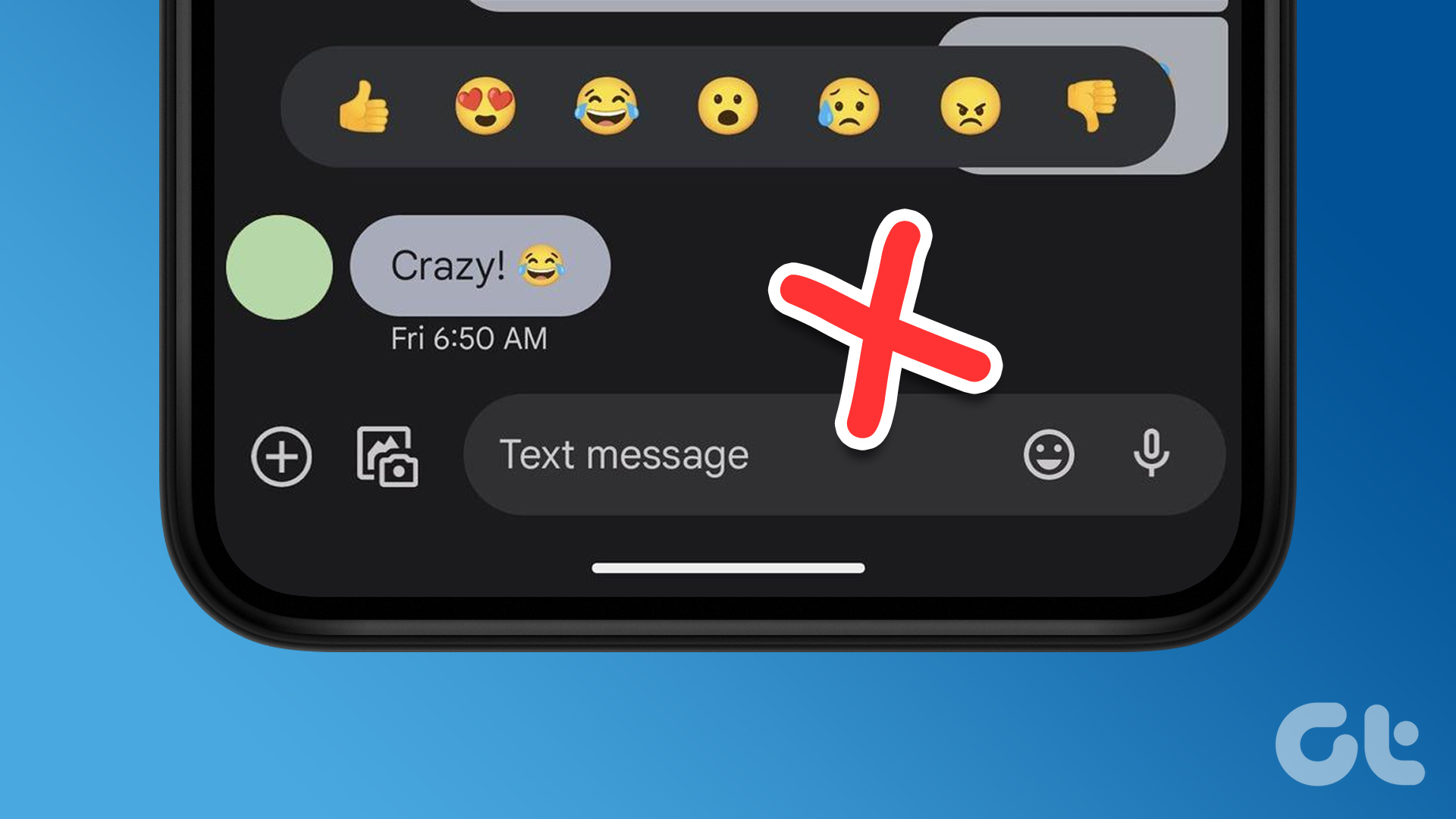 3 Fixes if Reactions Are Not Working on Google Messages
Basic Fixes Force quit and relaunch Google Messages: This will give the app a fresh start.
3 Fixes if Reactions Are Not Working on Google Messages
Basic Fixes Force quit and relaunch Google Messages: This will give the app a fresh start.
 4 Ways to Fix FaceTime Reactions (Gestures) Not Working
Basic Fixes Update iOS: Ensure your device is running on iOS 17 and above.
4 Ways to Fix FaceTime Reactions (Gestures) Not Working
Basic Fixes Update iOS: Ensure your device is running on iOS 17 and above.
The article above may contain affiliate links which help support Guiding Tech. The content remains unbiased and authentic and will never affect our editorial integrity.