How to Upload Photos on Google Photos From Mobile
There are two ways to add pictures to Google Photos from Android or iOS devices. The first method enables the Backup feature to automatically upload existing and new photos or videos to Google Photos.
Method 1: Upload All Photos Automatically to Google Photos
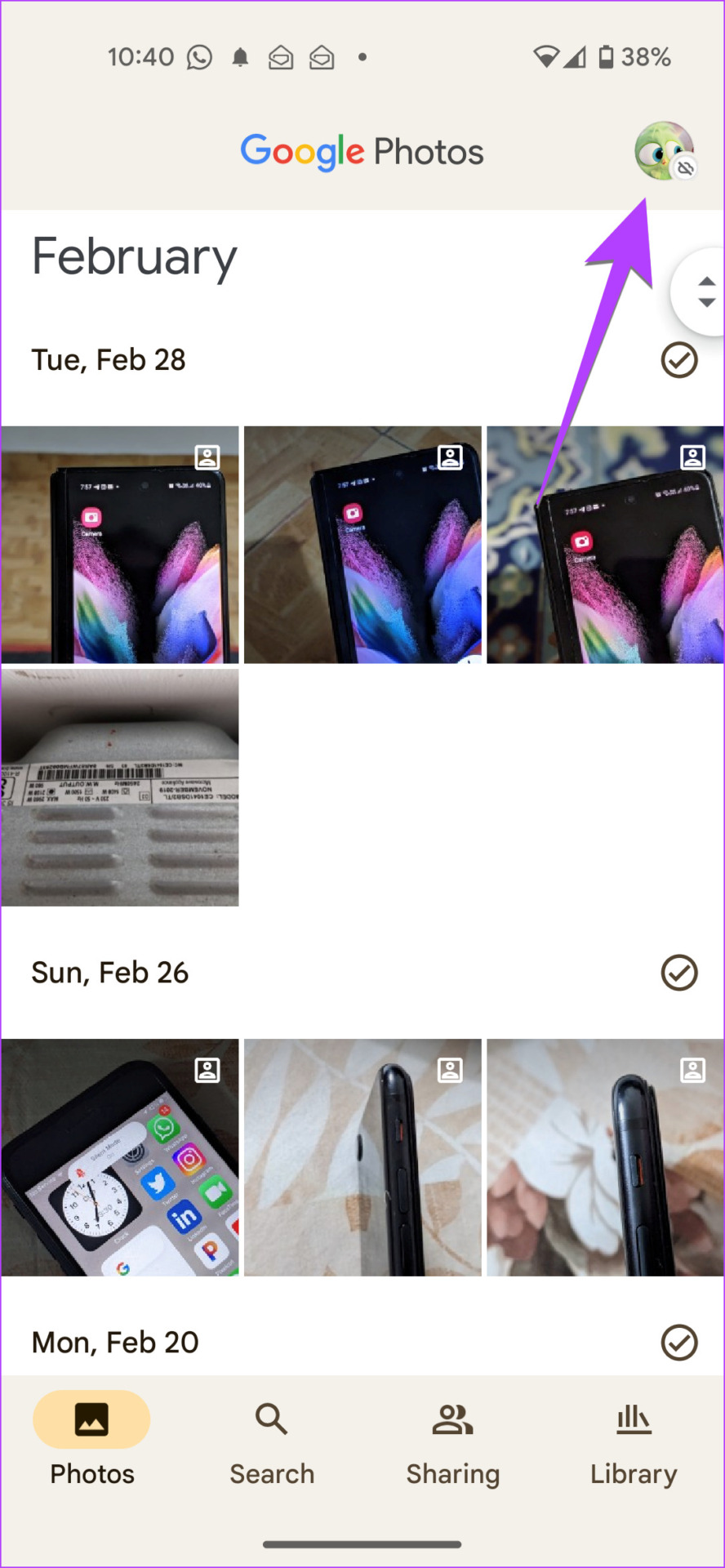
Step 1: Open the Google Photos app on your phone and tap on the profile picture icon at the top right. Then, tap on Photos settings from the menu.
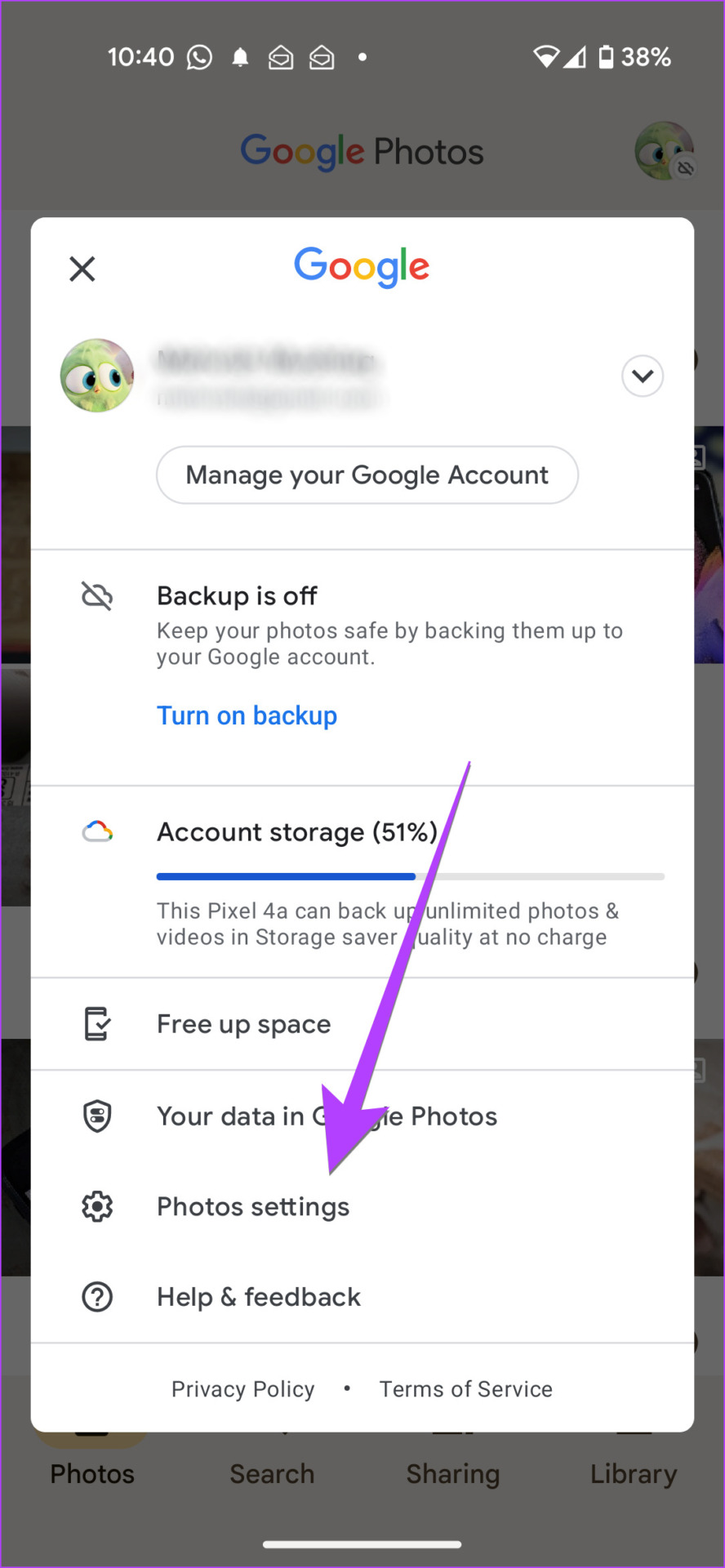
Step 2: Tap the Backup option in Settings and toggle on Backup. Choose the backup settings for your photos.


Tip: If you enjoy Google Photos, know how to move photos from iPhone to Google Photos.
Method 2: Add Pictures From Device Folders to Google Photos on Android
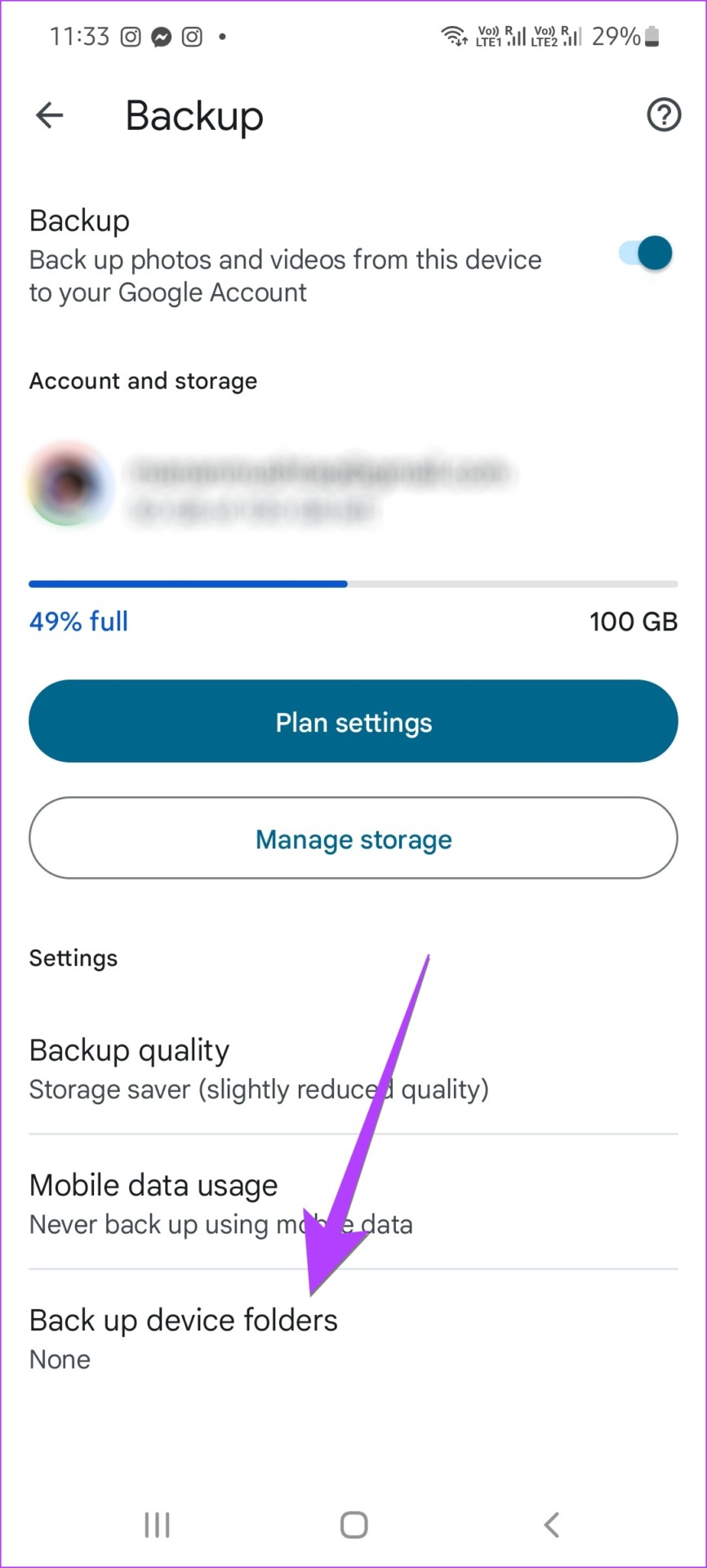
Step 1: Go to Google Photos Settings > Backup.
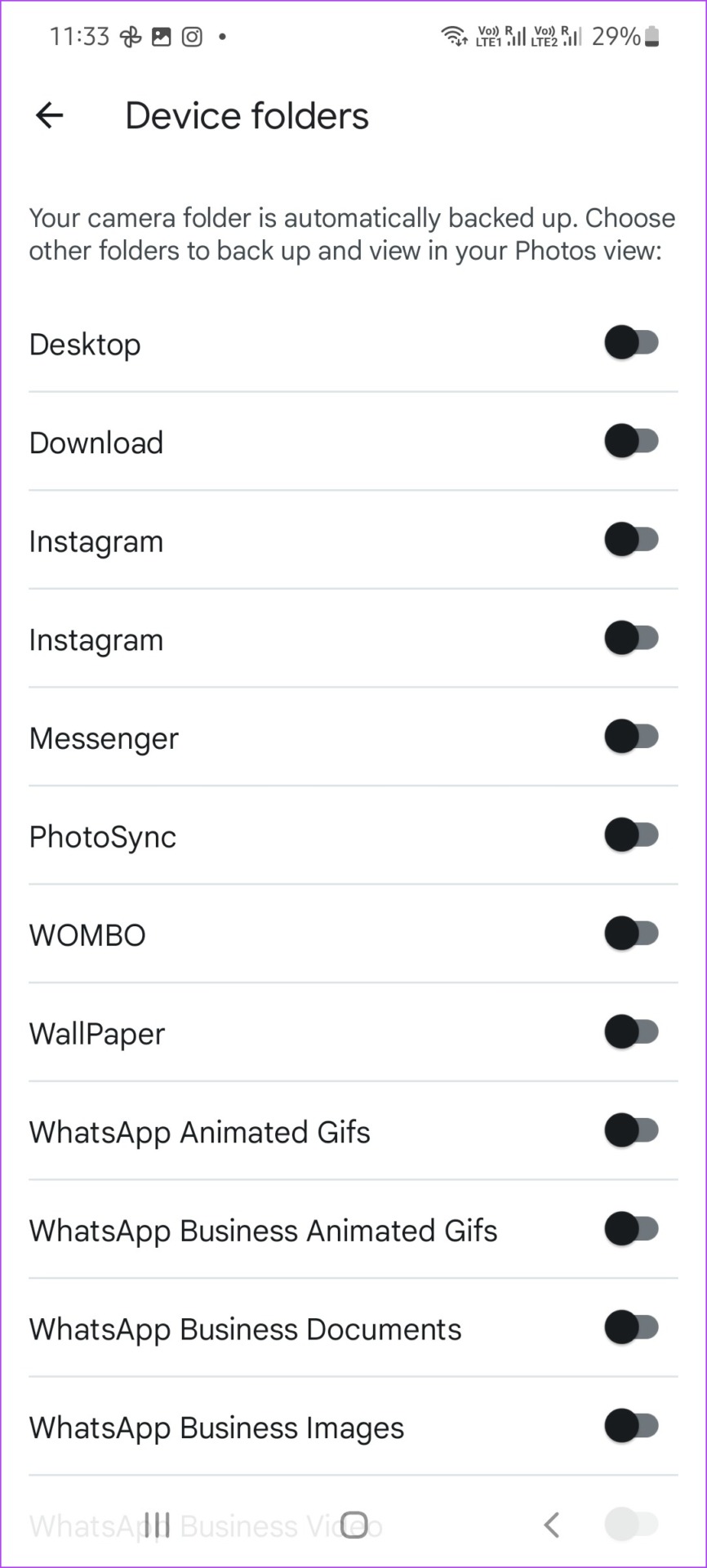
Step 2: Tap on Back up device folders and toggle on the folders you want to back up.
Method 3: How to Manually Add Photos to Google Photos
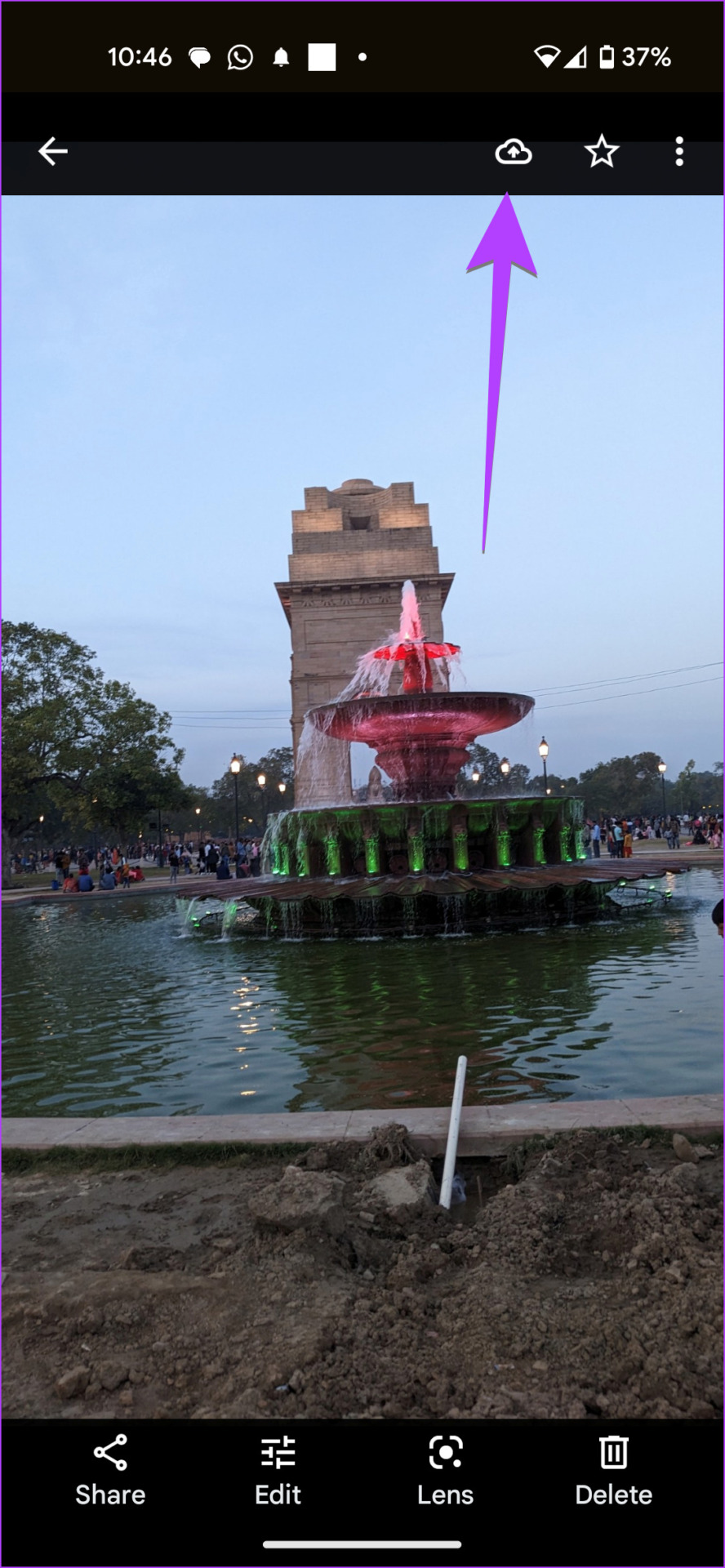
Step 1: Tap on any photo to open it in full-screen view. Tap the Backup icon at the top to upload the picture to Google Photos.


Step 2: To upload multiple photos, long-press one of the photos on the main screen of the Google Photos app to activate the selection mode. Tap on the photos you want to select. Then, tap the Back up icon at the bottom to add them to your Google Photos account.
How to Upload Photos to Google Photos From Computer
Since there is no dedicated Photos app for PC, you must upload it using a browser. However, if you have Google Drive installed on your PC, you can upload it to any folder in Google Drive and later import it into Google Photos.
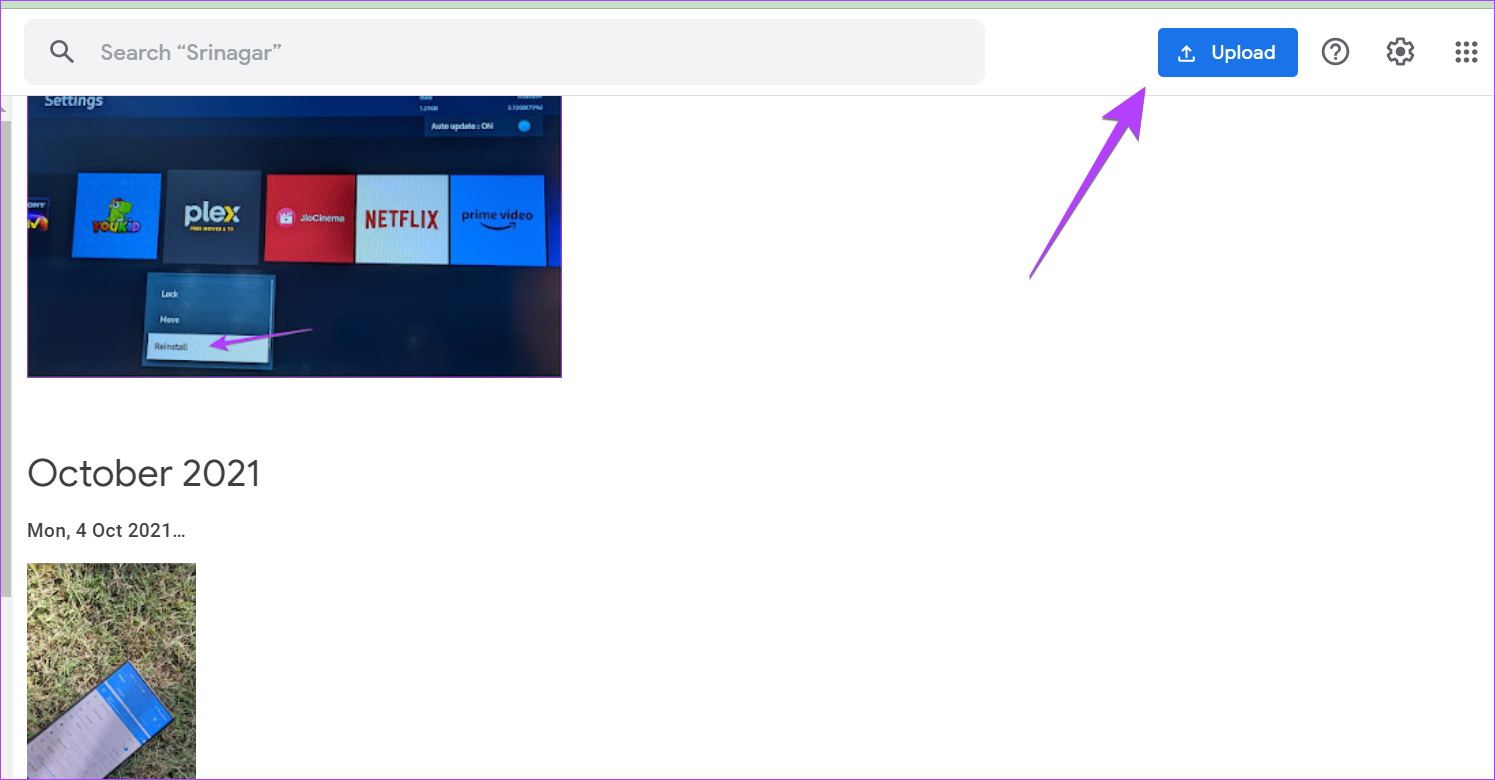
Step 1: Go to Google Photos on your browser and click the Upload button at the top.
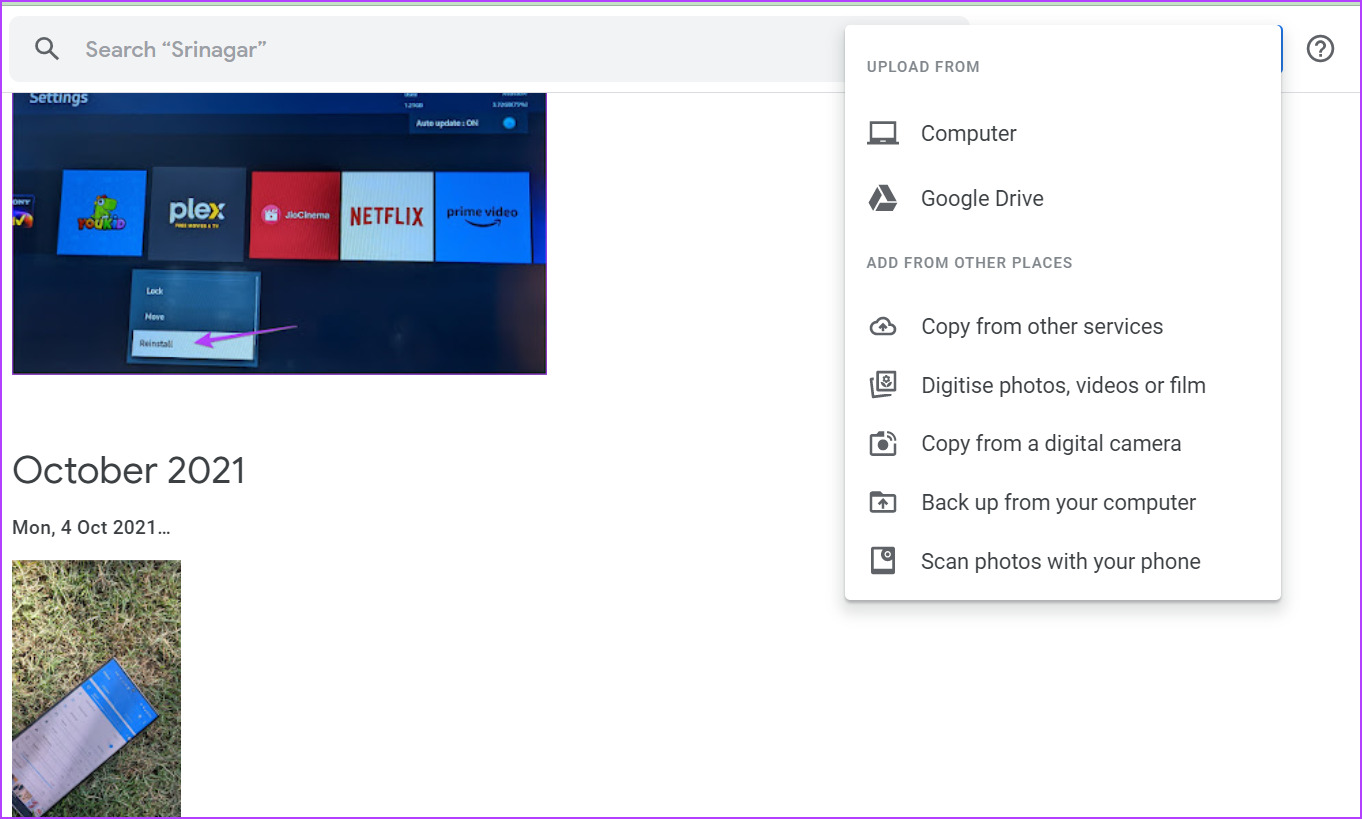
Step 2: Select the source from where you want to add pictures. If you want to add it from a folder on your PC, select Computer.
Step 3: Choose the folder and select the photos you want to upload.
If you face any problem, here’s how to fix Google Photos not uploading photos from a PC.
FAQs
You can check how you uploaded the photo using the Google Photos website. Visit Google Photos and open the photo section. Click on the i icon at the top to open the Info screen. Here, you will see the source of the photo, such as Uploaded from the web browser.
Deleting photos from Google Photos is a slightly complicated process. You must use the Google Photos website to delete pictures. Open the photo and click on the Delete icon. Know how to delete pictures in Google Photos from your iPhone.
Was this helpful?
Last updated on 03 September, 2024
Read Next
 3 Best Ways to Upload Photos to Google Drive From Android
Google Drive, the cloud-storage service from Google, has simplified our lives in several ways.
3 Best Ways to Upload Photos to Google Drive From Android
Google Drive, the cloud-storage service from Google, has simplified our lives in several ways.
 3 Ways to Fix Google Drive Waiting to Upload Error
Basic Fixes Check Google Drive storage status: Check how much storage space is left in your Google Drive account.
3 Ways to Fix Google Drive Waiting to Upload Error
Basic Fixes Check Google Drive storage status: Check how much storage space is left in your Google Drive account.
 How to Upload eBooks (PDF and EPUB) to Google Play Books
All You Need to Know About Google Play Books Before we head to the steps, you should know some important things: Google Play Books supports the manual addition of ebooks
How to Upload eBooks (PDF and EPUB) to Google Play Books
All You Need to Know About Google Play Books Before we head to the steps, you should know some important things: Google Play Books supports the manual addition of ebooks
 How to Upload Files in Google Forms
Whether it's a small survey or a school assignment, Google Forms is the go-to destination when you have to collect information from multiple people.
How to Upload Files in Google Forms
Whether it's a small survey or a school assignment, Google Forms is the go-to destination when you have to collect information from multiple people.
 6 Fixes for Slow Upload and Download Speeds on Google Drive
Preliminary Fixes Check your internet speed: Since Google Drive relies on your internet connection, a change in your internet speed will directly impact the upload and download speeds.
6 Fixes for Slow Upload and Download Speeds on Google Drive
Preliminary Fixes Check your internet speed: Since Google Drive relies on your internet connection, a change in your internet speed will directly impact the upload and download speeds.
 5 Ways to Fix Google Drive Stuck at Starting Upload on Android
How to Stop Google Drive Uploads in Progress on Android Before we get started on how to fix the issue of Google Drive uploads getting stuck, let us have a
5 Ways to Fix Google Drive Stuck at Starting Upload on Android
How to Stop Google Drive Uploads in Progress on Android Before we get started on how to fix the issue of Google Drive uploads getting stuck, let us have a
 3 Ways to Upload Voice Memos to Google Drive from iPhone
Method 1: Save iPhone Voice Memos by Sharing to Drive Step 1: Record a new voice memo or tap on the existing recording you want to export to Google Drive.
3 Ways to Upload Voice Memos to Google Drive from iPhone
Method 1: Save iPhone Voice Memos by Sharing to Drive Step 1: Record a new voice memo or tap on the existing recording you want to export to Google Drive.
 What to Do if You Are Unable to Upload Any Files on Discord
Basic Fixes Update the Discord app: If you are using an outdated app, Discord may not upload images or other files.
What to Do if You Are Unable to Upload Any Files on Discord
Basic Fixes Update the Discord app: If you are using an outdated app, Discord may not upload images or other files.
The article above may contain affiliate links which help support Guiding Tech. The content remains unbiased and authentic and will never affect our editorial integrity.