Method 1: How to Turn Off Auto Play on Prime Video on the Web
Step 1: Open Prime Video in a browser on your computer and sign in with your Amazon account.
Step 2: Click on your profile name in the top-right corner.

Step 3: Select Accounts and Settings from the list of options.

Step 4: In the Account and Settings menu, click on the Player tab at the top.
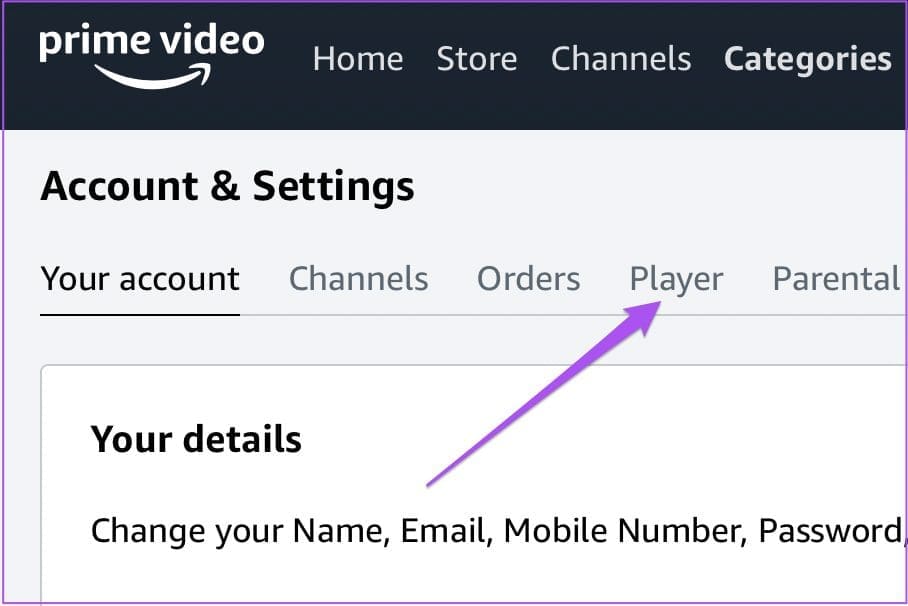
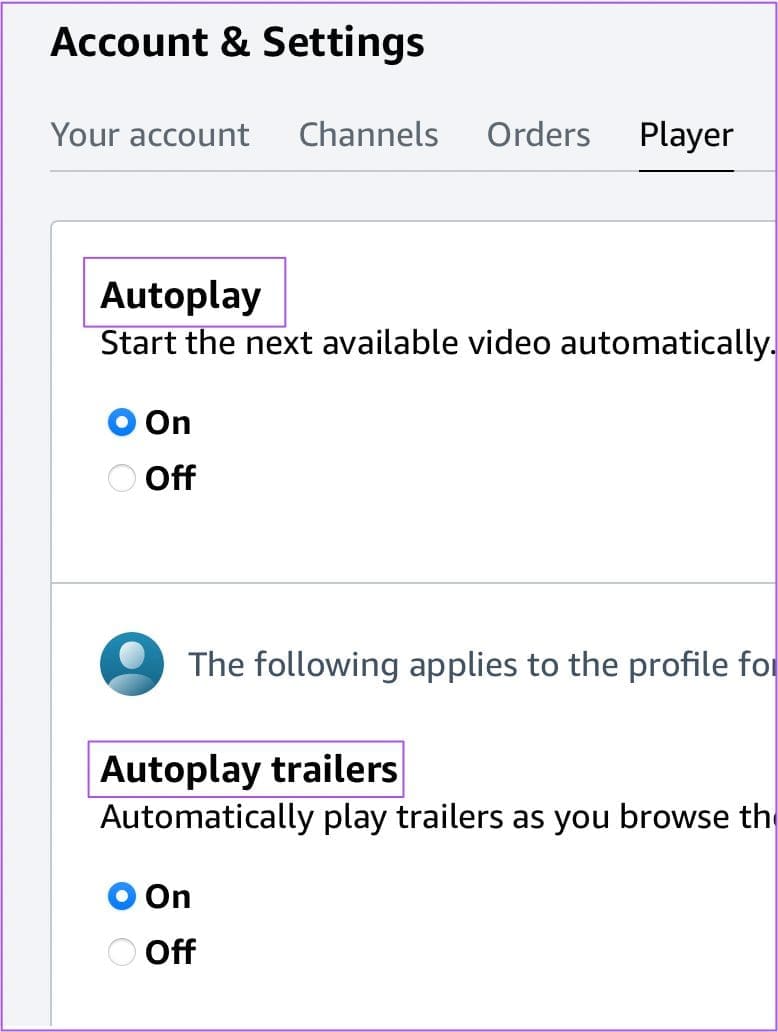
Step 5: Under the Player tab, you get two options – Autoplay and Autoplay Trailers.
Step 6: As per your preference, click Off under the specific options to turn off Auto Play.
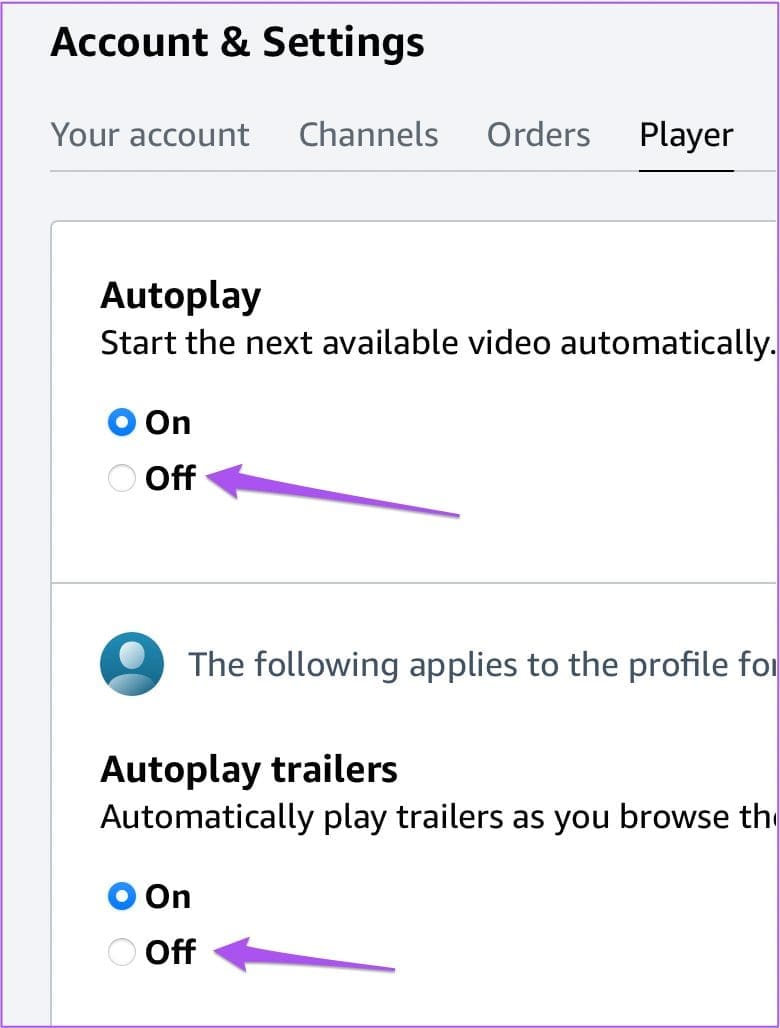
These changes will also apply if you use the same Amazon account in the Prime Video app for Windows.
Method 2: How to Turn Off Auto Play on Prime Video on Mac
The Prime Video app is available for Mac, and you can use it to disable the Auto Play feature.
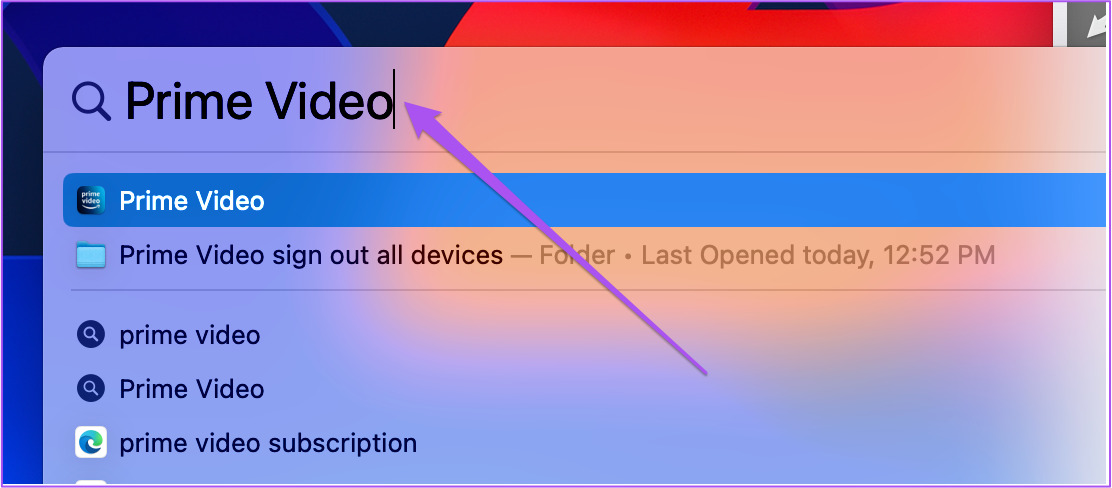
Step 1: Press Command + Spacebar to open Spotlight Search, type Prime Video, and press Return.
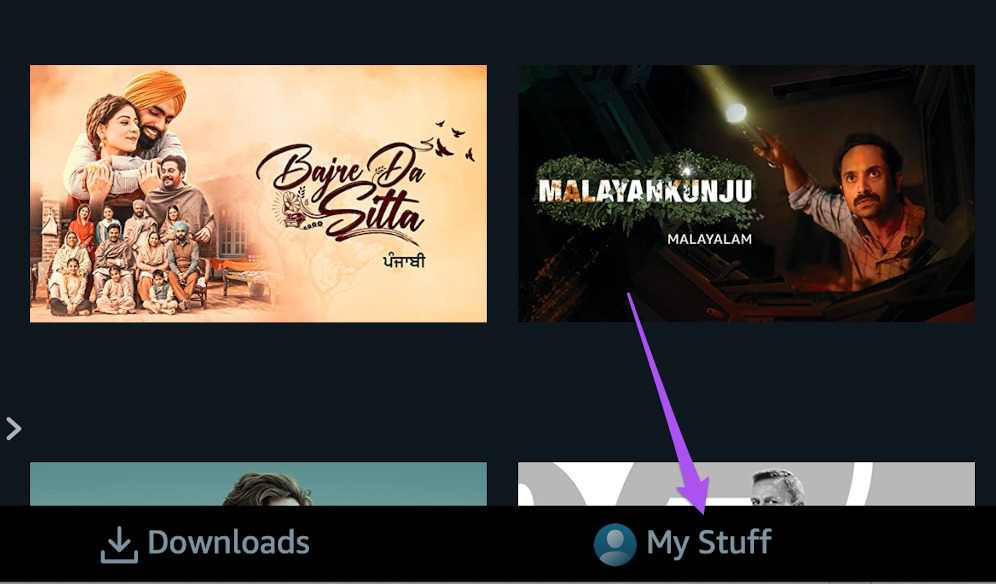
Step 2: Click on My Stuff at the bottom-right corner of the app.
Step 3: Click on the Settings icon at the top-right corner.

Step 4: From the list of options, click on Auto Play.
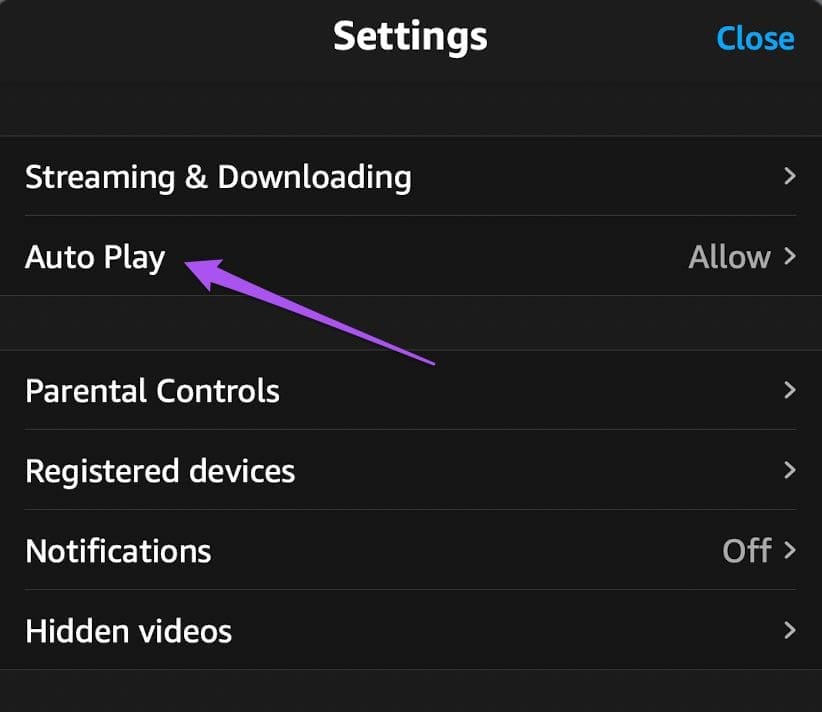
Step 5: Tap the toggle to disable the feature.

If you can’t get the app to apply changes or it doesn’t work properly, read our guide to fix the Amazon Prime Video app not working on Mac.
Method 3: How to Turn Off Auto Play on Prime Video on iPhone
Watching movies and shows using the Prime Video app on your iPhone is convenient. But Auto Play can also consume battery juice if you don’t realize its aftereffects. Besides, it’ll help you save your internet data, mainly if you use one with a daily limit. We recommend checking whether you are using the latest version of the Prime Video app on your iPhone.
Step 1: Open the Prime Video app on your iPhone.
Step 2: Tap the Profile icon at the bottom-right corner, then tap on the Settings icon at the top-right corner.
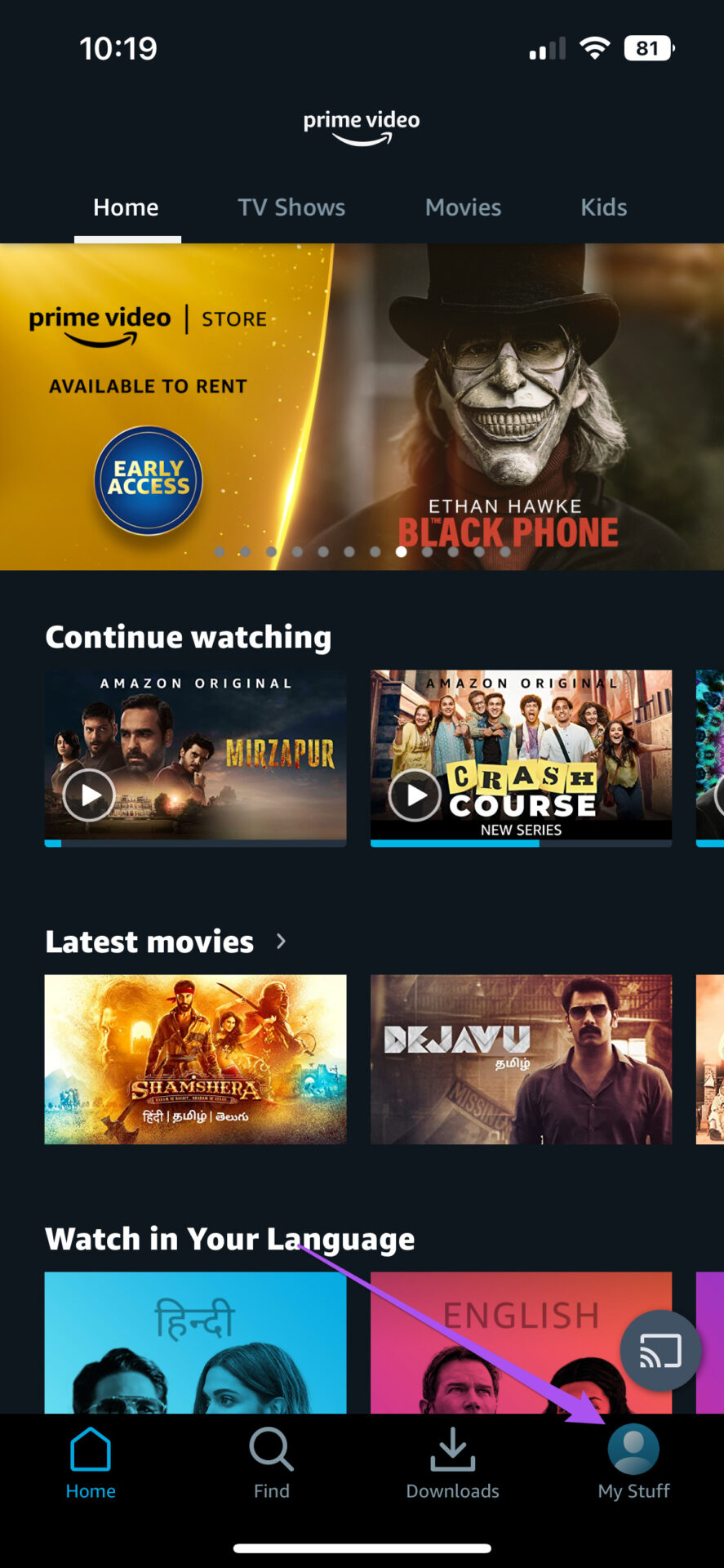

Step 3: Select Auto Play from the list of options. Then tap the toggle next to Allow Auto Play on this device to disable the feature.
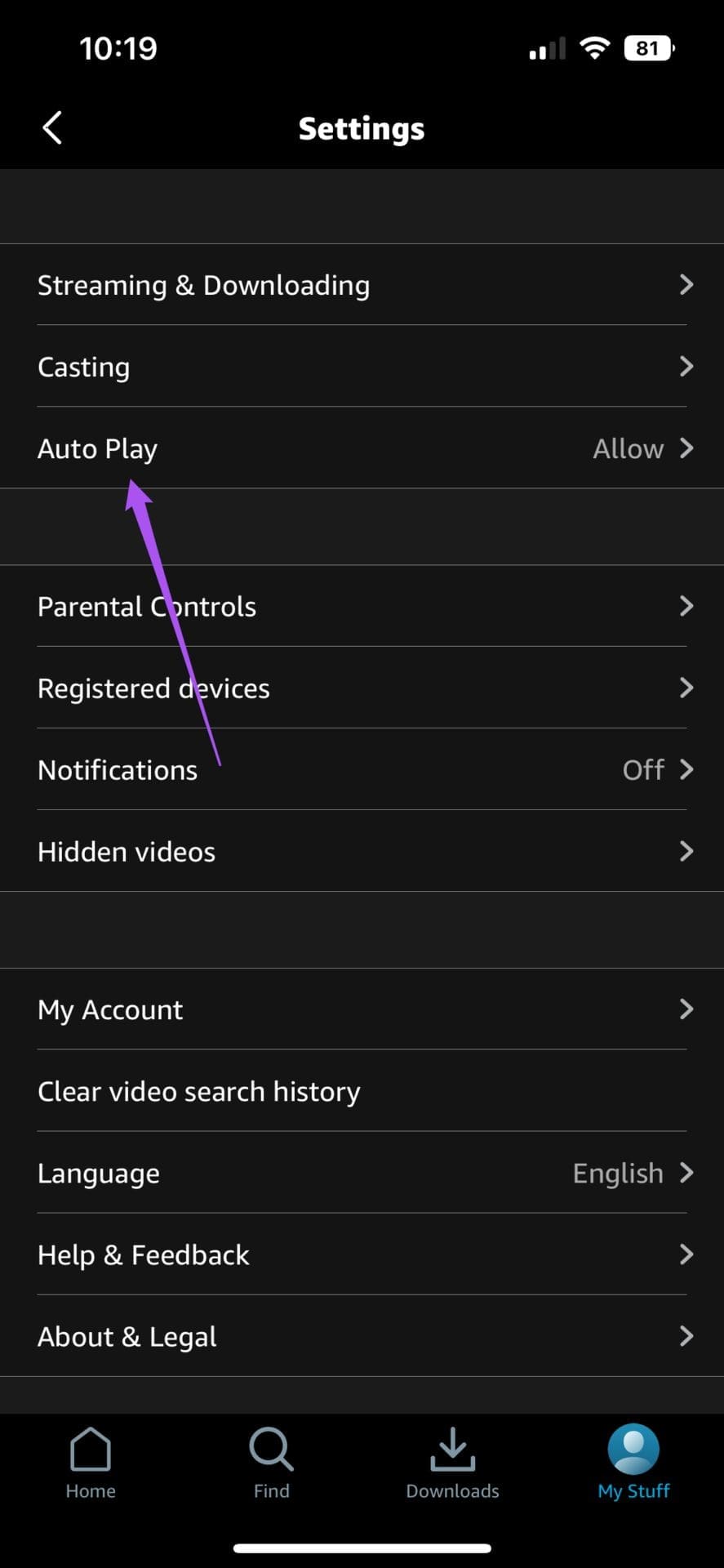

The iPad users can follow the same steps on the Prime Video app for iPadOS.
Method 4: How to Turn Off Auto Play on Prime Video on Android
Like the iPhone, you only get the option to turn off automatic playback for episodes on the Prime Video app for Android. Like the iPhone, the Prime Video app for Android only offers the option to turn off automatic playback for episodes.
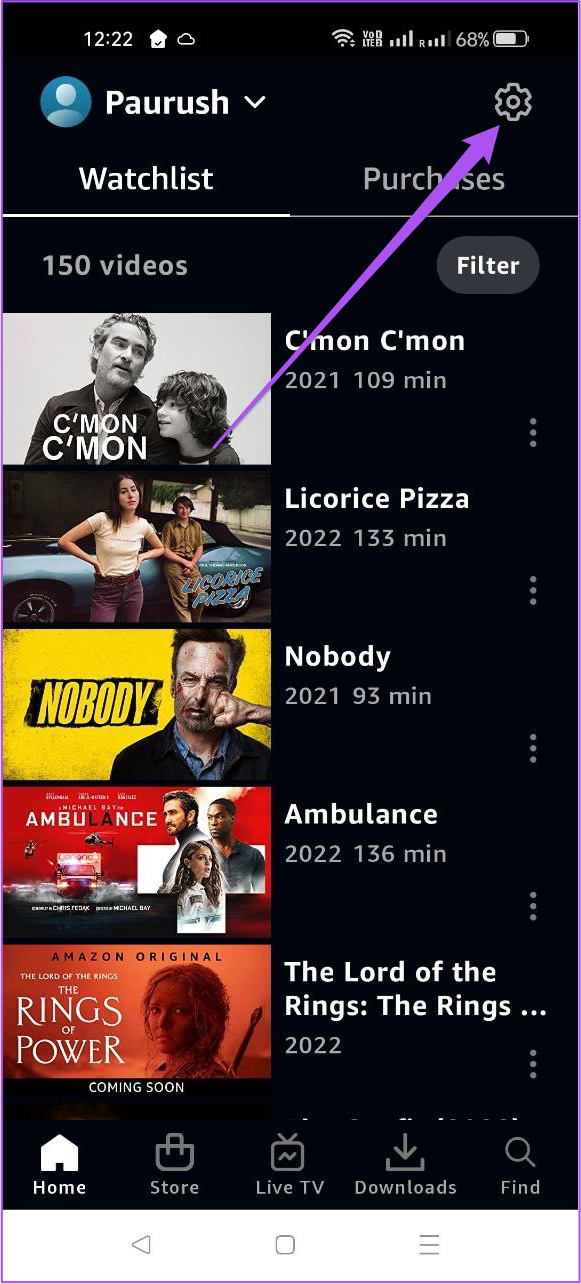
Step 1: Open the Prime Video app on your Android and navigate to Settings using the cog icon under your profile.
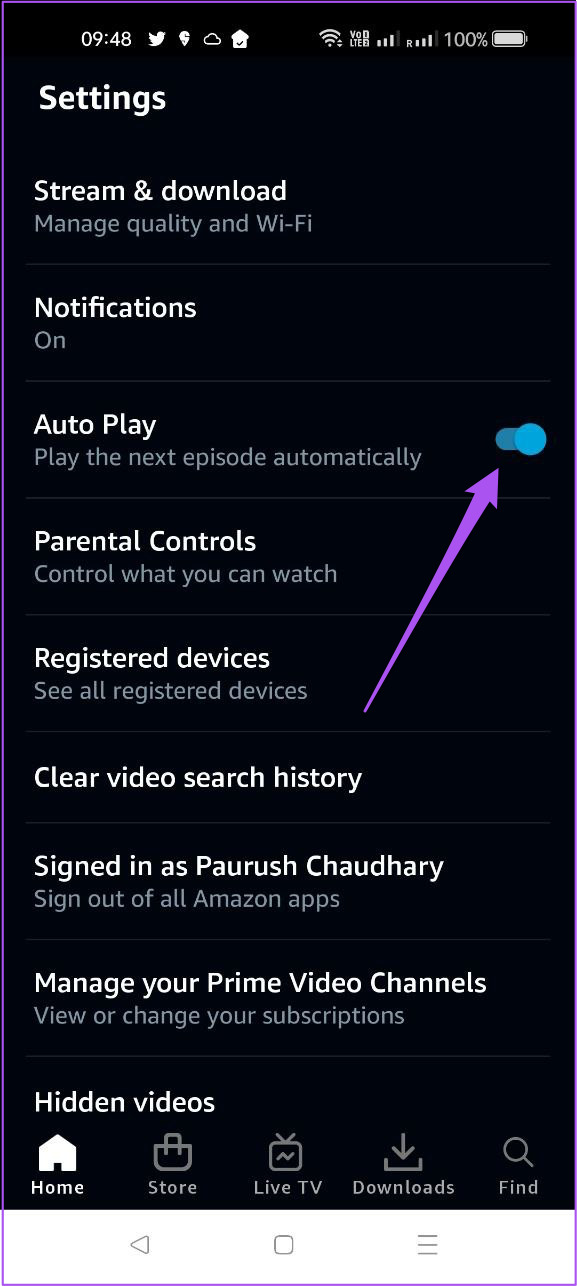
Step 2: From the list of options, tap the toggle next to Auto Play to turn off the feature.
Method 5: How to Turn Off Auto Play on Prime Video on Android TV
The Prime Video app for Android TV has an intuitive and fluid interface. You can disable AutoPlay to stop the app’s automatic playback of trailers and episodes.
Step 1: Open Prime Video on your Android TV.

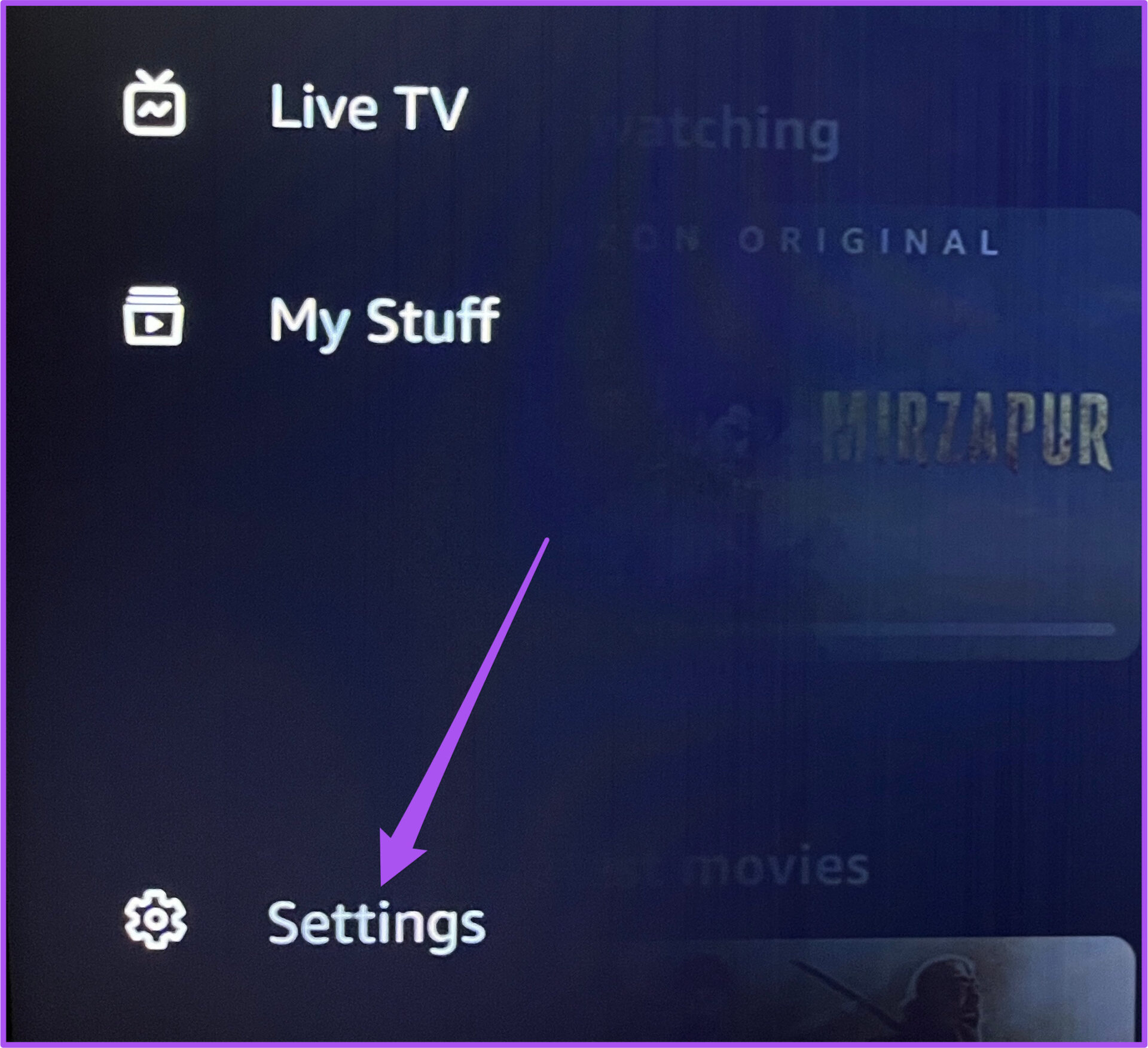
Step 2: Go to the left menu in the app.

Step 3: Select the Settings option in the bottom-left corner.
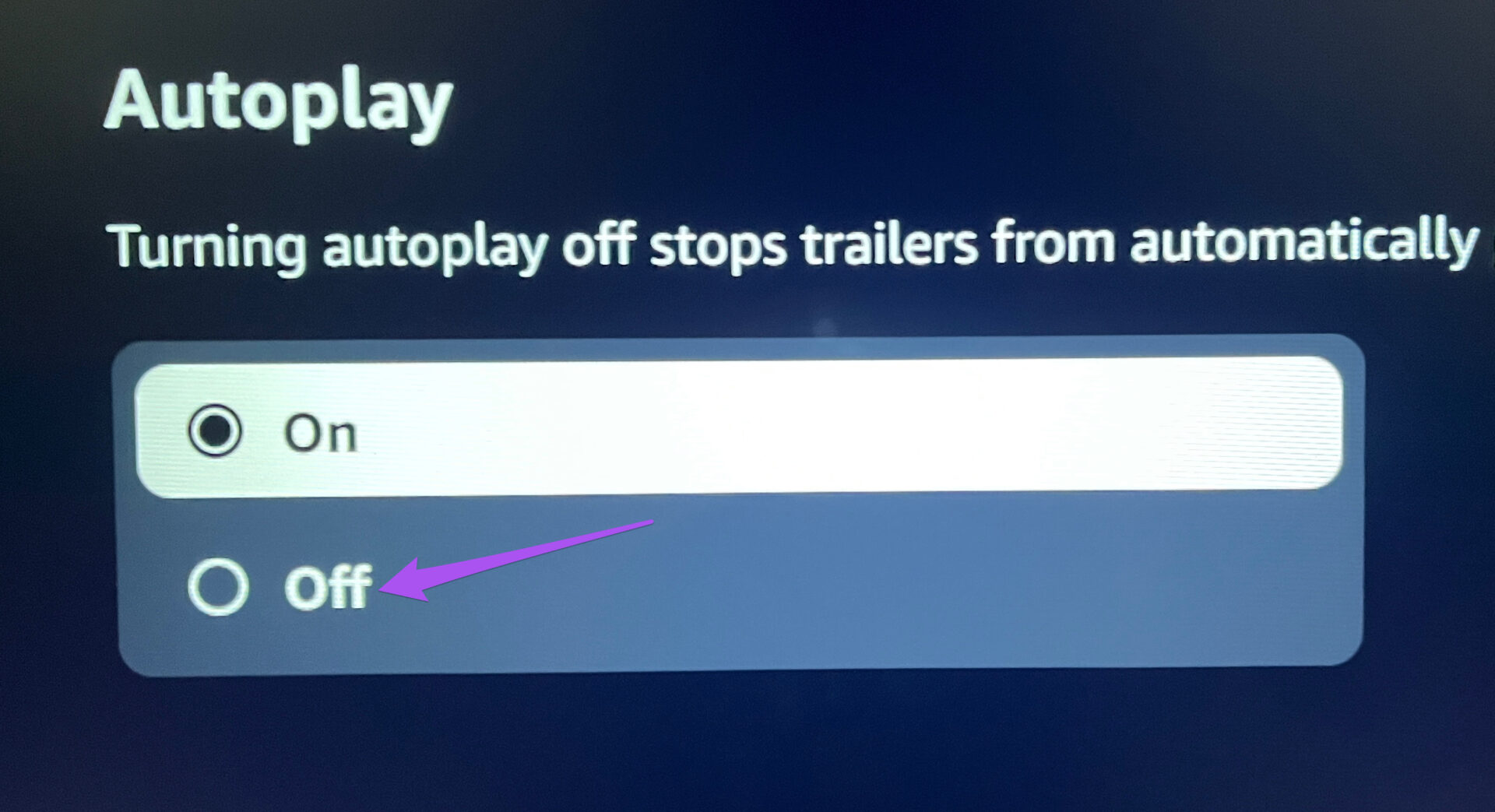
Step 4: Select Autoplay from the list of options.

Step 5: Select Off to disable the feature.
Prime Video gives you the option to watch content in Dolby Atmos. If the feature is not working on your Android TV, check out our post on how to fix Dolby Atmos not working in Prime Video on Android TV.
Was this helpful?
Last updated on 31 July, 2024
Read Next
 5 Ways to Fix Amazon Prime Video Doesn’t Play in HD on Browser
Basic Fixes Check network connection: Playing Prime Video in high definition or the best resolution requires an optimum internet speed.
5 Ways to Fix Amazon Prime Video Doesn’t Play in HD on Browser
Basic Fixes Check network connection: Playing Prime Video in high definition or the best resolution requires an optimum internet speed.
 5 Ways to Fix Video Unavailable in Amazon Prime Video
Basic Fixes Check network connection: Playing Prime without any problems requires an optimum internet speed.
5 Ways to Fix Video Unavailable in Amazon Prime Video
Basic Fixes Check network connection: Playing Prime without any problems requires an optimum internet speed.
 What is the Download Limit For Amazon Prime Video
Amazon’s relatively successful venture into the video streaming business alongwith few Original releases from their own production has found an audience across the globe and thanks to its Download and
What is the Download Limit For Amazon Prime Video
Amazon’s relatively successful venture into the video streaming business alongwith few Original releases from their own production has found an audience across the globe and thanks to its Download and
 How to Remove Registered Devices From Amazon Prime Video
Method 1: Deregister Device Using Mobile The Prime Video App on iPhone or Android will let you enjoy your favorite content on the move or from the porch.
How to Remove Registered Devices From Amazon Prime Video
Method 1: Deregister Device Using Mobile The Prime Video App on iPhone or Android will let you enjoy your favorite content on the move or from the porch.
 3 Ways to Fix Amazon Prime Video App Not Working on Mac
Basic Fixes Check internet connection: The speed of the internet connection should be optimal to watch content of the highest quality on Prime Video.
3 Ways to Fix Amazon Prime Video App Not Working on Mac
Basic Fixes Check internet connection: The speed of the internet connection should be optimal to watch content of the highest quality on Prime Video.
 How to Change Amazon Prime Video Streaming Quality on Any Device
Most streaming services these days offer the best quality possible.
How to Change Amazon Prime Video Streaming Quality on Any Device
Most streaming services these days offer the best quality possible.
 Amazon Prime Video – How to Fix Error Code 5004 or 5005
What Does Amazon Prime Video Error 5004 or 5005 Mean?
Amazon Prime Video – How to Fix Error Code 5004 or 5005
What Does Amazon Prime Video Error 5004 or 5005 Mean?
 How to Turn off Subtitles on Prime Video on Any Device
How to Turn off Subtitles for Prime Video on Web Browser Use the subtitle settings to disable Prime Video subtitles on your web browser.
How to Turn off Subtitles on Prime Video on Any Device
How to Turn off Subtitles for Prime Video on Web Browser Use the subtitle settings to disable Prime Video subtitles on your web browser.
The article above may contain affiliate links which help support Guiding Tech. The content remains unbiased and authentic and will never affect our editorial integrity.