If your PC feels like it’s taking forever to open apps or load websites, you’re not alone. Windows 11 looks nice, but sometimes it can slow things down on older or budget laptops. The good news? You don’t need to be a tech expert to speed things up.
Here are three quick and easy ways to make your computer run faster without downloading anything or messing with settings you’re not familiar with.
Option 1. Turn Off Startup Apps
Many programs automatically start running in the background when you turn on your computer. The problem is, most of them don’t need to be running all the time. This slows down your boot time and eats up memory you could be using for other processes. Here’s how to fix it:
Step 1. Right-click the Start button and select Task Manager.

Step 2. Click the Startup apps tab on the left.

Step 3. Check the list. If you see something you don’t use every day, right-click it and select Disable.
That’s it. You’re not deleting the app, you’re just stopping it from starting up every time. Your PC should boot faster now.
Option 2. Use Storage Sense to Clean Up Your Files
Over time, your computer collects junk like leftover files from updates, temporary files, or stuff you’ve deleted but not emptied from the Recycle Bin. These pile up and can make your system sluggish. To clean things up:
Step 1. Press Windows + I to open Settings.
Step 2. Click on System, then Storage.

Step 3. Scroll down and click Storage Sense, then toggle it On.

Step 4. To run it right away, click Run Storage Sense now.
This tool automatically clears out useless files. It’s built into Windows 11 and safe to use. If you want even more control, there are many PC cleaning software tools that give you thorough cleanups.
Option 3. Reduce Visual Effects
Windows 11 uses many animations and transparency effects that look nice, but they also use up system power. Turning some of these off can make your PC faster, especially if it’s struggling. Here’s how:
Step 1. Press Windows + S or navigate to the task bar search and type View Advanced System Settings, then open it.

Step 2. Under the Performance section, click Settings.

Step 3. Select Adjust for best performance, or pick Custom and uncheck things like Animations and Transparency.

You’ll lose some of the better visuals but your computer will run smoother, and you likely won’t notice the difference. These simple steps on how to speed up your PC (Windows 11) can make a big difference, especially if it has been slowing down over time. You don’t need to install anything or mess with your system settings too much, just a few small changes that help Windows 11 run the way it should.
Was this helpful?
Last updated on 11 May, 2025
Read Next
 5 Best Internet Speed Meter Apps for Windows 10 PC
Typically, when we want to check our internet speed, we do it using a speed test website.
5 Best Internet Speed Meter Apps for Windows 10 PC
Typically, when we want to check our internet speed, we do it using a speed test website.
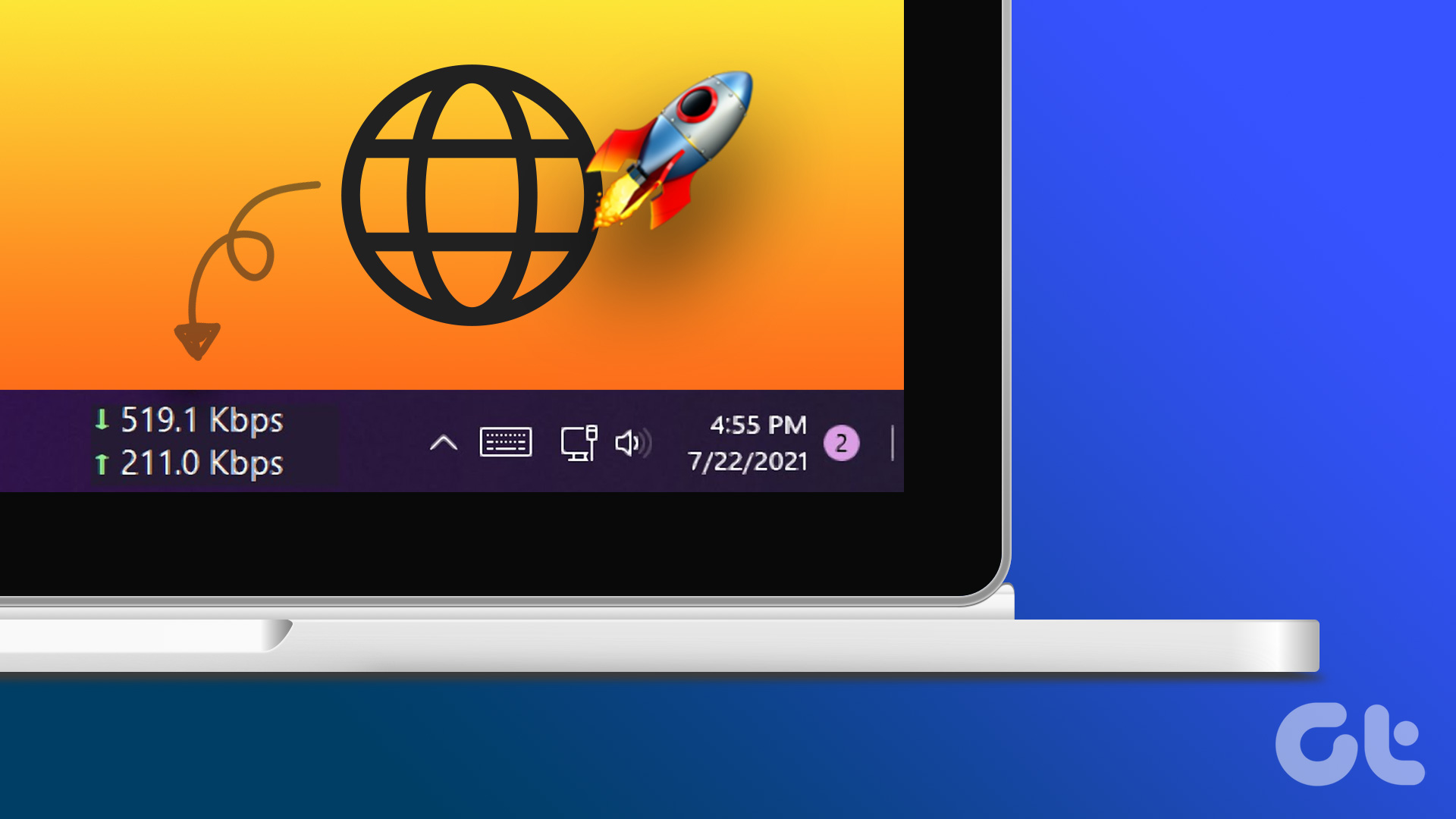 How to Display Internet Speed on Taskbar in Windows
https://youtu.be/m62gwMYvYVk Download Internet Speed Meter for Windows for Real-Time Monitoring To show internet speed in the taskbar on Windows, you will have to download a dedicated app known as NetSpeedMonitor.
How to Display Internet Speed on Taskbar in Windows
https://youtu.be/m62gwMYvYVk Download Internet Speed Meter for Windows for Real-Time Monitoring To show internet speed in the taskbar on Windows, you will have to download a dedicated app known as NetSpeedMonitor.
 How to Speed up Thumbnail Loading in Windows 10
Haven’t we all gone through the experience where you sat down to show your recent vacation pictures to your friends, and just as you click on the folder the thumbnails
How to Speed up Thumbnail Loading in Windows 10
Haven’t we all gone through the experience where you sat down to show your recent vacation pictures to your friends, and just as you click on the folder the thumbnails
 8 Ways to Fix Slow Internet Speed on Windows 11
https://youtu.be/JSqfxm-5XZI Fix 1: Turn Off the Metered Connection Setting your internet connection as metered on Windows can prevent apps from using the internet proficiently, leading to slow internet speeds.
8 Ways to Fix Slow Internet Speed on Windows 11
https://youtu.be/JSqfxm-5XZI Fix 1: Turn Off the Metered Connection Setting your internet connection as metered on Windows can prevent apps from using the internet proficiently, leading to slow internet speeds.
 4 Ways to Fix Slow Download Speed in Microsoft Edge for Windows
Basic Yet Essential Fixes Check internet speed: If your internet speed is slow or bandwidth is less, all downloads will get slow.
4 Ways to Fix Slow Download Speed in Microsoft Edge for Windows
Basic Yet Essential Fixes Check internet speed: If your internet speed is slow or bandwidth is less, all downloads will get slow.
 4 Ways to Fix Slow Download Speed in Epic Games Launcher on Windows 11
https://youtu.be/w8E4d-rCMUQ Basic Fixes: Check the Epic Server Status: Epic Games Launcher also relies on multiple servers to operate, and It’s possible that a server might be out of order or
4 Ways to Fix Slow Download Speed in Epic Games Launcher on Windows 11
https://youtu.be/w8E4d-rCMUQ Basic Fixes: Check the Epic Server Status: Epic Games Launcher also relies on multiple servers to operate, and It’s possible that a server might be out of order or
 3 Ways to Check RAM Speed on Windows 11
Method 1: Check RAM Speed From the Task Manager The Task Manager app allows you to view your computer's core hardware details, such as RAM speed, besides monitoring system processes
3 Ways to Check RAM Speed on Windows 11
Method 1: Check RAM Speed From the Task Manager The Task Manager app allows you to view your computer's core hardware details, such as RAM speed, besides monitoring system processes
 How to Increase Downloading Speed in Xbox App for Windows 11
Try These Things First Restart the Xbox app: At times, the Xbox app might misbehave and cause issues like slow downloading speed due to a temporary glitch or bug.
How to Increase Downloading Speed in Xbox App for Windows 11
Try These Things First Restart the Xbox app: At times, the Xbox app might misbehave and cause issues like slow downloading speed due to a temporary glitch or bug.
The article above may contain affiliate links which help support Guiding Tech. The content remains unbiased and authentic and will never affect our editorial integrity.