Send Disappearing Messages in Facebook Messenger Mobile App
The process of sending disappearing messages on the mobile app is the same for Android and iOS devices. Follow the steps below.
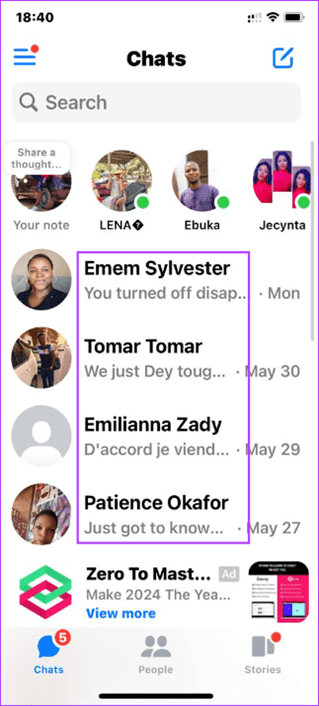
Step 1: Launch your Messenger application.
Step 2: Tap the chat to set disappearing messages > tap on the name.

Step 3: Scroll down and tap on Disappearing Messages > 24 hours.

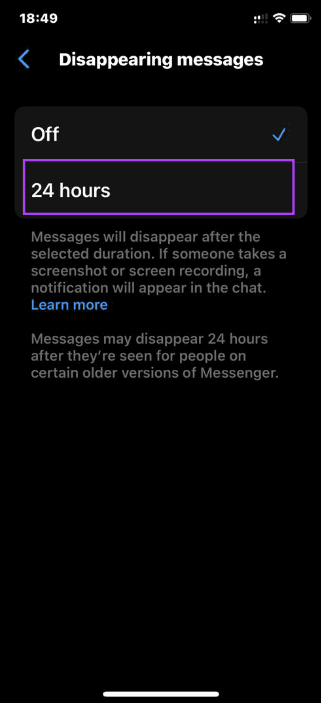
Step 4: Now, return to the chat and send messages, which will be deleted automatically after 24 hours.
Send Disappearing Messages in Facebook Messenger Web Service
If you use the Web Messenger service, you may also enable disappearing messages. However, the steps are slightly different.
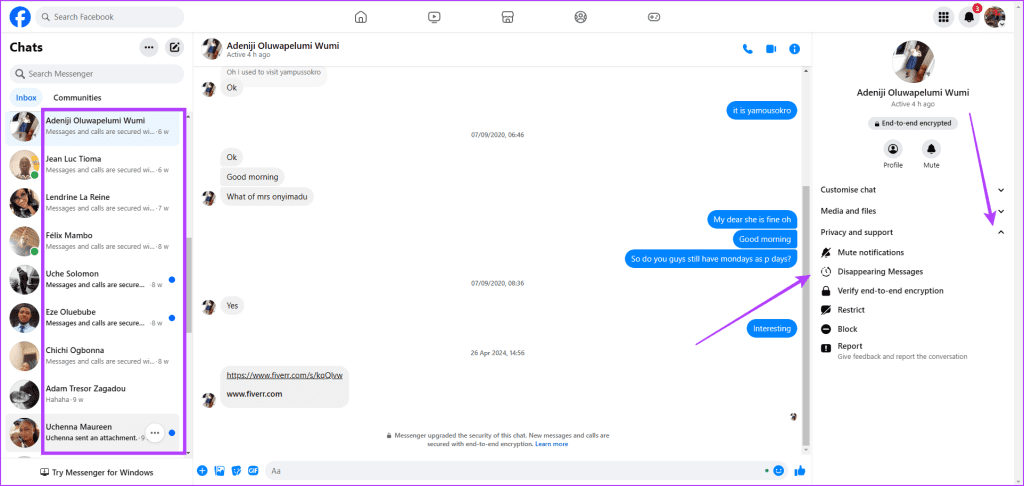
Step 1: Open your Messenger web service.
Step 2: Click the chat you need to enable disappearing messages on > expand Privacy and support > select Disappearing Messages.
Step 3: Select 24 hours > click Done.
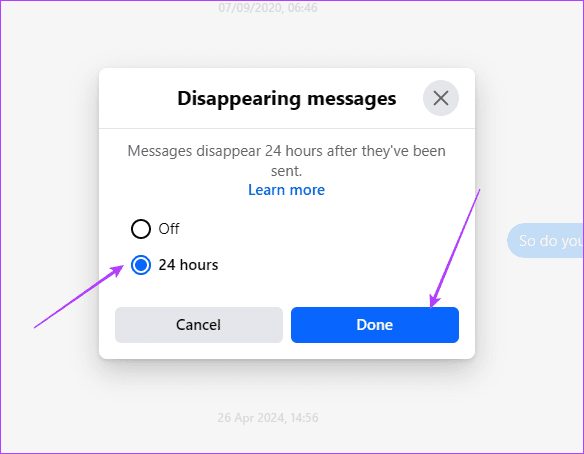
Now, return and send disappearing messages to the contact. However, you may also opt to enable secret conversations rather than using disappearing messages.
FAQs
Does Messenger Notify When Someone Screenshots or Screen Records Disappearing Messages?
Yes, Facebook will notify you if someone screenshots or screen records disappearing messages.
Can I Send One-Time View Photos Using Disappearing Messages in Messenger?
No, you can’t send view once photos on Messenger.
Does Disappearing Messages Delete the Chat on Both Messenger Accounts?
Yes, messages on a chat set to disappearing messages will be deleted from your account and the second party’s account.
Can I Recover Disappeared Messages in Messenger?
Disappearing messages are temporary. After 24 hours, you can not recover those messages.
Was this helpful?
Last updated on 05 August, 2024
Read Next
 How to Send Silent and Disappearing Messages on Instagram
Send Silent Messages on Instagram Whether the recipient’s phone is on DND (Do Not Disturb) or not, silent messages won’t produce a notification on their phone.
How to Send Silent and Disappearing Messages on Instagram
Send Silent Messages on Instagram Whether the recipient’s phone is on DND (Do Not Disturb) or not, silent messages won’t produce a notification on their phone.
 What Is Meant by Disappearing Messages Were Turned off in WhatsApp
What Are Disappearing Messages in WhatsApp If the ephemeral WhatsApp status wasn’t enough, Facebook launched another feature on WhatsApp: Disappearing messages.
What Is Meant by Disappearing Messages Were Turned off in WhatsApp
What Are Disappearing Messages in WhatsApp If the ephemeral WhatsApp status wasn’t enough, Facebook launched another feature on WhatsApp: Disappearing messages.
 Why Do My Telegram Messages Keep Disappearing?
Your Contact Is Deleting Your Messages On WhatsApp, you have a certain time window to delete messages from both sides.
Why Do My Telegram Messages Keep Disappearing?
Your Contact Is Deleting Your Messages On WhatsApp, you have a certain time window to delete messages from both sides.
 Top 4 Ways to Fix Facebook Messenger Not Showing Messages
Preliminary Fixes Check Messages Requests in Hidden Inbox: Sometimes, messages from people who are not on your friends list may not appear in your main inbox.
Top 4 Ways to Fix Facebook Messenger Not Showing Messages
Preliminary Fixes Check Messages Requests in Hidden Inbox: Sometimes, messages from people who are not on your friends list may not appear in your main inbox.
 6 Fixes for Facebook Messenger Not Sending Messages (iPhone and Android)
Preliminary Fixes Enable and Disable Airplane Mode: Network glitches can prevent Facebook Messenger from sending messages.
6 Fixes for Facebook Messenger Not Sending Messages (iPhone and Android)
Preliminary Fixes Enable and Disable Airplane Mode: Network glitches can prevent Facebook Messenger from sending messages.
 4 Ways to Fix Facebook Marketplace Messages Not Showing up in Messenger
Basic Fixes Check your network connection: Ensure your device has a good internet connection.
4 Ways to Fix Facebook Marketplace Messages Not Showing up in Messenger
Basic Fixes Check your network connection: Ensure your device has a good internet connection.
 3 Ways to Fix Can’t Send Messages on Facebook Marketplace
Fix 1: Wait It Out Facebook Marketplace limits the number of messages one can send daily to reduce spam and unsolicited activities.
3 Ways to Fix Can’t Send Messages on Facebook Marketplace
Fix 1: Wait It Out Facebook Marketplace limits the number of messages one can send daily to reduce spam and unsolicited activities.
 3 Ways to Fix Mouse Pointer Disappearing in Google Chrome
Try Basic Fixes Restart Google Chrome: Press Ctrl + L to access the address bar at the top, type in chrome://restart and press Enter.
3 Ways to Fix Mouse Pointer Disappearing in Google Chrome
Try Basic Fixes Restart Google Chrome: Press Ctrl + L to access the address bar at the top, type in chrome://restart and press Enter.
The article above may contain affiliate links which help support Guiding Tech. The content remains unbiased and authentic and will never affect our editorial integrity.