Method 1: Search by Date Using the Google Any Time Tool
The Google Any Time tool is handy when researching or looking for information from a specific time. It’s a great feature that lets you narrow your search results to find what you need from specific dates. Here’s how to use it.
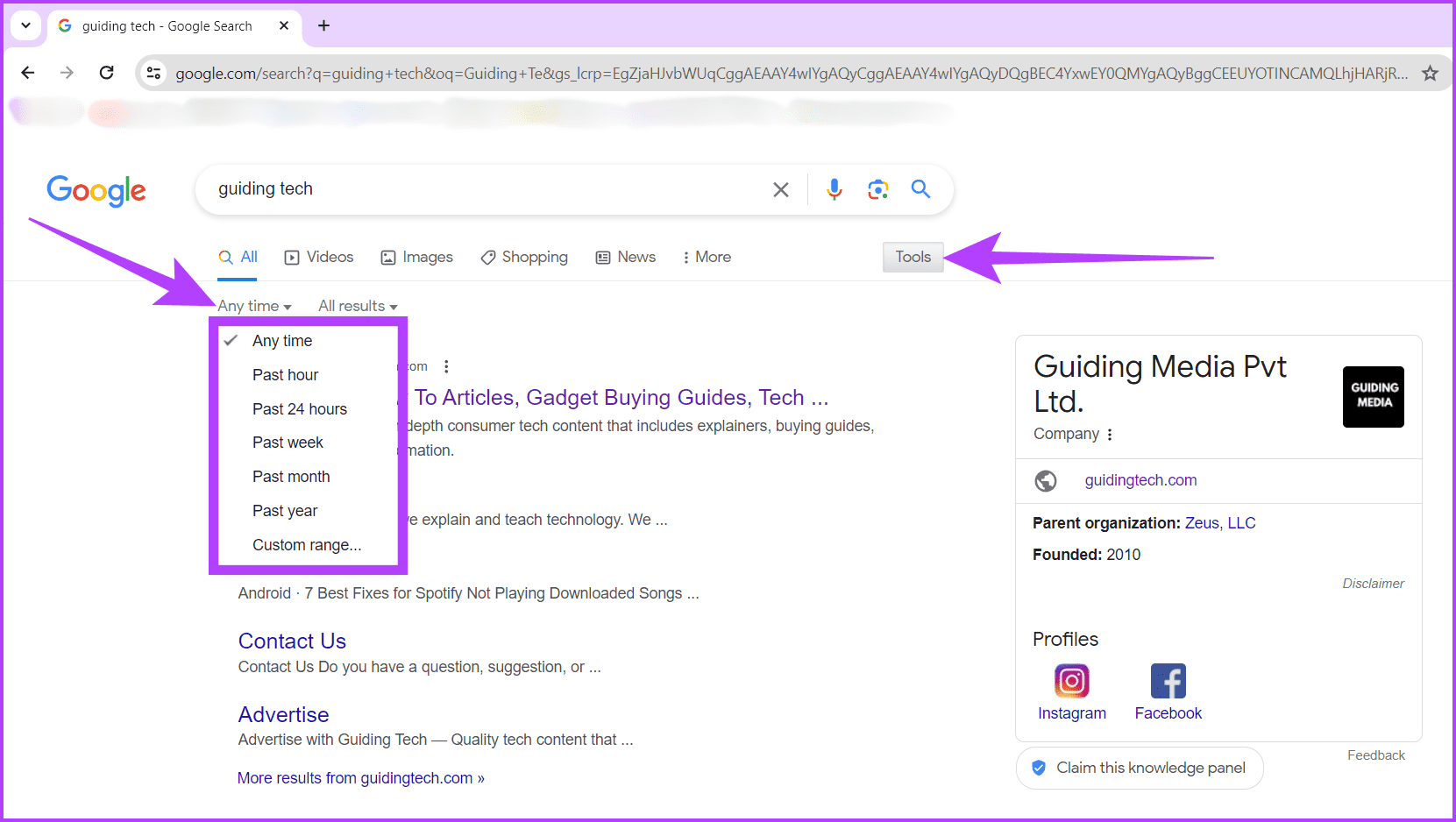
Step 1: Launch any web browser and open Google. Then, type your problem in the search box and click the Google Search button.

Step 2: Click on the tools icon. Then, click the drop-down next to Any time and select your preferred time range from the options.
Also Read: How to fix Chrome not opening on Windows
Method 2: Edit the URL to Search Google by Date
A URL is a unique address to access resources on the internet. You navigate the internet using URLs and can use them to filter search results by date. To do this, add specific parameters to your Google search URL to focus on recent news or explore other historical information. Here’s how to do it.
Step 1: Open your web browser and go to Google’s website. Type your search query and press the Google Search button.
Step 2: Look at the URL in the address bar. Now, to filter search results by date range, type &as_qdr=y at the end of the main URL and press Enter.
Note: &as_qdr=y stands for ‘as Quick Date Range’.
For example, the original URL looks like this:
https://www.google.com/search?q=your+search+query
The edited URL will look like this:
https://www.google.com/search?q=your+search+query&as_qdr=y
You can replace y (past year) in &as_qdr=y with any of the following options:
- m (past month)
- w (past week)
- d (past day)

Step 3: To narrow down the specific time frame for your search results, add the desired number to the end of the URL.
For example, to get results from the past 15 years, type &as_qdr=y15 at the end of the URL and press enter.

Make a Custom Search by Editing the URL
While the previous steps guide you to search for results at a specific time, here’s how to expand your search to a custom time range:
Step 1: Open Google in any web browser, type &tbs=cdr:1,cd_min:MM-DD-YYYY,cd_max:MM-DD-YYYY at the end of the URL and hit enter to get search results from a custom time range.
For example, if you want to get search results between January 1, 2022, and January 8, 2024, the URL will look like this:
https://www.google.com/search?q=your+search+query?&tbs=cdr:1,cd_min:01-01-2022,cd_max:01-08-2024

Step 2: You can ensure that the results you see match the specified time by checking the date below the search box.

Breakdown of the Specific Terms in the URL Parameter
Here’s what each part in the above URL means:
- tbs: This stands for Time Based Search. It’s a general parameter signaling to Google that you want to filter search results based on time.
- cdr: This part indicates Custom Date Range. It specifies that you’re applying a custom date range for the search.
- cdr:1: This value enables the custom date range feature, essentially turning it on.
- cd_min: This represents the minimum date or the starting date of the desired time frame. You’ll replace MM-DD-YYYY with the actual start date in the format of month-date-year (e.g., 08-01-2024).
- cd_max: This represents the maximum date or the ending date of the desired time frame. You’ll replace MM-DD-YYYY with the actual end date in the same format.
Also Read: How to use Circle to search on Android
Method 3: Use Google’s Advanced Search Page
Google’s Advanced Search is a powerful tool designed to enhance the precision and customization of online searches. Unlike the standard Google search page, the Advanced Search page can help you narrow search results based on a specific date or range of dates. Here’s how to use it.
Step 1: Launch any web browser and go to the Google Advanced Search page.
Step 2: Click the drop-down button next to the last update section and select a timeframe from the options. Once you’ve done this, click the Advanced Search button.

Step 3: Now, type your query in the search box and press Enter. Google will now display search results that align with your query and the designated time frame.
Method 4: Using Before: and After: Search Commands
You can also filter your Google search results by specific date range. To do that, use Google’s search bar to enter your query and a specific before or after date. You can also combine them to search for something before and after specific dates. Here’s a step-by-step look for further clarity.
Step 1: Open Google on your web browser and go to the search bar. Here, type your query followed by a before or after date. Please note the date can be in a year/month/day format or only a year.
For example, when searching for Superman before a certain date, you can search for parameters like:
superman before:2001
superman after:2022-07-09
superman after:2002-08-12 before:2000-08-21
Step 2: Once you enter the search query, press enter or click on Google Search.

The search results for your query should now be visible.

You can also repeat your search with different before and after date parameters. Ensure the before and after dates are valid for the search query.
Was this helpful?
Last updated on 20 May, 2024
Read Next
 3 Ways to Change Date Created, Date Modified, and Other Attributes on Windows
Potential Risks and Considerations of Modifying File Attributes Manually changing the creation and modification date of any file on Windows can be useful for better organizing your files, making them
3 Ways to Change Date Created, Date Modified, and Other Attributes on Windows
Potential Risks and Considerations of Modifying File Attributes Manually changing the creation and modification date of any file on Windows can be useful for better organizing your files, making them
 How to Insert a Date Picker in Google Sheets and Google Docs
Google Sheets and Google Docs provide a free, online alternative to Microsoft Office, along with unique features.
How to Insert a Date Picker in Google Sheets and Google Docs
Google Sheets and Google Docs provide a free, online alternative to Microsoft Office, along with unique features.
 2 Ways to Change Your Age (and Birth Date) on Discord
Things to Know Before Changing Your Age on Discord 1. Discord's 'Terms of Service' clearly state that users must be at least 13 years old to use the platform.
2 Ways to Change Your Age (and Birth Date) on Discord
Things to Know Before Changing Your Age on Discord 1. Discord's 'Terms of Service' clearly state that users must be at least 13 years old to use the platform.
 A Guide to Using the Search Bar and Search Operators in Microsoft Outlook
How to Use the Microsoft Outlook Search Bar There are two ways to use the Microsoft Outlook Search bar.
A Guide to Using the Search Bar and Search Operators in Microsoft Outlook
How to Use the Microsoft Outlook Search Bar There are two ways to use the Microsoft Outlook Search bar.
 Top 5 Ways to Add Date and Timestamp to Photos on Android
Over the last couple of iterations, the humble phone camera has evolved significantly.
Top 5 Ways to Add Date and Timestamp to Photos on Android
Over the last couple of iterations, the humble phone camera has evolved significantly.
 6 Ways to Fix the Wrong Date and Time on Mac
Have you ever glanced at your Mac's clock only to find it displaying the wrong time?
6 Ways to Fix the Wrong Date and Time on Mac
Have you ever glanced at your Mac's clock only to find it displaying the wrong time?
 How To Fix Your Phone Date Is Inaccurate Error In WhatsApp
When WhatsApp is your go-to platform for communicating with friends and family, you'd want it to function properly.
How To Fix Your Phone Date Is Inaccurate Error In WhatsApp
When WhatsApp is your go-to platform for communicating with friends and family, you'd want it to function properly.
 How to Change Date and Time on Windows 10 and 11
How to Change Date and Time in Windows Step 1: On the desktop, right-click on the Date and time widget at the bottom right corner.
How to Change Date and Time on Windows 10 and 11
How to Change Date and Time in Windows Step 1: On the desktop, right-click on the Date and time widget at the bottom right corner.
The article above may contain affiliate links which help support Guiding Tech. The content remains unbiased and authentic and will never affect our editorial integrity.