

Schedule Messages on Telegram
While Telegram offers its Premium subscription to unlock more features, the option to schedule messages is available to other users, too. You must ensure that you use the Telegram Desktop app v9.3 on your Mac or Windows PC and v9.3.2 or above on your Android or iPhone. Here’s how to go about it.
On Desktop
Note: This feature is not available for Telegram Web users.
Step 1: Open Telegram on your Mac or Windows PC.
Step 2: Select the contact for whom you want to schedule a message.
Step 3: Type your message and force-click on the Send icon at the bottom right.
Step 4: Select Schedule Message in the pop-up menu.
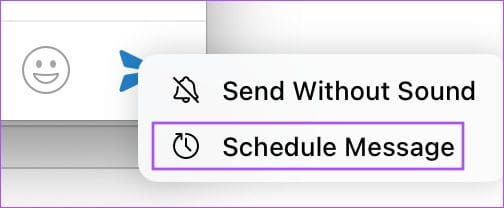
Step 5: Set the Date and Time for sending your message and click on Send Today At (Date and Time).
Tip: You can also select Send When Online to send the message.

Your scheduled message will appear in a new window on your screen.
On Mobile
Step 1: Open Telegram on your iPhone or Android.
Step 2: Select the contact name for whom you want to schedule a message.
Step 3: Type your message and long-press the Send icon at the bottom right. Tap on Schedule Message.
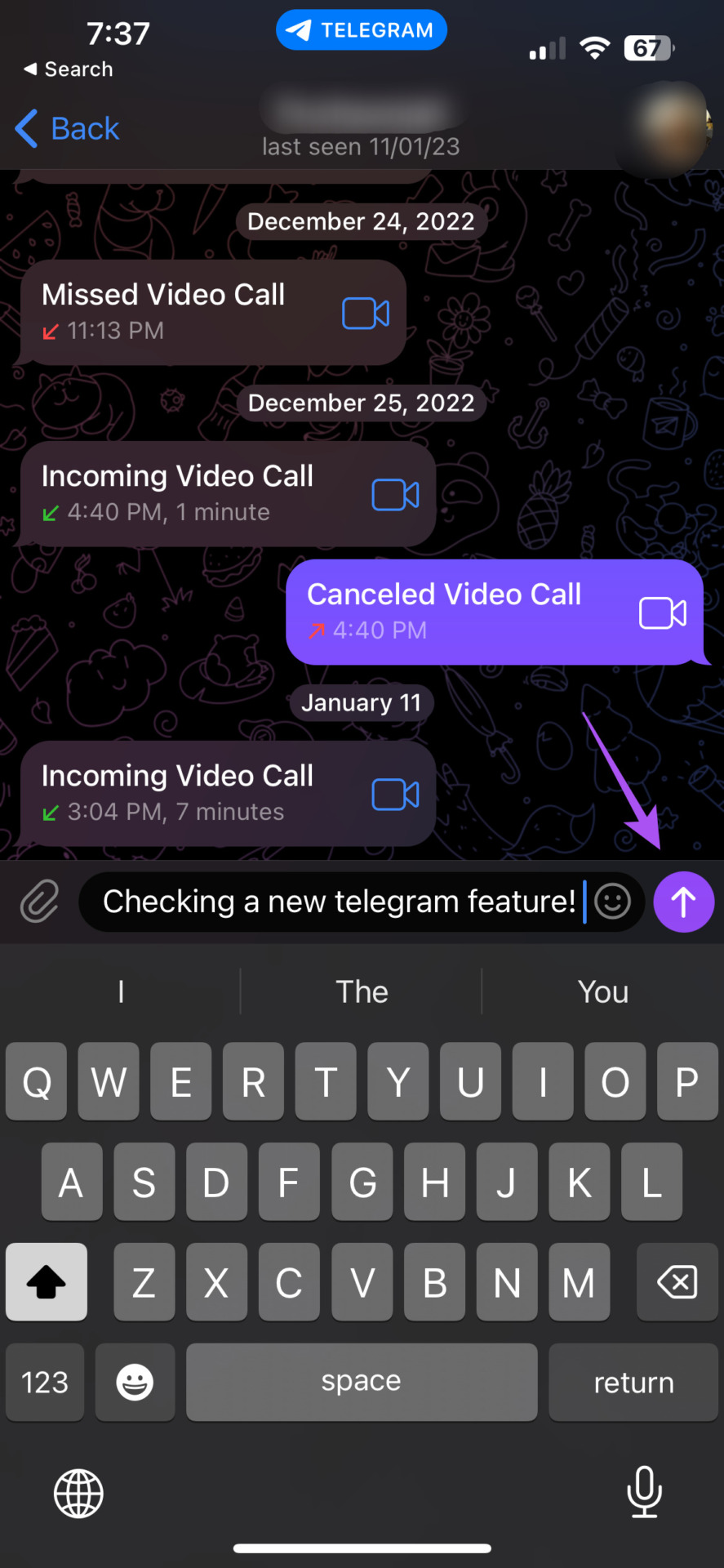

Step 4: Set the Date and Time for scheduling the message and tap on Send Today At (Date and Time).
You can also choose to send when your contact is online on Telegram.
Reschedule Messages in Telegram
Telegram also lets you make changes to the Date and Time of your scheduled message before it is sent to your contact. This is helpful in scheduling reminders to your personal or professional contacts. Here’s how to do that.
On Desktop
Step 1: Open Telegram on your Mac or Windows PC.
Step 2: Select the contact for whom you want to reschedule a message.
Step 3: Click the Scheduled Messages icon in the chat box at the bottom right.
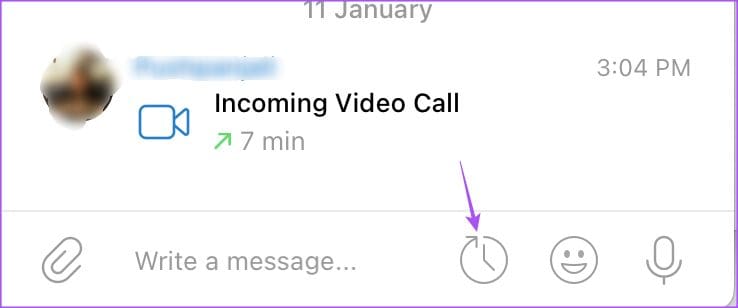
Step 4: Right-click on the message and click on Re-schedule.

Step 5: Select the new Date and Time and click on Send Today At (Date and Time).
You can also click on Delete to remove your scheduled message for the contact.

On Android and iPhone
Step 1: Open Telegram on your iPhone or Android.
Step 2: Select the contact whose message you want to reschedule.
Step 3: Tap the Scheduled icon at the bottom right. Long-press on the message you want to reschedule and select Reschedule.
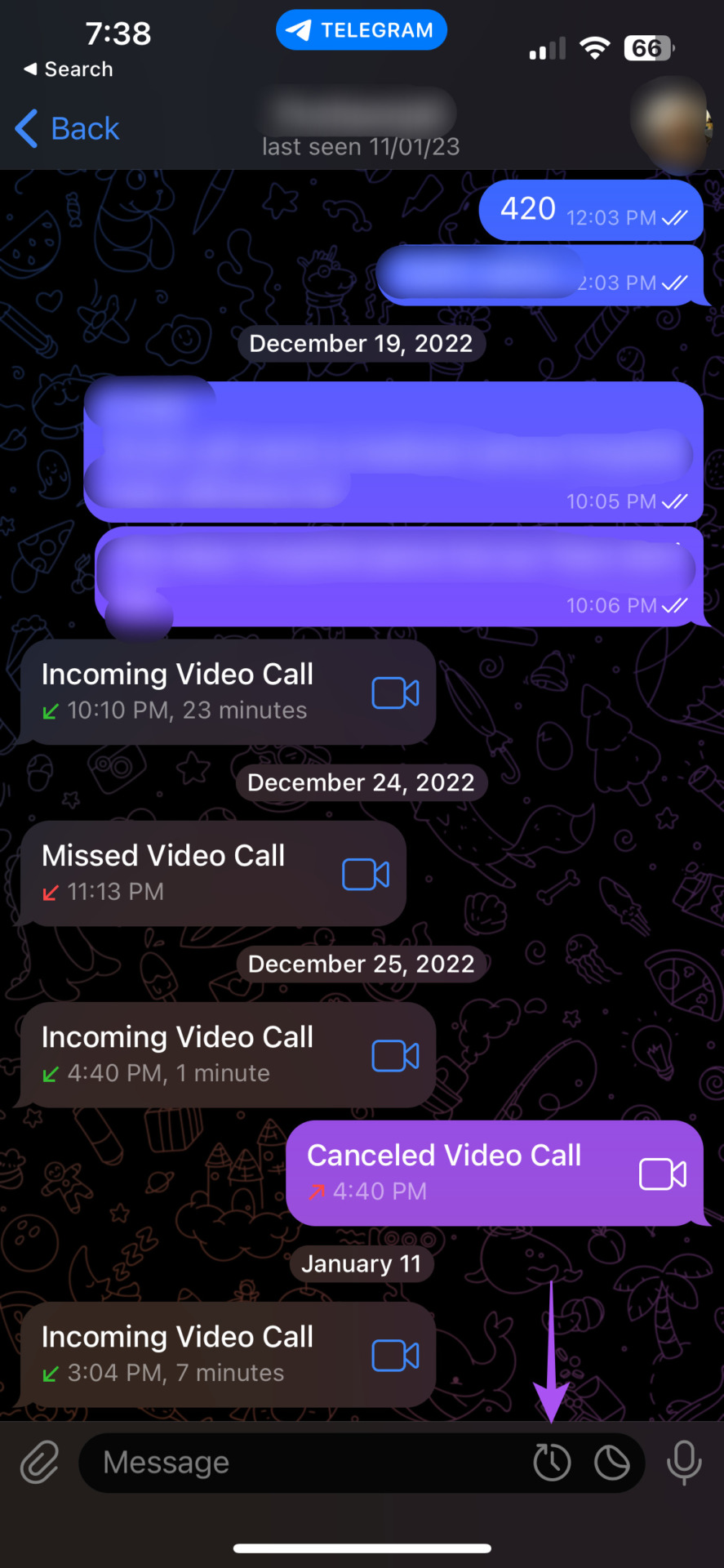
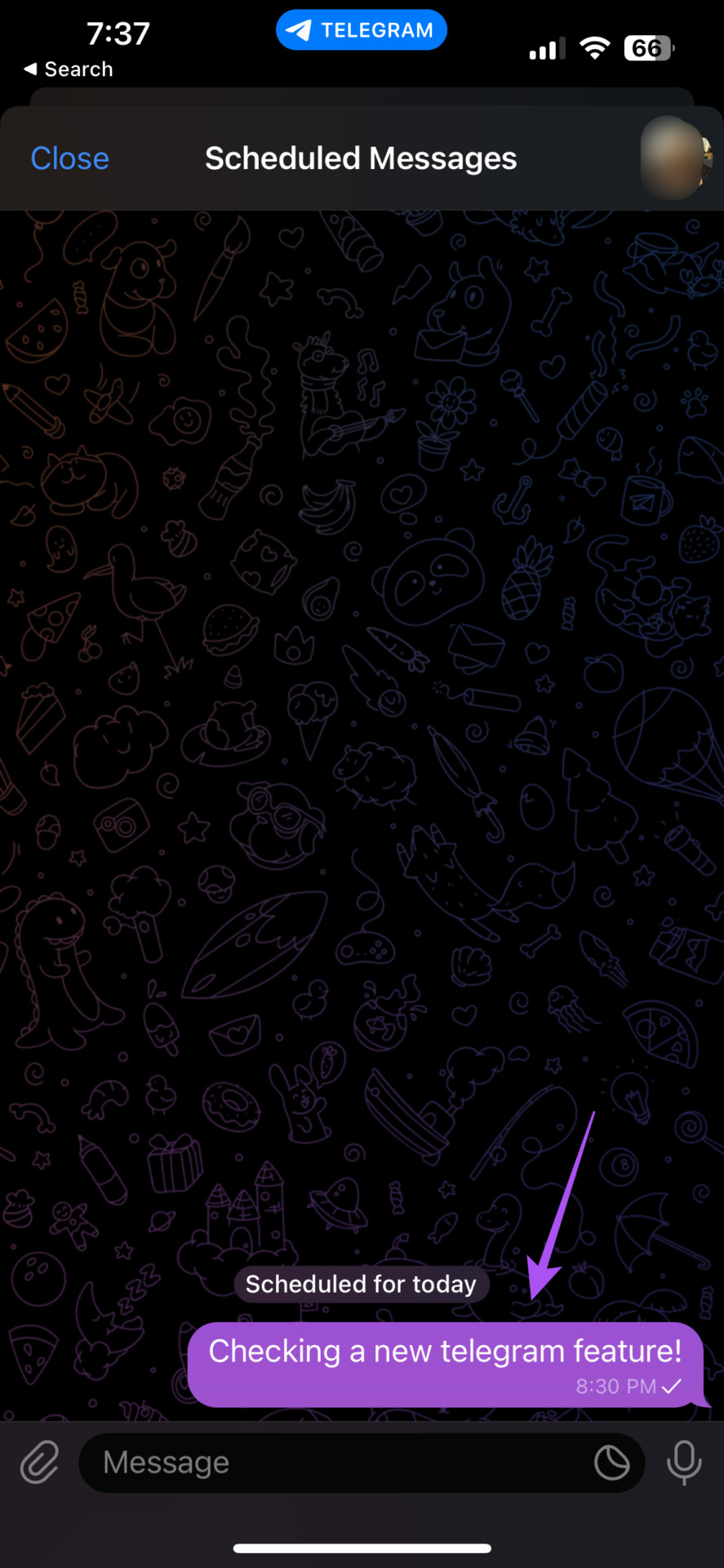

Step 4: Select the new Date and Time and tap on Send Today At (Date and Time).
You can also delete your scheduled message in this same window.
Tip: You can also read our post if Telegram is not sending messages on Android and iPhone.
Was this helpful?
Last updated on 08 August, 2024
1 Comment
Leave a Reply
Read Next
 How to Schedule Messages on the Signal App
Have you ever wanted to send a message later but were worried you might forget?
How to Schedule Messages on the Signal App
Have you ever wanted to send a message later but were worried you might forget?
 How to Remove Telegram Stickers Packs (Mobile and Desktop)
Remove Telegram Stickers from Mobile Apps Telegram for iPhone Step 1: Open Telegram on your iPhone.
How to Remove Telegram Stickers Packs (Mobile and Desktop)
Remove Telegram Stickers from Mobile Apps Telegram for iPhone Step 1: Open Telegram on your iPhone.
 How to Create Poll in Telegram on Desktop and Mobile
How to Make a Poll on the Telegram Channel or Group On Desktop or Web Step 1: Launch the Telegram app or open the Telegram web.
How to Create Poll in Telegram on Desktop and Mobile
How to Make a Poll on the Telegram Channel or Group On Desktop or Web Step 1: Launch the Telegram app or open the Telegram web.
 How to Set Up Proxy Connection on Telegram on Mobile and Desktop
Besides offering different features, Telegram is also known to be one of the most secure apps offering an encrypted chat experience.
How to Set Up Proxy Connection on Telegram on Mobile and Desktop
Besides offering different features, Telegram is also known to be one of the most secure apps offering an encrypted chat experience.
 3 Fixes for Telegram Keeps Logging Me Out on Mobile and Desktop
Basic Fixes Force quit and relaunch the Telegram app: This will give the app a fresh start on your device.
3 Fixes for Telegram Keeps Logging Me Out on Mobile and Desktop
Basic Fixes Force quit and relaunch the Telegram app: This will give the app a fresh start on your device.
 How to Send High Quality Photos and Video on Telegram
Send High-Quality Photos and Videos on Telegram on Mobile Let us show you the steps to send photos and videos without losing quality on your iPhone and Android using Telegram.
How to Send High Quality Photos and Video on Telegram
Send High-Quality Photos and Videos on Telegram on Mobile Let us show you the steps to send photos and videos without losing quality on your iPhone and Android using Telegram.
 4 Fixes for GIFs Not Working in Telegram
Basic Fixes Check if the GIF file is corrupted: It is a common issue and you can't trust every website to let you download high-quality GIFs.
4 Fixes for GIFs Not Working in Telegram
Basic Fixes Check if the GIF file is corrupted: It is a common issue and you can't trust every website to let you download high-quality GIFs.
 How to Lock Telegram Using Passcode on Desktop and Mobile
Lock Telegram Using Passcode on Desktop You can choose to lock Telegram's desktop app using a passcode as well.
How to Lock Telegram Using Passcode on Desktop and Mobile
Lock Telegram Using Passcode on Desktop You can choose to lock Telegram's desktop app using a passcode as well.
The article above may contain affiliate links which help support Guiding Tech. The content remains unbiased and authentic and will never affect our editorial integrity.


Good post, thanks. I would suggest also including Telegram Web, even if only to clarify that the web version doesn’t include message scheduling (as far as I’ve been able to ascertain).