

Record and Send Telegram Video Messages on iPhone and Android
A Video Message on Telegram is an alternative to sending a voice message to your contact. It will help you express yourself better in your chats. But do note that the duration of a Video Message on Telegram is just 60 seconds. To use this feature on your iPhone or Android phone, ensure that you are using the latest app version.
Step 1: Open Telegram on your iPhone or Android phone.
Step 2: Open the chat with the contact to whom you want to send the video message.
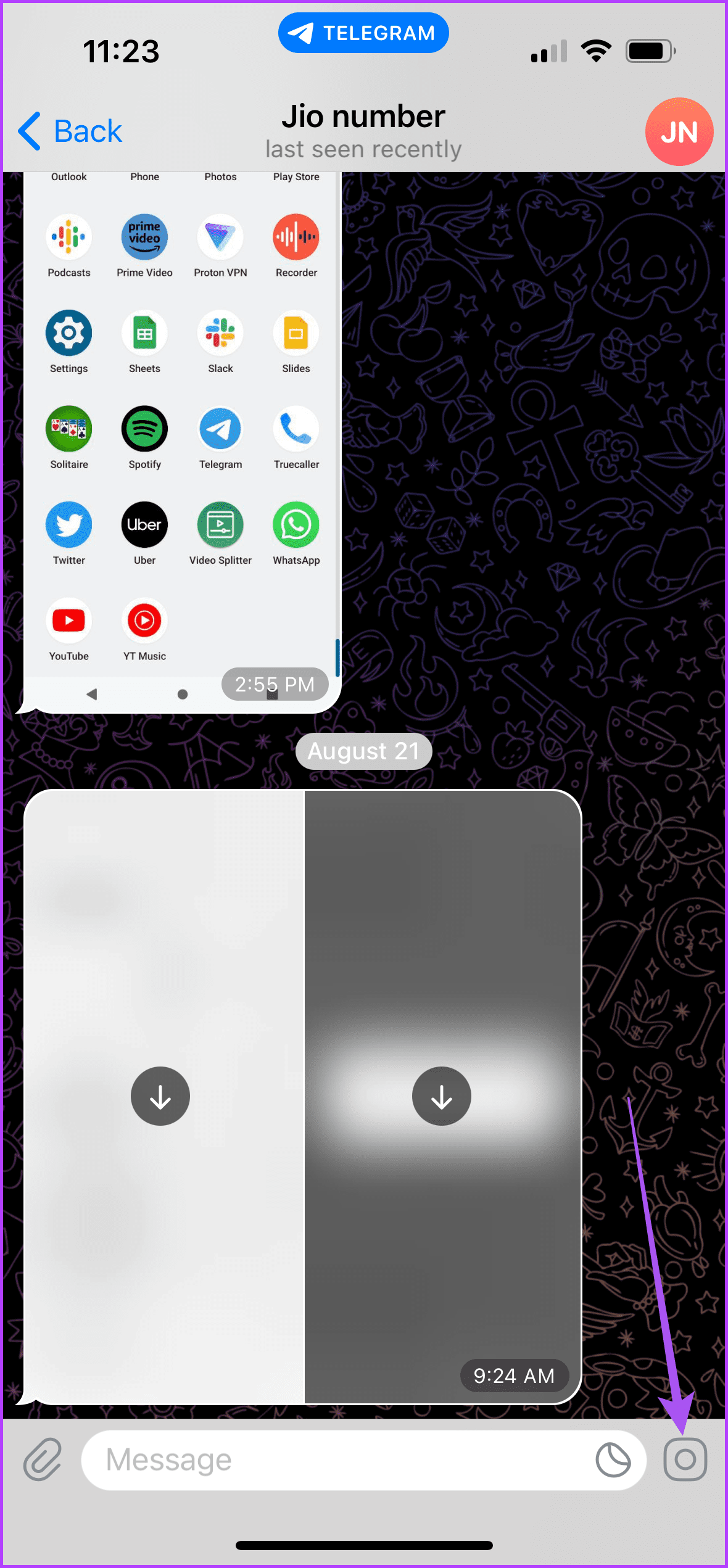
Step 3: Tap the Microphone icon at the bottom-right corner of the chat. You will notice that the Microphone icon will switch to a Camera icon.
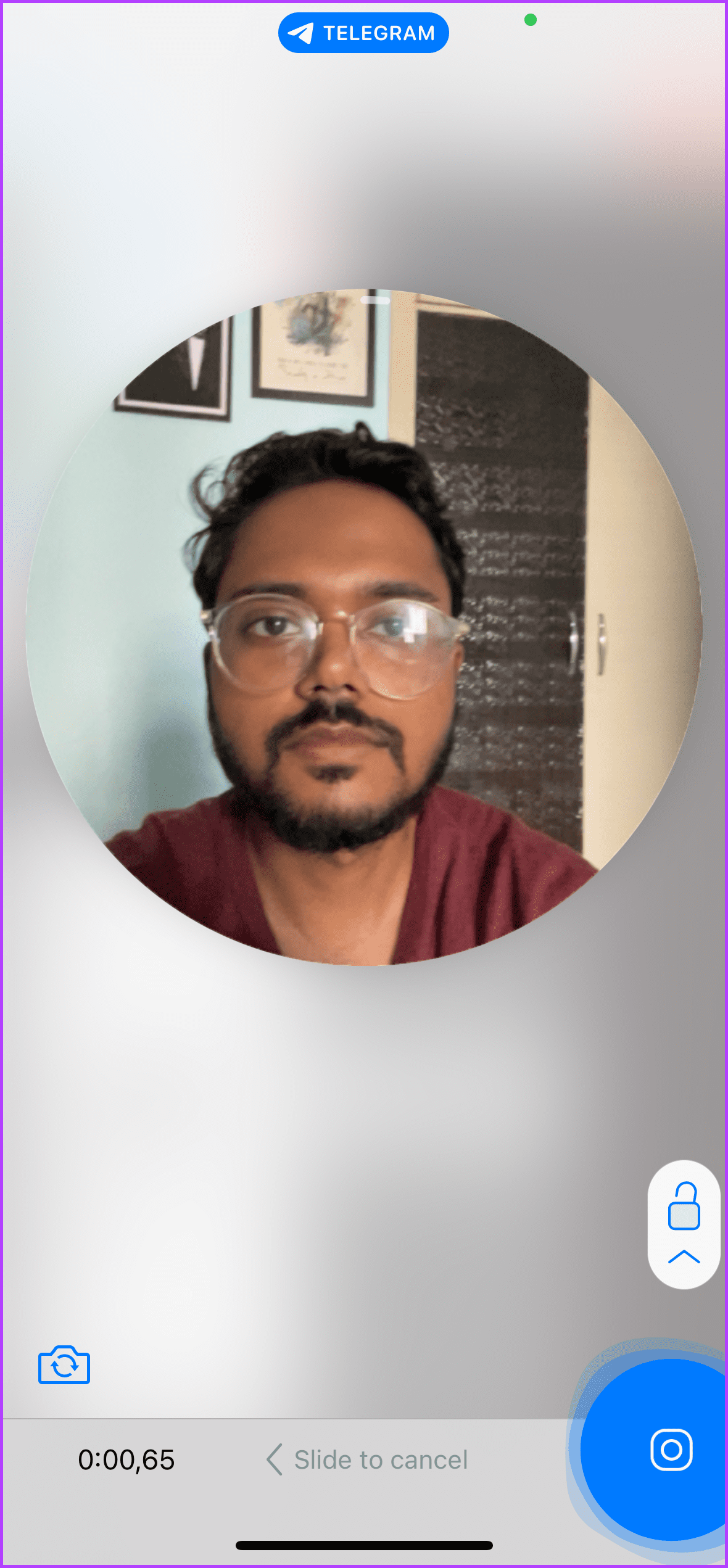
Step 4: Long-press the Camera icon to open the video message recording window.
Step 5: Start recording your video message.
Step 6: Release the camera icon to send your video message.
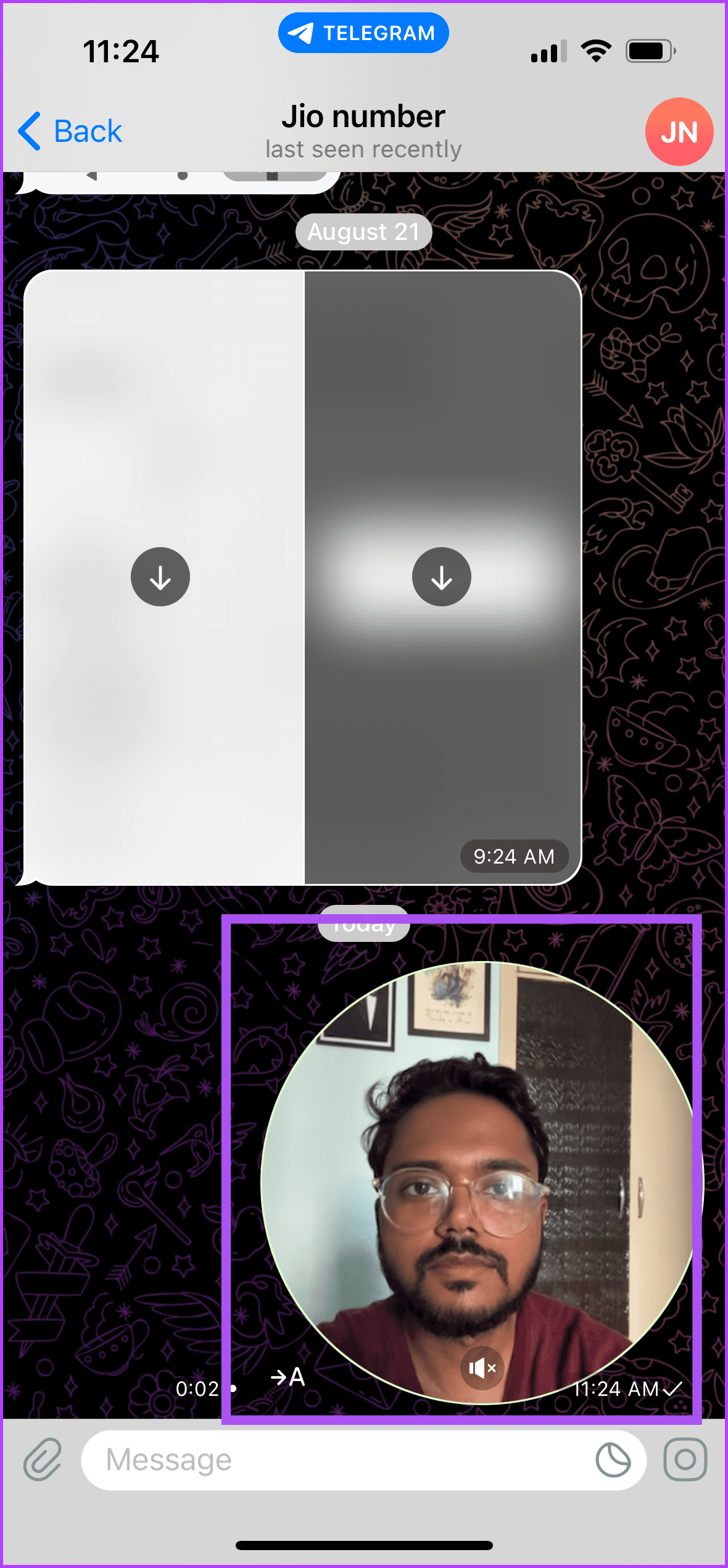
After you do record a video message, you will notice a circular video icon in the Telegram chat for the video message.
Your contact can tap the circular icon to check your video message. By default, it will be muted in the chat.
Edit Video Message Before Sending in Telegram
Here’s how to edit your video message before sending it to your Telegram contact. These steps apply to iPhone and Android phones.
Step 1: Open Telegram on your iPhone or Android phone.
Step 2: Open the chat with the contact to whom you want to send the video message.
Step 3: Tap the Microphone icon at the bottom-right corner of the chat.
Step 4: Long-press the Camera icon to open the video message recording window.
Step 5: Drag the recording arrow icon to select the Unlock icon above it.
Step 6: Tap the Pause icon at the bottom right side to stop recording the message.
Step 7: Use the editing slider at the bottom to edit the length of your recorded video message.
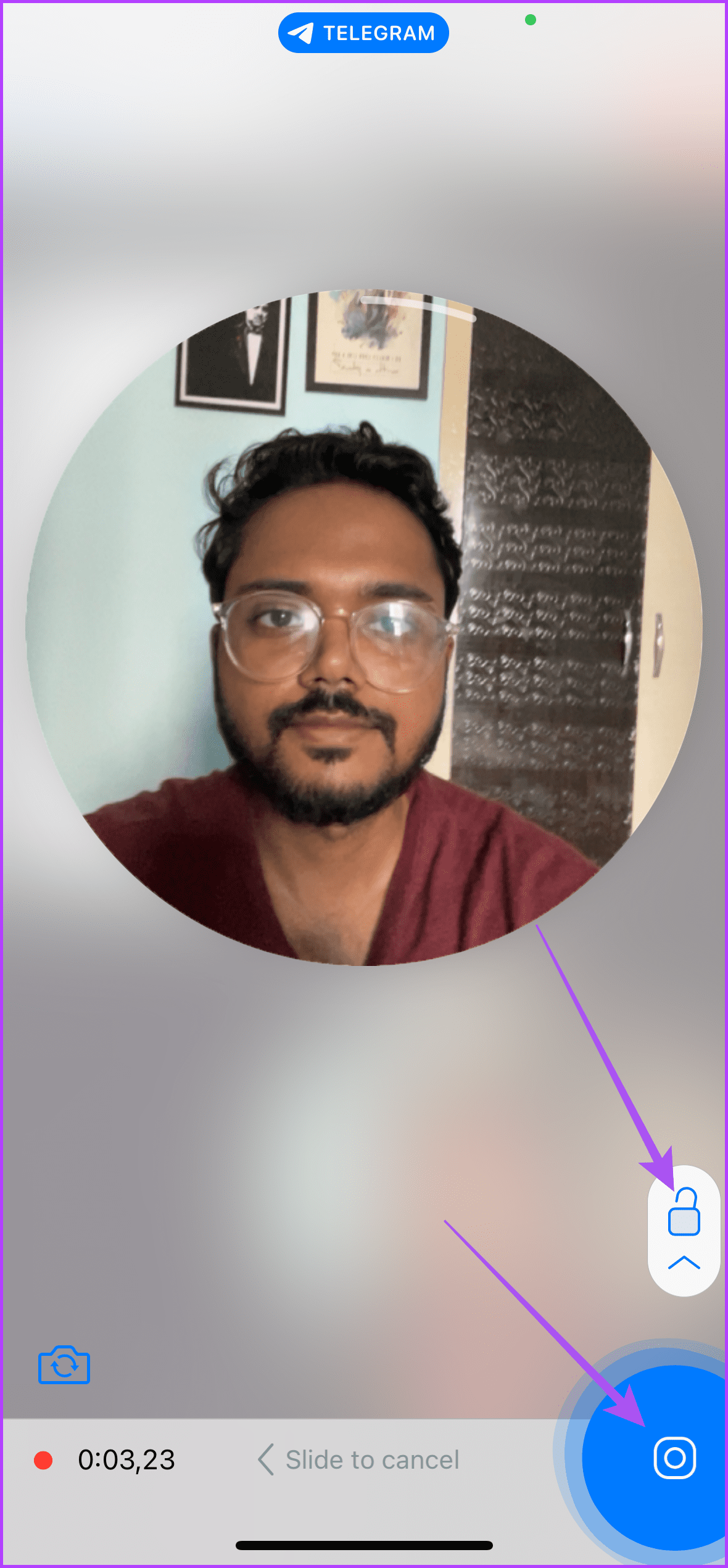


You can also delete the recorded message by tapping the Delete icon at the bottom-left corner.
Step 8: After you edit your recorded video message, tap the Send icon at the bottom-right corner.
If you long-press the Send icon, you will also get the option to schedule your video message.
Tip: Refer to our post if Telegram keeps logging you out on mobile or desktop.
Was this helpful?
Last updated on 07 August, 2024
2 Comments
Leave a Reply
Read Next
 How to Send High Quality Photos and Video on Telegram
Send High-Quality Photos and Videos on Telegram on Mobile Let us show you the steps to send photos and videos without losing quality on your iPhone and Android using Telegram.
How to Send High Quality Photos and Video on Telegram
Send High-Quality Photos and Videos on Telegram on Mobile Let us show you the steps to send photos and videos without losing quality on your iPhone and Android using Telegram.
 How to Force Send Text Message Instead of iMessage to a Contact
Let's see how to force send a text message instead of iMessage to a contact on your iPhone and iPad.
How to Force Send Text Message Instead of iMessage to a Contact
Let's see how to force send a text message instead of iMessage to a contact on your iPhone and iPad.
 5 Ways to Fix Twitter (X) Message Failed to Send
Basic Fixes Check network connection: If there's a problem with your Wi-Fi or cellular connection, X may not be able to send the message.
5 Ways to Fix Twitter (X) Message Failed to Send
Basic Fixes Check network connection: If there's a problem with your Wi-Fi or cellular connection, X may not be able to send the message.
 How to Send a Blank Message on WhatsApp
Sending long-winded messages has become a thing of the past.
How to Send a Blank Message on WhatsApp
Sending long-winded messages has become a thing of the past.
 How to Use Message Reactions in Telegram
https://youtu.be/_tWPPbvEwvI Use Message Reactions in Telegram on Mobile or Desktop Here's how to add emoji reactions to messages in the Telegram app on your mobile or desktop.
How to Use Message Reactions in Telegram
https://youtu.be/_tWPPbvEwvI Use Message Reactions in Telegram on Mobile or Desktop Here's how to add emoji reactions to messages in the Telegram app on your mobile or desktop.
 8 Best Ways to Fix iMessage Needs to Enabled to Send This Message Error
Apple's iMessage is the exclusive messaging service separating iOS from Android.
8 Best Ways to Fix iMessage Needs to Enabled to Send This Message Error
Apple's iMessage is the exclusive messaging service separating iOS from Android.
 How to Send a Voice Message on iPhone (via iMessage)
Method 1.
How to Send a Voice Message on iPhone (via iMessage)
Method 1.
 How to Send Pictures in Text Message or Email on Android or iPhone
How to Send Pictures in a Text Message You can send pictures using the Messages app on your Android or iPhone.
How to Send Pictures in Text Message or Email on Android or iPhone
How to Send Pictures in a Text Message You can send pictures using the Messages app on your Android or iPhone.
The article above may contain affiliate links which help support Guiding Tech. The content remains unbiased and authentic and will never affect our editorial integrity.
Thanks you
I need master agent