Record Discord Calls on iPhone and Android
Method 1: Using the Built-in Screen Recorder
Note: Depending on the Android smartphone and the Android version it’s running, the steps might differ. However, these steps will still give you a rough idea.
Step 1: Open Screen Recorder from the quick settings panel and choose Record audio.
Step 2: Tap Start.


The screen recording will start after some seconds. To stop it, open Quick Settings and tap Stop under Screen Recording.
If you use an iPhone, follow the steps below.
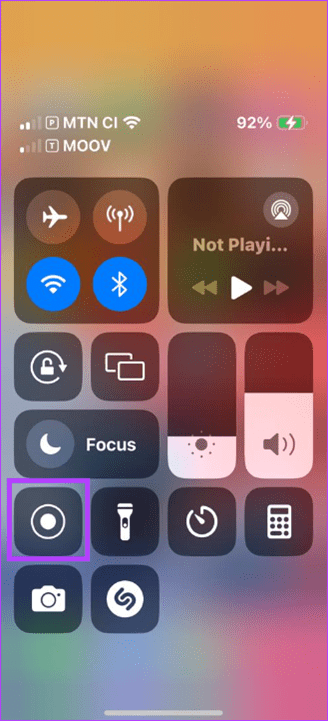
Step 1: Swipe down from the top right to access the recording option.
Step 2: Tap the recording icon.

Tip: If your iPhone’s screen recording is not working, you may fix it with these steps.
The screen recording will start after some seconds. To stop it, swipe down again from the top right and tap the Screen Recording icon.
Method 2: Using Craig Bot
The Craig bot is a Discord bot that can be added to your channel and used to record Discord calls with audio. You must be the channel administrator to add the bot. You can ask your Discord channel administrator to add the bot if you are a member.
Note: When you activate the bot, it will inform all the group members that it is recording calls in Discord.
Step 1: Open Craig tap Invite Craig to your Discord server.
Step 2: Choose the server with the voice channel you want to record from the drop-down menu.
Step 3: Tap Continue.

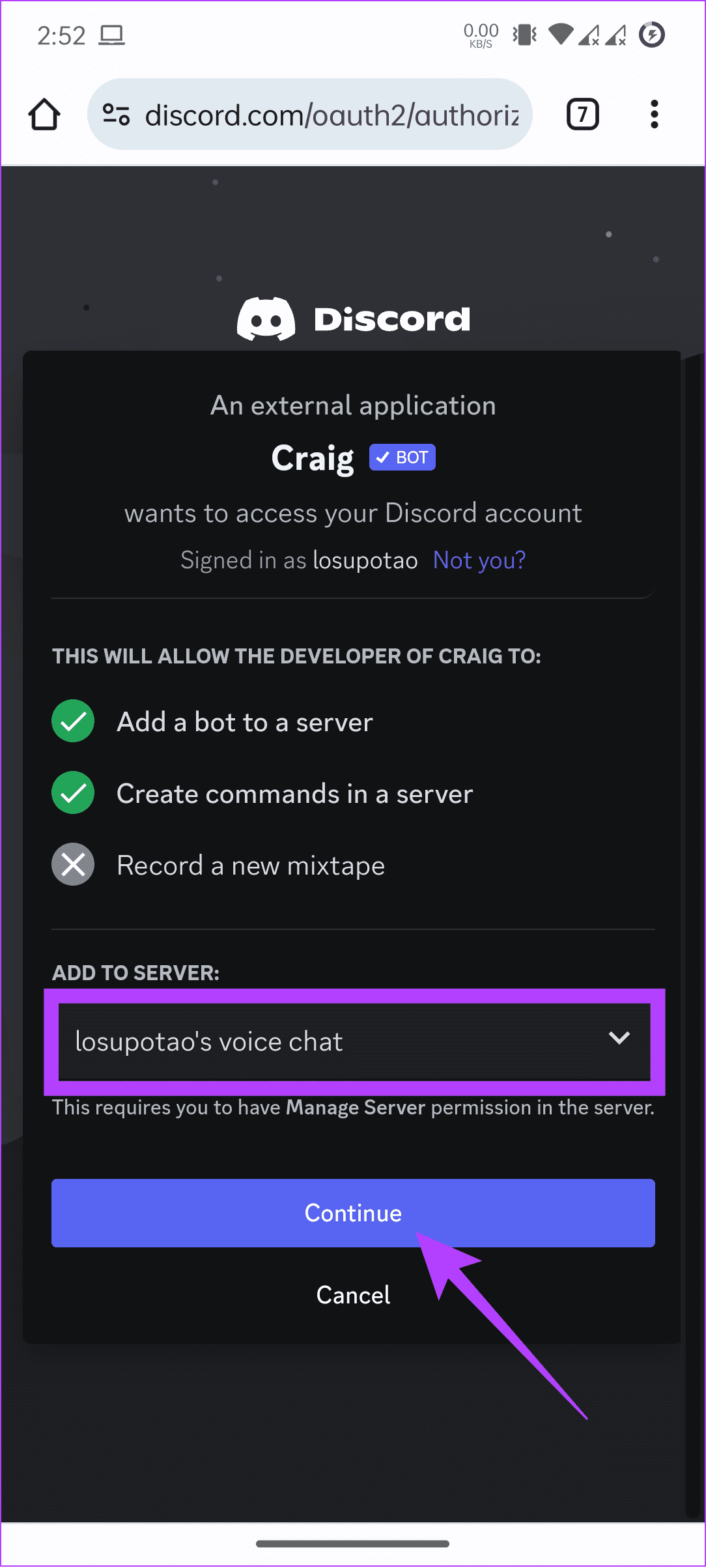
Step 4: Choose Authorize to confirm and verify your account.


Step 5: To use the bot, type /join and hit Send to start recording.
How to Record Discord Calls On PC
There are different ways to record voice calls on Discord. We have mentioned all of them below.
Method 1: Using Xbox Game Bar on Windows
The Xbox Game Bar is a customizable gaming overlay in Windows, offering instant access to many functionalities without leaving the current program. Here’s how to use it to record conversations.
Step 1: Open the Xbox Game Bar using the Windows + G keys.
Step 2: Choose Capture and ensure that the Mic icon is enabled.
Step 3: Now, hit the circle icon to start the recording.

Note: Hit the end button to stop the recording.
Access the Screen Recording
Step 1: Press Windows + E to open the File Explorer.
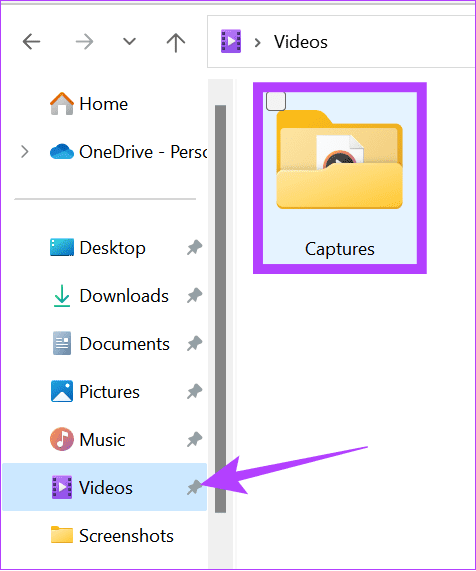
Step 2: Click on Videos on the left pane and open the Captures folder to access the recordings.
You can also use any other third-party screen recorder app to record voice calls on Discord.
Also Read: How to fix microphone not working in Xbox Game Bar
2. Using Craig Bot
Craig Discord bot offers multiple features, including recording audio in multi-track, separating audio files for each speaker, and more. Here’s how you can add the Craig bot to your channel and use it:
Note: If you start recording, the bot will inform the other members of the channel that it is recording conversations in Discord.
Step 1: Open the Craig bot on your browser and choose Invite Craig to your Discord server.
Note: To add the bot, you must have your voice channel on the Discord server. If you want to record a channel you are part of, ask your channel admin to add the bot.

Step 2: Open the drop box and choose the server with the voice channel you want to record.
Step 3: Now, choose Continue.
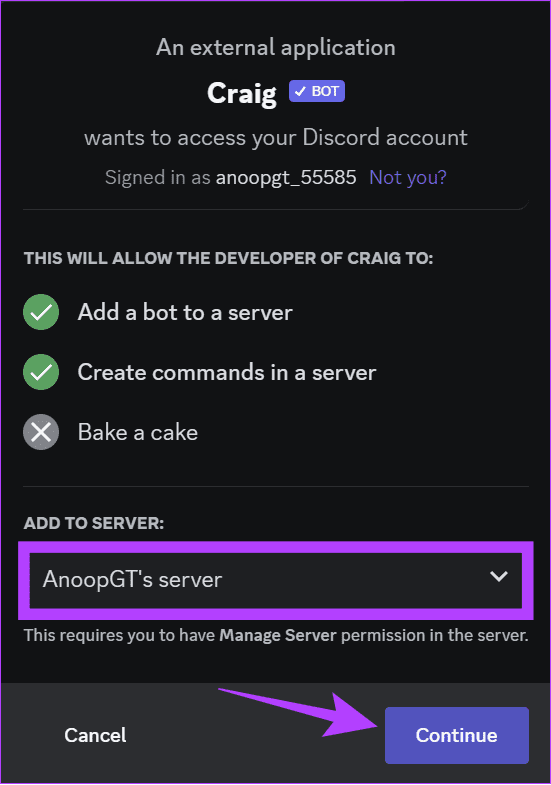
Step 4: Click Authorize to confirm.
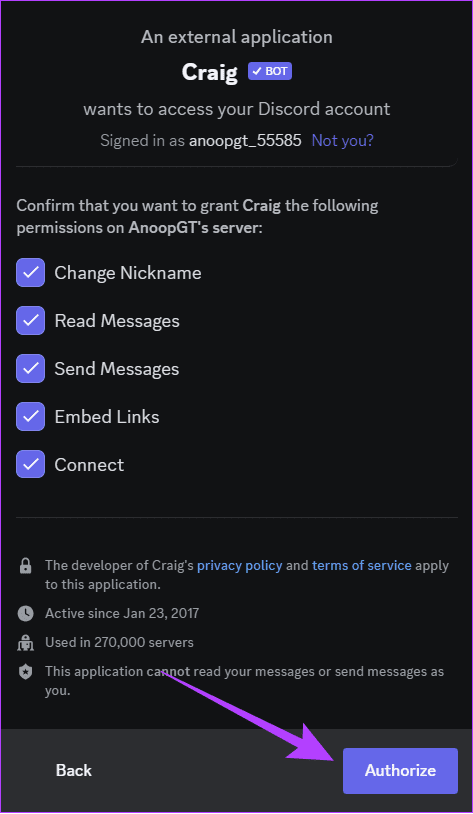
Step 5: Verify your account to confirm.
Step 6: Return to Discord, type /join, and hit Enter to start recording.

The bot offers many more commands. For more information, check the official Craig bot commands page.
Was this helpful?
Last updated on 26 August, 2024
Read Next
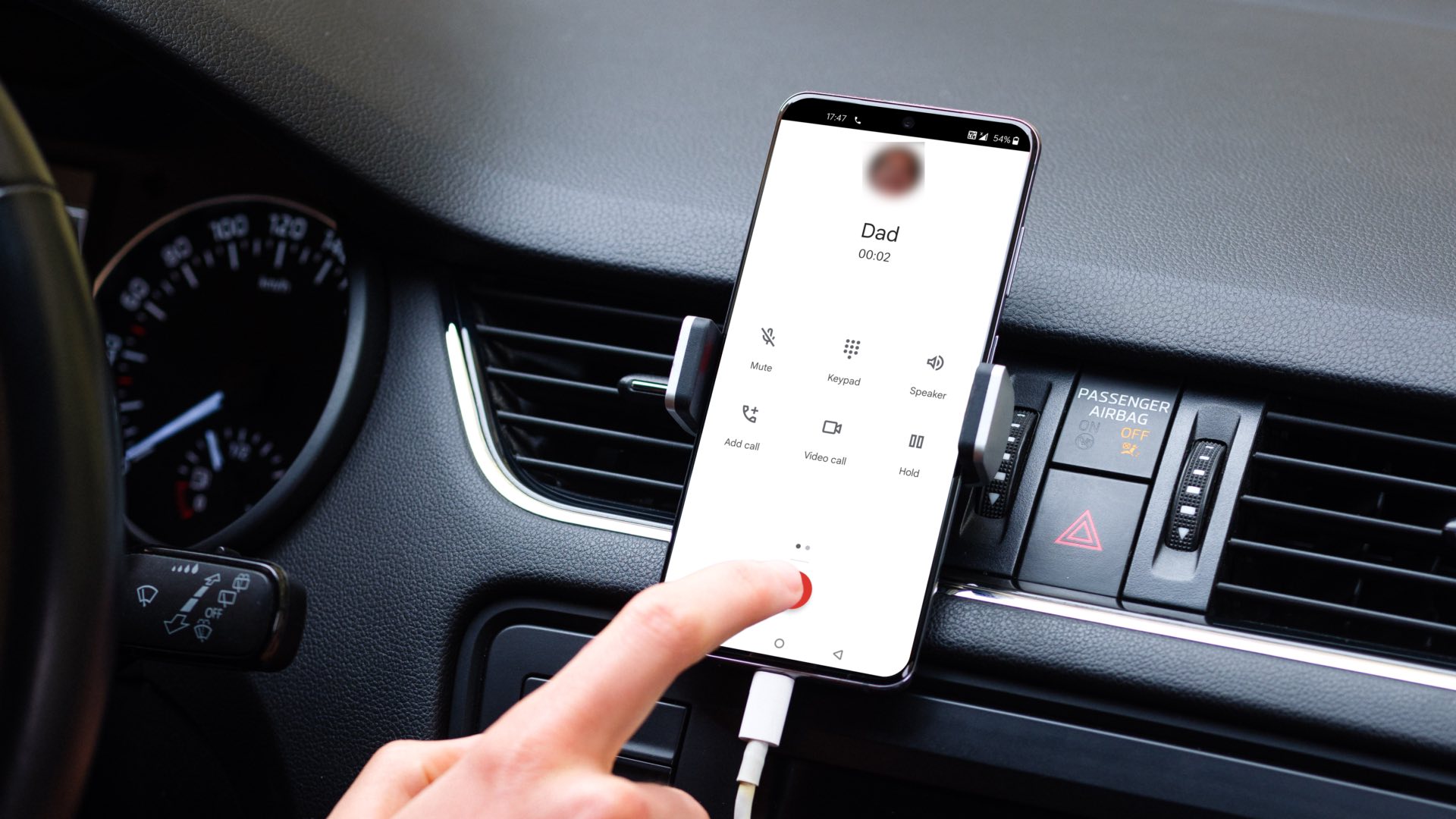 How to Record Calls on a OnePlus Phone
Record Calls on OnePlus Phones Step 1: Open the Google Phone app on your OnePlus device.
How to Record Calls on a OnePlus Phone
Record Calls on OnePlus Phones Step 1: Open the Google Phone app on your OnePlus device.
 How to Play Discord Games Using Discord Activities
What Are Discord Games?
How to Play Discord Games Using Discord Activities
What Are Discord Games?
 How to Record and Transcribe an Audio File Using Microsoft Word
How to Record Audio in Microsoft Word You can save time and energy by dictating your thoughts using Microsoft Word.
How to Record and Transcribe an Audio File Using Microsoft Word
How to Record Audio in Microsoft Word You can save time and energy by dictating your thoughts using Microsoft Word.
 3 Ways to Record on Snapchat Without Holding the Button
Method 1: Using the Lock Icon When Recording Even without a dedicated automatic mode, you can record videos hands-free using the lock feature.
3 Ways to Record on Snapchat Without Holding the Button
Method 1: Using the Lock Icon When Recording Even without a dedicated automatic mode, you can record videos hands-free using the lock feature.
 How to Lock a Discord Channel on Desktop and Mobile
Locking a Channel by Making it Private Making a Discord channel private means it becomes hidden from other members on a server.
How to Lock a Discord Channel on Desktop and Mobile
Locking a Channel by Making it Private Making a Discord channel private means it becomes hidden from other members on a server.
 How to Share Screen in Discord on Desktop and Mobile
How to Share Your Screen in a Discord Voice Channel As a channel member, Discord lets you share your device’s screen with up to 50 people at once.
How to Share Screen in Discord on Desktop and Mobile
How to Share Your Screen in a Discord Voice Channel As a channel member, Discord lets you share your device’s screen with up to 50 people at once.
 How to Find a Discord User ID on Web, Desktop, and Mobile
Check Discord ID on the Web or Desktop App Step 1: Go to Discord from your preferred browser on your Windows or Mac and log in to your account.
How to Find a Discord User ID on Web, Desktop, and Mobile
Check Discord ID on the Web or Desktop App Step 1: Go to Discord from your preferred browser on your Windows or Mac and log in to your account.
 How to React to Messages on Discord (Mobile and Desktop)
How to React to Discord Messages on Desktop You can also react with custom emojis on Discord if you have Manage Emoji permission, are server owners, or have Discord Nitro.
How to React to Messages on Discord (Mobile and Desktop)
How to React to Discord Messages on Desktop You can also react with custom emojis on Discord if you have Manage Emoji permission, are server owners, or have Discord Nitro.
The article above may contain affiliate links which help support Guiding Tech. The content remains unbiased and authentic and will never affect our editorial integrity.