Print From iPhone Using Wi-Fi
iPhones have a feature called AirPrint that allows you to print from your iPhone over Wi-Fi. However, to make this feature work, you’ll need to ensure your printer also supports Wi-Fi connectivity. Once you confirm that, here’s how to print photos using an iPhone with a Wi-Fi connection.
Step 1: Connect your printer with your Wi-Fi network.
Step 2: Open the Photos app on your iPhone.
Step 3: Open the photo or document that you wish to print and tap on Share at the bottom.
Step 4: Tap on Print. A new window with different print options will open on your screen. Tap on the Printer option at the top to see available printers.


Step 5: Select your printer from the list. After this, you will see some more printing options, such as Presets, Number of Copies, Paper Size, and Media and quality.
Step 6: After selecting your options, tap on Print.
Print From iPhone Using Hotspot
There are two ways to print from an iPhone without Wi-Fi. The first one is by creating a hotspot between your printer and iPhone. This means that there is no Wi-Fi network around you. But ensure your printer supports Wi-Fi connectivity.
Before we begin the steps, ensure your printer has a blinking LED indicator next to the Wi-Fi logo. We used an HP Printer for this article.
Step 1: Open Settings on your iPhone > tap on Wi-Fi.
Step 2: Tap on your printer name from the list > enter the password to connect.
You can check for the printer password by going to the Wireless menu of your printer.
Step 3: Open the Photos app > tap on the photo or document that you wish to print > tap the Share icon.


Step 4: Scroll down and tap on Print. Choose your printer, printing options, and then tap Print.
This is how you can print from your iPhone without a Wi-Fi connection.
Print From iPhone Without Wi-Fi Using an OTG Cable
Lastly, we have a method where you can connect your iPhone and printer with a USB OTG cable. After connecting your iPhone, follow these simple steps.
Step 1: After connecting your iPhone, tap on Yes on the pop-up menu appearing on your screen.
Step 2: Open the Photos app > choose your photo > tap on Share > Print > choose your options > tap Print.
This is how you can print from an iPhone if your printer doesn’t support Wi-Fi connectivity. However, you need a USB OTG cable to connect to your iPhone.
Was this helpful?
Last updated on 05 August, 2024
Read Next
 4 Ways to Print Contacts From iPhone
Method 1: Print Contacts From iPhone Using iCloud You can print your entire contacts list from your iPhone using your iCloud account.
4 Ways to Print Contacts From iPhone
Method 1: Print Contacts From iPhone Using iCloud You can print your entire contacts list from your iPhone using your iCloud account.
 How to Print Emails to PDF in Outlook and Gmail for iOS
Print Emails to PDF in Outlook for iOS Step 1: Open the email you want to convert.
How to Print Emails to PDF in Outlook and Gmail for iOS
Print Emails to PDF in Outlook for iOS Step 1: Open the email you want to convert.
 How to Print WhatsApp Chat on iPhone and Android
Note: When exporting chat history, WhatsApp doesn't let you select a specific timeframe.
How to Print WhatsApp Chat on iPhone and Android
Note: When exporting chat history, WhatsApp doesn't let you select a specific timeframe.
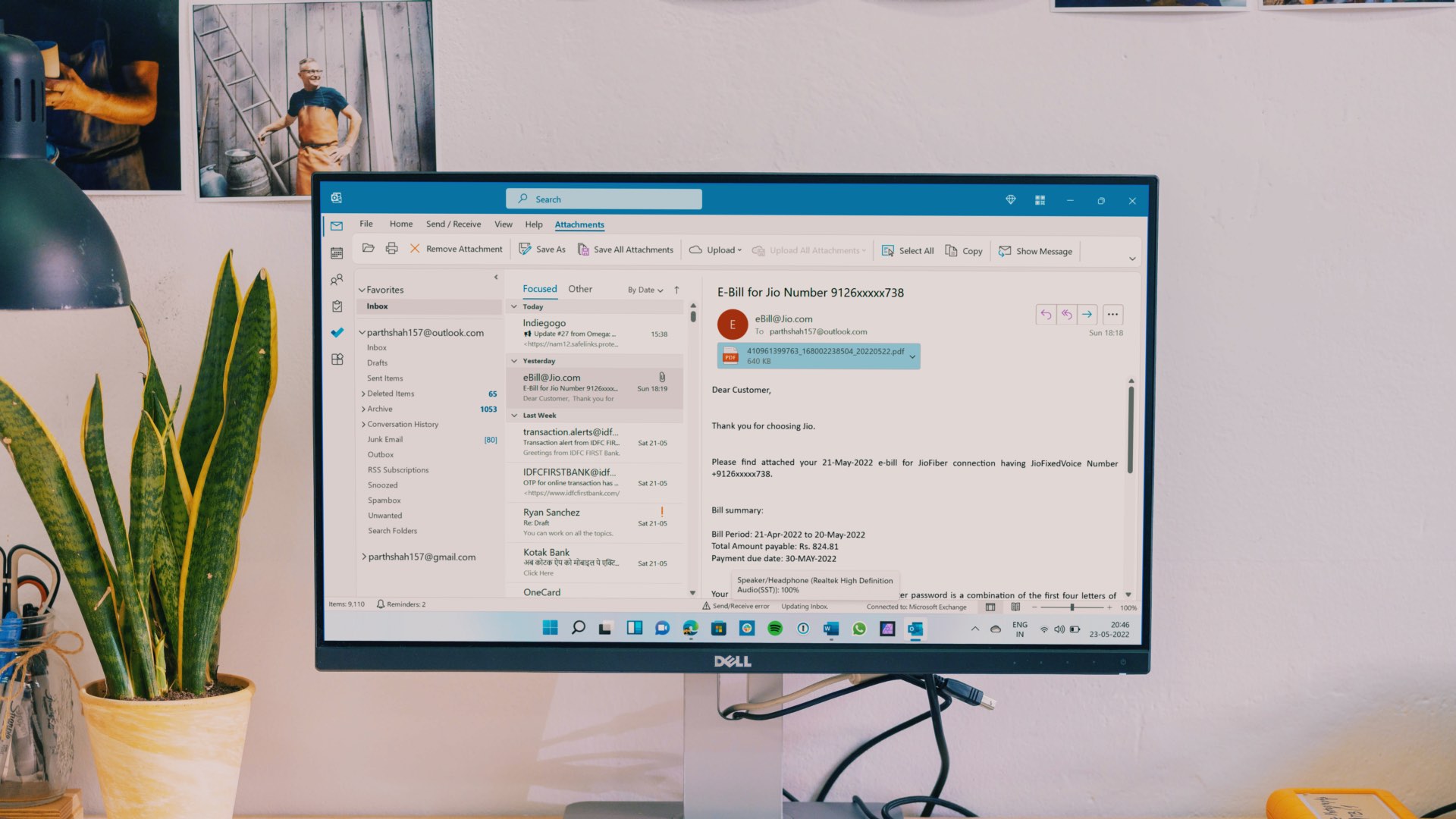 7 Ways to Fix Outlook Not Responding When Trying to Print
Try Basic Fixes: Restart Outlook: When Outlook relaunches, it loads all the modules, including extensions.
7 Ways to Fix Outlook Not Responding When Trying to Print
Try Basic Fixes: Restart Outlook: When Outlook relaunches, it loads all the modules, including extensions.
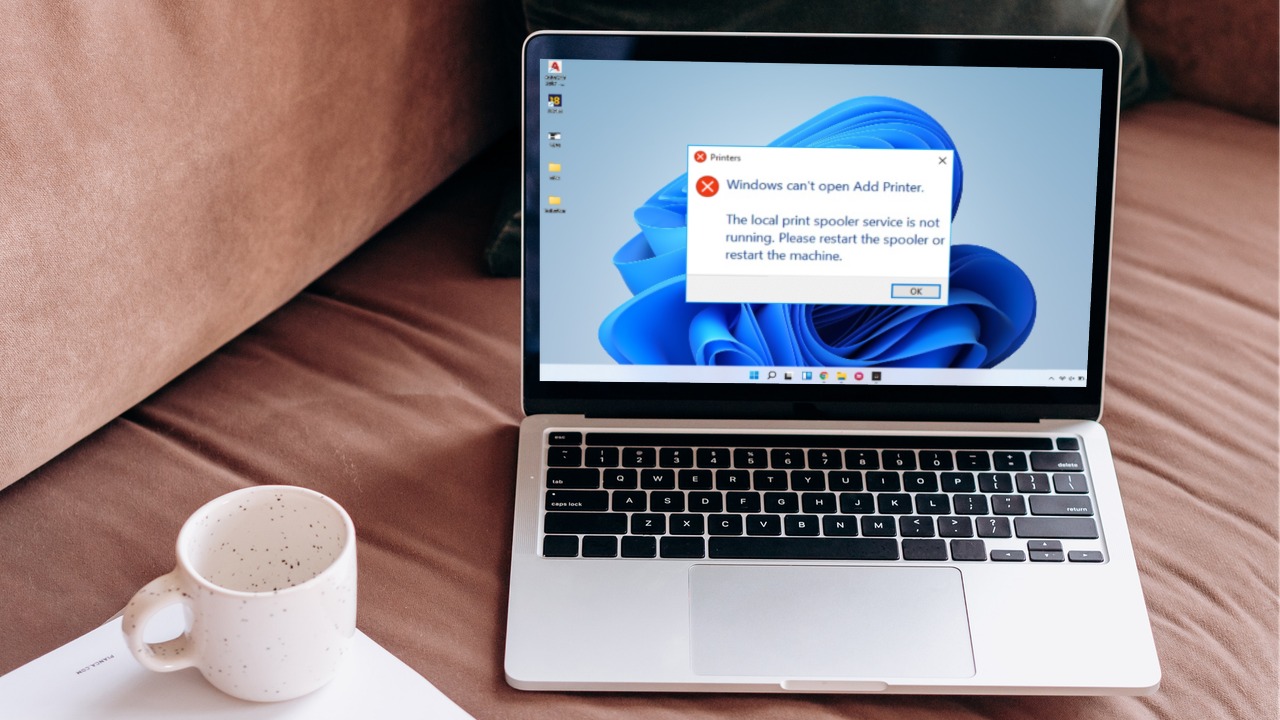 6 Ways to Fix Print Spooler Keeps Stopping on Windows 10 and Windows 11
Fix 1: Run Printer Troubleshooter Windows comes with a dedicated printer troubleshooter that can automatically diagnose and fix any printing issues on your PC.
6 Ways to Fix Print Spooler Keeps Stopping on Windows 10 and Windows 11
Fix 1: Run Printer Troubleshooter Windows comes with a dedicated printer troubleshooter that can automatically diagnose and fix any printing issues on your PC.
 2 Ways to Print From Canva for Free
Method 1: Using Your Desktop Computer Step 1: Visit the Canva website in a browser and sign in with your account details.
2 Ways to Print From Canva for Free
Method 1: Using Your Desktop Computer Step 1: Visit the Canva website in a browser and sign in with your account details.
 How to Create a Print to PDF Button in Microsoft Excel on Windows 11
Create Print to PDF Button Using Quick Access Toolbar The Quick Access toolbar for Microsoft Office apps can also be used to enable the Print to PDF function in Microsoft
How to Create a Print to PDF Button in Microsoft Excel on Windows 11
Create Print to PDF Button Using Quick Access Toolbar The Quick Access toolbar for Microsoft Office apps can also be used to enable the Print to PDF function in Microsoft
 2 Ways to Print Multiple Files on Windows 11
Method 1: Print Multiple Word, Excel, and Other Media We will first show you how to launch the current print queue on Windows.
2 Ways to Print Multiple Files on Windows 11
Method 1: Print Multiple Word, Excel, and Other Media We will first show you how to launch the current print queue on Windows.
The article above may contain affiliate links which help support Guiding Tech. The content remains unbiased and authentic and will never affect our editorial integrity.