Method 1: Using the Volume Button
On phones running Stock Android, you can put it on vibration mode using the volume button.
Press the Volume Up or Down button. Tap on the Bell icon.
You will see two new icons: a bell with a bar on it and a vibration icon. The former puts your phone on mute without vibration, whereas the latter will make your Android phone vibrate on silent. Tap on the Vibration icon.

Tip: Learn how to fix volume buttons not working on Android.
Method 2: Using the Power + Volume Button
On some Android phones, you can quickly put your phone in vibration mode by pressing the Power and Volume Up buttons simultaneously. However, for this feature to work, it must be enabled in settings.
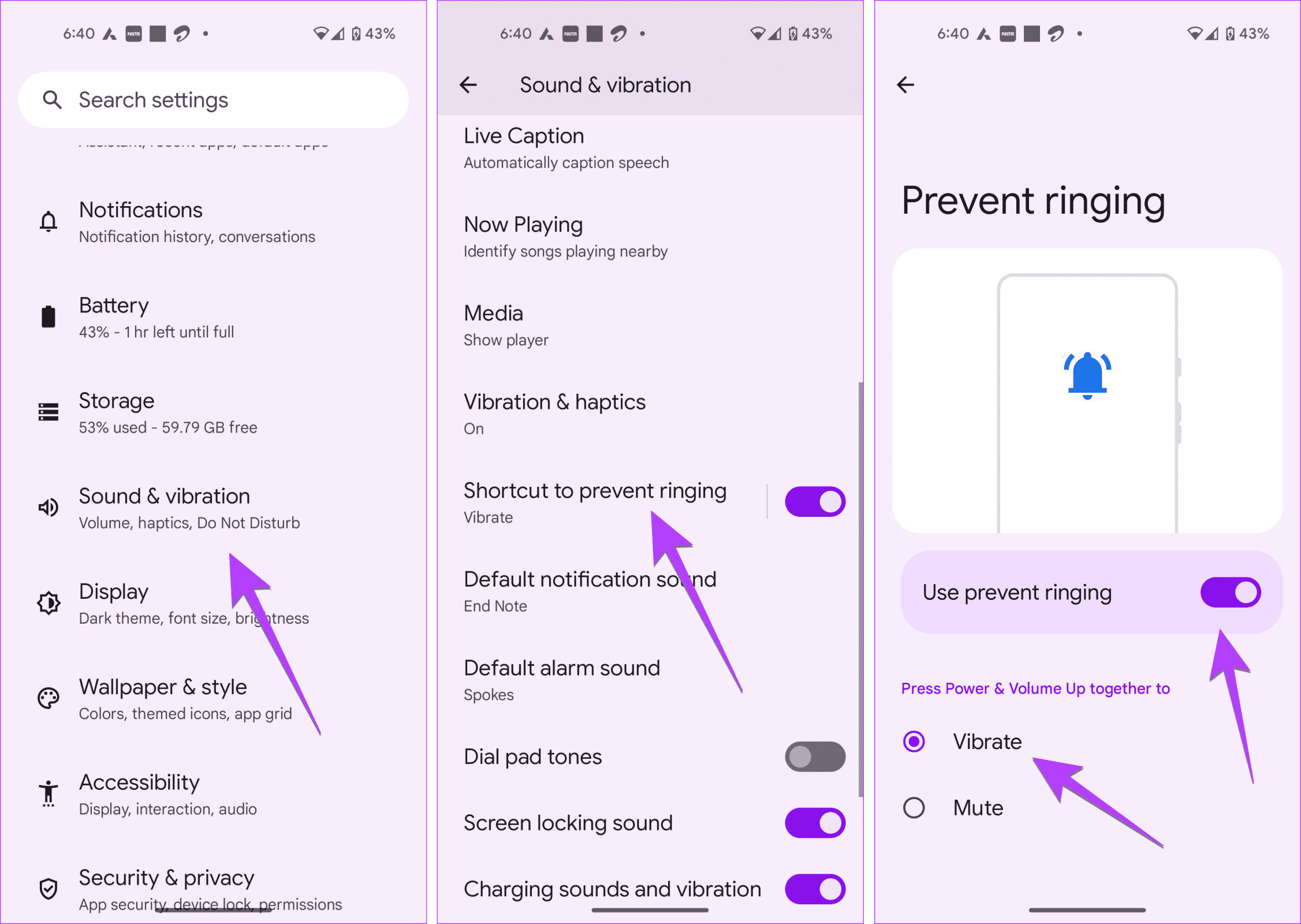
Step 1: Open Settings > Sound & Vibration, followed by Shortcut to prevent ringing. Make sure to tap on the text and not the toggle.
Step 2: Enable the toggle next to Use Prevent Ringing and select Vibrate under the list of options.
Now, whenever you want your phone to vibrate, just press the Power and Volume Up buttons together.
Tip: Learn how to fix the Android phone automatically goes into silent mode
Method 3: From Quick Settings
On Android phones from brands like Samsung, you can enable vibration mode using Quick Settings as well.
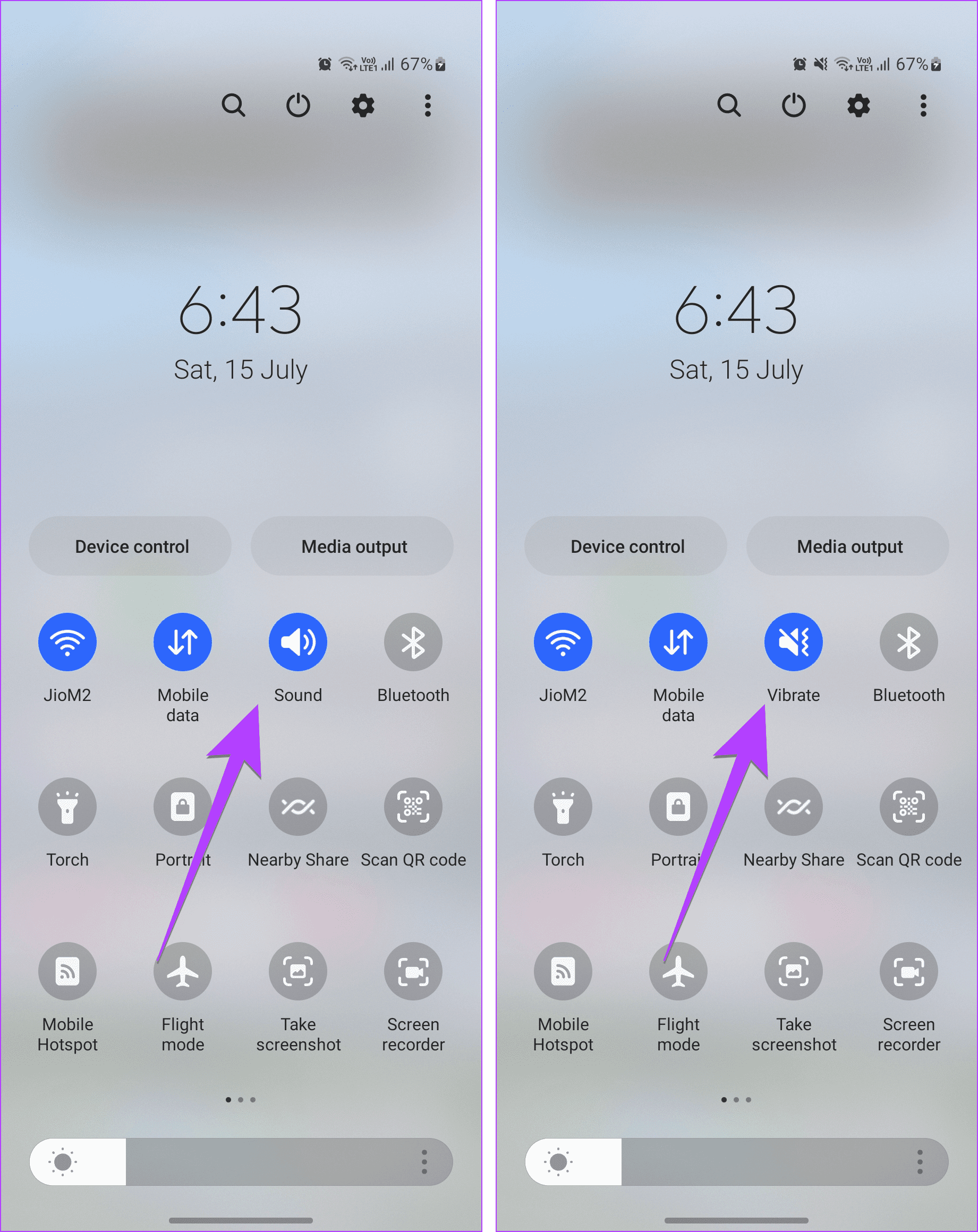
Step 1: Swipe down twice from the top of the screen to open the Quick Settings panel.
Step 2: Tap on the Sound icon, and it will turn to Vibrate.
That’s it. The vibration mode is now active on your phone.
Method 4: From Settings App
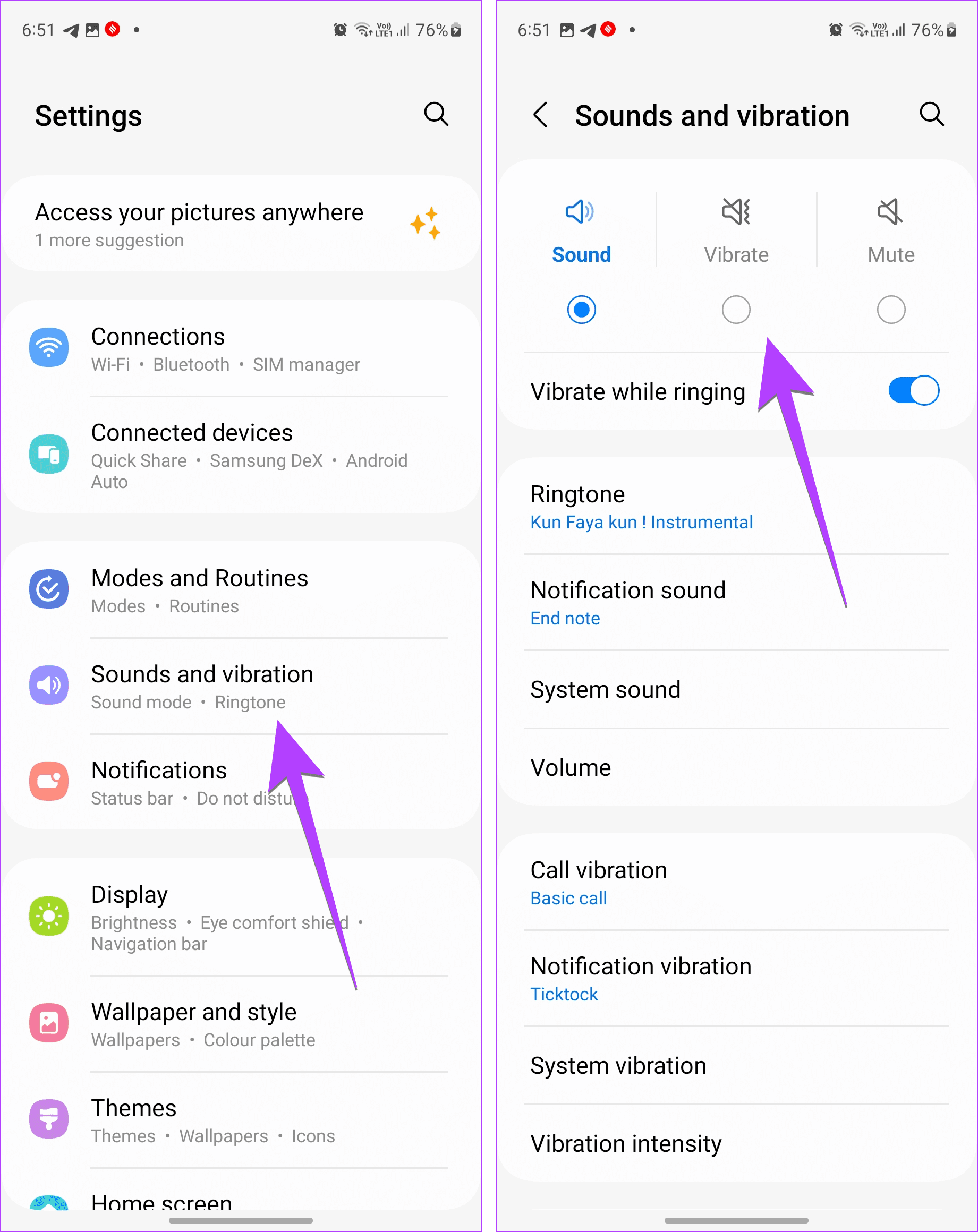
On Samsung Galaxy phones, you can enable vibration mode from Sound settings too.
Open Settings, go to Sounds and Vibration and select Vibrate.
Method 5: Enable Vibration Along With Sound for Notifications
You can also make your Android device vibrate for incoming calls and notification alerts, as shown below:
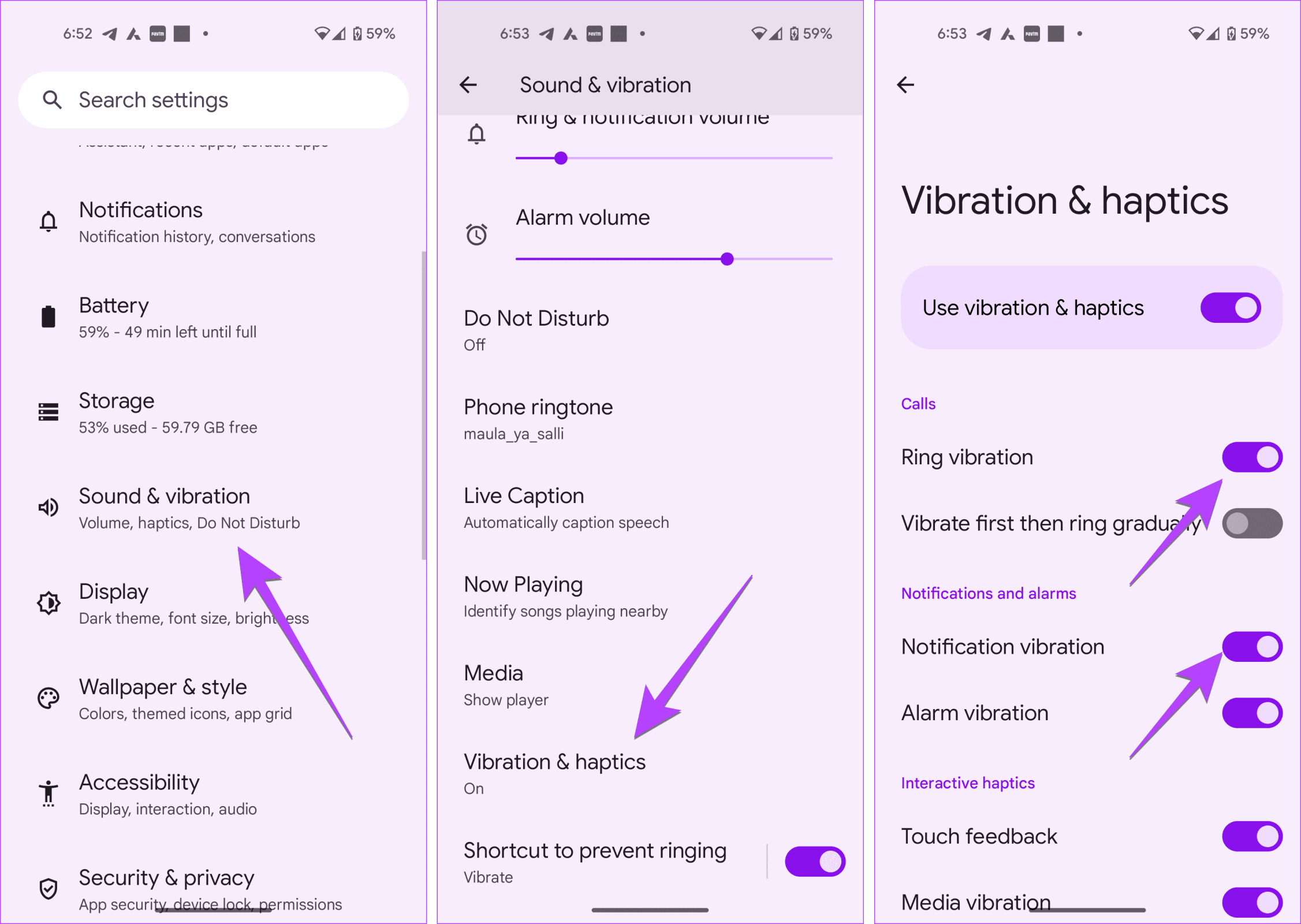
Step 1: Open Settings > Sound & vibration, followed by Vibration & haptics.
Step 2: Enable the toggle next to Ring vibration or Notification vibration.
Also Read: How to fix Android smartphone vibrating randomly.
Was this helpful?
Last updated on 03 September, 2024
Read Next
 How to Make iPhone Vibrate or Not Vibrate on Silent
How to Make iPhone Vibrate in Silent Mode Open Settings > Sounds & Haptics > Haptics, and select Play in Silent Mode.
How to Make iPhone Vibrate or Not Vibrate on Silent
How to Make iPhone Vibrate in Silent Mode Open Settings > Sounds & Haptics > Haptics, and select Play in Silent Mode.
 3 Ways to Make Your Apple Watch Vibrate for Notifications
Method 1: Set Apple Watch to Vibrate Only for Alarm and Notifications Here's how to make your Apple Watch vibrate to alert you of all the notifications.
3 Ways to Make Your Apple Watch Vibrate for Notifications
Method 1: Set Apple Watch to Vibrate Only for Alarm and Notifications Here's how to make your Apple Watch vibrate to alert you of all the notifications.
 How to Scan QR Code on Phone Without Using Another Phone
Note: Both iPhone and Android can scan QR codes on the phone.
How to Scan QR Code on Phone Without Using Another Phone
Note: Both iPhone and Android can scan QR codes on the phone.
 4 Ways to Fix Android Phone Not Connecting to PC
Basic Fixes Ensure your phone is unlocked: Keep this in mind while connecting to PC.
4 Ways to Fix Android Phone Not Connecting to PC
Basic Fixes Ensure your phone is unlocked: Keep this in mind while connecting to PC.
 5 Ways to Fix Android Phone Not Making Calls But Can Text
Basic Fixes Eject and re-insert SIM: Eject the SIM card from your phone, and insert it again - doing this can refresh the network connection.
5 Ways to Fix Android Phone Not Making Calls But Can Text
Basic Fixes Eject and re-insert SIM: Eject the SIM card from your phone, and insert it again - doing this can refresh the network connection.
 4 Ways to Fix Speaker Not Working on Your Android Phone
Basic Fixes: Turn up the volume: You should use the volume button on your Android phone to increase the audio levels manually.
4 Ways to Fix Speaker Not Working on Your Android Phone
Basic Fixes: Turn up the volume: You should use the volume button on your Android phone to increase the audio levels manually.
 5 Ways to Fix Android Phone Automatically Pressing the Back Button
Common Fixes Check hardware damage: Ensure your phone's touch screen is intact to avoid having ghost touch issues with the back navigation button.
5 Ways to Fix Android Phone Automatically Pressing the Back Button
Common Fixes Check hardware damage: Ensure your phone's touch screen is intact to avoid having ghost touch issues with the back navigation button.
 5 Ways to Fix Android Phone Draining Battery While Charging
Why Is Your Phone Losing Battery While Charging Your Android phone may quickly lose battery while charging due to software or hardware issues, such as: You're charging your phone with
5 Ways to Fix Android Phone Draining Battery While Charging
Why Is Your Phone Losing Battery While Charging Your Android phone may quickly lose battery while charging due to software or hardware issues, such as: You're charging your phone with
The article above may contain affiliate links which help support Guiding Tech. The content remains unbiased and authentic and will never affect our editorial integrity.