Method 1: Set Apple Watch to Vibrate Only for Alarm and Notifications
Here’s how to make your Apple Watch vibrate to alert you of all the notifications. Doing this will also set the Apple Watch alarm to vibrate only.
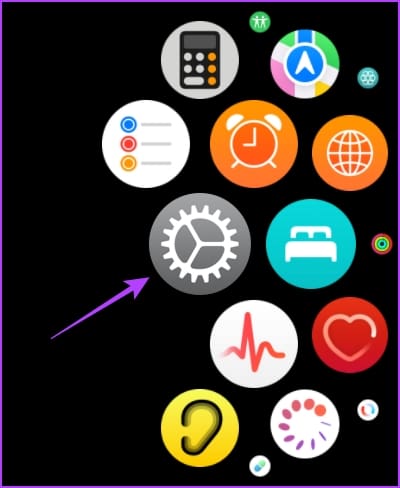
Step 1: Press the Digital Crown once to open the home screen and tap the Settings app.
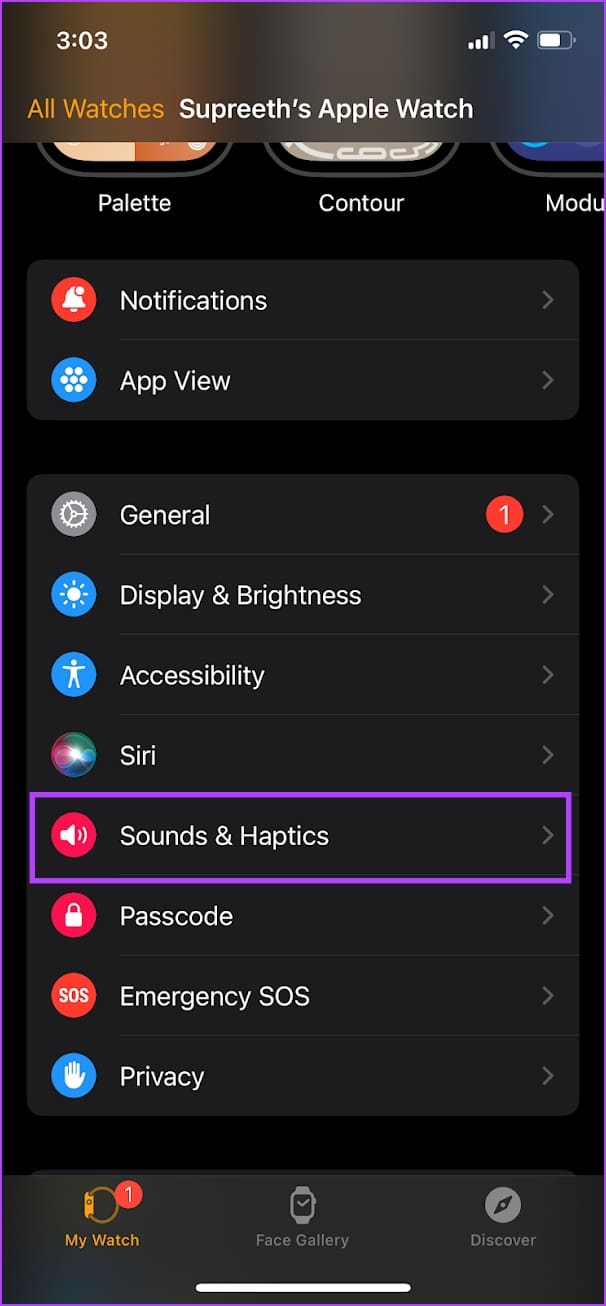
Step 2: Tap on Sounds & Haptics, and turn on Haptic Alerts.


Alternatively, you can open the Watch app on your iPhone, tap on Sound & Haptics, and turn on the toggle for Haptic Alerts.

Increase the Vibration Intensity
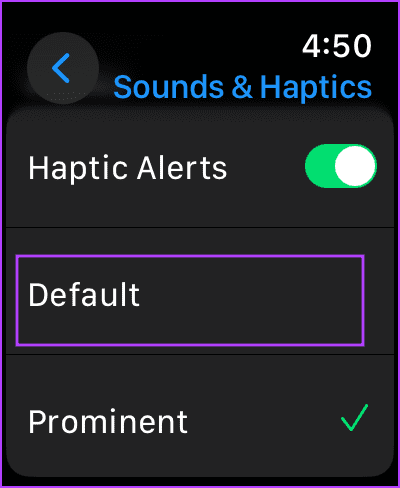
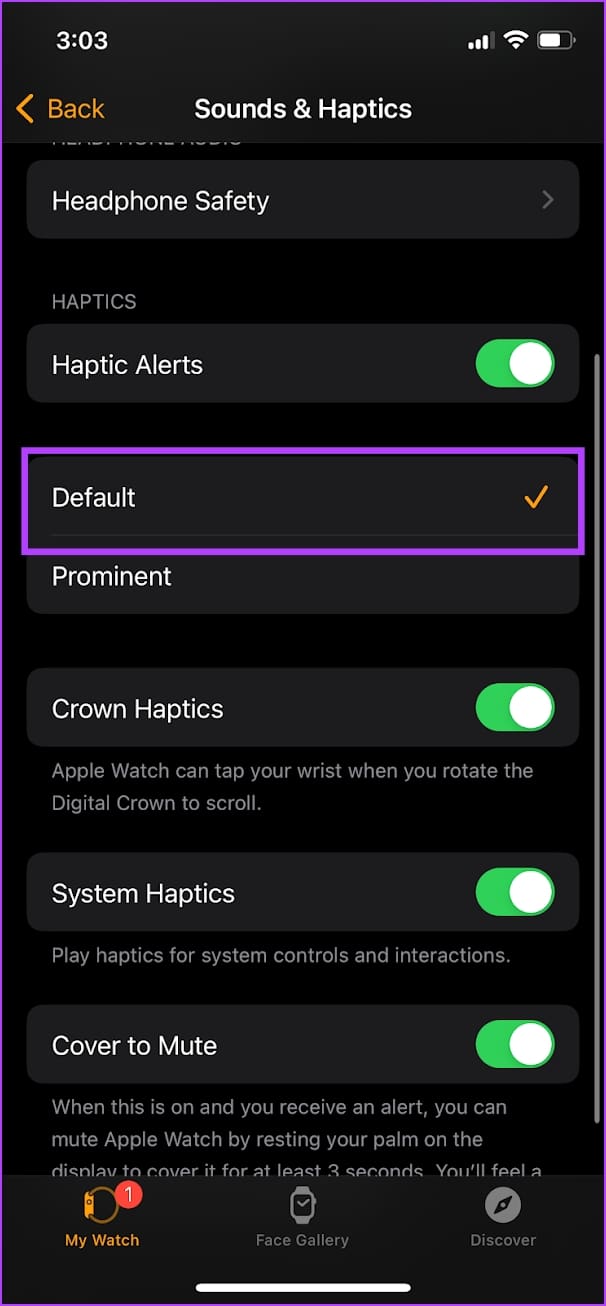
Your Apple Watch offers two levels of vibration intensity – default and prominent. If you receive vibrations and haptic feedback on your Apple Watch but aren’t happy with the vibration levels, here’s how to increase it.
Step 1: Press the Digital Crown once to open the home screen and go to Settings.
Step 2: Tap on Sounds & Haptics. Scroll down and find the option to change the haptic intensity.
You can either use the Default option or the Prominent option. The selection will show you a preview of how the vibration feels like.
Alternatively, you can open the Watch app on your iPhone, tap on Sound & Haptics, and choose the Haptic Intensity.
Also Read: Fix Apple Watch not receiving notifications
Method 2: Make Apple Watch Vibrate on Silent for All Notifications
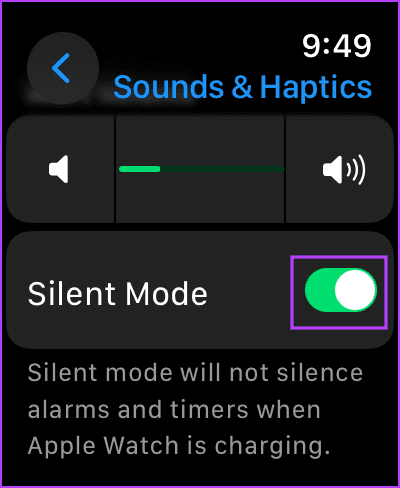
By default, your Apple Watch notifies you with sound and haptic feedback. However, if you wish to receive a vibration but not the sound for notifications, you must enable Silent Mode on your Apple Watch.
Step 1: Press the Digital Crown once to open the home screen and go to Settings.
Step 2: Tap on Sounds & Haptics, and turn on Silent Mode.
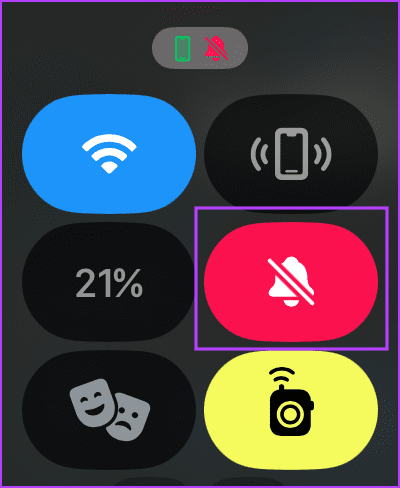
You can also open the Control Center on your Apple Watch by swiping up on your watch face and enabling the Silent Mode option.
Alternatively, you can open the Watch app on your iPhone, select Sound and Haptics, and turn on the toggle for Silent Mode.

Also Read: How to fix alarm not going off on Apple Watch
Method 3: Put Apple Watch on Vibrate Only for Specific Apps
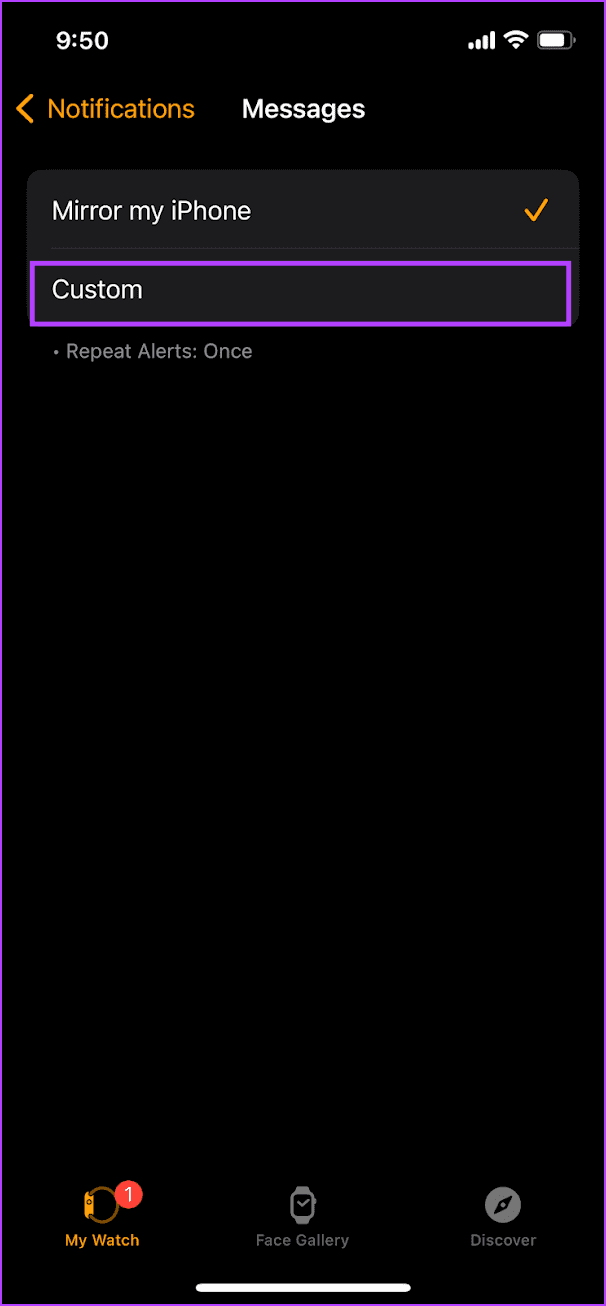
If you want specific apps to vibrate when sending notifications on your Apple Watch, whereas sounds for other apps, you can set a custom notification scheme. However, you can only do so for stock apps on your Apple Watch.
Step 1: Open the Watch app on your iPhone. Tap on Notifications. Select the application.

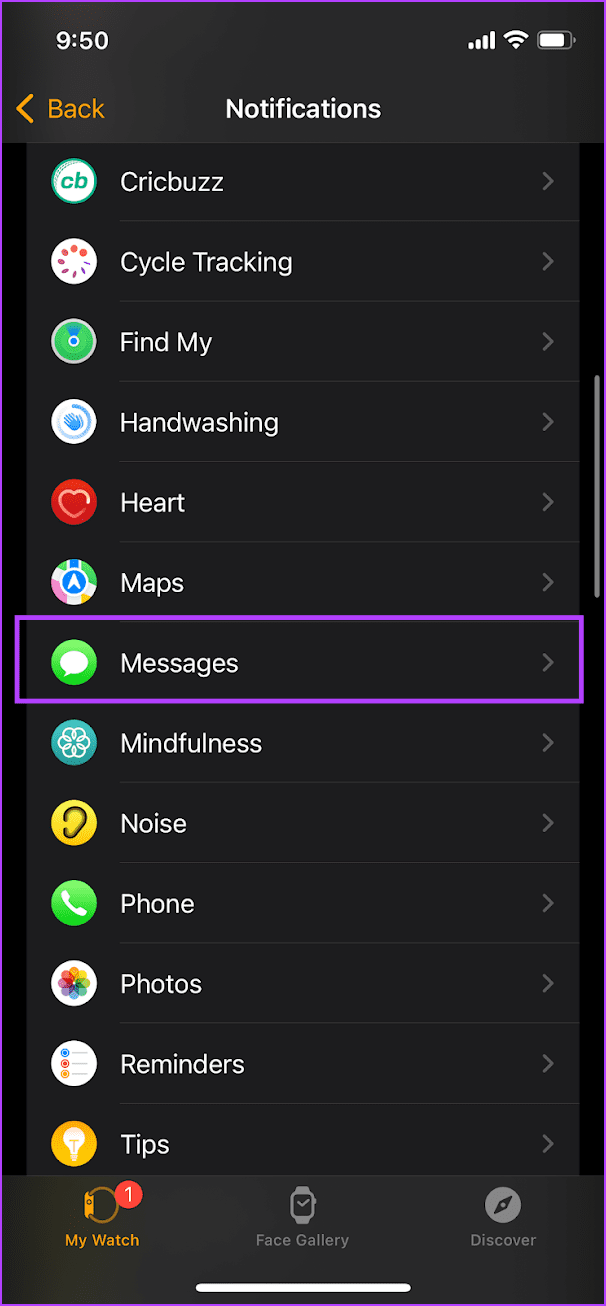
Step 3: Tap on the Custom Notifications option. Turn off the toggle for Sound and ensure that the toggle is on for Haptics.

Also Read: How to fix Apple Watch not ringing for incoming calls
Was this helpful?
Last updated on 30 June, 2024
Read Next
 How to Make iPhone Vibrate or Not Vibrate on Silent
How to Make iPhone Vibrate in Silent Mode Open Settings > Sounds & Haptics > Haptics, and select Play in Silent Mode.
How to Make iPhone Vibrate or Not Vibrate on Silent
How to Make iPhone Vibrate in Silent Mode Open Settings > Sounds & Haptics > Haptics, and select Play in Silent Mode.
 5 Ways to Make Your Android Phone Vibrate
Method 1: Using the Volume Button On phones running Stock Android, you can put it on vibration mode using the volume button.
5 Ways to Make Your Android Phone Vibrate
Method 1: Using the Volume Button On phones running Stock Android, you can put it on vibration mode using the volume button.
 4 Ways to Fix Apple Watch Not Showing or Getting Notifications
Basic Fixes Ensure the Apple Watch is connected to the iPhone: The Apple Watch uses Bluetooth, so it must be connected to your iPhone to receive notifications.
4 Ways to Fix Apple Watch Not Showing or Getting Notifications
Basic Fixes Ensure the Apple Watch is connected to the iPhone: The Apple Watch uses Bluetooth, so it must be connected to your iPhone to receive notifications.
 How to Change Apple Watch Face from iPhone or Watch
Traditional watches had the problem that you couldn't change their clock face.
How to Change Apple Watch Face from iPhone or Watch
Traditional watches had the problem that you couldn't change their clock face.
 6 Ways to See Steps on Apple Watch
View Daily Steps on Apple Watch or iPhone Method 1: Use the Activity App on Apple Watch Step 1: Press the Digital Crown on your Apple Watch to open the
6 Ways to See Steps on Apple Watch
View Daily Steps on Apple Watch or iPhone Method 1: Use the Activity App on Apple Watch Step 1: Press the Digital Crown on your Apple Watch to open the
 3 Ways to Fix Apple Watch Always On Display Not Working
Basic Fixes Check if your Apple Watch supports Always On: Always On display is available on the Apple Watch Series 5,6,7,8,9 and Apple Watch Ultra 1st and 2nd gen.
3 Ways to Fix Apple Watch Always On Display Not Working
Basic Fixes Check if your Apple Watch supports Always On: Always On display is available on the Apple Watch Series 5,6,7,8,9 and Apple Watch Ultra 1st and 2nd gen.
 3 Ways to Fix Spotify Not Working on Apple Watch
Basic Fixes Ensure Apple Watch is connected: Make sure your Apple Watch is connected to your iPhone with an active internet connection.
3 Ways to Fix Spotify Not Working on Apple Watch
Basic Fixes Ensure Apple Watch is connected: Make sure your Apple Watch is connected to your iPhone with an active internet connection.
 6 Ways to Fix Apple Watch Wrist Detection Not Working
Basic Fixes: Tighten the Apple Watch band: If your Apple Watch keeps losing contact with your wrist, it might think you've taken the watch off.
6 Ways to Fix Apple Watch Wrist Detection Not Working
Basic Fixes: Tighten the Apple Watch band: If your Apple Watch keeps losing contact with your wrist, it might think you've taken the watch off.
The article above may contain affiliate links which help support Guiding Tech. The content remains unbiased and authentic and will never affect our editorial integrity.