

How to Make Someone Server Admin on Discord
You can grant someone admin privileges on Discord via the PC or mobile app. This will allow them to manage the Discord server and perform moderation tasks. Note that you can only do this if you are a server admin or owner.
On Desktop
Step 1: Open the Discord app on your PC. Use the left sidebar to navigate to the server on which you want to make someone an admin.
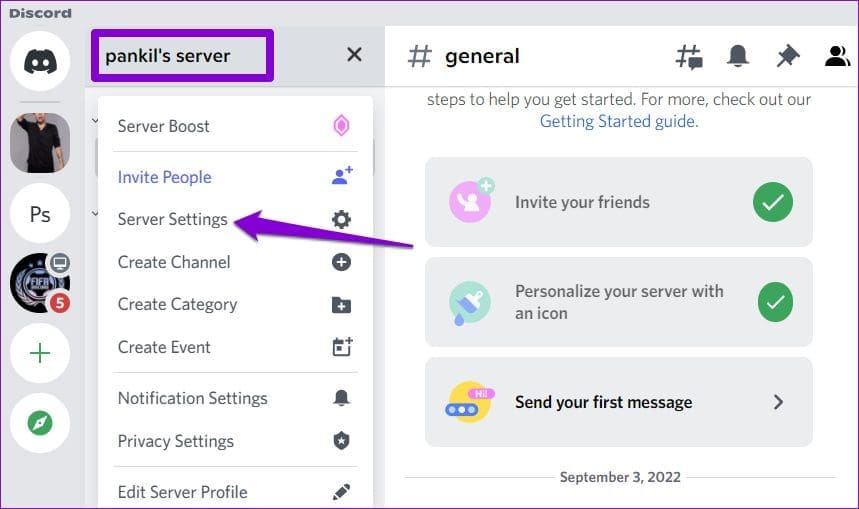
Step 2: Click the server’s name at the top and select Server Settings from the resulting menu.
Step 3: Use the left sidebar to switch to the Roles tab and click the Create Role button on your right.

Step 4: On the Edit Role page, enter a name for the role—Admin or Administrator.

Step 5: Switch to the Permissions tab and scroll down to the Advanced Permissions section. Enable the toggle for Administrator and click Save Changes.

Step 6: Press the Esc key to return to the server page, and then click on the Show Member List icon at the top.
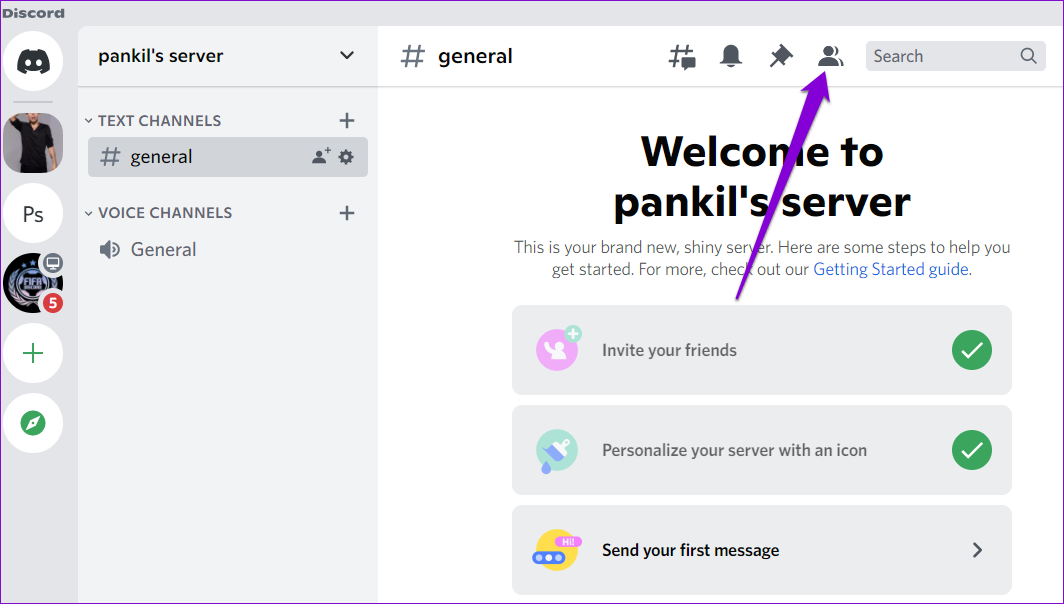
Step 7: Locate the user you want to make an admin. Right-click on his name, go to Roles, and select the new role you created.

On Android or iPhone
Step 1: Launch the Discord app on your Android or iPhone and navigate to your server.
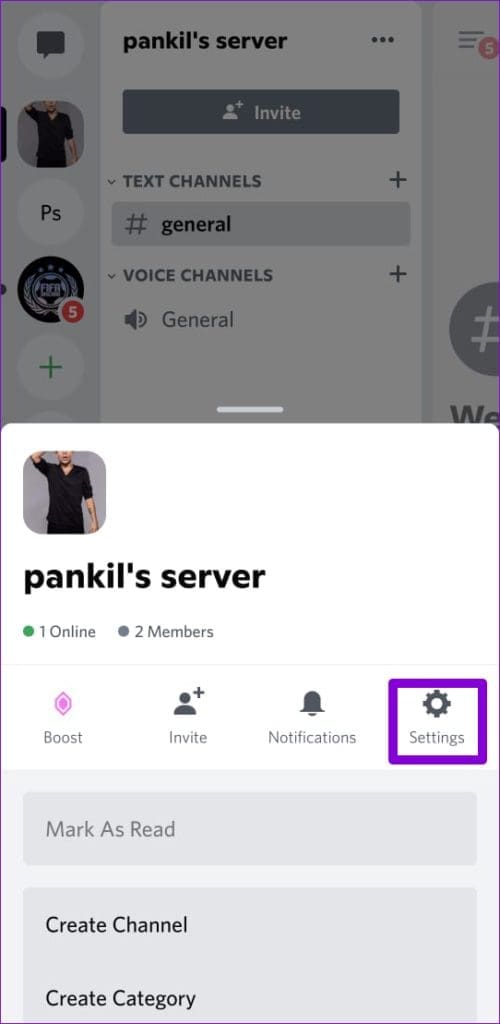
Step 2: Tap the three-dot menu icon at the top right corner and select Settings.
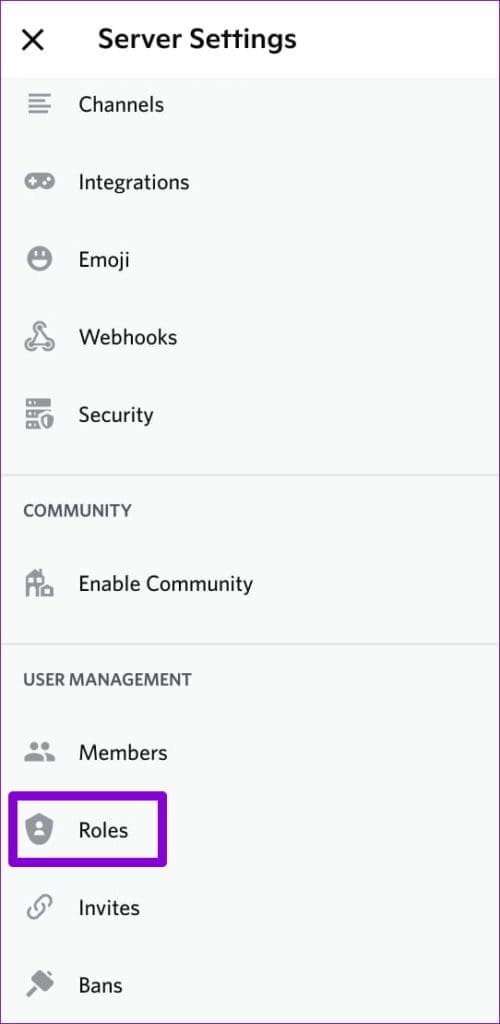
Step 3: Scroll down to the User Management section, tap on Roles, and tap the Create Role button.
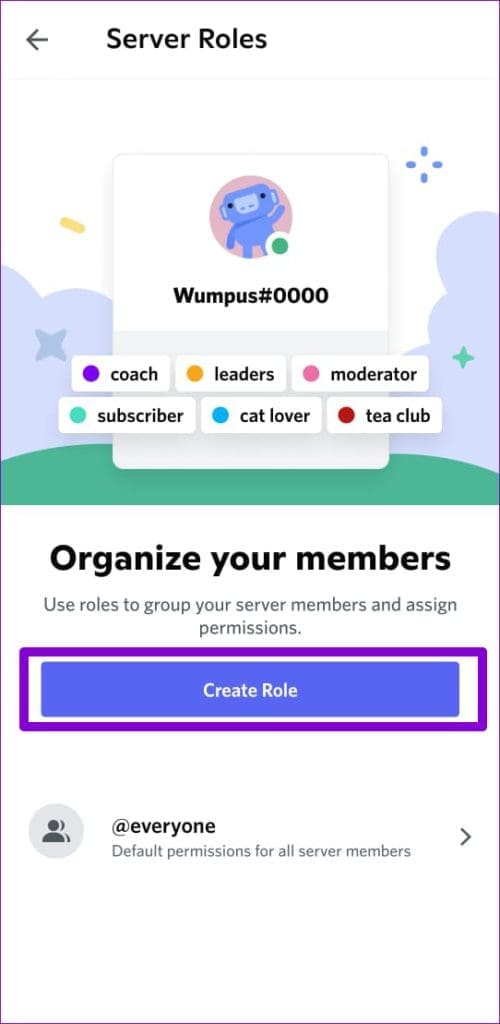
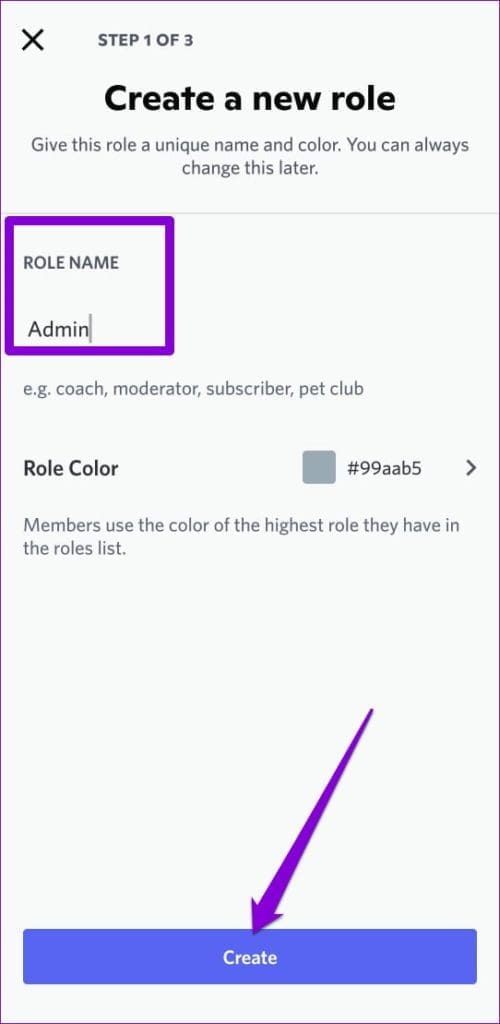
Step 4: Enter a name for the role in the Role Name field and tap Create.
Step 5: Tap your newly created role, go to the Permissions tab, and enable the toggle for Administrator.
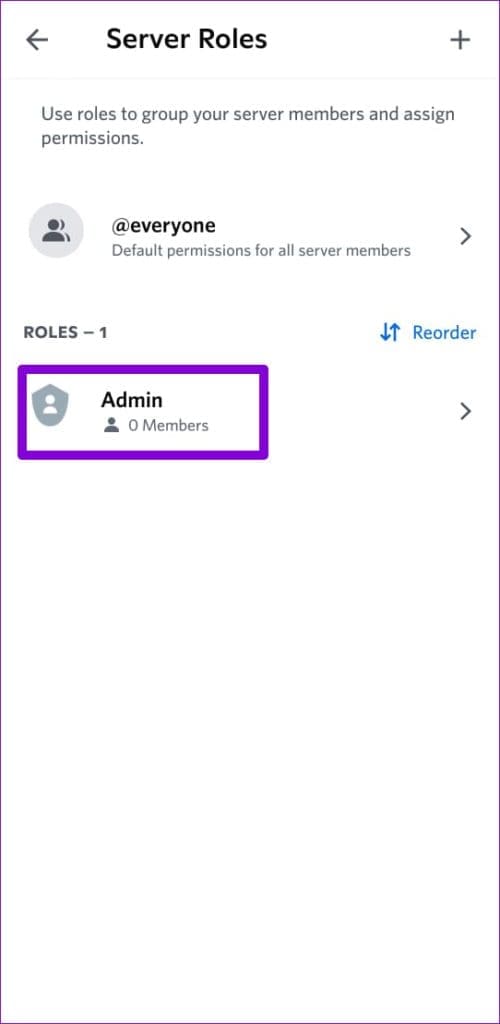

Step 6: Switch to the Members tab and tap Add members.
Step 7: Select the user you wish to make the admin and tap Add to save changes.

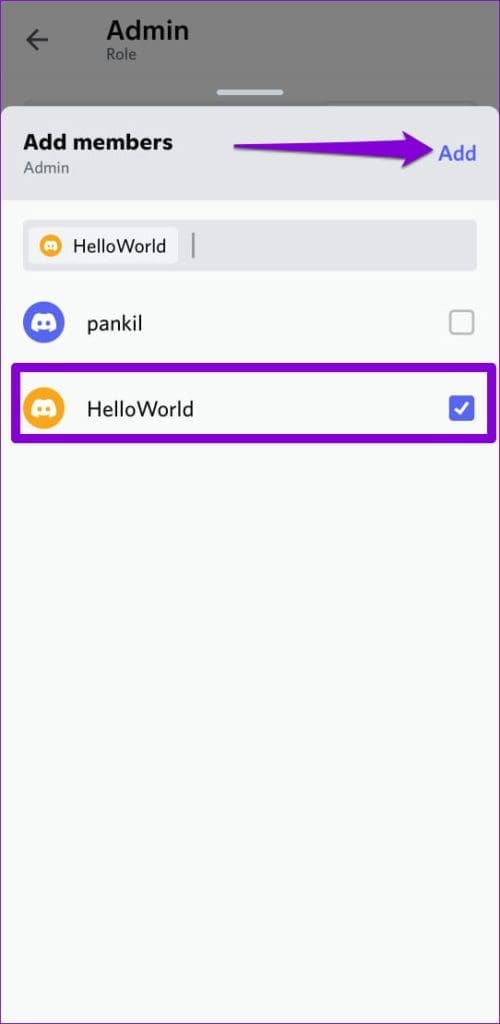
Once you complete the above steps, the user will have admin access to your server. You can also add more members to this list to give them admin access.
How to Make Someone Server Owner on Discord
If you no longer wish to run the server you created, you can transfer the server ownership to one of your friends on Discord. After that, you can leave the server or remain a member of it.
On Desktop
Step 1: Open the Discord app on your PC and use the left sidebar to navigate to your Discord server.
Step 2: Click on the server name and select Server Settings from the menu.
Step 3: Under User Management, click on Members.

Step 4: Scroll down or use the search bar to locate the member you wish to make the owner.
Step 5: Click the three-dot menu icon next to the user’s name and select Transfer Ownership.
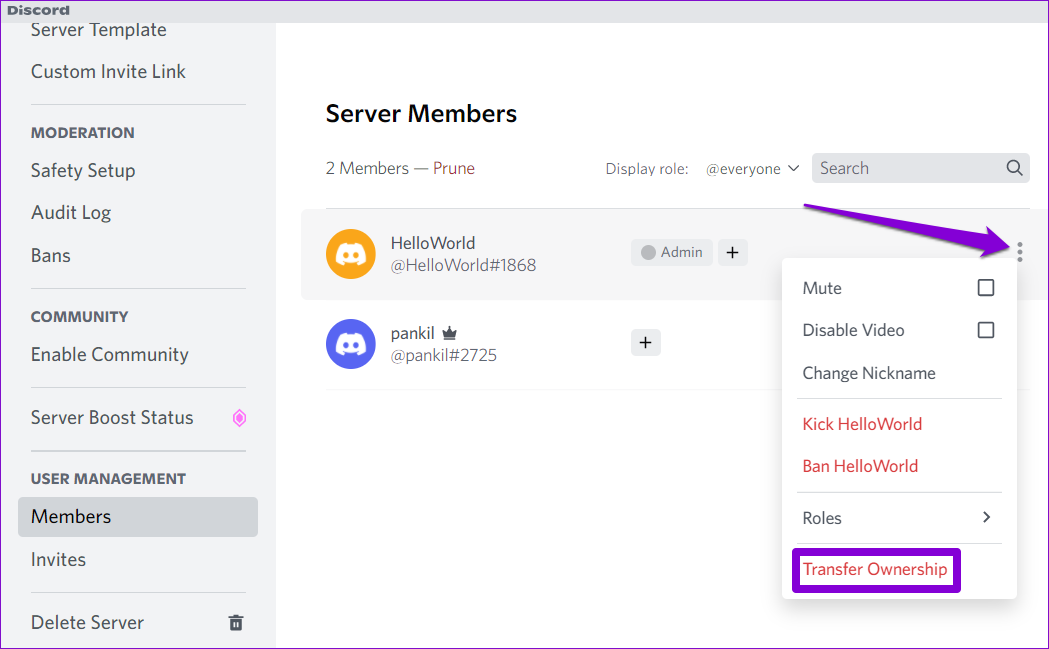
Step 6: Enable the acknowledgment toggle and hit the Transfer Ownership button.

On Android or iPhone
Step 1: Open the Discord app on your phone and navigate to your server.
Step 2: Tap the three-dot menu icon at the upper right corner and tap Settings.
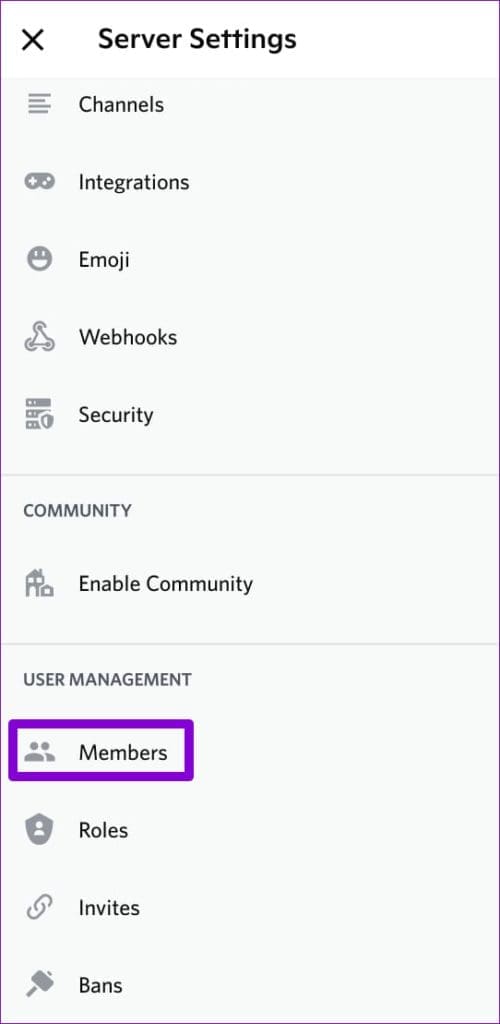
Step 3: Scroll down to tap on Members and select the user you want to make the owner.
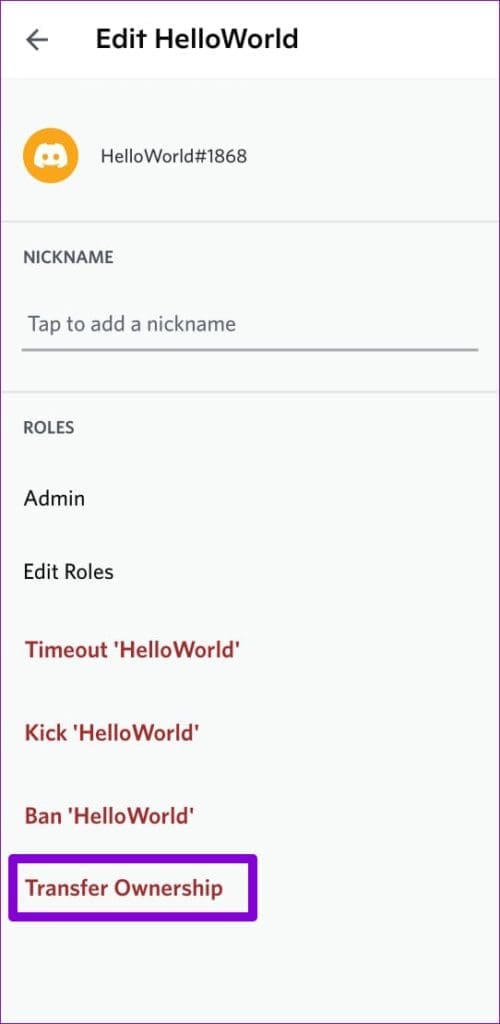
Step 4: Tap on Transfer Ownership, check the acknowledgment box, and hit Transfer.

Was this helpful?
Last updated on 03 July, 2024
1 Comment
Leave a Reply
Read Next
 How to Mute Someone on Discord Server
Are you tired of unwanted noise or constant disruptions on your Discord server?
How to Mute Someone on Discord Server
Are you tired of unwanted noise or constant disruptions on your Discord server?
 How to Check or Change Owner Details in Windows 11
Check the Registered Owner and Organization Name You can run the Winver command or use the Windows PowerShell terminal to inspect this quickly.
How to Check or Change Owner Details in Windows 11
Check the Registered Owner and Organization Name You can run the Winver command or use the Windows PowerShell terminal to inspect this quickly.
 How to Report a Discord Server: A Definitive Guide
If you encounter a Discord server that violates the community guidelines or engages in inappropriate behavior, it's important to know how to take action and report it.
How to Report a Discord Server: A Definitive Guide
If you encounter a Discord server that violates the community guidelines or engages in inappropriate behavior, it's important to know how to take action and report it.
 How to Know If You Are Banned From a Discord Server
Method 1: Confirm if the Server Is Missing on Your Discord Servers List Let’s go over some basics first.
How to Know If You Are Banned From a Discord Server
Method 1: Confirm if the Server Is Missing on Your Discord Servers List Let’s go over some basics first.
 What Happens When You Block Someone on Discord?
How to Block Someone on Discord From the Desktop Discord for Windows and Mac uses the same user interface.
What Happens When You Block Someone on Discord?
How to Block Someone on Discord From the Desktop Discord for Windows and Mac uses the same user interface.
 How to Ban or Unban Someone on Discord
If you've ever managed an online community, you know that ensuring a safe and harmonious environment is crucial.
How to Ban or Unban Someone on Discord
If you've ever managed an online community, you know that ensuring a safe and harmonious environment is crucial.
 The Complete Guide to Facebook Group Admin Roles and Responsibilities
Any group without a leader can quickly spiral to chaos.
The Complete Guide to Facebook Group Admin Roles and Responsibilities
Any group without a leader can quickly spiral to chaos.
 Top 10 Fixes for ‘Can’t Access Router Admin Page’ on Windows 11
For the most part, most users don't have to constantly access their Wi-Fi router's admin page.
Top 10 Fixes for ‘Can’t Access Router Admin Page’ on Windows 11
For the most part, most users don't have to constantly access their Wi-Fi router's admin page.
The article above may contain affiliate links which help support Guiding Tech. The content remains unbiased and authentic and will never affect our editorial integrity.

this is owner the server discord not the owner of whole discord