


How to Make iPhone Vibrate in Silent Mode
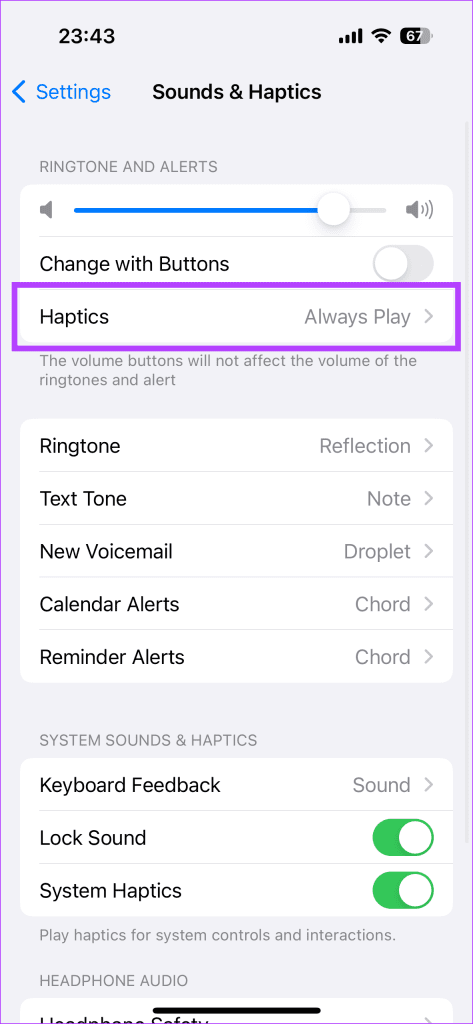
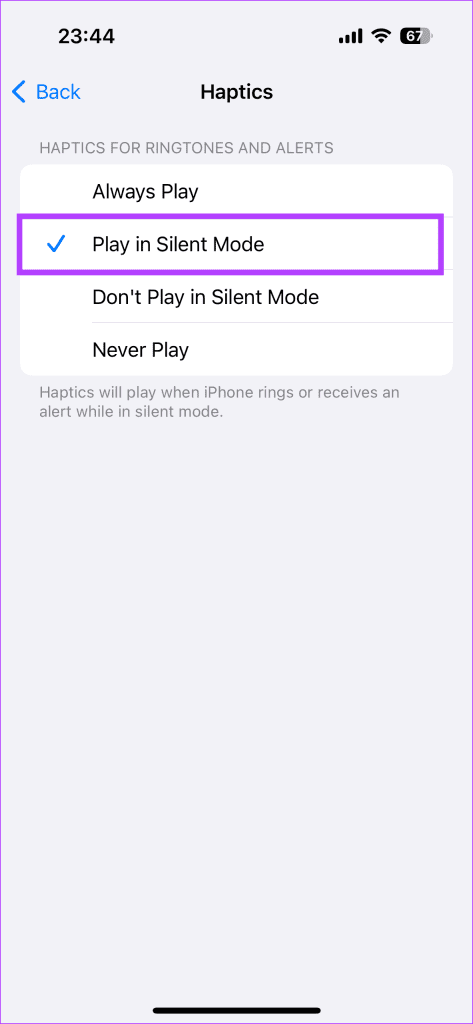
Open Settings > Sounds & Haptics > Haptics, and select Play in Silent Mode.
Now, your iPhone will vibrate on silent. Alternatively, select Don’t Play in Silent Mode if you want your iPhone not to vibrate when it’s silent.
If you want your iPhone to vibrate in both silent/ringer mode, select Always Play.

Tip: Know the difference between silent mode, airplane mode, and do not disturb on iPhone.
How to Fix iPhone Not Vibrating on Silent
If vibration on silent mode doesn’t work on your iPhone after enabling the above setting, follow these troubleshooting fixes:
Fix 1: Enable Vibration in Accessibility Settings
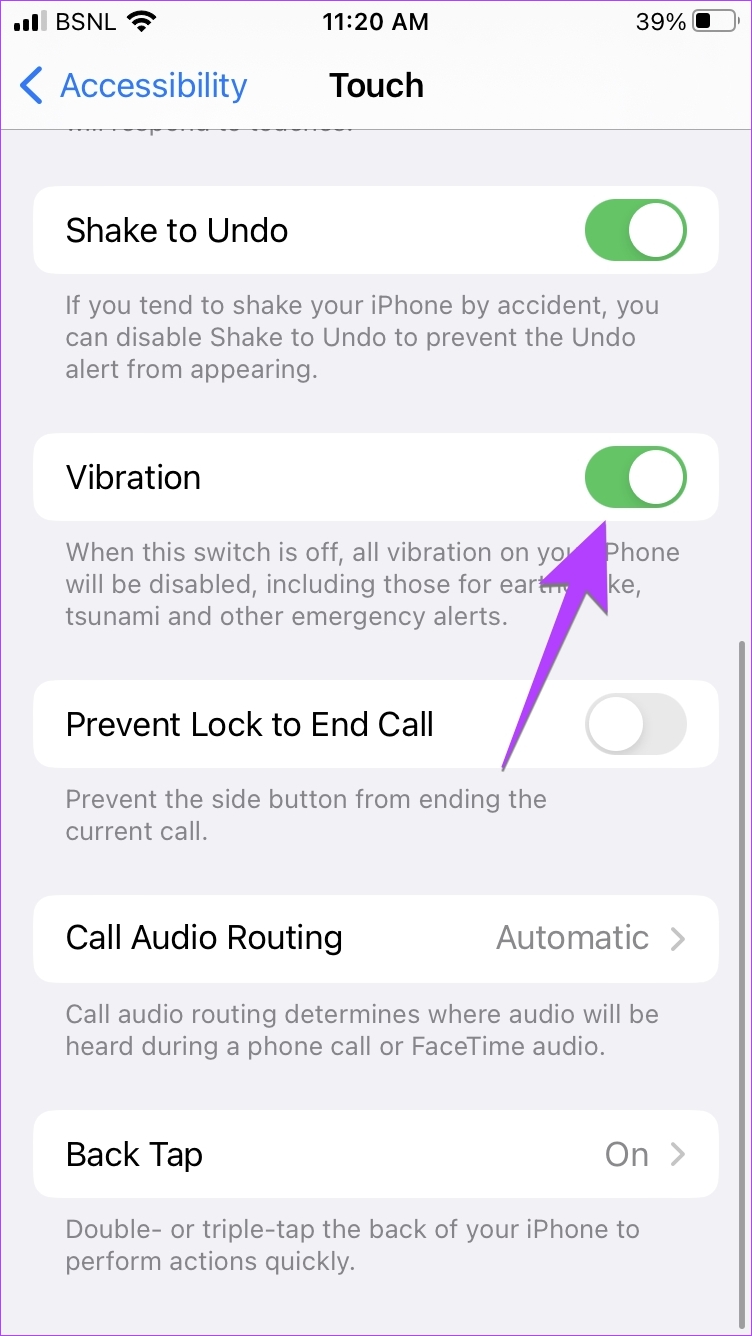
There’s a dedicated global vibration setting in the accessibility settings of your iPhone. If it’s turned off, all kinds of vibrations will not work.
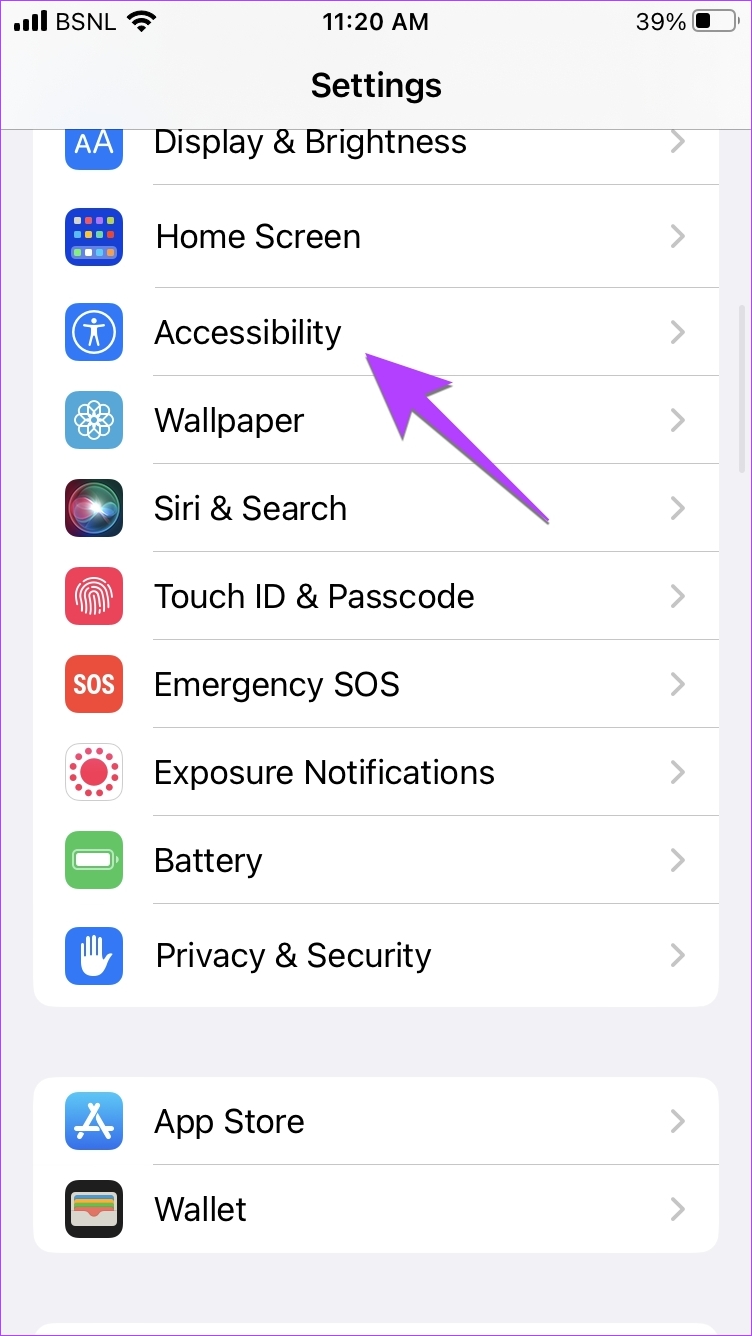
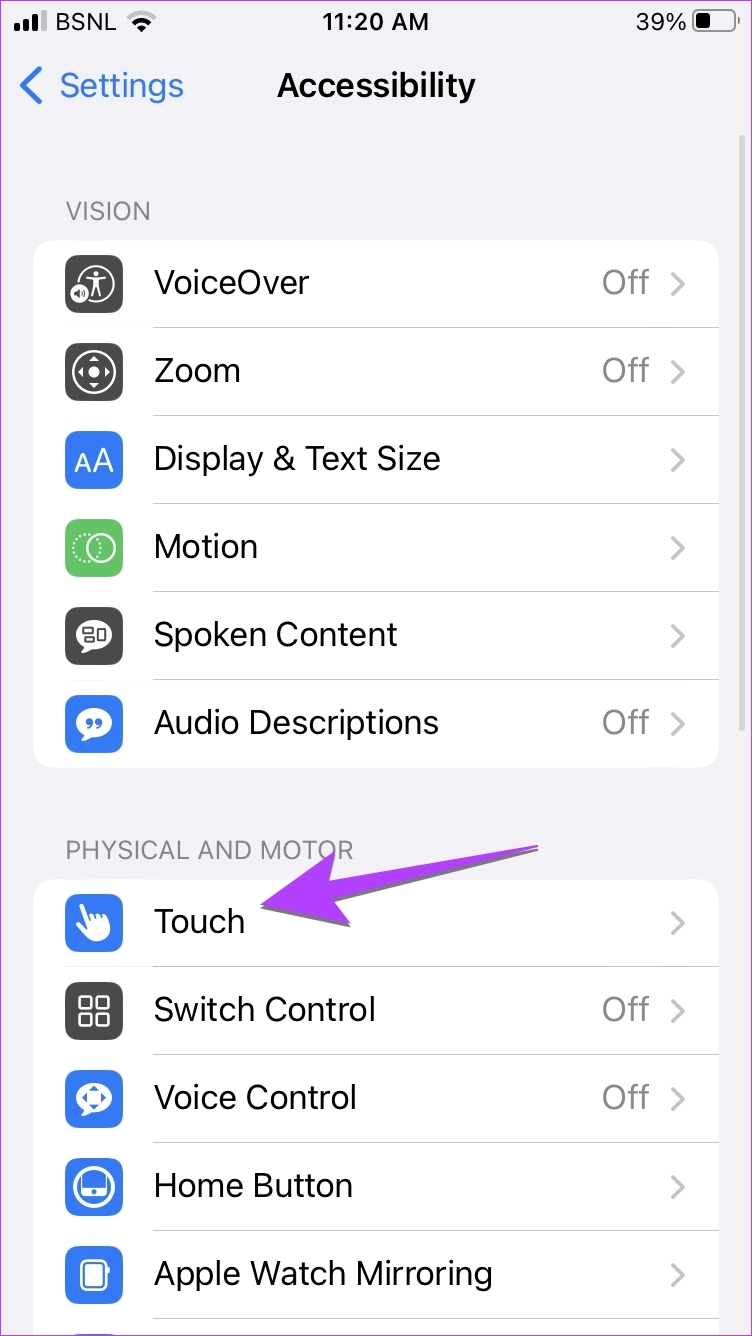
Open Settings > Accessibility > Touch and turn on Vibration.
Fix 2: Enable Vibration for Each Alert Type
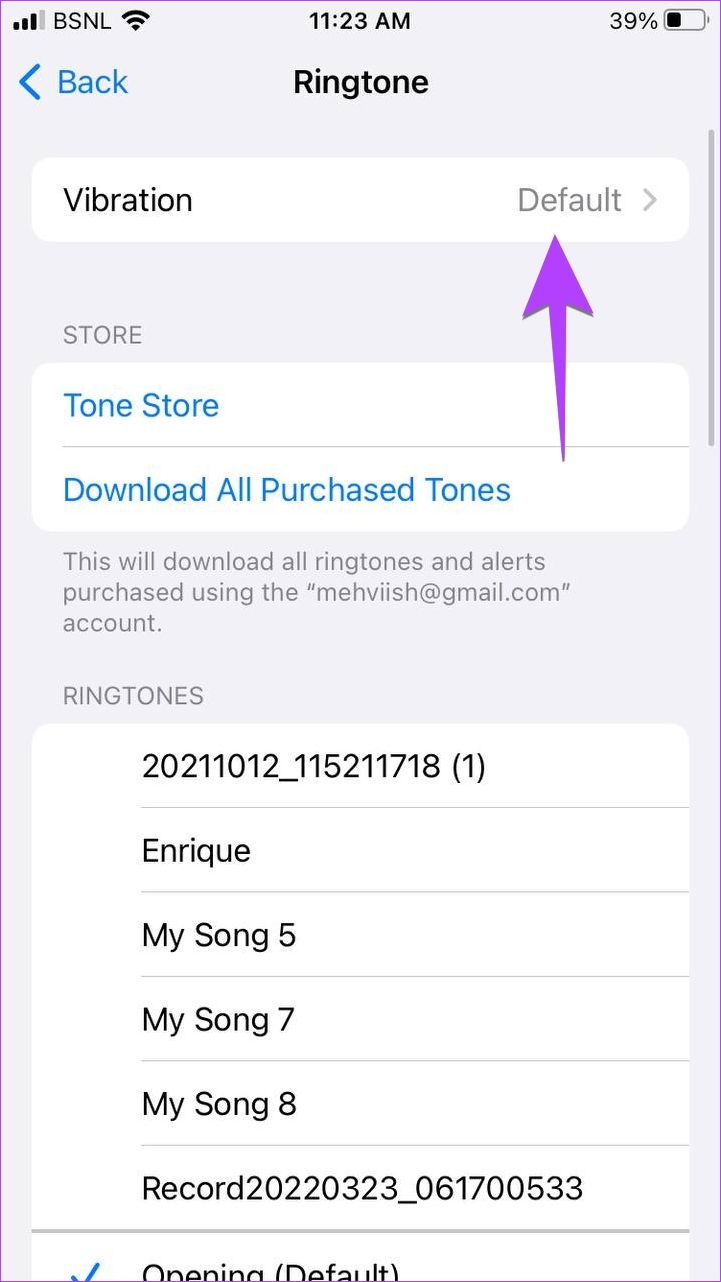
On iPhone, you can customize the vibration and select a different vibration pattern for each alert type. That means alerts like ringtones, text tones, mail, etc., can all have different vibration patterns.
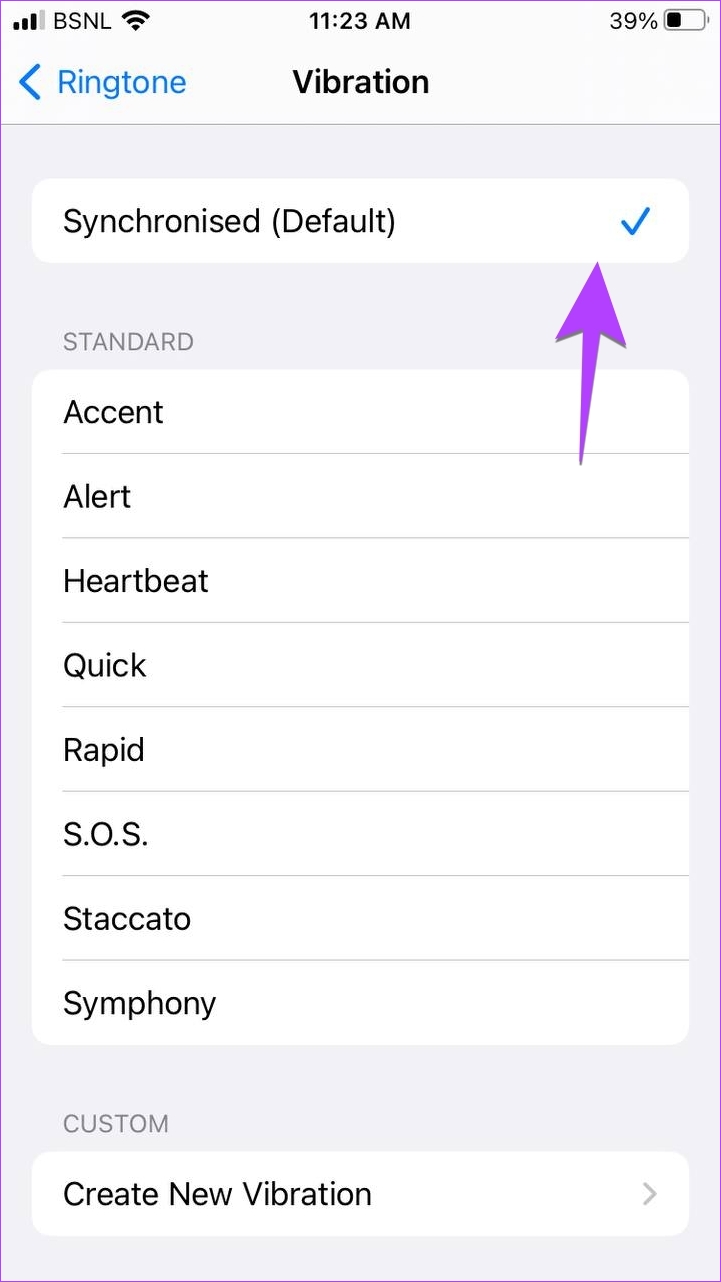
However, under the vibration setting of each alert, there is a None option. If selected, that particular alert won’t vibrate.
Step 1: Open Settings > Sounds & Haptics > Ringtone > Vibration.
Step 2: Now, make sure that the None option isn’t selected. If it says None, tap on Synchronized (Default) or choose some other pattern from the list.
Similarly check other alert types like text tone, voicemail, etc., and make sure that some vibration pattern is selected.

Also Read: 4 fixes for vibration not working on iPhone
Was this helpful?
Last updated on 26 July, 2024
1 Comment
Leave a Reply
Read Next
 3 Ways to Make Your Apple Watch Vibrate for Notifications
Method 1: Set Apple Watch to Vibrate Only for Alarm and Notifications Here's how to make your Apple Watch vibrate to alert you of all the notifications.
3 Ways to Make Your Apple Watch Vibrate for Notifications
Method 1: Set Apple Watch to Vibrate Only for Alarm and Notifications Here's how to make your Apple Watch vibrate to alert you of all the notifications.
 5 Ways to Make Your Android Phone Vibrate
Method 1: Using the Volume Button On phones running Stock Android, you can put it on vibration mode using the volume button.
5 Ways to Make Your Android Phone Vibrate
Method 1: Using the Volume Button On phones running Stock Android, you can put it on vibration mode using the volume button.
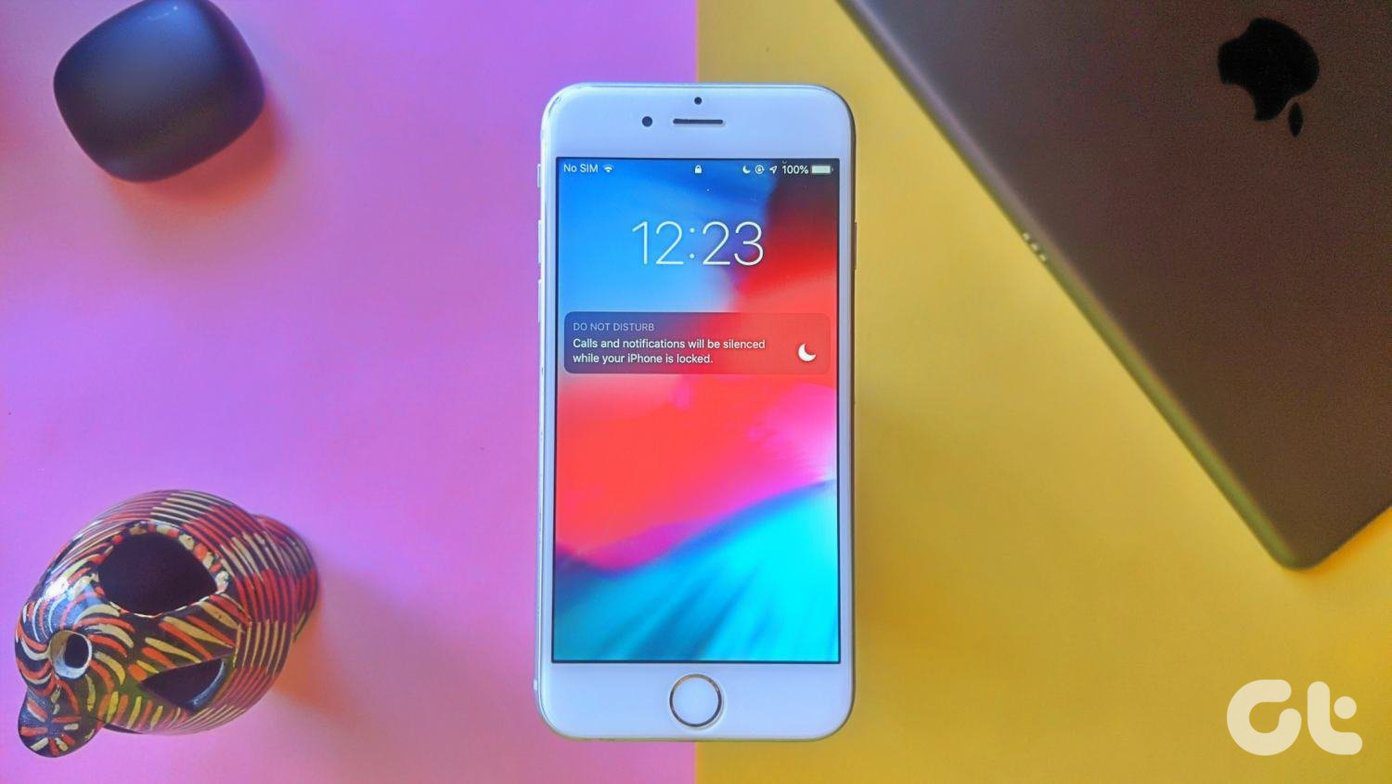 What’s the Difference Between Do Not Disturb, Airplane, and Silent Mode on iPhone
What Is Silent Mode on iPhone?
What’s the Difference Between Do Not Disturb, Airplane, and Silent Mode on iPhone
What Is Silent Mode on iPhone?
 How to Fix Silent Switch Not Working on iPhone
Fixes for Silent Button Not Working on iPhone Clean the area around the button: If there is dust and lint accumulation inside the region of the silent switch, it will
How to Fix Silent Switch Not Working on iPhone
Fixes for Silent Button Not Working on iPhone Clean the area around the button: If there is dust and lint accumulation inside the region of the silent switch, it will
 Turn On or Off Silent Mode on iPhone Without Switch or Action Button
https://youtu.be/4aTyKBjOvVY How to Enable & Disable Silent Mode on iPhone 15 Pro and Pro Max iPhone 15 Pro and 15 Pro Max not only have an Action Button instead of
Turn On or Off Silent Mode on iPhone Without Switch or Action Button
https://youtu.be/4aTyKBjOvVY How to Enable & Disable Silent Mode on iPhone 15 Pro and Pro Max iPhone 15 Pro and 15 Pro Max not only have an Action Button instead of
 6 Ways to Fix iPhone Automatically Goes to Silent Mode
Basic Fixes: Check sound settings: First, check the ringer and alert volume on your iPhone.
6 Ways to Fix iPhone Automatically Goes to Silent Mode
Basic Fixes: Check sound settings: First, check the ringer and alert volume on your iPhone.
 5 Ways to Find Your Android When it’s in Silent Mode
Method 1: Use the Find My Device App on Another Phone If you have enabled Find My Device on your Android phone, you can play a sound to find it
5 Ways to Find Your Android When it’s in Silent Mode
Method 1: Use the Find My Device App on Another Phone If you have enabled Find My Device on your Android phone, you can play a sound to find it
 How to Send Silent and Disappearing Messages on Instagram
Send Silent Messages on Instagram Whether the recipient’s phone is on DND (Do Not Disturb) or not, silent messages won’t produce a notification on their phone.
How to Send Silent and Disappearing Messages on Instagram
Send Silent Messages on Instagram Whether the recipient’s phone is on DND (Do Not Disturb) or not, silent messages won’t produce a notification on their phone.
The article above may contain affiliate links which help support Guiding Tech. The content remains unbiased and authentic and will never affect our editorial integrity.


Thanks for the post. I was looking for the vibrate on silent option. Didn’t know they’d changed that to system haptics. Your post has been very helpful.