What Happens When You Lock Your Facebook Profile?
You won’t notice any difference in your social media experience. But others who aren’t on your friend’s list can’t access certain information in your profile.
- Strangers can’t see your uploaded posts and photos in your profile, and access remains exclusive to friends. However, your profile information, such as birth date, location, relationship status, etc., is visible if its visibility is set to public.
- Others can’t see your full profile picture and cover photo. Instead, they will get a low-resolution thumbnail, eliminating the possibility of misusing your profile picture.
- Your existing posts with public access will change to Friends only.
- Only a small part of your About info will be visible to strangers.
How to Lock Your Facebook Profile
On Web
Step 1: Click on the downward triangle at the top-right corner and choose your profile name from the menu.

Step 2: At the top-right corner, click on the three-dot menu icon.

Step 3: When a menu opens, select Lock Profile.
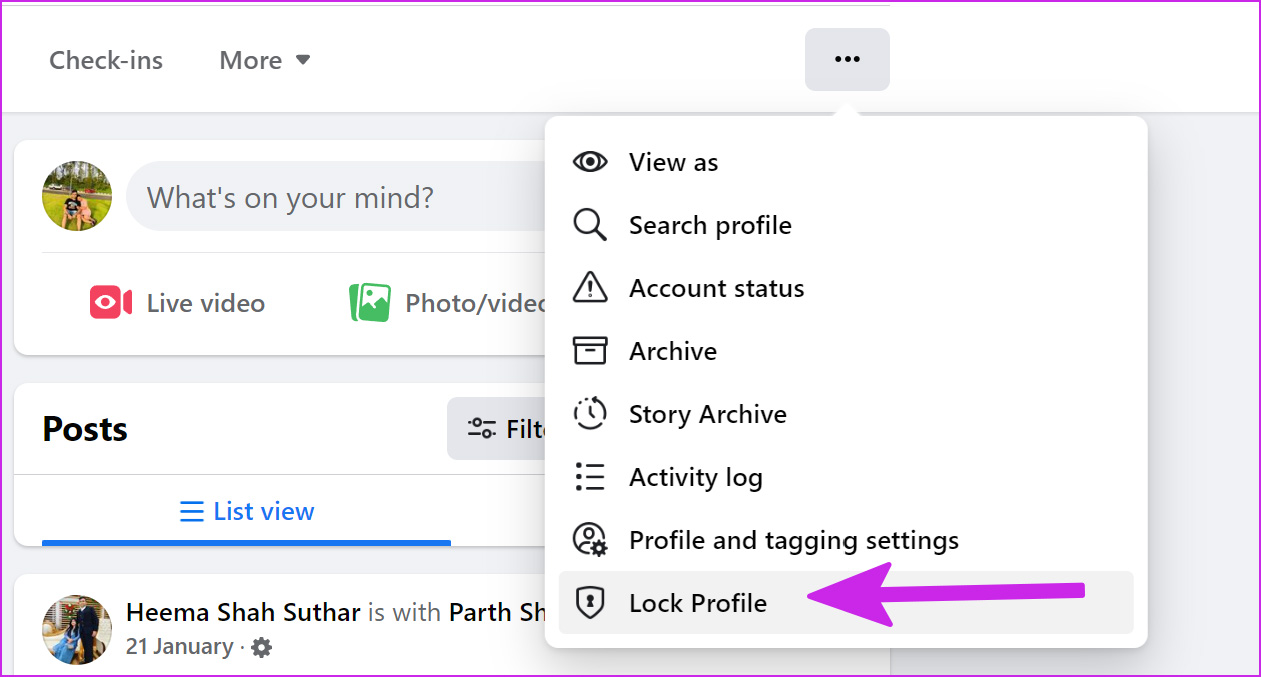
You can quickly see the locked profile confirmation for your account by checking the blue lock icon below the profile picture.
On iPhone and Android
Step 1: Tap the three vertical lines menu button at the bottom-right corner and open your profile.
Step 2: Then, tap on the three-dot menu beside the Edit profile button and select Lock Profile.

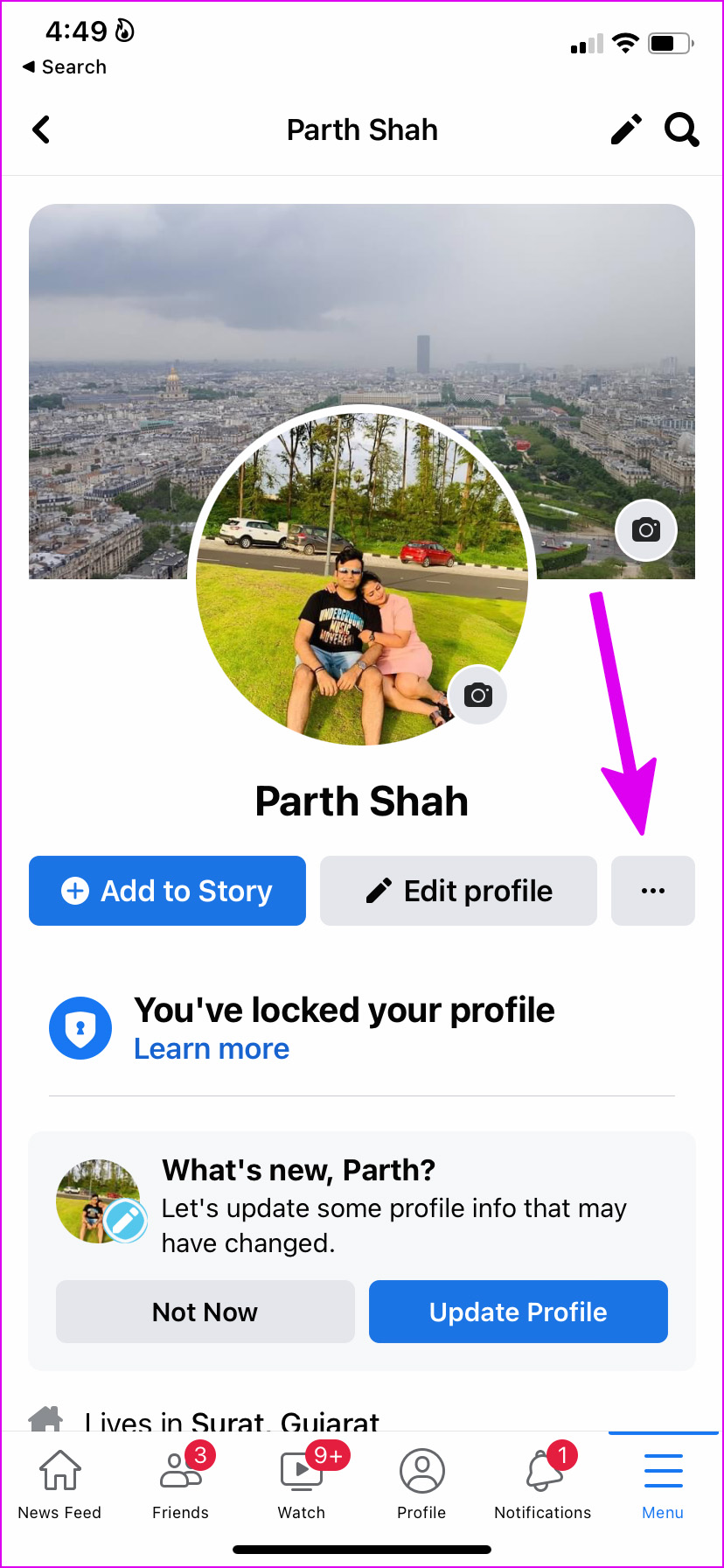

You can always unlock your profile using the same menu on Facebook’s web and mobile app versions.
Also Read: How to see who is stalking your Facebook profile
Was this helpful?
Last updated on 16 May, 2024
Read Next
 How to Lock Facebook Profile and What Does It Do
How to Lock Your Facebook Profile Note: The ability to lock your Facebook profile is limited to a few countries such as the UK, Bangladesh, India, etc.
How to Lock Facebook Profile and What Does It Do
How to Lock Your Facebook Profile Note: The ability to lock your Facebook profile is limited to a few countries such as the UK, Bangladesh, India, etc.
 4 Ways to Fix Facebook Not Playing Videos
Basic Fixes Check internet speed: Make sure you use either 5G or a strong Wi-Fi network to watch videos on the Facebook app.
4 Ways to Fix Facebook Not Playing Videos
Basic Fixes Check internet speed: Make sure you use either 5G or a strong Wi-Fi network to watch videos on the Facebook app.
 How to Lock a Discord Channel on Desktop and Mobile
Locking a Channel by Making it Private Making a Discord channel private means it becomes hidden from other members on a server.
How to Lock a Discord Channel on Desktop and Mobile
Locking a Channel by Making it Private Making a Discord channel private means it becomes hidden from other members on a server.
 How to Lock Telegram Using Passcode on Desktop and Mobile
Lock Telegram Using Passcode on Desktop You can choose to lock Telegram's desktop app using a passcode as well.
How to Lock Telegram Using Passcode on Desktop and Mobile
Lock Telegram Using Passcode on Desktop You can choose to lock Telegram's desktop app using a passcode as well.
 How to Remove Profile Picture From Microsoft Teams on Mobile and PC
Microsoft uses your name’s initials as your profile picture in Microsoft Teams.
How to Remove Profile Picture From Microsoft Teams on Mobile and PC
Microsoft uses your name’s initials as your profile picture in Microsoft Teams.
 How to Add or Delete a Netflix Profile on Mobile and Desktop
With the changes in Netflix's password-sharing policy, many people have been changing or canceling their plan altogether.
How to Add or Delete a Netflix Profile on Mobile and Desktop
With the changes in Netflix's password-sharing policy, many people have been changing or canceling their plan altogether.
 How to Add Music to Facebook Profile and Story
How to Add Music to Your Facebook Profile You can add multiple songs to your Facebook profile.
How to Add Music to Facebook Profile and Story
How to Add Music to Your Facebook Profile You can add multiple songs to your Facebook profile.
 How to See Who Is Stalking Your Facebook Profile
What Is Facebook Stalking Facebook Stalking basically means that someone is keeping a close eye on your social media activities.
How to See Who Is Stalking Your Facebook Profile
What Is Facebook Stalking Facebook Stalking basically means that someone is keeping a close eye on your social media activities.
The article above may contain affiliate links which help support Guiding Tech. The content remains unbiased and authentic and will never affect our editorial integrity.