For most Windows users, running applications designed for Linux has been a challenge due to their inherent incompatibility. Luckily, there is a way to bridge the gap between these two operating systems and run Linux-specific apps in Windows. Windows Subsystem for Linux, or WSL, is one such solution.
How to Install WSL on Windows 11
On Windows, you need administrative permissions to install any new system features.
Step 1: Type ‘Command Prompt’ or ‘cmd’ in the Search bar.
Step 2: Right-click and select ‘Run as administrator.’

Step 3: In the command box, enter the following command install WSL:
wsl –install

This will install the version of WSL that is compatible with your computer’s version of Windows. It will also install any other software that the WSL needs in order to run on your computer.
If you already had a WSL installed, this command will just update it to the newest version.
Step 4: Once the WSL is installed, you should restart your computer. This reboots the system and ensures the process was completed properly.
Step 5: Launch your new Linux distribution.
The Linux distribution is the name of the software platform that will allow you to run Linux-specific apps. The default Linux distribution is Ubuntu.
After restarting your computer, Ubuntu may launch automatically. If it doesn’t, you need to open the search bar and look for ‘Ubuntu.’

Step 6: Set up your Linux username and password.
Linux requires a user account to be set up before you can use it. Choose a username and password to login with.

It’s important to note that this login is only for the Linux distribution, not your Windows system.
Update and Upgrade Linux Packages
Before you try running an app, check that your Linux distribution is using the most updated version of software. Here is how:
Step 1: Open your Linux distribution and enter the following command:
sudo apt update && sudo apt upgrade -y
Step 2: Enter your Linux password.

Verify WSL Version and Set WSL2 as Default
There are different versions of the WSL that you can install. WSL2 is more modern and performs better.
Check Installed Version
Step 1: Open the command prompt and enter ‘wsl -l -v’
Step 2: Scroll down to see which version is set to default.

Set WSL2 as Default
To set WSL2 as your default, enter the following command instead:
wsl –set-default-version 2

Choose a Different Linux Distribution
Most of the time, systems install Ubuntu as the default distribution. However, if you want to change it, here’s how:
Step 1: Open the Microsoft Store and search for Linux distributions.
Step 2: Choose the Linux distribution and click Install.
Step 3: Repeat the setup steps.

Was this helpful?
Last updated on 22 June, 2025
Read Next
 How to Install Apps and App Store on Xiaomi Mi TV
The new Xiaomi Mi TV offers a lot of things.
How to Install Apps and App Store on Xiaomi Mi TV
The new Xiaomi Mi TV offers a lot of things.
 2 Ways to Install Beta Apps on iPhone Using TestFlight
What Is TestFlight on iPhone?
2 Ways to Install Beta Apps on iPhone Using TestFlight
What Is TestFlight on iPhone?
 4 Ways to Fix Unable to Install Programs or Software on Windows 11
Try Basic Fixes Check program compatibility: Programs and games that worked perfectly on Windows 10 may not necessarily be compatible with Windows 11.
4 Ways to Fix Unable to Install Programs or Software on Windows 11
Try Basic Fixes Check program compatibility: Programs and games that worked perfectly on Windows 10 may not necessarily be compatible with Windows 11.
 How to Install Windows 11 on VirtualBox: The Ultimate Guide
How to Enable Virtualization on Windows 11 Enabling virtualization on Windows typically involves going into the BIOS or UEFI settings and enabling support, which may vary depending on your PC's
How to Install Windows 11 on VirtualBox: The Ultimate Guide
How to Enable Virtualization on Windows 11 Enabling virtualization on Windows typically involves going into the BIOS or UEFI settings and enabling support, which may vary depending on your PC's
 How to Install VirtualBox on Windows 11 and 10
Prerequisites for Installing VirtualBox on Windows CPU: x86-compatible hardware (most modern Intel and AMD CPUs are supported) RAM: The minimum requirement of the host operating system (Windows 11: 4GB) plus
How to Install VirtualBox on Windows 11 and 10
Prerequisites for Installing VirtualBox on Windows CPU: x86-compatible hardware (most modern Intel and AMD CPUs are supported) RAM: The minimum requirement of the host operating system (Windows 11: 4GB) plus
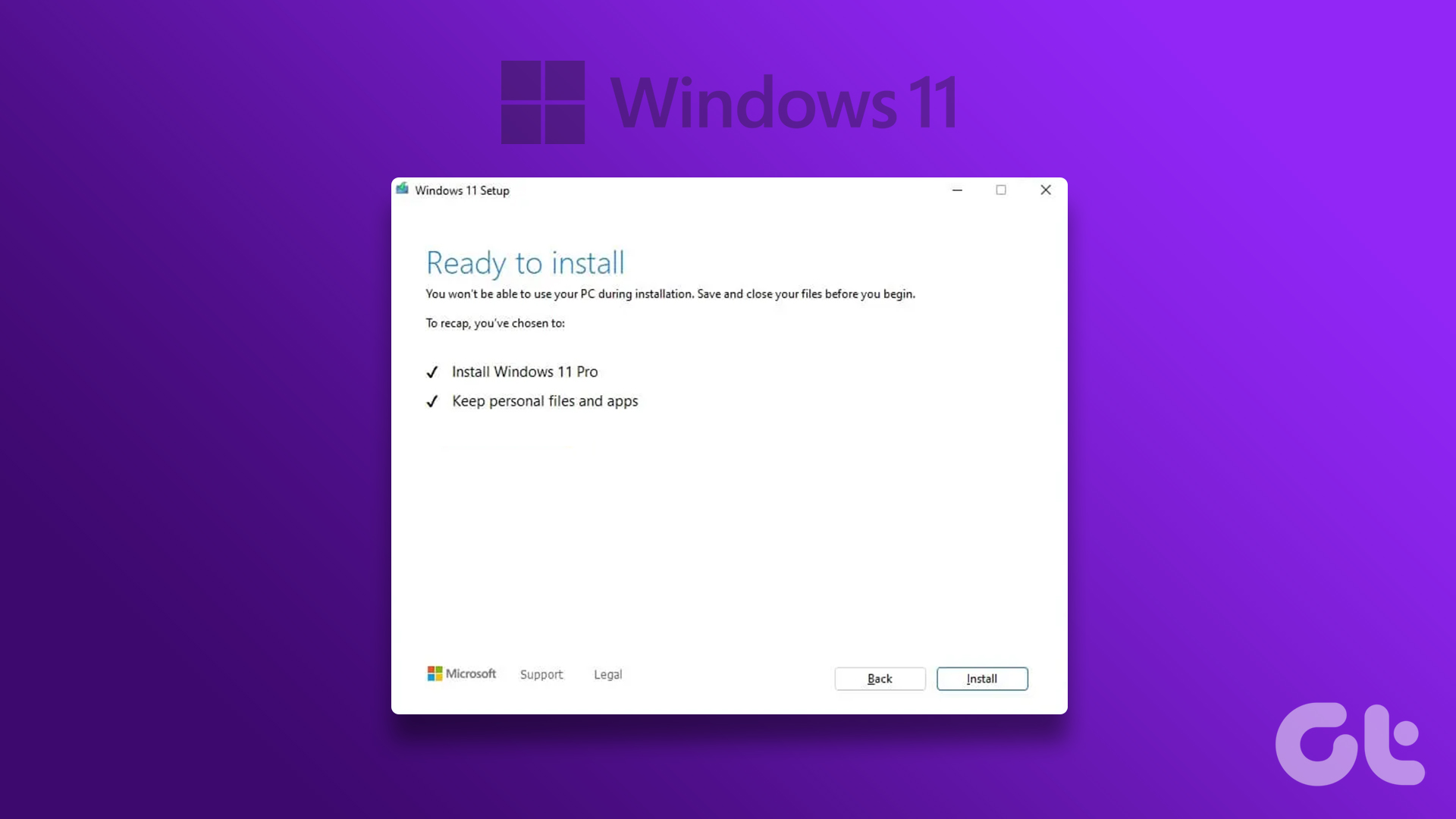 How to Clean Install Windows 11: A Step-By-Step Guide
Are you looking to give your computer a fresh start by installing the latest version of Windows?
How to Clean Install Windows 11: A Step-By-Step Guide
Are you looking to give your computer a fresh start by installing the latest version of Windows?
 2 Easy Ways to Install Fonts in Windows 11
While Windows 11 has gotten a major overhaul, that has not impacted the default fonts currently available.
2 Easy Ways to Install Fonts in Windows 11
While Windows 11 has gotten a major overhaul, that has not impacted the default fonts currently available.
 How to Install YouTube Music App on Desktop (Windows and Mac)
Method 1: Install YouTube Music on Windows PC or Mac Using the Web App While YouTube Music doesn't have an official app available for download, you can use a progressive
How to Install YouTube Music App on Desktop (Windows and Mac)
Method 1: Install YouTube Music on Windows PC or Mac Using the Web App While YouTube Music doesn't have an official app available for download, you can use a progressive
The article above may contain affiliate links which help support Guiding Tech. The content remains unbiased and authentic and will never affect our editorial integrity.