


Fix 1: Check the File Format
The latest Windows Media Player is built to work with all the popular audio and video formats. Unfortunately, it doesn’t support all of them. The possibility is high that the Media Player doesn’t support the media file you are trying to play.
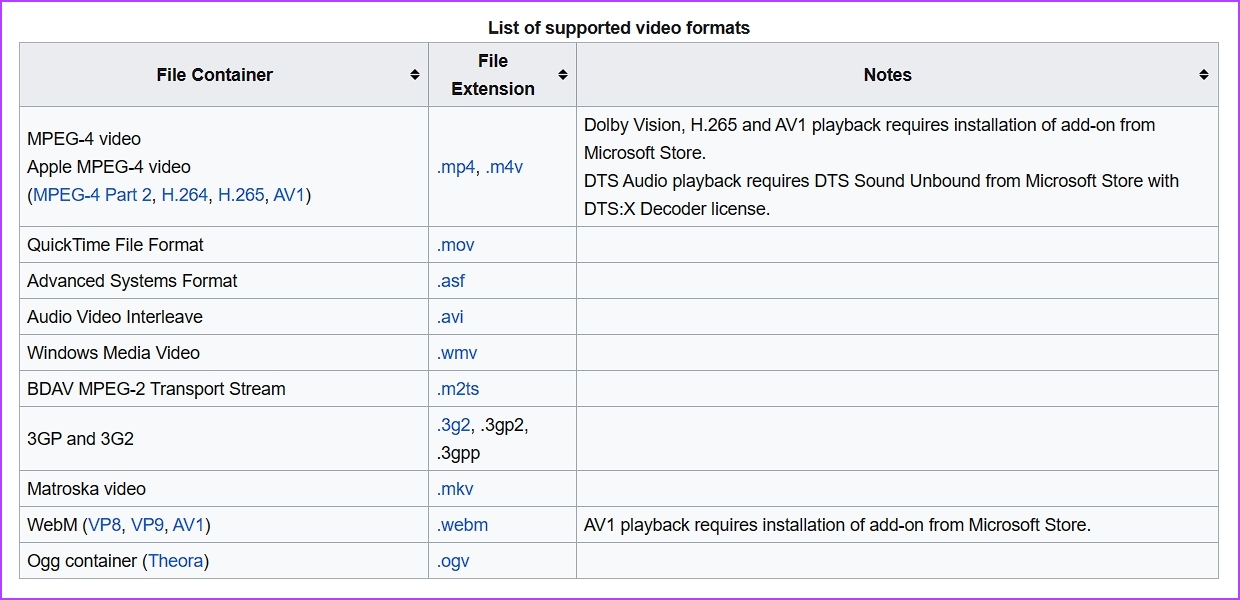
To check for that possibility, check the Windows Media Player file compatibility list and ensure your file is compatible. If it isn’t, change the file type to a compatible format.
Fix 2: Use the Windows Media Player Troubleshooter
Windows Media Player is a new application, so it is common to encounter issues. Fortunately, you can eliminate most of its issues, including the one at hand, using the Windows Media Player troubleshooter.
Step 1: Press the Windows + I keyboard shortcut to open the Settings app.
Step 2: Choose System from the left sidebar and Troubleshoot from the right pane.
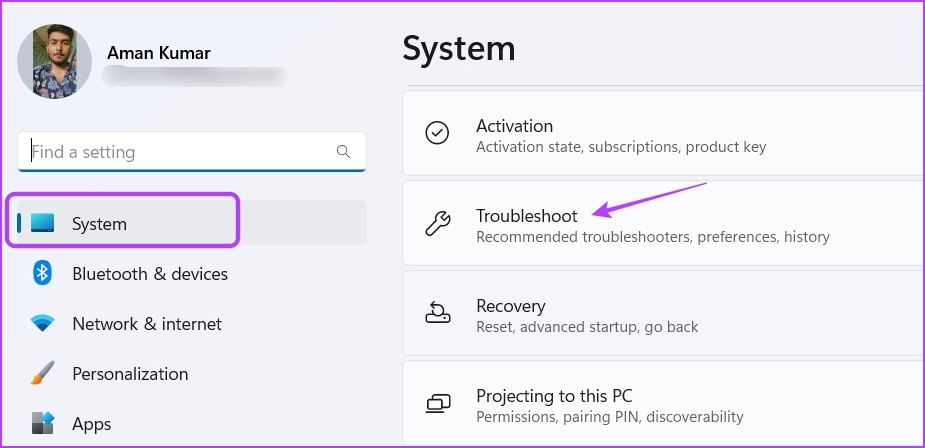
Step 3: Choose Other troubleshooters.

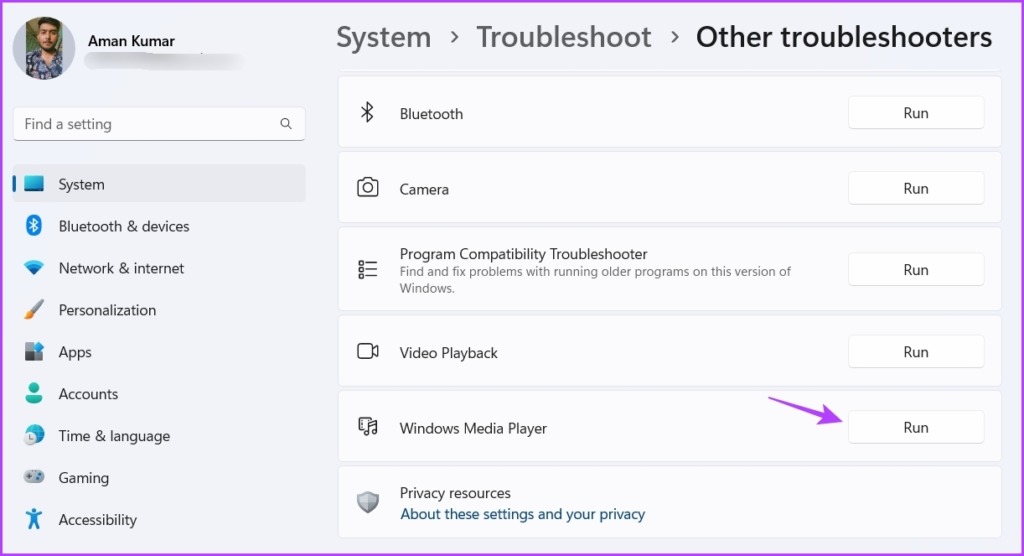
Step 4: Click the Run button next to Windows Media Player.
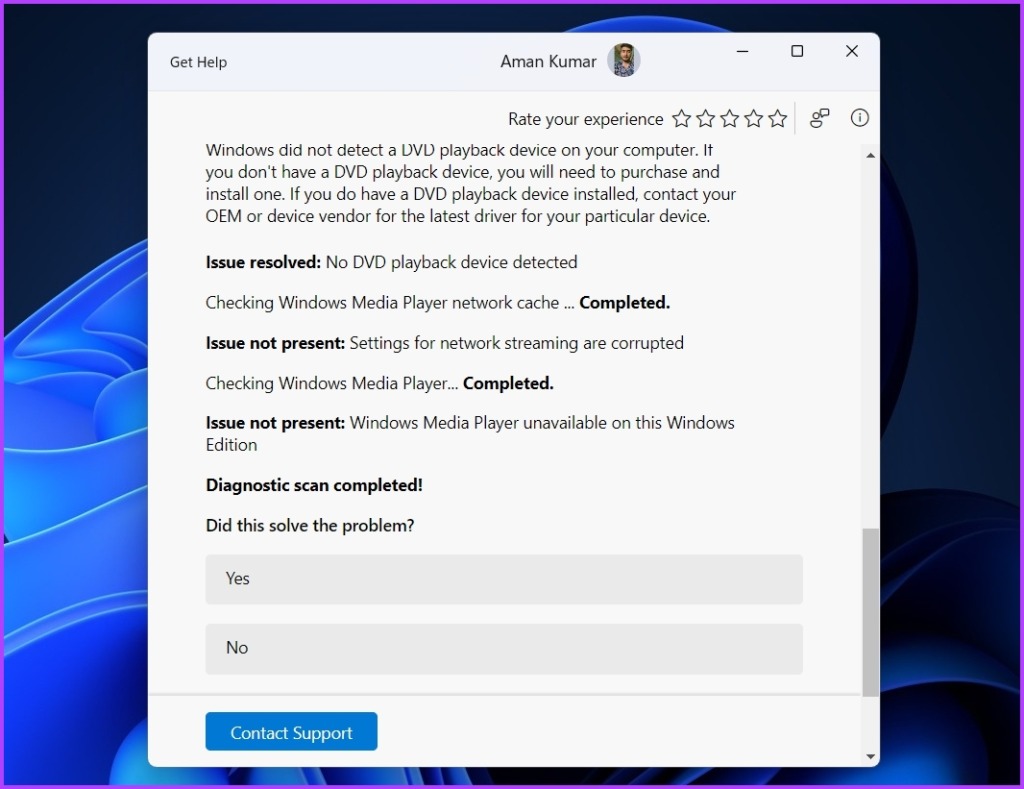
Step 5: In the Get Help window, click Yes to allow Windows to repair the found problems automatically.
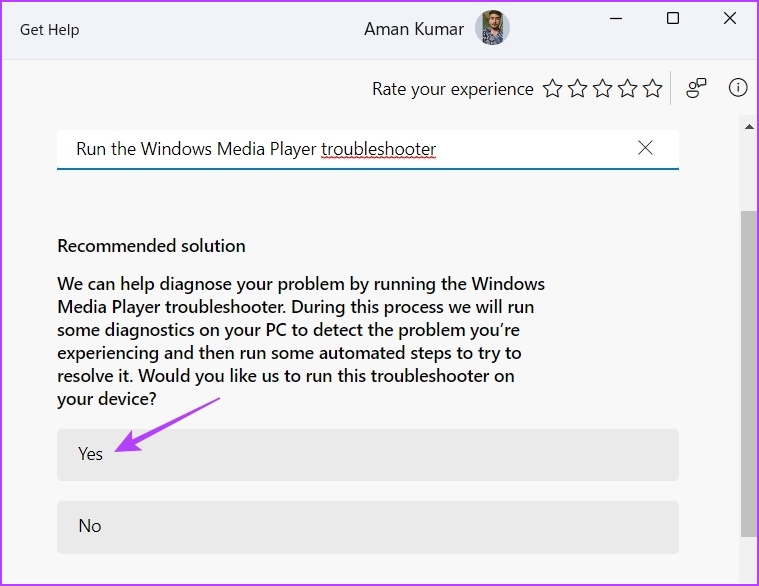
The Windows Media Player will look for any available issues and automatically fix them without much user input. After that, restart your computer and check for the problem.
Fix 3: Re-Register DLL Files
Dynamic Link Libraries (DLL) files are important to ensure programs perform their task properly. If the DLL files associated with the Windows Media Player get corrupt or missing, the app will struggle to work properly. The only way to fix these files is to re-register them.
Step 1: Press the Windows key to open the Start Menu.
Step 2: Type Command Prompt in the search bar and choose Run as administrator from the right pane.
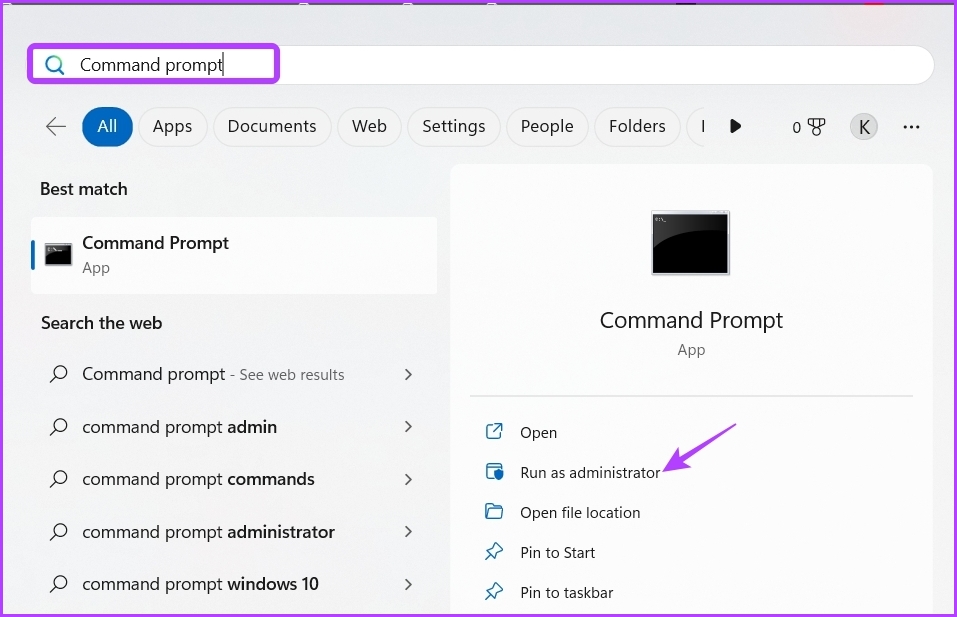
Step 3: Execute the following commands one by one:
regsvr32 vbscript.dll
regsvr32 jscript.dll
regsvr32 wmp.dll

After that, restart your computer and check for the issue. If it continues, try the next solution on the list.
Fix 4: Enable Windows Media Player in Windows Features
If Windows Media Player is not functioning, it may be disabled in Windows Features. You’ll have to access Windows Features and enable Windows Media Player to fix the issue.
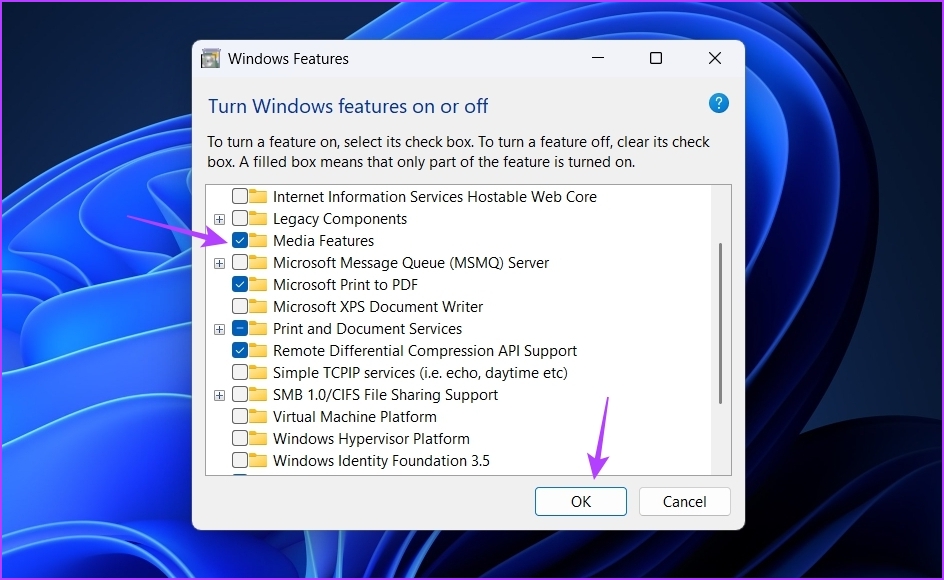
Step 1: Press the Windows key to open the Start Menu, type Turn Windows Features on or off, and press Enter.

Step 2: Check the Media Features box and click OK.
Fix 5: Repair or Reset the Windows Media Player
Another possible reason Windows Media Player is not working in Windows 11 is file corruption. You can quickly detect and eliminate corruption using the Windows repair feature.
Step 1: Press the Windows + I keyboard shortcut to open the Settings app, choose Apps from the left sidebar, and then Installed Apps from the right pane.
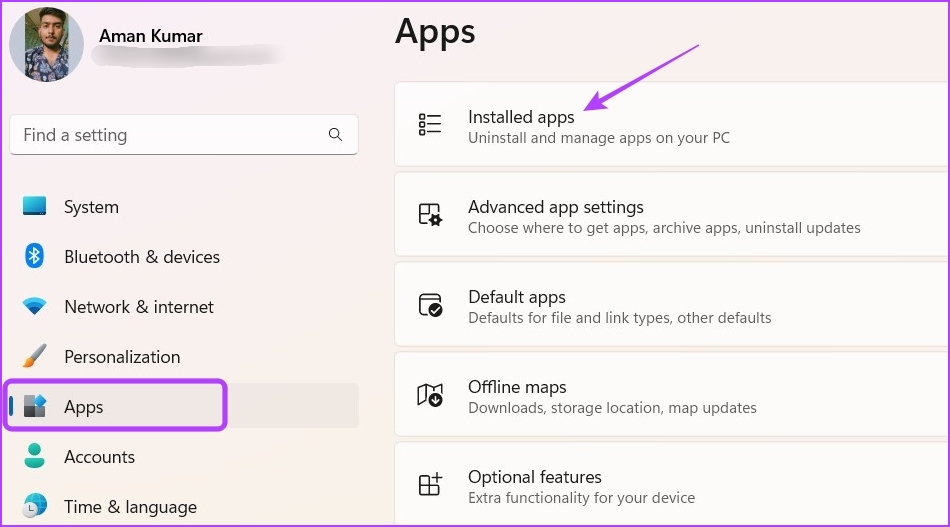
Step 2: Click the three horizontal dots next to Media Player and choose Advanced options.

Step 3: Click the Repair button.
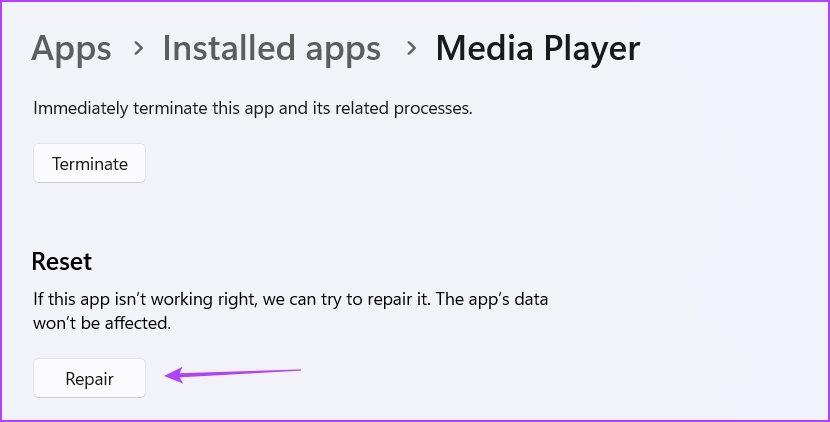
Wait till the repair process is complete. Once done, you’ll see a checkmark next to the Repair button. Now, check if the problem is resolved.
If not, you’ll have to reset the app, which will clear all its data. To reset the Media Player, open the Advanced options of the Media Player and click the Reset button.
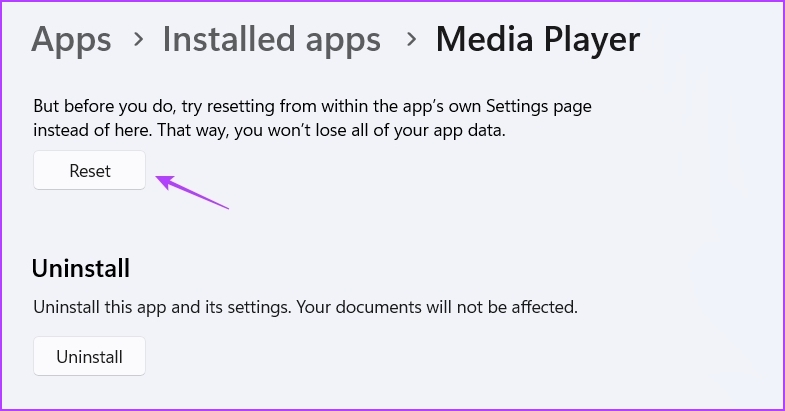
Fix 6: Reinstall Windows Media Player
Is the Windows Media Player still not working on Windows 11? Perhaps there’s corruption in installation files that is causing the issue.
Step 1: Press Windows + I keyboard shortcut to open the Settings app, select Apps from the left sidebar, and select Installed apps from the right pane.
Step 2: Click the three dots next to Media Player and choose Uninstall. Then, choose Uninstall again to confirm your selection.
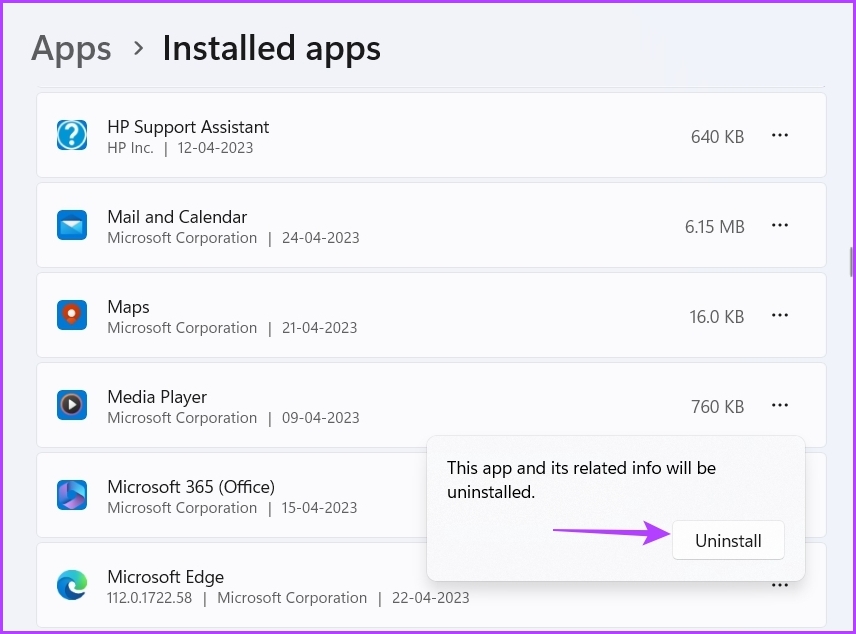
Now, restart your computer and download the Windows Media Player from the Microsoft Store.
Was this helpful?
Last updated on 09 August, 2024
1 Comment
Leave a Reply
Read Next
 How to Fix Windows Media Player Add to Library Not Working
The latest version of Windows Media Player is 12, which was released in the year 2009 and has not received any major updates.
How to Fix Windows Media Player Add to Library Not Working
The latest version of Windows Media Player is 12, which was released in the year 2009 and has not received any major updates.
 2 Ways to Fix VLC Media Player Not Working on Mac
Basic Fixes: Restart Mac: Rebooting your Mac can fix frequent issues with the installed apps.
2 Ways to Fix VLC Media Player Not Working on Mac
Basic Fixes: Restart Mac: Rebooting your Mac can fix frequent issues with the installed apps.
 How to Use VLC Media Player on Android TV
Here's how you can use and customize VLC Media Player on your Android TV.
How to Use VLC Media Player on Android TV
Here's how you can use and customize VLC Media Player on your Android TV.
 9 Ways to Fix “Update Device Settings to Accept Media Transfers” Error on Windows 11
When you connect your Android or iPhone to your Windows device, you can see most files in the Photos app.
9 Ways to Fix “Update Device Settings to Accept Media Transfers” Error on Windows 11
When you connect your Android or iPhone to your Windows device, you can see most files in the Photos app.
 How to Fix iCloud Missing Media Features Error on Windows
Fix 1: Turn on Missing Media Features Chances are, if you live outside of Europe or Korea, your copy of Windows came with the media features turned off by default.
How to Fix iCloud Missing Media Features Error on Windows
Fix 1: Turn on Missing Media Features Chances are, if you live outside of Europe or Korea, your copy of Windows came with the media features turned off by default.
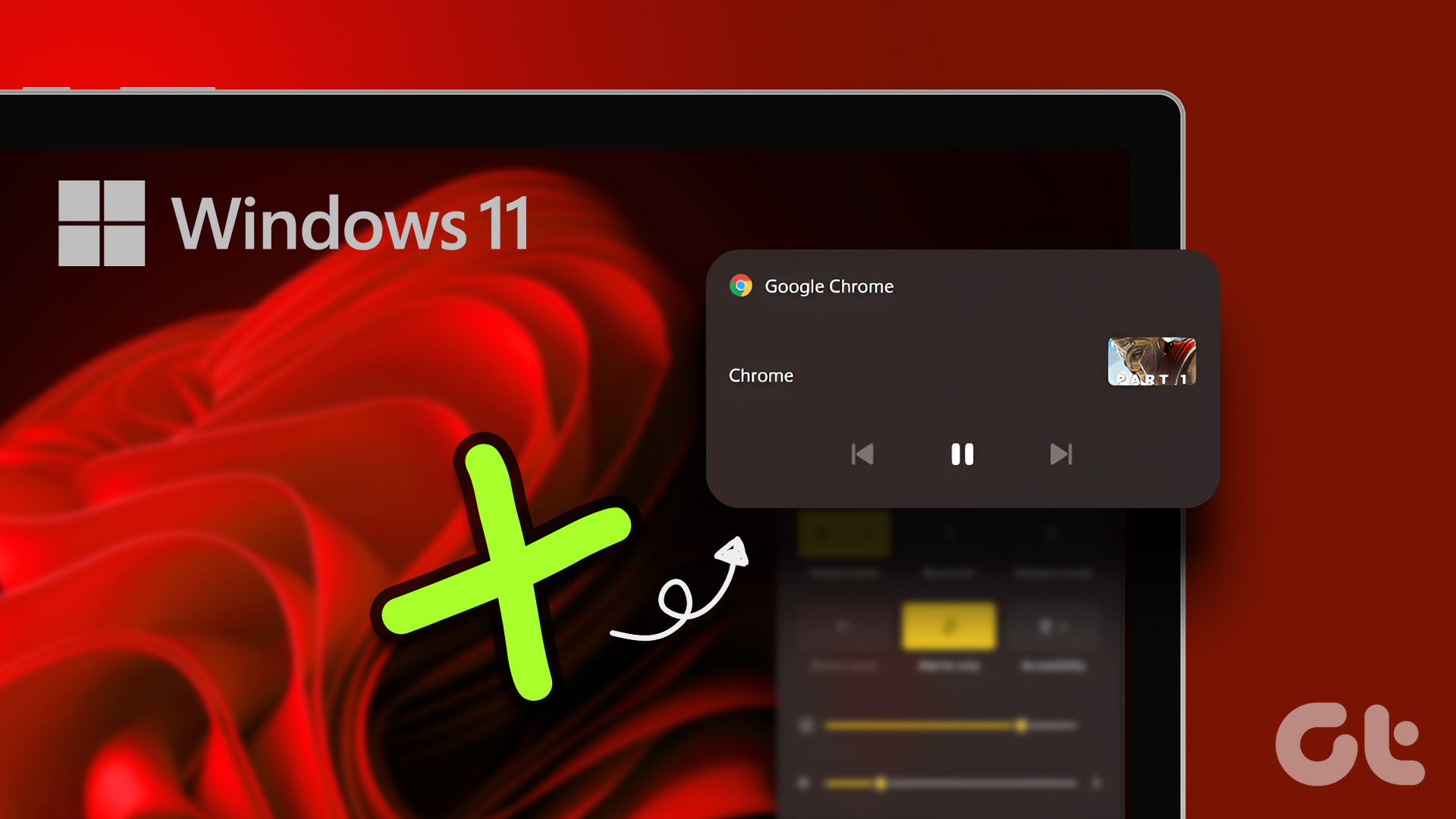 How to Turn off Media Hotkeys in Any Browser on Windows 11
Often, while playing videos in Windows 11, playback controls pop up on the volume bar when increasing or decreasing the volume using keyboard shortcuts.
How to Turn off Media Hotkeys in Any Browser on Windows 11
Often, while playing videos in Windows 11, playback controls pop up on the volume bar when increasing or decreasing the volume using keyboard shortcuts.
 How to Fix ‘This File Isn’t Compatible With QuickTime Player’ Error
Why Am I seeing 'This File Isn’t Compatible With QuickTime Player' Error The infamous macOS video player error can pop up from time to time.
How to Fix ‘This File Isn’t Compatible With QuickTime Player’ Error
Why Am I seeing 'This File Isn’t Compatible With QuickTime Player' Error The infamous macOS video player error can pop up from time to time.
 6 Ways to Fix WhatsApp Media Download Failed Error on Phone
Basic Fixes: Use a strong network connection: Large media files require a stable and strong network connection for a smooth download process in WhatsApp.
6 Ways to Fix WhatsApp Media Download Failed Error on Phone
Basic Fixes: Use a strong network connection: Large media files require a stable and strong network connection for a smooth download process in WhatsApp.
The article above may contain affiliate links which help support Guiding Tech. The content remains unbiased and authentic and will never affect our editorial integrity.

I tried every step one by one. Very easy to follow and execute. Still unable to view .AVI files on Windows 11 laptop.