

Apple Devices That Support Dolby Atmos
Before we begin, it is important to know whether your current iPhone, iPad, or Mac supports Spatial Audio with Dolby Atmos. We have provided a list of all the supported devices below.
- iOS: iPhone XS, iPhone XR, iPhone 11 series, iPhone SE (2nd gen), iPhone 12 series, iPhone 13 series, and later.
- iPadOS: iPad (early-2018), iPad Pro (2018 series), iPad mini (5th gen), iPad Air (3rd gen), iPad (7th gen), iPad Pro 11-inch (2nd gen), iPad Pro 12.9-inch (4th gen), iPad Air (4th gen), iPad (8th gen), iPad 10.2-inch (2021), iPad mini 8-inch (2021), iPad Pro series (3rd gen), iPad Air 10.2-inch (2022), and later
- macOS: MacBook Air (2018), MacBook Pro (2018), MacBook Pro (2019), MacBook Air (2019), MacBook Air with M1 chip, MacBook Pro (with M1, M1 Pro, M1 Max and M1 Ultra), iMac 24-inch (2021) and later.
While this list is exhaustive, you can easily determine that older iPhones, iPads, or Macs don’t support this feature.
Enable Dolby Atmos on iPhone and iPad
Let’s look at how to enjoy Spatial Audio with Dolby Atmos on your iPhone. First, choose tracks that support Dolby Atmos. Then, follow these steps, which remain the same for iPad users as well.
Open Settings > Music > tap on Dolby Atmos > choose between Automatic or Always On.
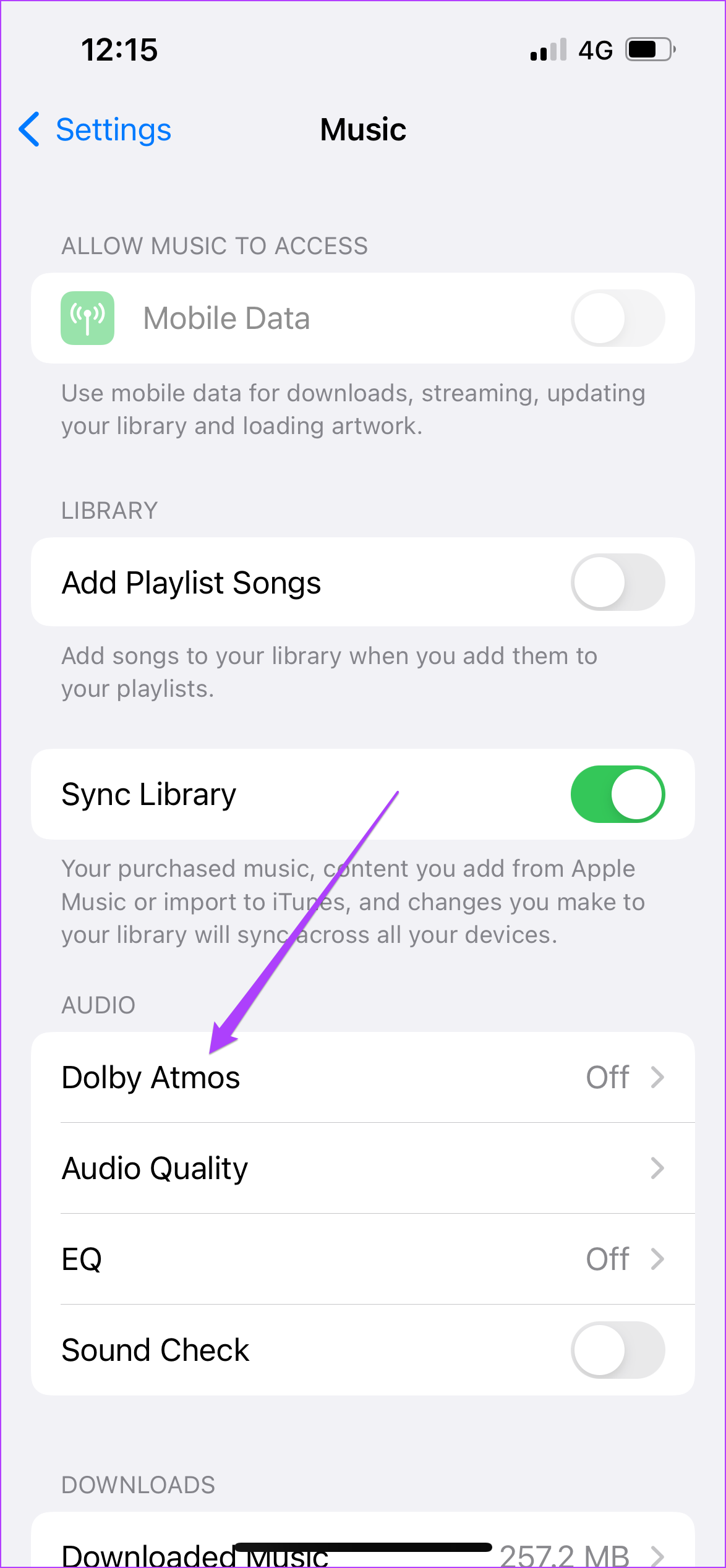

If you switch to Always On, tap on Turn On to confirm your choice.
Enable Dolby Atmos on Mac
Apple has also extended Dolby Atmos support on Macs. Users can enjoy not only music but also their favorite movies at home in Dolby Atmos. Almost every Apple TV+ original series or film supports Dolby Atmos. Netflix and Vudu are also on the list.
You can also plug in your Dolby Atmos-supported headphones for a great audio experience. Follow these steps.
Step 1: Open Apple Music > click on Music at the top Menu Bar > select Settings/Preferences.

Step 2: In the Preferences window, click on Playback > look for Dolby Atmos.

Step 3: Select Automatic or Always On as per your preference. Then, click on Ok.
If you select Always On, click Turn On to confirm your choice.
How to Download Songs in Dolby Atmos
Step 1: Go back to General > select Download Dolby Atmos.

Step 2: Close the General tab and play any song on your Mac. You should see the Dolby logo at the top.
How to Search For Dolby Atmos Songs in Apple Music
The Dolby Atmos song library on Apple Music adds new music every day. If you want to search for a list of songs of different genres mixed in Dolby Atmos, follow these steps on iPhone, iPad, and Mac.
Step 1: In the Apple Music app, go to the search bar.

Step 2: Search for Dolby Atmos and press Return.
Step 3: Click/tap on Apple Music Spatial Audio under Top Results.

You will see all the songs from different genres listed on your screen.
Was this helpful?
Last updated on 05 August, 2024
1 Comment
Leave a Reply
Read Next
 3 Fixes for Dolby Atmos Not Working in Apple TV 4K
Basic Fixes Check if your TV and streaming title supports Atmos: Both should provide the support of playing content mixed in this audio format.
3 Fixes for Dolby Atmos Not Working in Apple TV 4K
Basic Fixes Check if your TV and streaming title supports Atmos: Both should provide the support of playing content mixed in this audio format.
 How to Enable Sensitive Content Warning on iPhone, iPad, and Mac
Apple provides the best security features for iPhone, iPad, and Mac.
How to Enable Sensitive Content Warning on iPhone, iPad, and Mac
Apple provides the best security features for iPhone, iPad, and Mac.
 How to Enable or Disable Inline Predictive Text on iPhone, iPad, and Mac
The Autocorrect feature has been there on Apple devices for a long time.
How to Enable or Disable Inline Predictive Text on iPhone, iPad, and Mac
The Autocorrect feature has been there on Apple devices for a long time.
 Dolby TrueHD vs DTS HD Master Audio: What’s the Difference
Dolby TrueHD and DTS HD Master Audio are two audio formats and you may find their support in popular Blu-ray players, AV receivers, and top-of-the-line soundbars.
Dolby TrueHD vs DTS HD Master Audio: What’s the Difference
Dolby TrueHD and DTS HD Master Audio are two audio formats and you may find their support in popular Blu-ray players, AV receivers, and top-of-the-line soundbars.
 3 Fixes for Dolby Vision Not Working on Amazon Fire TV Stick 4K
Basic Fixes Use HDMI 2.1 cable: This cable supports higher frame rates, improved bandwidth, and eARC (Audio Return Channel).
3 Fixes for Dolby Vision Not Working on Amazon Fire TV Stick 4K
Basic Fixes Use HDMI 2.1 cable: This cable supports higher frame rates, improved bandwidth, and eARC (Audio Return Channel).
 How to Enable or Disable Picture-in-Picture Mode on iPhone and iPad
Enable Automatic Picture-in-Picture Mode on iPhone and iPad If your iPhone or iPad doesn't automatically open videos in Picture-in-Picture mode when quitting to the Home screen, it's likely that your
How to Enable or Disable Picture-in-Picture Mode on iPhone and iPad
Enable Automatic Picture-in-Picture Mode on iPhone and iPad If your iPhone or iPad doesn't automatically open videos in Picture-in-Picture mode when quitting to the Home screen, it's likely that your
 How to Change Font Style in Notes App on iPhone, iPad and Mac
Change Font Style in Notes App on iPhone and iPad Let's first show you how to change the font style of your notes in the Notes app on your iPhone
How to Change Font Style in Notes App on iPhone, iPad and Mac
Change Font Style in Notes App on iPhone and iPad Let's first show you how to change the font style of your notes in the Notes app on your iPhone
 How to Check Location History on iPhone, iPad, and Mac
How to Check Location History on iPhone and iPad iPhone and iPad are usually the only Apple device that gets carried everywhere we go.
How to Check Location History on iPhone, iPad, and Mac
How to Check Location History on iPhone and iPad iPhone and iPad are usually the only Apple device that gets carried everywhere we go.
The article above may contain affiliate links which help support Guiding Tech. The content remains unbiased and authentic and will never affect our editorial integrity.
No, there are no such Dolby settings menu available on iOS 16.3, yet sites like this or from Apple themselves keep saying so. Similar conversations about this missing feature on Redit etc, but no solution it would seem.