Delete YouTube Videos on Desktop
You can delete a YouTube video on your computer by visiting its official website in any web browser. Ensure you are signed in to YouTube with the account from which you want to delete the video.
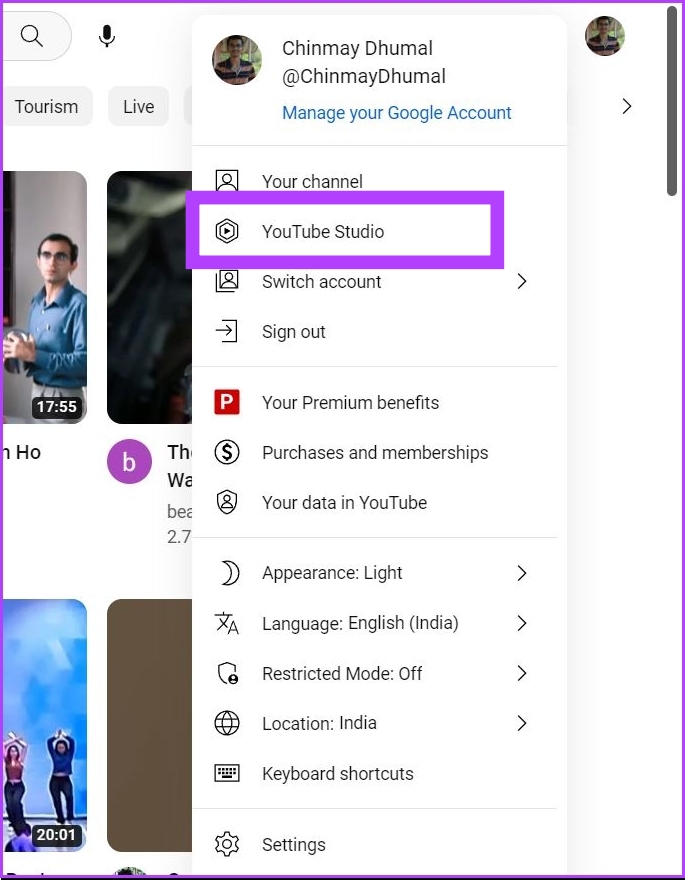
Step 1: Click on the profile picture of your YouTube account at the top right corner.
Step 2: Click on YouTube Studio. This will open a dashboard of your YouTube channel.
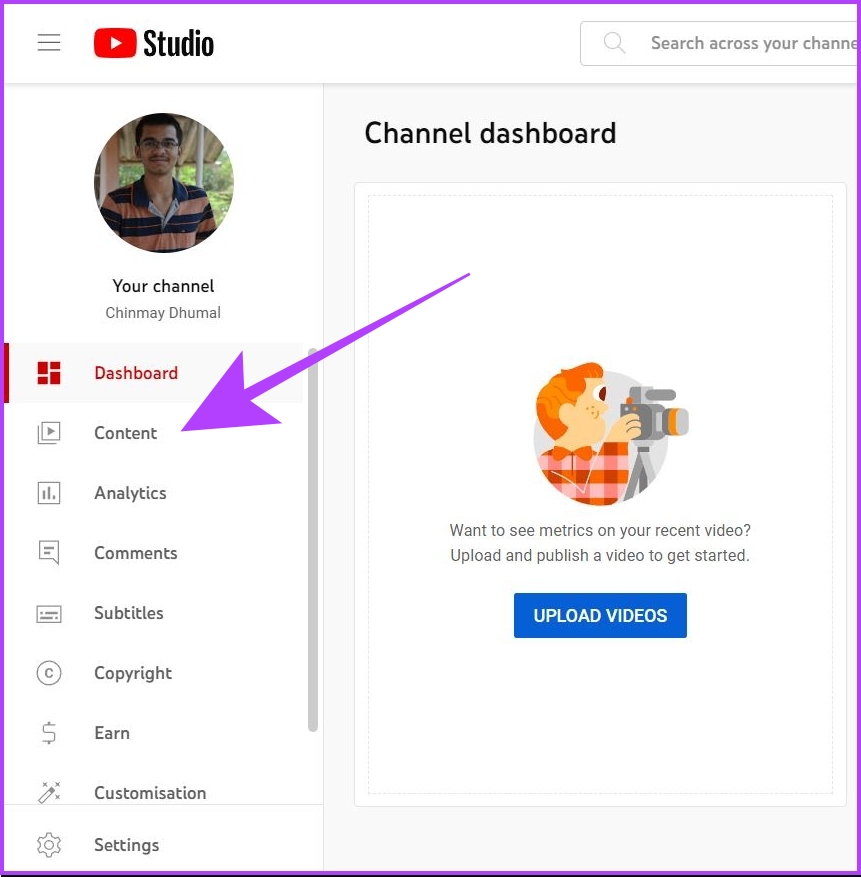
Step 3: Now, click on Content. This will take you to the list of all your uploaded videos to YouTube.
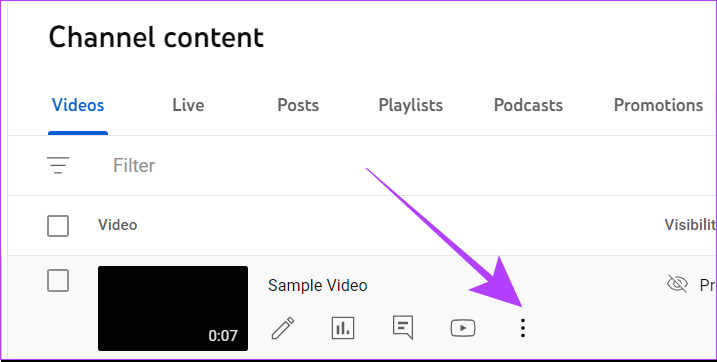
Step 4: Search for the video you want to delete. Click on the three-dot icon for that video.
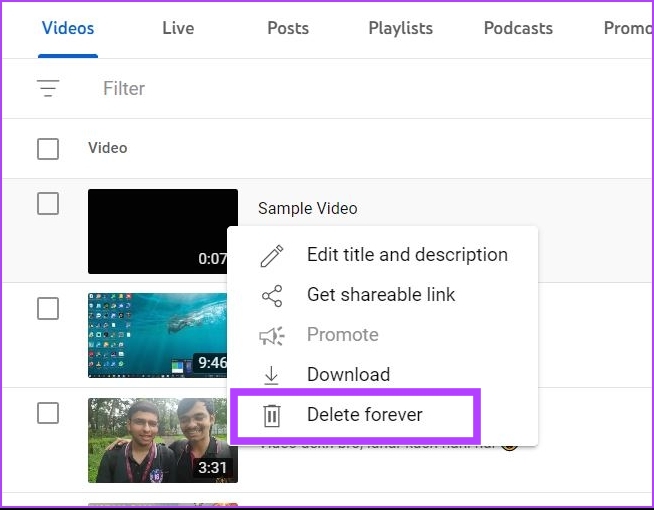
Step 5: Now, click on Delete forever. YouTube will prompt you with a warning. Click on the checkbox and select Delete Forever.
Also Read: How to delete a YouTube channel
How to Delete YouTube Videos on Mobile
Method 1: Using the YouTube App
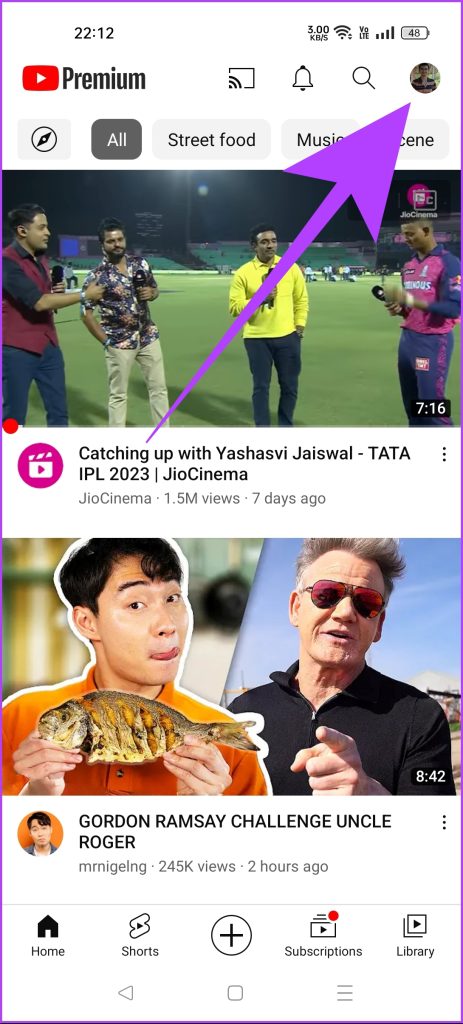
Step 1: Open the YouTube app. Tap on the profile picture icon of your YouTube channel.
Step 2: Then, tap on Your channel > Manage videos. This will take you to the list of all the videos on your YouTube channel.


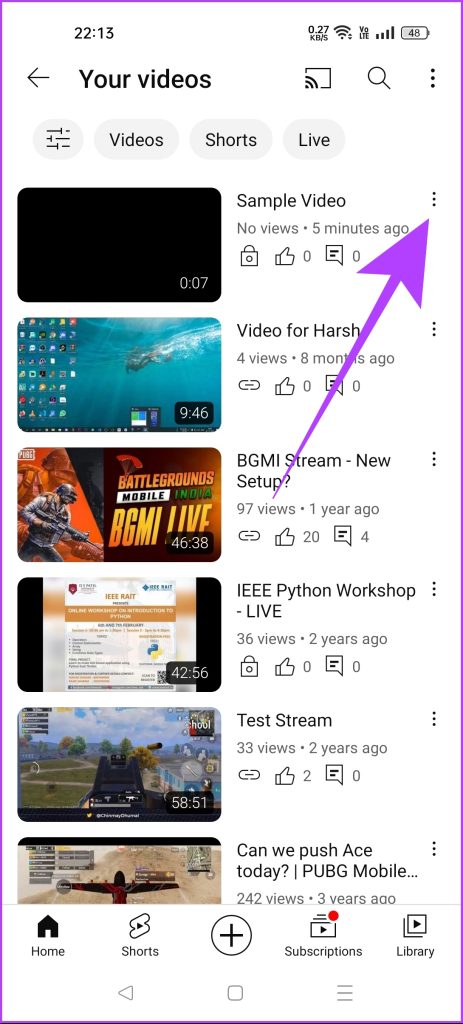
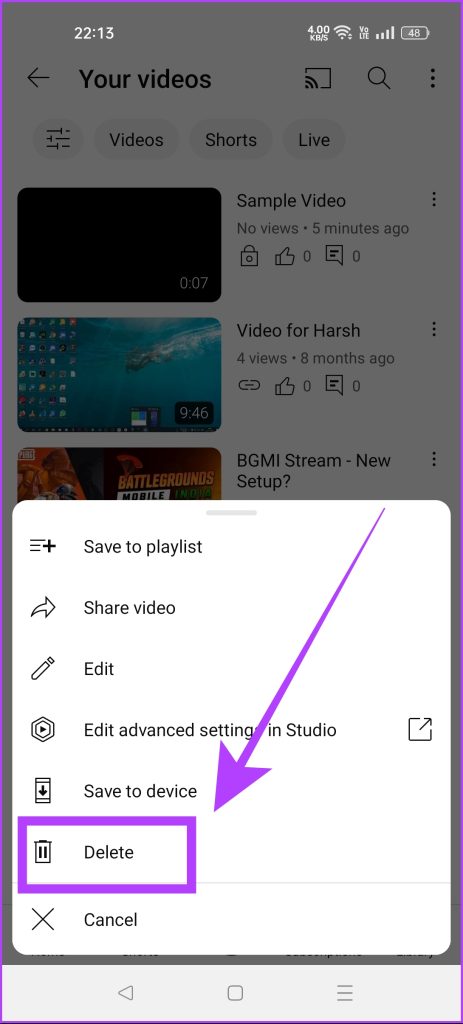
Step 3: Navigate to the video you want to delete. Tap on the three-dot icon.
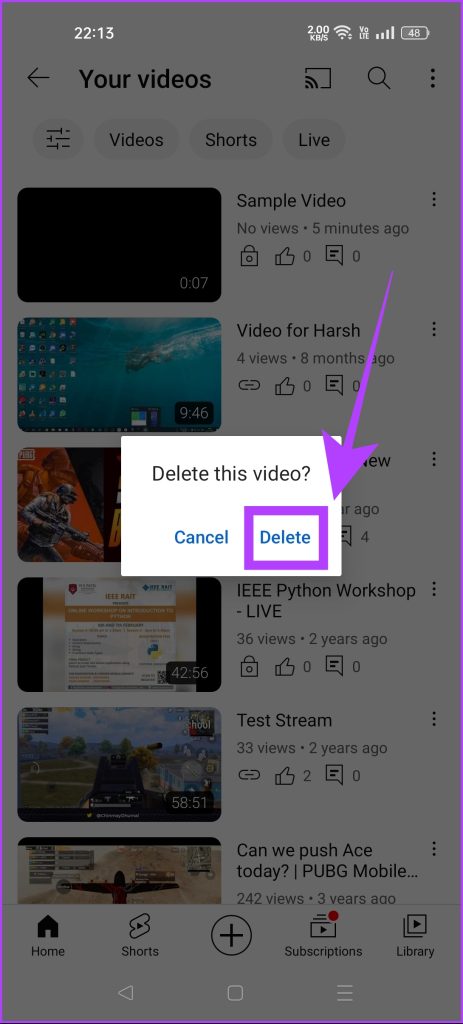
Step 4: Select Delete > tap on Delete again to confirm.
Also Read: How to delete a YouTube playlist
Method 2: Using the YouTube Studio App
Step 1: Download the YouTube Studio app on your Android or iOS device.
Step 2: Tap on Content. This will open the list of all videos on your channel.
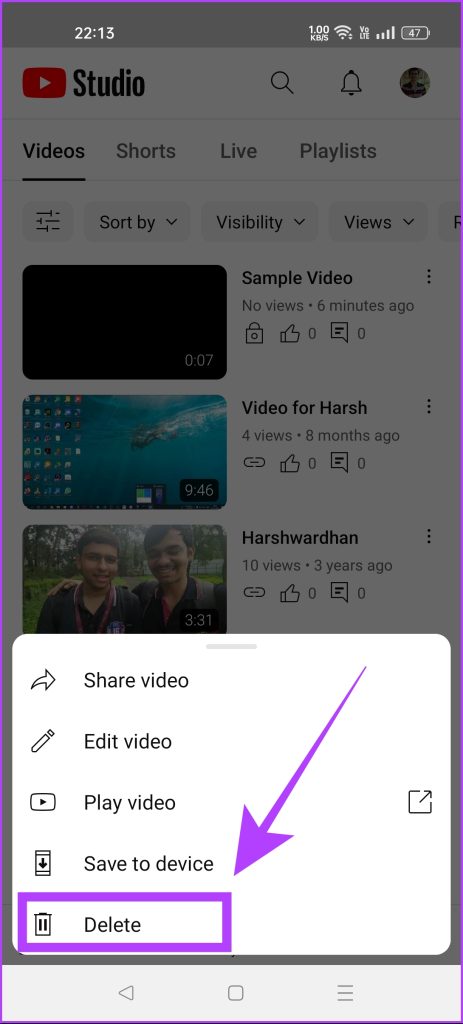
Step 3: Tap on the three-dot button adjacent to the video you want to delete.
Step 4: Now, select Delete. YouTube Studio will ask for your confirmation to delete that video. Select Delete to confirm.


Instead of deleting a video, you can also unlist it or change its visibility to private. Read our article to unlist a video or make it private on YouTube to know more.
Was this helpful?
Last updated on 16 May, 2024
Read Next
 Telegram Channel vs Group: Which One Should You Use
Telegram is a highly-lauded alternative to WhatsApp.
Telegram Channel vs Group: Which One Should You Use
Telegram is a highly-lauded alternative to WhatsApp.
 How to Lock a Discord Channel on Desktop and Mobile
Locking a Channel by Making it Private Making a Discord channel private means it becomes hidden from other members on a server.
How to Lock a Discord Channel on Desktop and Mobile
Locking a Channel by Making it Private Making a Discord channel private means it becomes hidden from other members on a server.
 How to Create a Discord Channel on Desktop and Mobile
How to Create a Discord Channel on Desktop To improve Discord organization, you can categorize channels by topic.
How to Create a Discord Channel on Desktop and Mobile
How to Create a Discord Channel on Desktop To improve Discord organization, you can categorize channels by topic.
 How to Put Emojis in Discord Channel Names
Do you want to spice up your Discord community or bring a touch of creativity and visual appeal to your Discord server?
How to Put Emojis in Discord Channel Names
Do you want to spice up your Discord community or bring a touch of creativity and visual appeal to your Discord server?
 WhatsApp Channel vs. Community vs. Groups: What’s the Difference
WhatsApp Channel vs.
WhatsApp Channel vs. Community vs. Groups: What’s the Difference
WhatsApp Channel vs.
 Play YouTube Videos (and From Other Sites) in KMPlayer
What’s your first choice of media player?
Play YouTube Videos (and From Other Sites) in KMPlayer
What’s your first choice of media player?
 5 Ways to Fix YouTube Videos Lagging on Android
Basic Fixes Force stop app: Tap and hold on the YouTube app icon, select App Info, tap on Force Stop, and re-open the app.
5 Ways to Fix YouTube Videos Lagging on Android
Basic Fixes Force stop app: Tap and hold on the YouTube app icon, select App Info, tap on Force Stop, and re-open the app.
 How to Get Transcript of YouTube Videos
How to Pull up Transcript on YouTube If you watch YouTube on PC, it's pretty easy to find and open YouTube video transcripts.
How to Get Transcript of YouTube Videos
How to Pull up Transcript on YouTube If you watch YouTube on PC, it's pretty easy to find and open YouTube video transcripts.
The article above may contain affiliate links which help support Guiding Tech. The content remains unbiased and authentic and will never affect our editorial integrity.