Create a New Group Using the Contacts App
Like Gmail and Outlook, the Mail app on Mac also lets you send group emails. This feature lets you share information about event invites, newsletters, student assignments, presentations, and more with a group of contacts. You don’t have to keep sending the same email to individual contacts separately.
First, create a new group using the Contacts app on your Mac to create an email group. Here’s how to do it.
Step 1: Open the Contacts app > click on Contacts > File > New Group. You will notice a new Untitled Group is created under On My Mac.

Step 2: Keep it selected to rename the group as desired and press Return.

You can also click and drag the group name to create it under iCloud.
Add Contacts in Group Using the Contacts App
After creating a new group in the Contacts app, you must add email recipients from your contacts list to the group. If you saved the email ID but not the recipient’s, you can add that to the group. Here’s how.
Step 1: In the Contacts app on your Mac, select All Contacts from the left menu.

Step 2: Once all the saved contacts appear on your screen, drag and drop the contact names from the list to the newly created Contact Group.
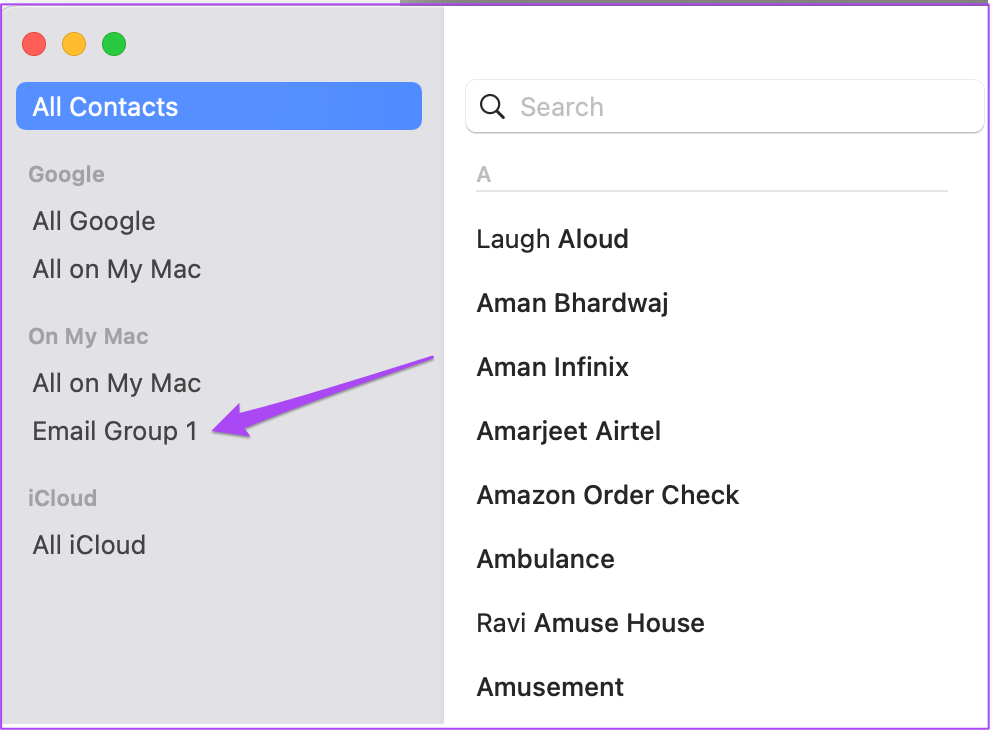
If you have more than one email address saved for a contact, the Mail app will select the recently used one while sending the group emails.
If you haven’t saved a contact but want to add it to the group, here’s how to do it.
Step 1: Open the Contacts app on your Mac and select the Contact Group name from the left menu.
Step 2: Click the Plus icon on the left and select New Contact.
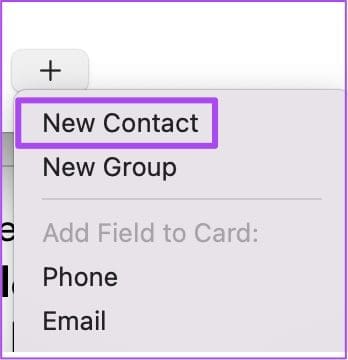
Step 3: Add all contact details, including the email address.

Step 4: Click on Done to save the contact in the group.
How to Send Group Email on Mail App
Now that you have created a Contact Group, here’s how to use it to send group emails on the Mail app on Mac.
Step 1: Open the Mail app > click the Compose New Message icon.

Step 2: In the To field, type the name of your Email Group in the Contacts app.
Step 3: Click the prompt suggesting the Email Group name.

Delete Contact From Email Group
If you wish to delete a contact or recipient from your Email Group, here’s how to do it from the Contacts app.
Step 1: Open the Contacts app on your Mac and click on your Email Group name from the left menu.
Step 2: Select the contact to remove from the group and press Delete.
Step 3: Click on Remove From Group to complete the action.

You can also choose to Delete the recipient from your Contacts as well. Click on Delete.
Tip: We have compiled a list of solutions to fix the Mail app quitting unexpectedly on Mac.
Was this helpful?
Last updated on 07 August, 2024
Read Next
 How to Create an Email Group in Mail App on iPhone
Create a New Group Using Contacts App Let's start by creating a new group using the Contacts app on your iPhone to create an email group.
How to Create an Email Group in Mail App on iPhone
Create a New Group Using Contacts App Let's start by creating a new group using the Contacts app on your iPhone to create an email group.
 How to Add Image to Apple Mail Signature on Mac
Add Image to Email Signature in Mail App Before moving ahead, make sure you have a PNG file of your signature saved on your Mac if you want to use
How to Add Image to Apple Mail Signature on Mac
Add Image to Email Signature in Mail App Before moving ahead, make sure you have a PNG file of your signature saved on your Mac if you want to use
 Outlook App vs Apple Mail: Which Is a Better iOS Mail App
Frankly, there are so many mail apps for the iOS platform that it can be difficult to zero in on one.
Outlook App vs Apple Mail: Which Is a Better iOS Mail App
Frankly, there are so many mail apps for the iOS platform that it can be difficult to zero in on one.
 3 Ways to Fix Apple Mail Stuck on Checking for Mail on iPhone
Basic Fixes: Check the network connection: First, check the network connection quality on your iPhone. If you face network issues, you can enable Airplane mode on your iPhone and disable it
3 Ways to Fix Apple Mail Stuck on Checking for Mail on iPhone
Basic Fixes: Check the network connection: First, check the network connection quality on your iPhone. If you face network issues, you can enable Airplane mode on your iPhone and disable it
 How to Fix iPhone Mail Keeps Asking for Email Password
Fix 1.
How to Fix iPhone Mail Keeps Asking for Email Password
Fix 1.
 How to Create and Save a Group of Tabs in Chrome
How to Create and Save Tab Groups in Chrome On Mac If you find that you’ve got too many tabs open while in the middle of a Google Chrome session,
How to Create and Save a Group of Tabs in Chrome
How to Create and Save Tab Groups in Chrome On Mac If you find that you’ve got too many tabs open while in the middle of a Google Chrome session,
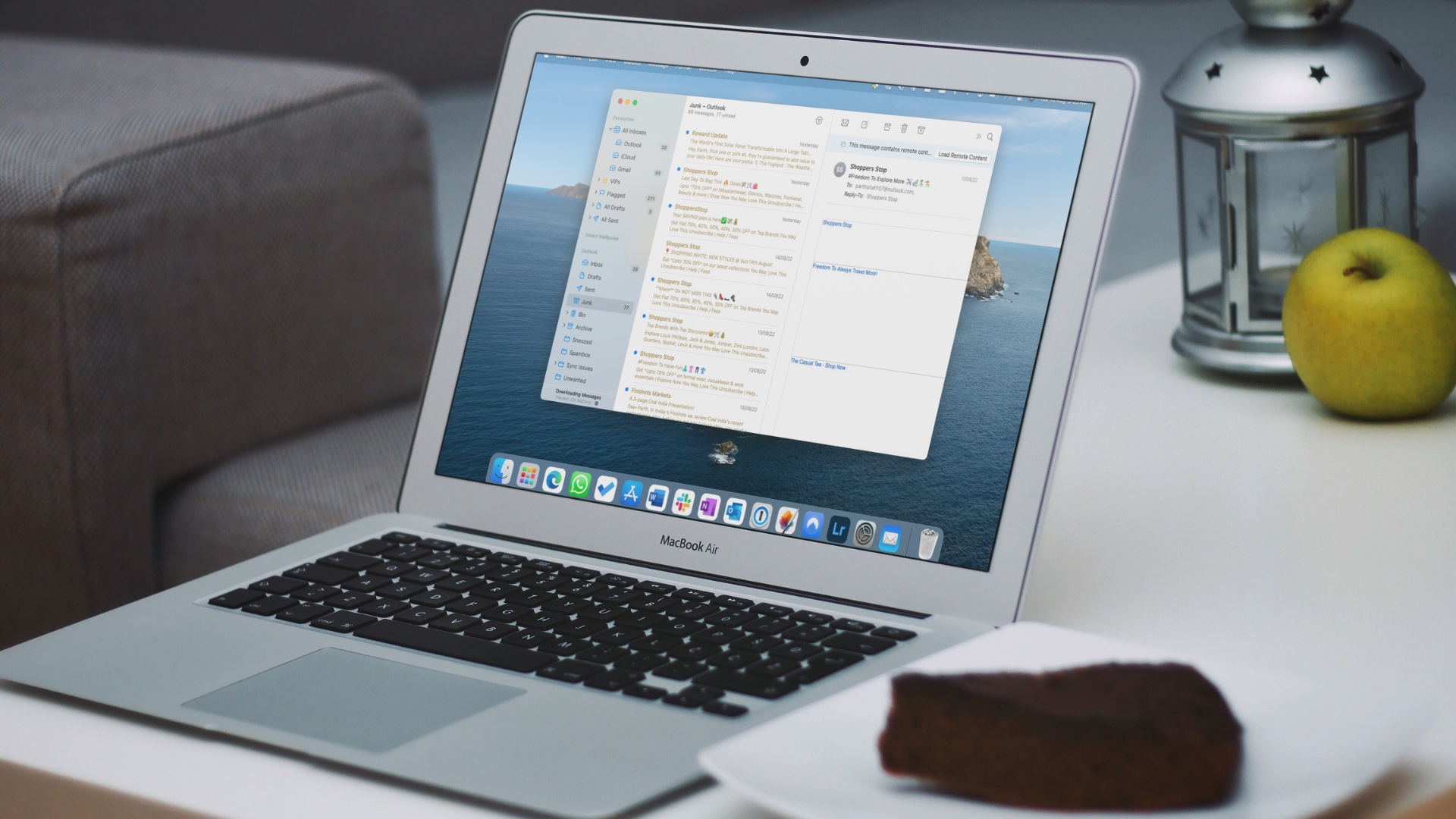 5 Ways to Fix Mail App Not Receiving Emails on Mac
Basic Fixes Check junk mail: Sometimes, Gmail, iCloud, or Outlook algorithms can be aggressive and send emails directly to the Junk box.
5 Ways to Fix Mail App Not Receiving Emails on Mac
Basic Fixes Check junk mail: Sometimes, Gmail, iCloud, or Outlook algorithms can be aggressive and send emails directly to the Junk box.
 4 Fixes for Can’t Send Emails Using Mail App on Mac
Basic Fixes Check Wi-Fi connection: Ensure that you have connected to a 5GHz Wi-Fi network for faster speeds to send your emails.
4 Fixes for Can’t Send Emails Using Mail App on Mac
Basic Fixes Check Wi-Fi connection: Ensure that you have connected to a 5GHz Wi-Fi network for faster speeds to send your emails.
The article above may contain affiliate links which help support Guiding Tech. The content remains unbiased and authentic and will never affect our editorial integrity.