Method 1: Using WordPad
Step 1: Open the WordPad document you want to convert to Docx.
Step 2: Navigate to File from the top menu, select Save As, and choose Office Open XML Document (*.docx).
Step 3: In the Save As dialog box, choose the location for the file, name the file, and click on Save.

There you go. You have successfully converted a WordPad document into a Word document. If you don’t know, you can also convert a WordPad document to a Word document using Microsoft Word.
Method 2: Using Microsoft Word
Step 1: Locate the document you want to convert, right-click and select Open with, and choose Word from the context menu.

Step 2: Navigate to File from the top menu and go to Save As.
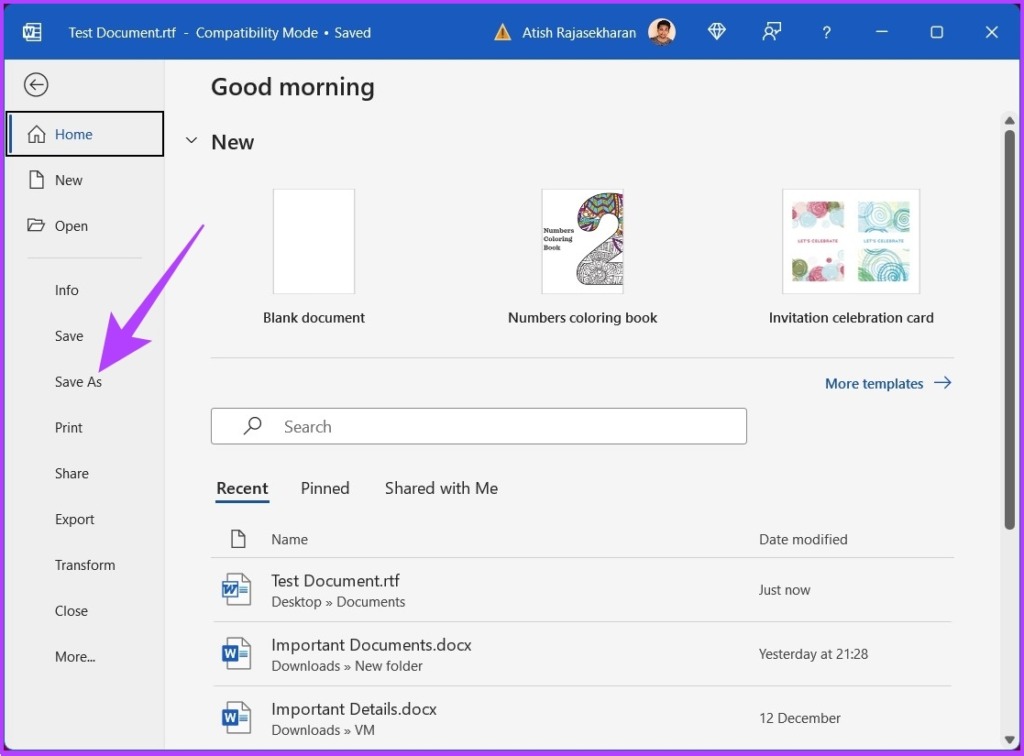
Step 3: In the next screen, select Word Document (*.docx) as the type from the drop-down menu and click on Browse.
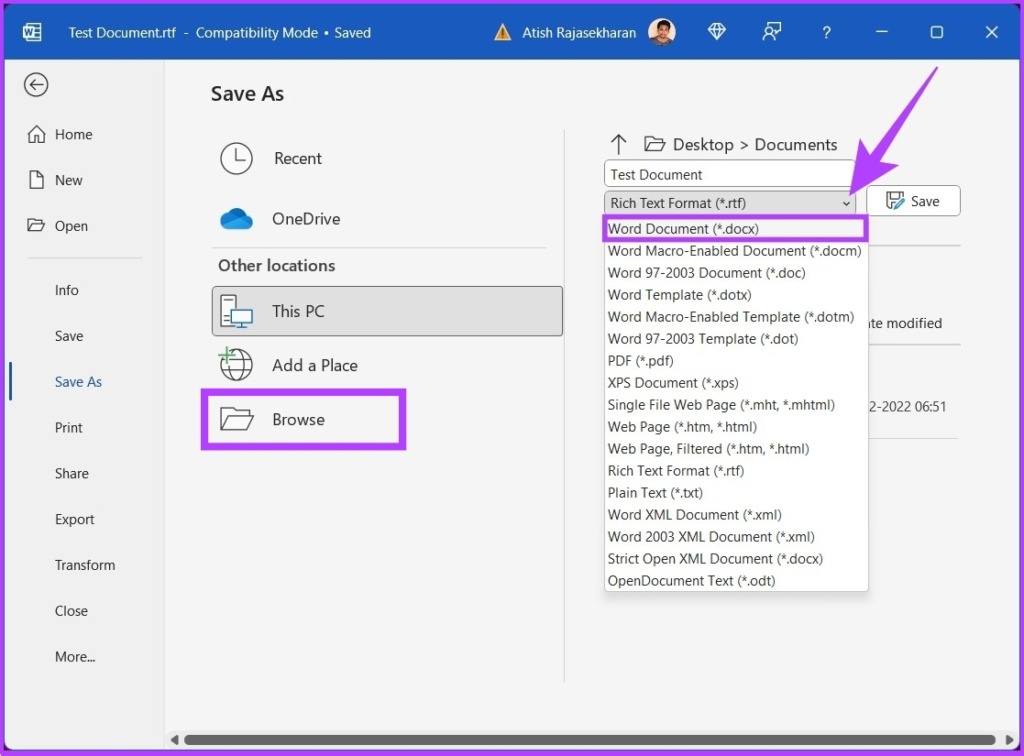
Step 4: Now, select the location for the file, name it, and finally, click on the Save button.
Was this helpful?
Last updated on 30 April, 2024
Read Next
 2 Ways to Convert a Webpage to a Word Document
Method 1: Convert Web Page to PDF to Word Most browsers allow you to convert any webpage to a PDF file.
2 Ways to Convert a Webpage to a Word Document
Method 1: Convert Web Page to PDF to Word Most browsers allow you to convert any webpage to a PDF file.
 How to Lock Parts of a Microsoft Word Document
Method 1: Using Restrict Editing Feature As the name suggests, this feature lets you set up editing restrictions for your Word document.
How to Lock Parts of a Microsoft Word Document
Method 1: Using Restrict Editing Feature As the name suggests, this feature lets you set up editing restrictions for your Word document.
 How to Insert Videos in a Microsoft Word Document
How to Insert an Online Video in Microsoft Word Microsoft Word for desktop allows you to insert videos from Vimeo, YouTube, and SlideShare.
How to Insert Videos in a Microsoft Word Document
How to Insert an Online Video in Microsoft Word Microsoft Word for desktop allows you to insert videos from Vimeo, YouTube, and SlideShare.
 How to Add or Edit Document Properties in Microsoft Word
How to Add Custom Properties to a Word Document You can assign numeric, text, or time values to custom properties.
How to Add or Edit Document Properties in Microsoft Word
How to Add Custom Properties to a Word Document You can assign numeric, text, or time values to custom properties.
 2 Ways to Convert Google Docs Document to JPEG
Method 1: Use an Online Converter Certain online converters can convert docx or PDF files to jpeg.
2 Ways to Convert Google Docs Document to JPEG
Method 1: Use an Online Converter Certain online converters can convert docx or PDF files to jpeg.
 5 Ways to Change Background in a Word Document
Method 1: Using a New Background Color Changing the background color of your Word document is a little similar to the process you would take when changing the font color.
5 Ways to Change Background in a Word Document
Method 1: Using a New Background Color Changing the background color of your Word document is a little similar to the process you would take when changing the font color.
 4 Ways to Insert an Arrow in Word Document
Method 1: How to Add Arrows in Word Using Shapes On PC or Mac Step 1: Open the Word document where you want to add an arrow.
4 Ways to Insert an Arrow in Word Document
Method 1: How to Add Arrows in Word Using Shapes On PC or Mac Step 1: Open the Word document where you want to add an arrow.
 How to Save a Word Document as an Image
Method 1: Use Paste Special Option in Word Using the Paste Special in Microsoft Word option is one of the most straightforward ways to convert text in your document into
How to Save a Word Document as an Image
Method 1: Use Paste Special Option in Word Using the Paste Special in Microsoft Word option is one of the most straightforward ways to convert text in your document into
The article above may contain affiliate links which help support Guiding Tech. The content remains unbiased and authentic and will never affect our editorial integrity.