


Disable Google Discover From the Home Screen on Android
One of the quickest ways to disable Google Discover on your Android phone is to get rid of the built-in screen that appears when you swipe right from the home screen.
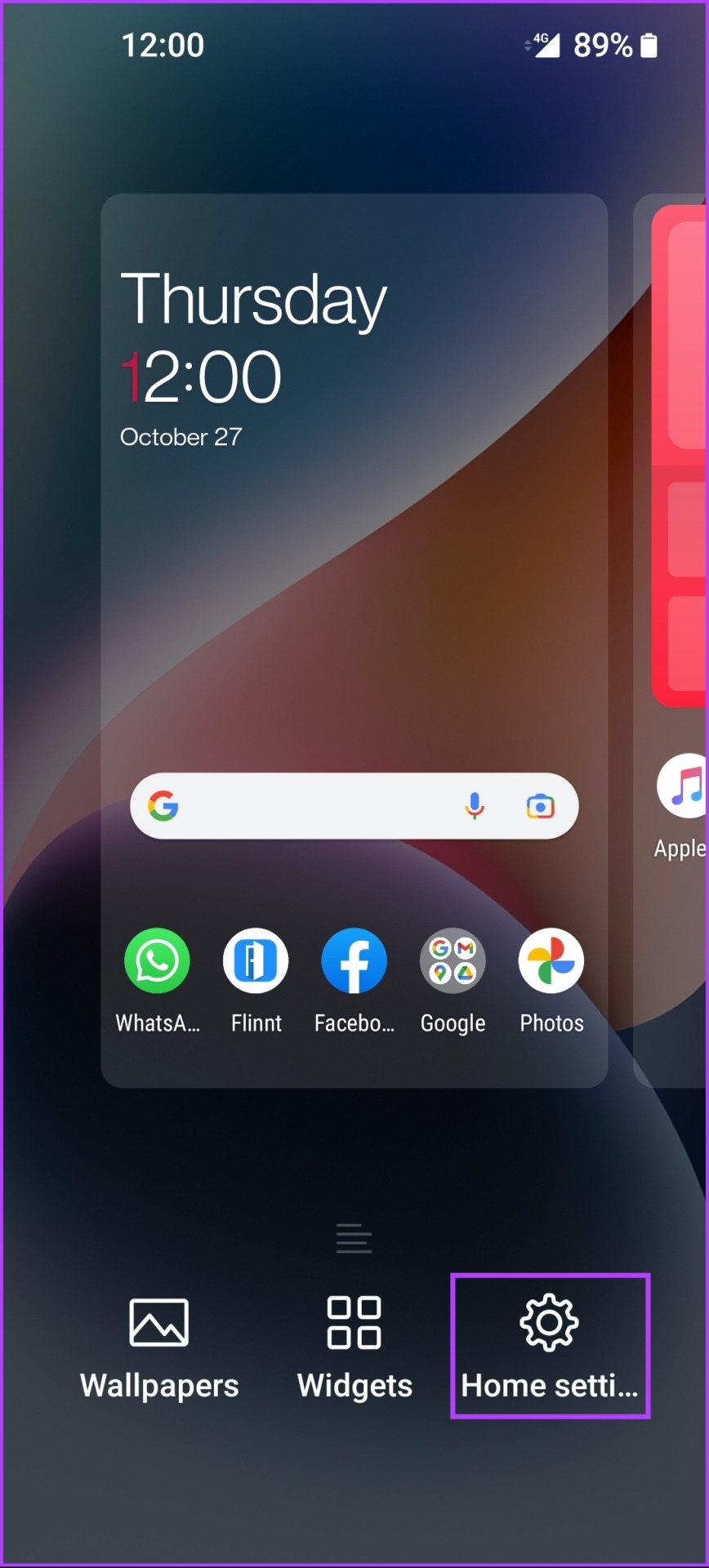
Step 1: Long-press on the screen until you see a menu pop up on the screen. Then tap on Home Settings.
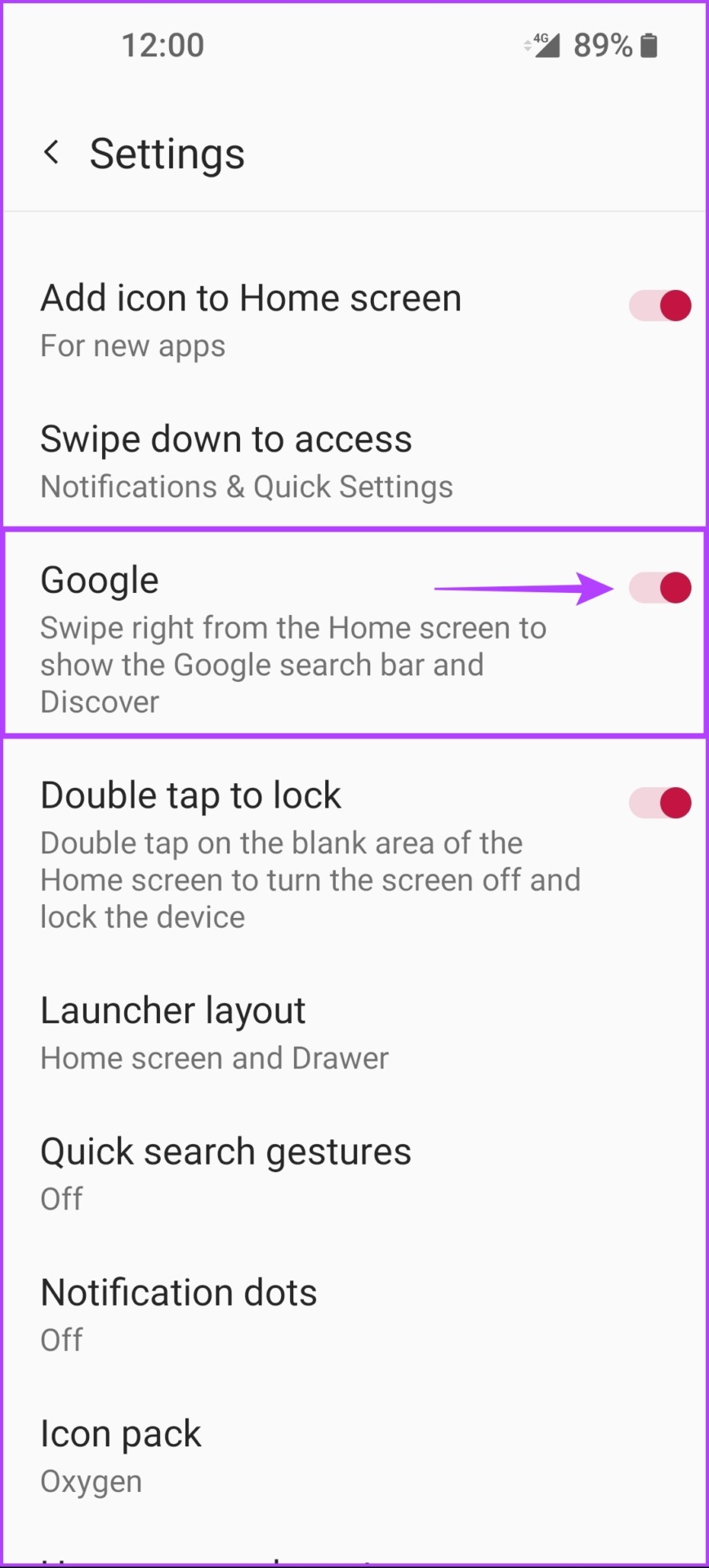
Step 2: Now look for a toggle called Google (Google Discover on some phones) and tap on it to disable Google Discover.
Disable Google Discover From the Google App
The official Google app displays the Google Discover feed by default. Here’s how you can quickly disable Google Discover inside the Google app.
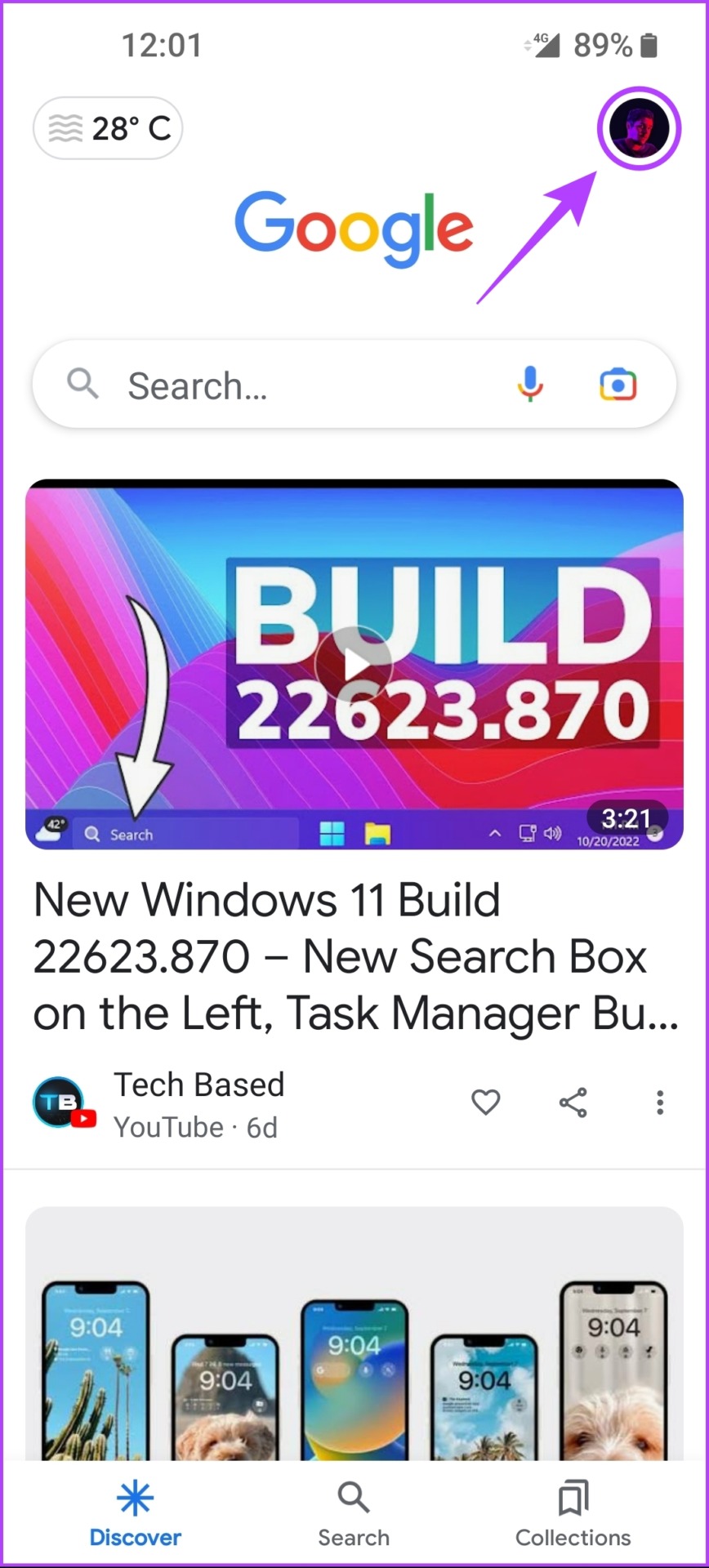
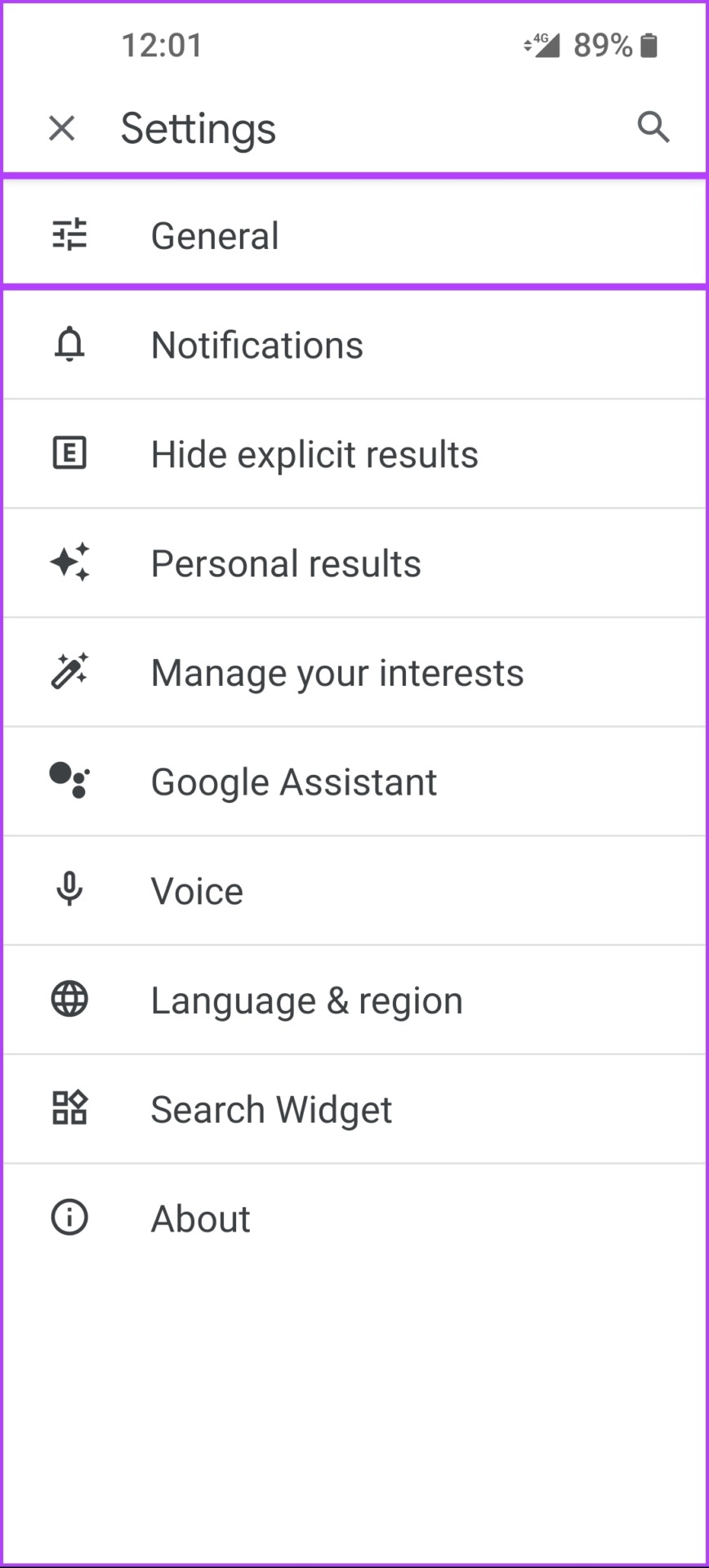
Step 1: Open the Google app and tap on your Profile Picture.

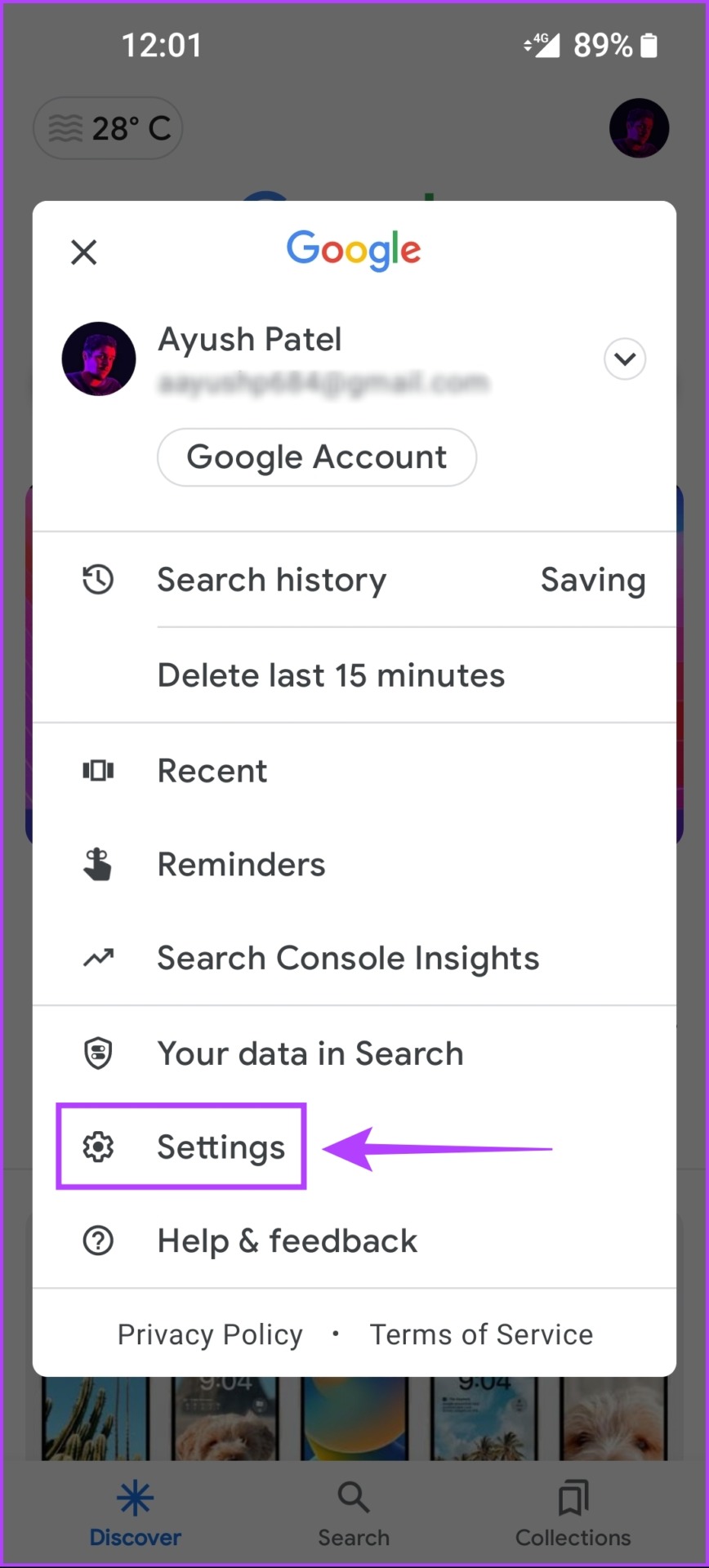
Step 2: Tap on Settings, followed by General, and turn off Discover.

Disable Google Discover From Google Chrome on Android
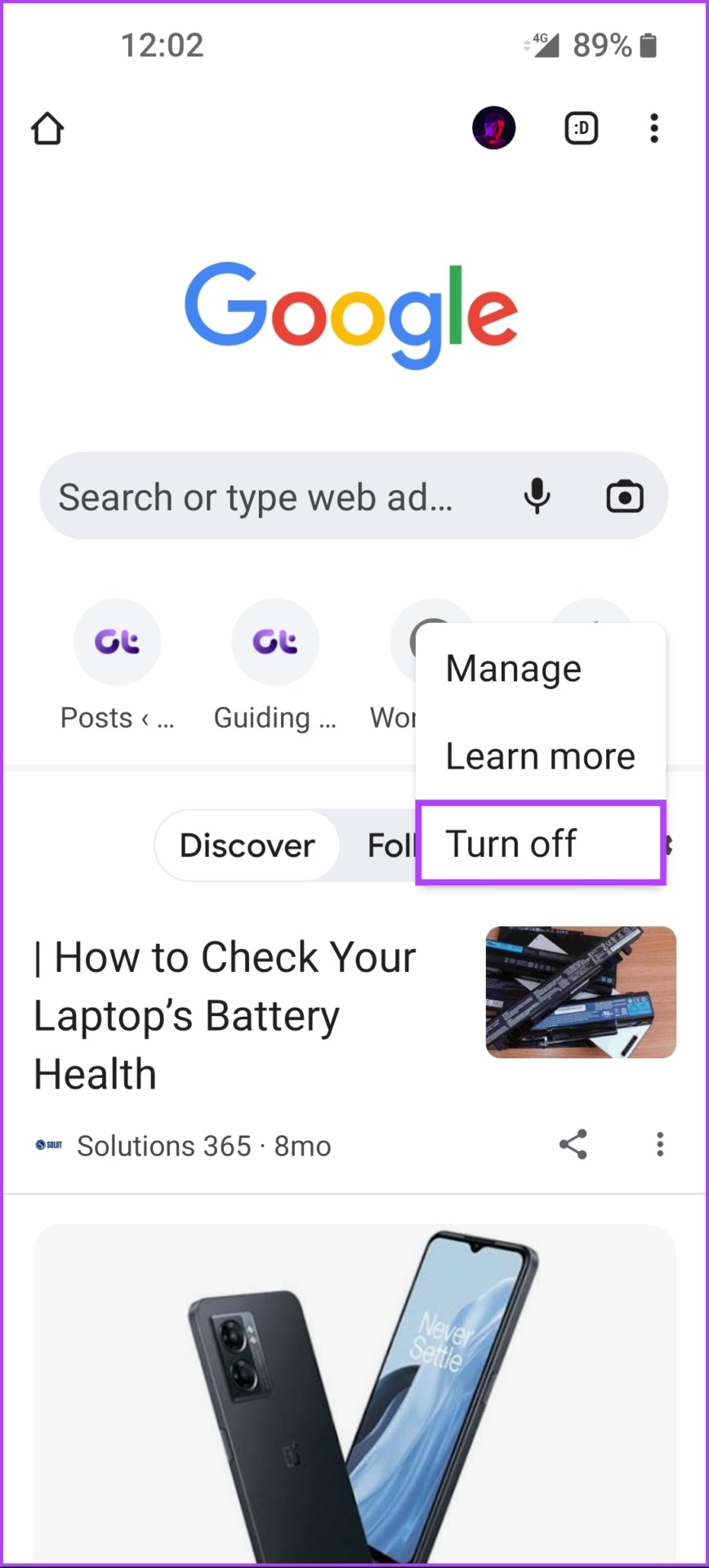
Google Discover appears in the Google Chrome browser on your Android phone. Here’s how you can quickly disable the Google Discover feed from the new tab page on Google Chrome for Android:
Step 1: Open Chrome and tap on the Settings icon in the home tab.
Step 3: From the context menu that appears, tap on Turn off.

Also Read: How to add Google search bar to home screen.
Was this helpful?
Last updated on 26 June, 2024
3 Comments
Leave a Reply
Read Next
 How to Disable Task View in Windows 10 Completely
The Task View feature in Windows 10 is a boon for power users.
How to Disable Task View in Windows 10 Completely
The Task View feature in Windows 10 is a boon for power users.
 5 Ways to Completely Disable Windows Defender
Method 1: Using Command Prompt Step 1: Press the Windows key on your keyboard, type Command Prompt, and click Run as administrator.
5 Ways to Completely Disable Windows Defender
Method 1: Using Command Prompt Step 1: Press the Windows key on your keyboard, type Command Prompt, and click Run as administrator.
 How to Completely Uninstall Discord From Windows, Mac, Android, and iOS
https://youtu.be/Zvxq_KArqpY How to Completely Uninstall Discord From Windows Note: We are running on a Windows 11 machine.
How to Completely Uninstall Discord From Windows, Mac, Android, and iOS
https://youtu.be/Zvxq_KArqpY How to Completely Uninstall Discord From Windows Note: We are running on a Windows 11 machine.
 A Guide to Completely Uninstall OneDrive From Windows
Things to Know Before Uninstalling OneDrive OneDrive is often used for file synchronization across devices.
A Guide to Completely Uninstall OneDrive From Windows
Things to Know Before Uninstalling OneDrive OneDrive is often used for file synchronization across devices.
 How to Completely Uninstall Existing GPU Drivers the Right Way
How to Uninstall GPU Drivers Using DDU Step 1: Download the DDU installer from the Guru3D dedicated webpage.
How to Completely Uninstall Existing GPU Drivers the Right Way
How to Uninstall GPU Drivers Using DDU Step 1: Download the DDU installer from the Guru3D dedicated webpage.
 How to Completely Uninstall McAfee From Windows 11
Prerequisite: Stop All McAfee Services Running in the Background Before you start, stop all McAfee services running in the background.
How to Completely Uninstall McAfee From Windows 11
Prerequisite: Stop All McAfee Services Running in the Background Before you start, stop all McAfee services running in the background.
 How to Disable Google Assistant Home Button
Disable the Google Assistant Home Button The steps are slightly different on stock Android devices and those running other custom skins.
How to Disable Google Assistant Home Button
Disable the Google Assistant Home Button The steps are slightly different on stock Android devices and those running other custom skins.
 How to Disable Call Recording Announcements on Google Dialer
Call Recording Laws and Regulations Across the World Before you record a phone call, it’s important to obtain consent from the opposite party since it can be a breach of
How to Disable Call Recording Announcements on Google Dialer
Call Recording Laws and Regulations Across the World Before you record a phone call, it’s important to obtain consent from the opposite party since it can be a breach of
The article above may contain affiliate links which help support Guiding Tech. The content remains unbiased and authentic and will never affect our editorial integrity.


Thank you so much! I have been trying to figure out how to disable this for a while now
Thanks! 🙂
Thanks. The last thing I want from a corporation like Google is advice on what’s newsworthy.