


What Does Clearing Facebook Cache Do?
Clearing the Facebook cache removes your login information and other temporary files. It doesn’t affect your messages, photos, stories, or personal information. Your data is safe on Facebook servers.
It also fixes glitches or settings errors that may affect your Facebook use. So, if you can’t post comments, the microphone doesn’t work, or Facebook shows a white screen, you can clear the cache to resolve the issue.
When you start again, sign in to your Facebook account and get everything back. You may notice slow loading times and high data usage.
Clear Facebook Cache on Android
Step 1: Long-press the Facebook app icon from the home screen or the app drawer menu. Tap the i icon.
Step 2: Open Storage from the app info menu.
Step 3: Here, select Clear cache.
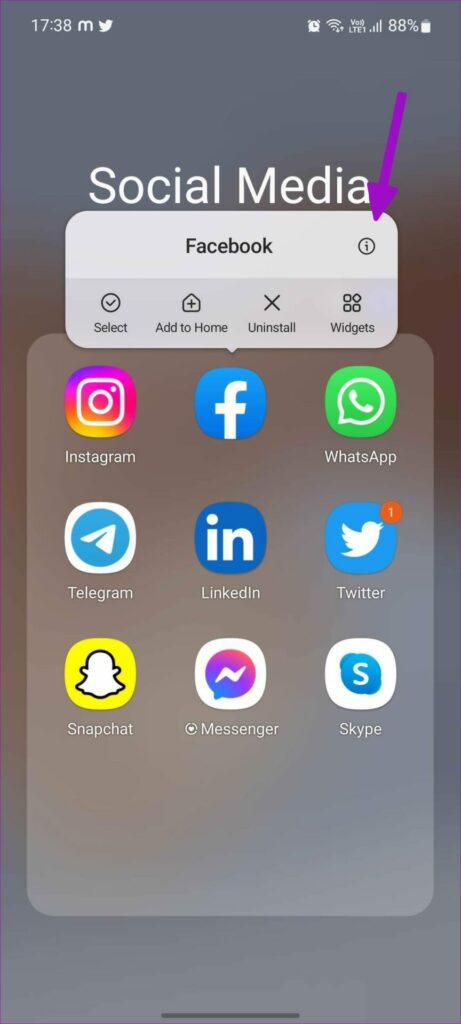


Alternatively, you can access the same from the device settings menu.
Step 1: Open Settings on your Android phone. Scroll to the Apps menu.
Step 2: Select Facebook from the list. The app can be found using the search bar at the top.

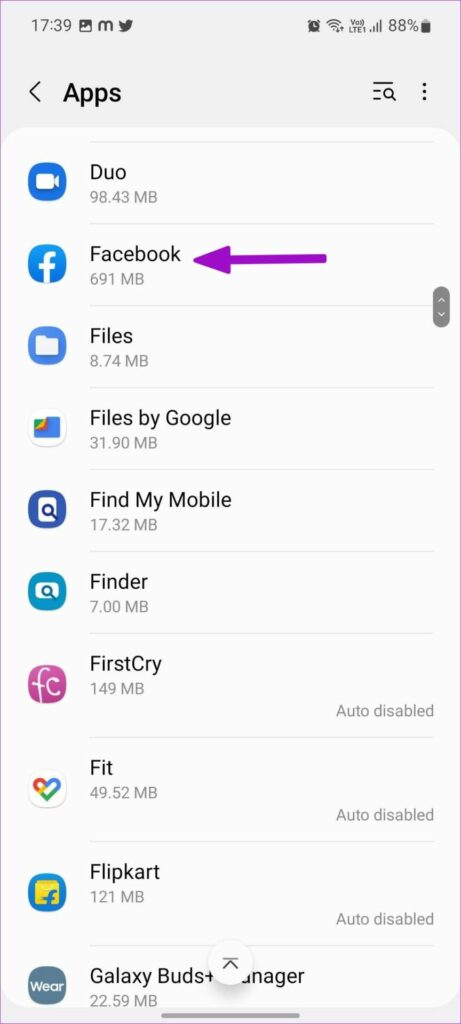
Step 3: It will open the app info menu. Go to Storage.
Step 4: Here, tap Clear cache from the following menu.
Clear Facebook Cache on iPhone
Note: iPhone doesn’t allow you to clear the cache for apps. We take a roundabout approach to achieve the end goal.
While you can see how much cache data (storage) Facebook uses, you can’t clear it individually. You can either offload or uninstall the app and then reinstall the Facebook app.
Here’s how you can check how much data Facebook is using and clear it.
Step 1: Open Settings. Go to the General menu.
Step 2: Here, select iPhone Storage.

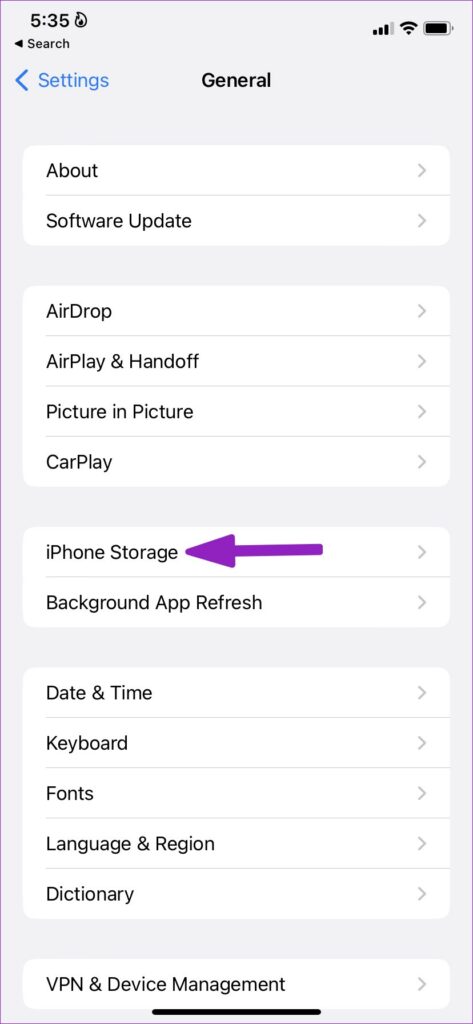
Step 3: Find and tap Facebook. You can check Documents & Data (cache) storage from the following menu. You’ll get two options.
- Offload App: It will delete the app without affecting the collected data. This will reset a few settings and some cache but not completely erase it.
- Delete App: This will delete the app and all related data from the iPhone. Hence wiping off the cache from the iPhone.
Note: Since Facebook keeps your data on its cloud, you’re technically not losing anything when you delete the app.
Step 4: Select Offload or Delete App and confirm your decision.


Once you’ve offloaded or deleted the app, return to the home screen and open the App Store. Search for Facebook and install the app again.
Open Facebook, log in with your account details, and you are good to go. You can use the same trick for any iOS app to free up internal storage on your iPhone.
Clear Browser Cache From the Facebook App
While Facebook doesn’t facilitate you to delete its cache, it allows you to clear browsing data, i.e., cookies and cache for Facebook’s in-app browser.
In simpler words, when you visit a website through Facebook, the website stores some cookies and cache on Facebook, which in turn stores your device’s storage data. You can delete the said data from Facebook’s Android and iPhone apps.
Step 1: Open the Facebook app. Tap Menu (three-line icon) at the top-right (Android) or bottom-right (iPhone).
Step 2: Scroll to Settings & privacy. Select Settings from the menu.
Step 3: Here, scroll to Preferences and select Browser.


Step 4: Tap Clear next to Cookies and cache. Choose Clear again to confirm.


Was this helpful?
Last updated on 07 August, 2024
1 Comment
Leave a Reply
Read Next
 How to Clear WhatsApp Cache on iPhone and Android
Clearing WhatsApp Cache on Android Step 1: Long press the WhatsApp icon and select the ‘i’ (App info) symbol.
How to Clear WhatsApp Cache on iPhone and Android
Clearing WhatsApp Cache on Android Step 1: Long press the WhatsApp icon and select the ‘i’ (App info) symbol.
 How to Clear Discord Cache on Windows, Mac, iPhone, and Android
Note: We are running a OnePlus 7T (Android 12) and an iPhone 12 (iOS 16.1) for the steps in this article.
How to Clear Discord Cache on Windows, Mac, iPhone, and Android
Note: We are running a OnePlus 7T (Android 12) and an iPhone 12 (iOS 16.1) for the steps in this article.
 How to Clear Cache on TikTok on Android, iOS, or Web
TikTok has quickly become one of the most popular social media platforms with millions of users worldwide.
How to Clear Cache on TikTok on Android, iOS, or Web
TikTok has quickly become one of the most popular social media platforms with millions of users worldwide.
 How to Clear Twitter Cache from Android, iOS, or Web
If you are a Twitter user, you may have occasionally noticed the Twitter app freezing, slow loading, repeated content recommendations, or some features not working properly.
How to Clear Twitter Cache from Android, iOS, or Web
If you are a Twitter user, you may have occasionally noticed the Twitter app freezing, slow loading, repeated content recommendations, or some features not working properly.
 How to Clear the Cache in Google Drive and Docs
How to Clear Google Drive Cache If you run into certain Drive problems, you may want to delete the Google Drive cache.
How to Clear the Cache in Google Drive and Docs
How to Clear Google Drive Cache If you run into certain Drive problems, you may want to delete the Google Drive cache.
 What Happens When You Clear Cache on Instagram?
What Does Clearing Instagram Cache Do Here are a few queries regarding clearing the Instagram app cache: Will this delete your Instagram photos and messages?: No, clearing the cache doesn't
What Happens When You Clear Cache on Instagram?
What Does Clearing Instagram Cache Do Here are a few queries regarding clearing the Instagram app cache: Will this delete your Instagram photos and messages?: No, clearing the cache doesn't
 How to Clear Cache on Spotify and What Happens When You Do
What Happens When You Clear Cache From Spotify?
How to Clear Cache on Spotify and What Happens When You Do
What Happens When You Clear Cache From Spotify?
 How to Clear Cache for Messenger on Any Device
Once you install and use an app like Messenger, it collects and stores some data on your device's local storage.
How to Clear Cache for Messenger on Any Device
Once you install and use an app like Messenger, it collects and stores some data on your device's local storage.
The article above may contain affiliate links which help support Guiding Tech. The content remains unbiased and authentic and will never affect our editorial integrity.


This does not work. I see nothing anout cache anywhere on my iphone 13 for facebook APP ive been in general/storage/settings and fb itself