

How to Change the Language in Steam for Desktop
Changing the default language in the Steam app is similar on both Windows and Mac, thanks to their comparable interfaces. You can use the following steps on any computer.
Step 1: Open the Steam app on your PC or Mac.
Step 2: Click the Steam menu in the top left corner and select Settings (on Windows) or Preferences (on Mac) from the list.

Step 3: In the Settings window, select the Interface tab from the left sidebar.
Step 4: Click the drop-down menu under Select the language you wish Steam to use and choose your preferred option from the list. Then, click OK at the bottom.

Step 5: Click the Restart Steam button and wait for Steam to reopen in your specified language.

How to Change the Language in Steam for Web
Changes made to the language settings within the Steam app on your computer are not synced across different platforms. As a result, if you switch to Steam’s web app, you will need to set your preferred language again.
To change the default language in Steam online, use these steps:
Step 1: Open your preferred web browser and head to Steam’s website. Sign in to your account if you haven’t already.
Step 2: Click on your account name in the top right corner, hover your cursor over Change language, and then select your preferred option from the sub-menu. The Steam page will then refresh automatically and switch to your specified language.

Step 3: On the following page, use the checkboxes to select secondary languages. This will allow Steam to display game descriptions and user reviews in the secondary language when the content is unavailable in your primary language.
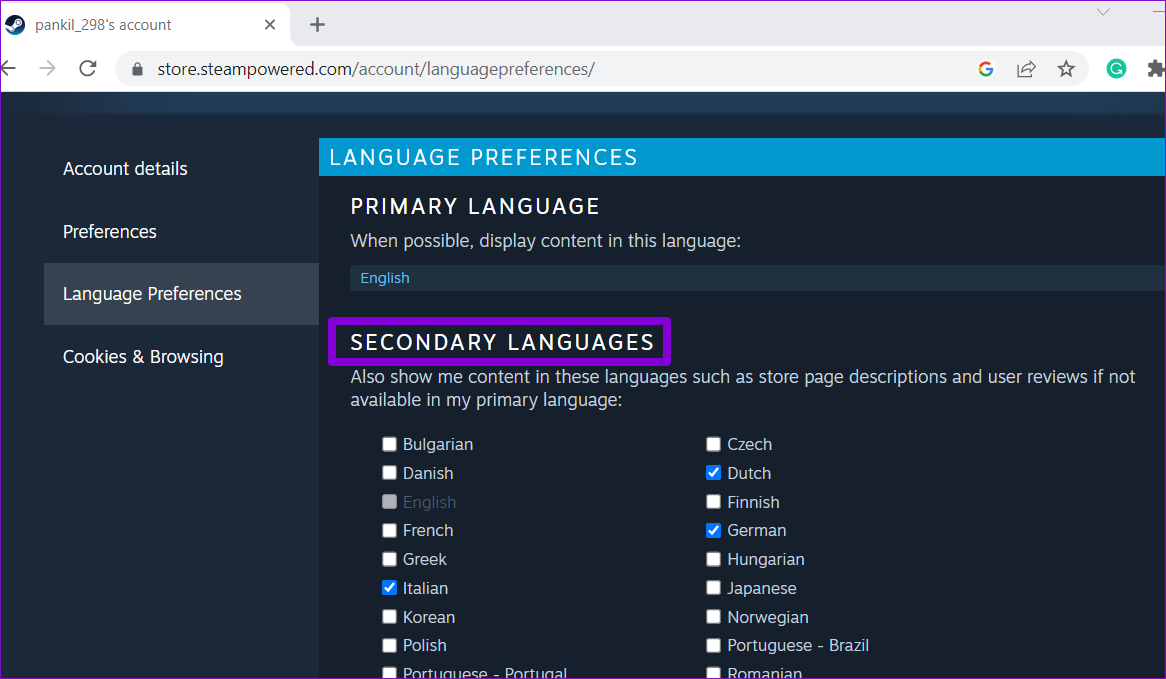
Step 4: Scroll down and click on Save.

How to Change the Language in Steam for Mobile
Changing the default language in Steam’s mobile app isn’t too challenging either. Here are the steps you can follow on your Android or iPhone.
Step 1: Open the Steam app on your phone. Tap the menu icon (three horizontal lines) in the bottom right corner.
Step 2: Scroll down and select Settings.
Step 3: Tap the drop-down menu next to Language and select your preferred option from the list.


Bonus: How to Change Language for an Individual Game on Steam
Steam for desktop also allows changing the language for individual games. This allows you to use the Steam app in one language (e.g., English) while playing a particular game in a different language (e.g., Spanish).
Here’s how you can change the language for a specific game on Steam.
Step 1: Open the Steam app on your computer. Click on Library to view a list of your games.

Step 2: Right-click on the game title for which you want to use a different language and select Properties.

Step 3: Use the left pane to switch to the Language tab. If you don’t see the Language tab, your game does not support multiple languages.

Step 4: Select the language you wish to use from the drop-down menu.

Was this helpful?
Last updated on 24 July, 2024
Read Next
 How to Change Default Google Account on Desktop and Mobile
Method 1: Change the Default Google Account on the Desktop Step 1: Open Google on your preferred browser.
How to Change Default Google Account on Desktop and Mobile
Method 1: Change the Default Google Account on the Desktop Step 1: Open Google on your preferred browser.
 How to Change the Default Language in Windows 11
How to Change the Display Language in Windows 11 Windows 11 supports various languages.
How to Change the Default Language in Windows 11
How to Change the Display Language in Windows 11 Windows 11 supports various languages.
 How to Change Language on Amazon: A Complete Guide
How to Change Amazon’s Language on Web Browser Note: Amazon's URL dynamically adjusts depending on the region you're accessing it from.
How to Change Language on Amazon: A Complete Guide
How to Change Amazon’s Language on Web Browser Note: Amazon's URL dynamically adjusts depending on the region you're accessing it from.
 How to Change Typing Language in WhatsApp on Android and iPhone
On iPhone Method 1: On Apple Keyboard Follow these steps to type in another language in WhatsApp on iPhone using the Apple keyboard: Step 1: Open a WhatsApp chat so
How to Change Typing Language in WhatsApp on Android and iPhone
On iPhone Method 1: On Apple Keyboard Follow these steps to type in another language in WhatsApp on iPhone using the Apple keyboard: Step 1: Open a WhatsApp chat so
 How to Change the Display and Authoring Language in Microsoft Excel
How to Change the Display Language in Microsoft Excel Display language is the one that Excel uses throughout its interface, which includes menus, buttons, dialog boxes, and more.
How to Change the Display and Authoring Language in Microsoft Excel
How to Change the Display Language in Microsoft Excel Display language is the one that Excel uses throughout its interface, which includes menus, buttons, dialog boxes, and more.
 How to Change Facebook Language Back to English
How to Change Language on Facebook Notably, if you change the language settings on one device, it will not automatically update on another device.
How to Change Facebook Language Back to English
How to Change Language on Facebook Notably, if you change the language settings on one device, it will not automatically update on another device.
 How to Change Name in Zoom (Desktop and Mobile)
How to Change Profile Name in Zoom on Desktop Method 1: Change Zoom Name for All Meetings Step 1: Click on the profile picture icon at the top.
How to Change Name in Zoom (Desktop and Mobile)
How to Change Profile Name in Zoom on Desktop Method 1: Change Zoom Name for All Meetings Step 1: Click on the profile picture icon at the top.
 How to Change Outlook Password on Mobile, Desktop, and Web
Change Password in Outlook Mobile App The Outlook client app on Android and iPhone doesn’t have the option to change your account password.
How to Change Outlook Password on Mobile, Desktop, and Web
Change Password in Outlook Mobile App The Outlook client app on Android and iPhone doesn’t have the option to change your account password.
The article above may contain affiliate links which help support Guiding Tech. The content remains unbiased and authentic and will never affect our editorial integrity.

