Change Snapchat Notification Sound on iPhone
The default alert sound on your iPhone is used for Snapchat notifications. You can change it and select a new notification sound. Note that this will also change the notification sound for all other apps on your iPhone.
Open Settings > Sounds & Haptics > Text Tone > change Default Alerts.


Tip: Learn how to set up Snapchat Parental Controls.
Change Snapchat Notification Sound on Android
Android users can also change the default notification sound for Snapchat. To do so, you will need to change the default alert tone for your Android device. Do note that this will also change the notification sound for all other apps on your Android device.
Using Android Settings
Open Settings > Sound & vibration > Default notification sound > change the sound.


You can also use a custom notification sound that you downloaded on your Android phone to be used as the default ringtone.
Using Snapchat App Info
Long-press the Snapchat icon to open App Info > Notifications > Snaps and Chats > Sound.
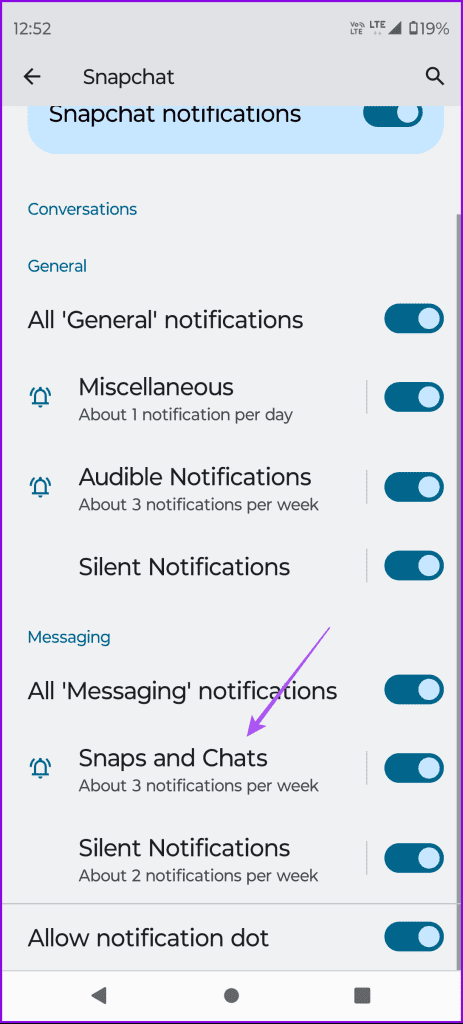
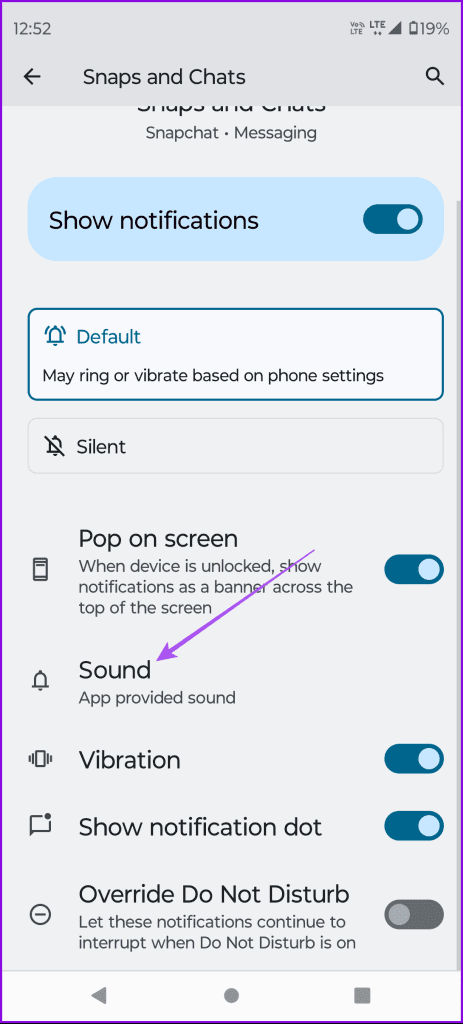
You can choose to add a custom sound that you downloaded to your phone as well by tapping Add notification sound.
Change Snapchat Notification Sound on Samsung Galaxy Phones
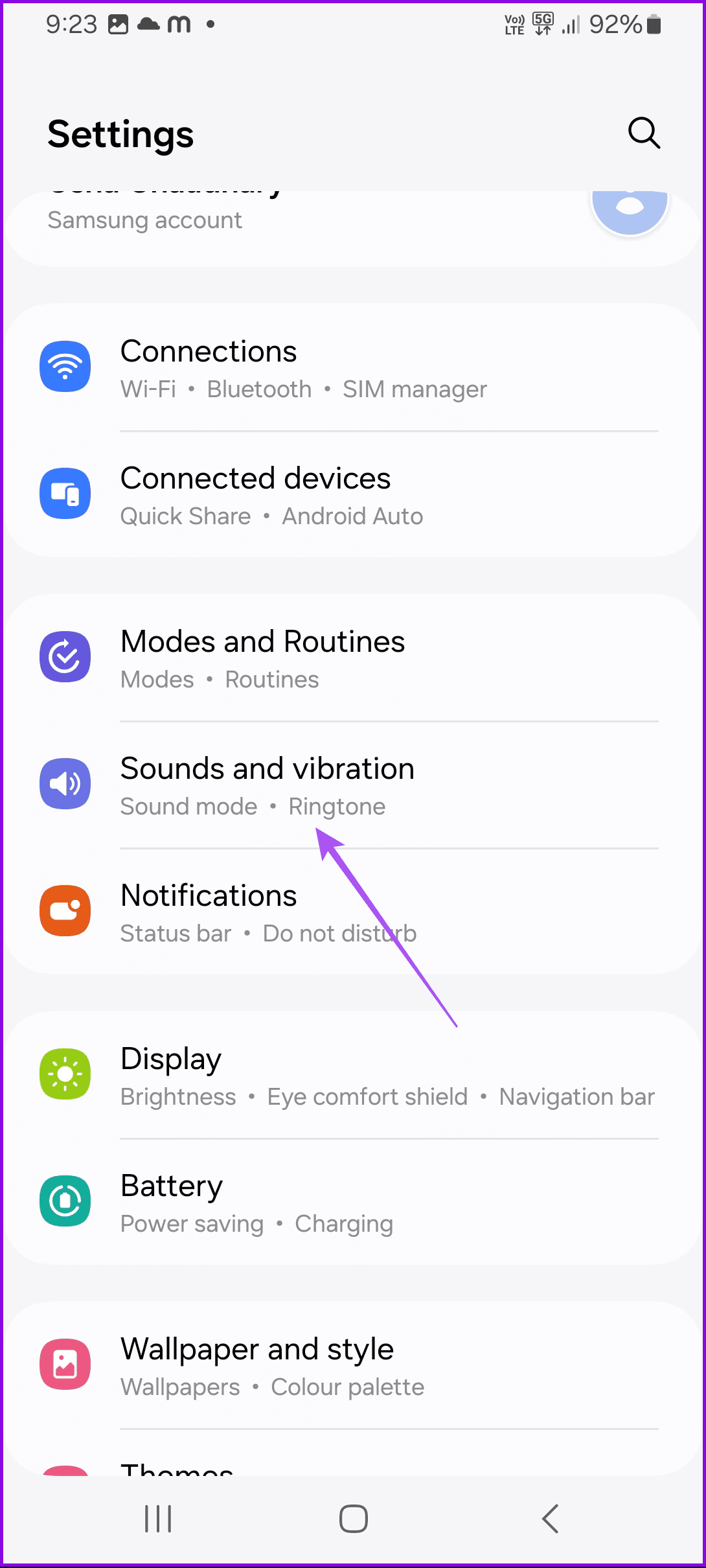
Open Settings > Sounds and vibration > Notification sound > Choose the sound.
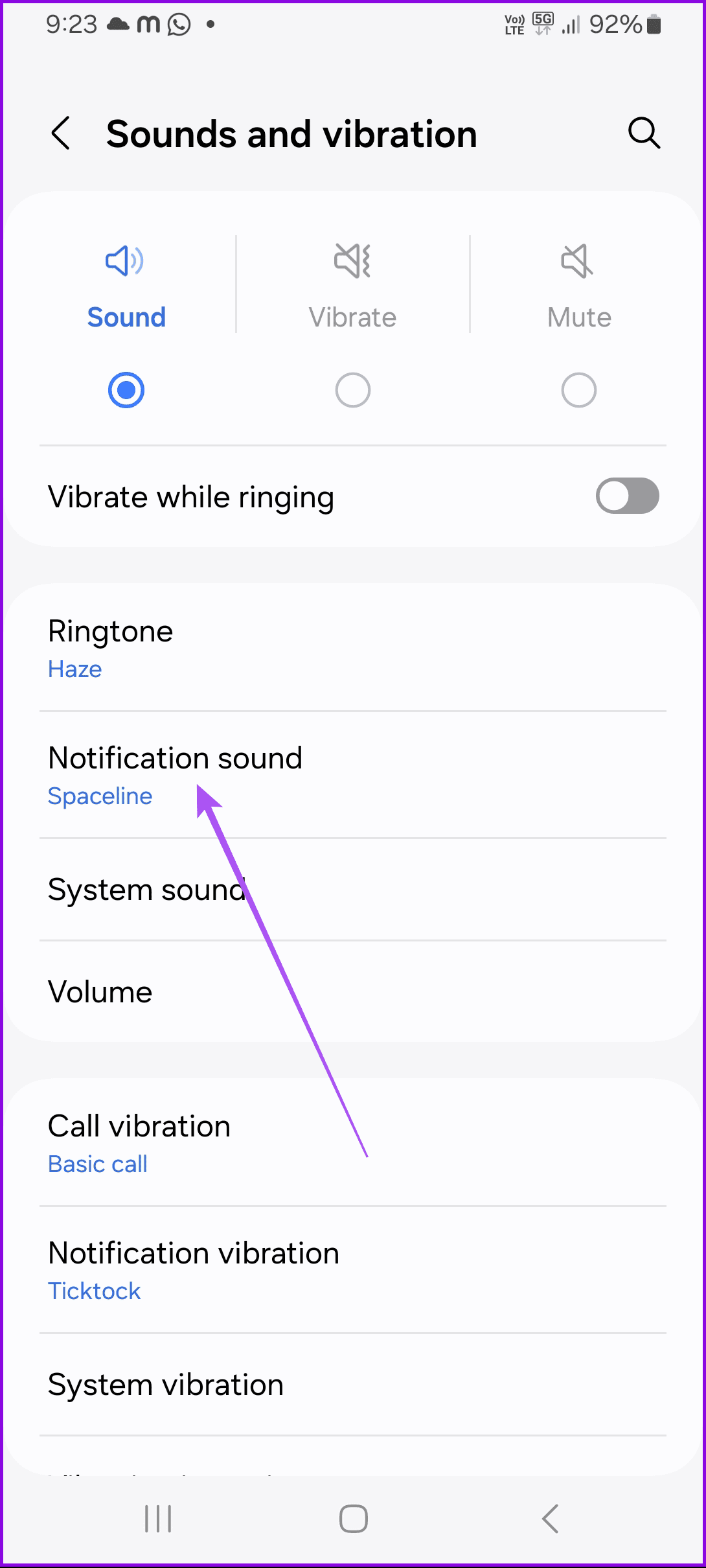
Change Snapchat Notification Sound For Specific Chats
If you are a Snapchat+ subscriber, you have the option to change notification sounds for specific chats. The steps mentioned below apply to both iPhone and Android users. If this is your first time using Snapchat+, you may see a 7-day free trial option, depending on your location.
Step 1: Open Snapchat on your iPhone or Android.
Step 2: To change the notification sound for a specific chat, tap on the chat and then hold down until the options appear.
Step 3: Select Chat and Notification Settings.
Step 4: Go to Notification Settings > Notification Sounds.
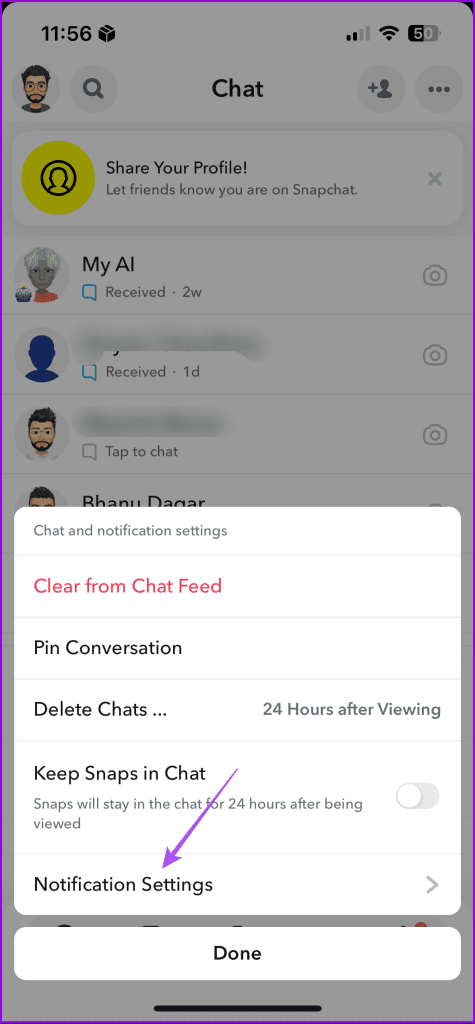
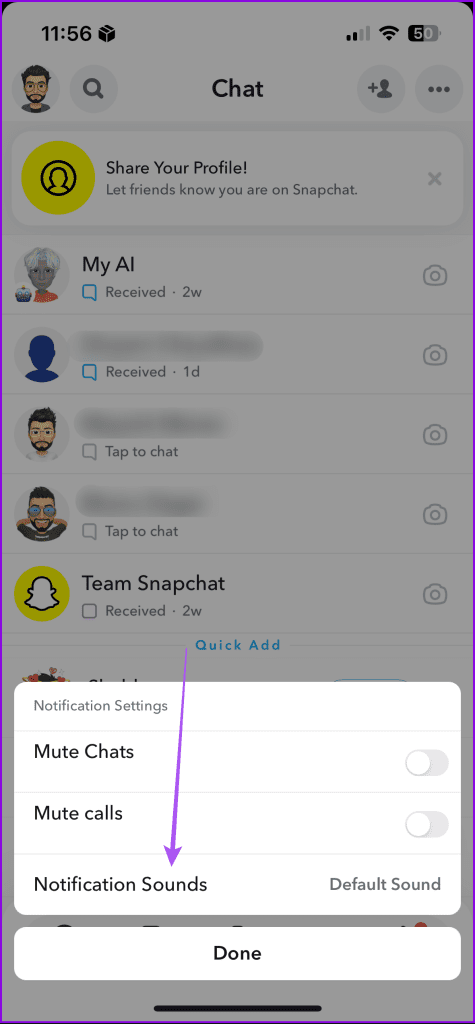
Step 5: Lastly, select the notification sound for your chat from the list of options.
Change Notification Sound Using Profile Settings
Step 1: Open Snapchat and then tap on Chat.
Step 2: To change the notification sound for a specific friend’s chat, simply tap on the chat of that friend.
Step 3: Then tap on your friend’s name at the top.
Step 3: Select the three dots in the top-right corner and then select Chat and notification settings.
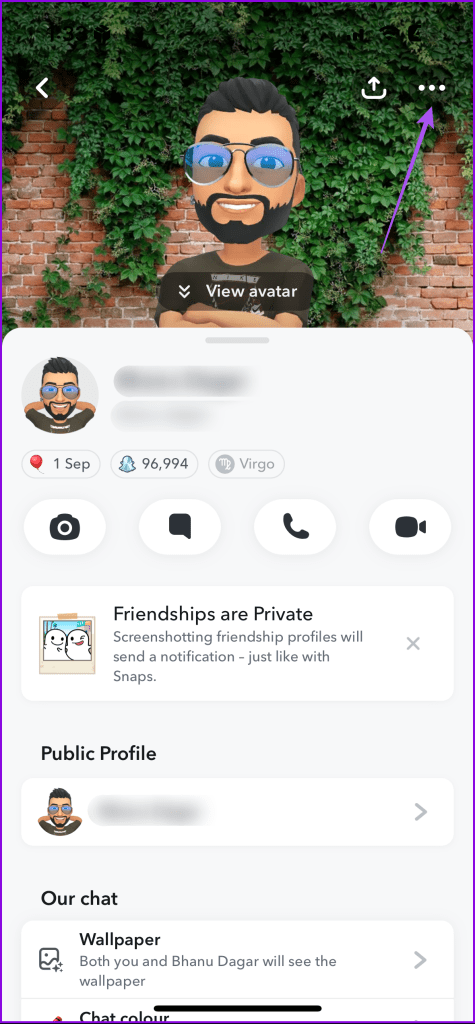
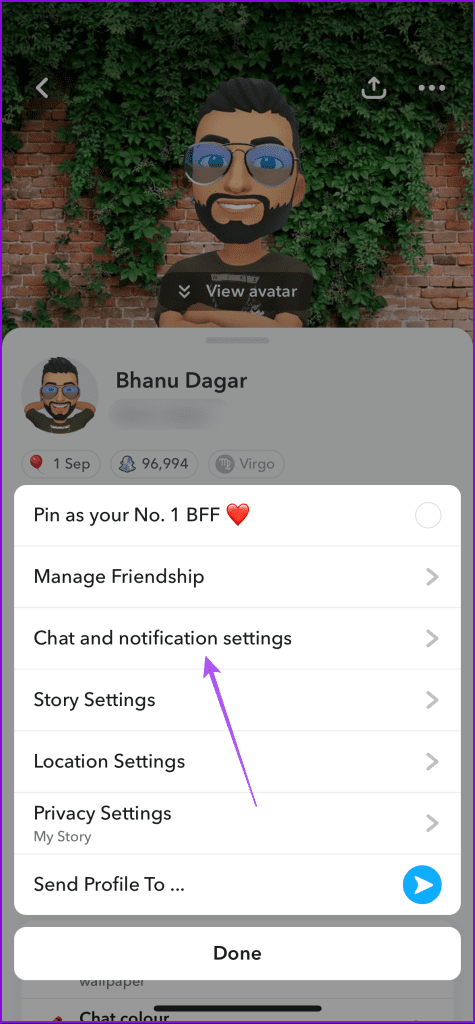
Follow the same steps as mentioned above to pick a new notification sound for your chat.
How To Get the Original Snapchat Notification Sound
Apart from switching to a new notification sound, some users have been searching for the steps to get the original Snapchat notification sound. In case you have changed the notification sound earlier, here’s how to get the original Snapchat notification sound. Do note that the steps are applicable only for Android users.
On Stock Android
Step 1: Long-press the Snapchat icon and then go to App Info.
Step 2: Tap on Notifications and ensure that you have enabled Snaps and Chats.
Step 3: Tap on Snaps and Chats > go to Sound.
Step 4: Select Default Notification Sound.
On Samsung Galaxy Phones
Step 1: Long-press the Snapchat app icon and then select App Info.
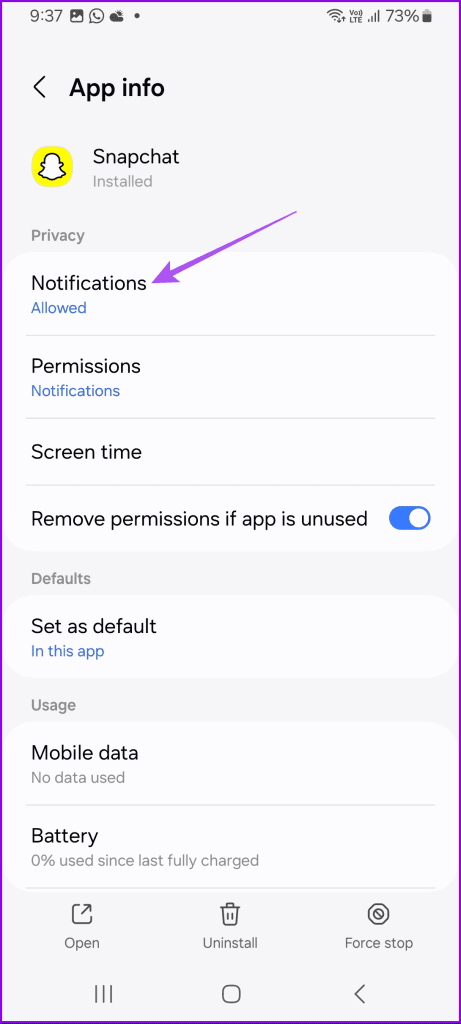
Step 2: Tap on Notifications > select Notification categories.
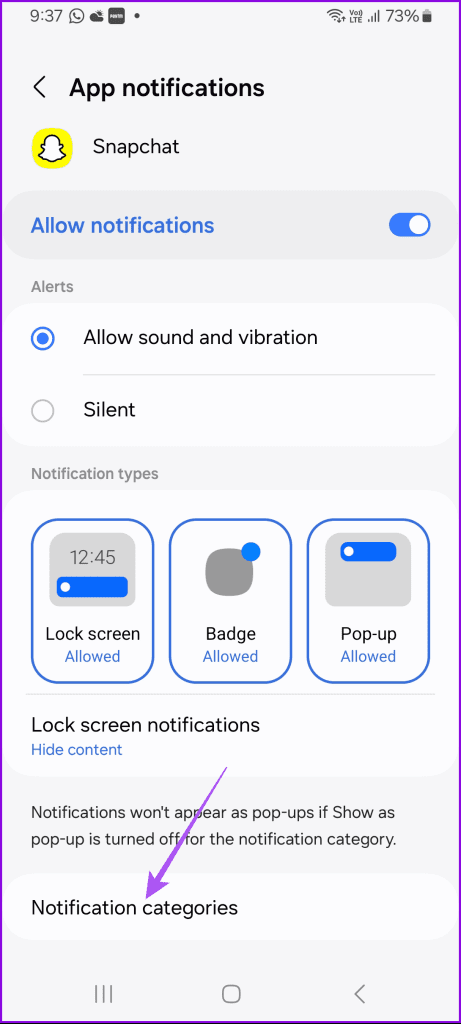
Step 3: Enable the Snaps and Chats and Best Friend Messages options.
Step 4: Select Snaps and Chats > Sound > Original notification sound.
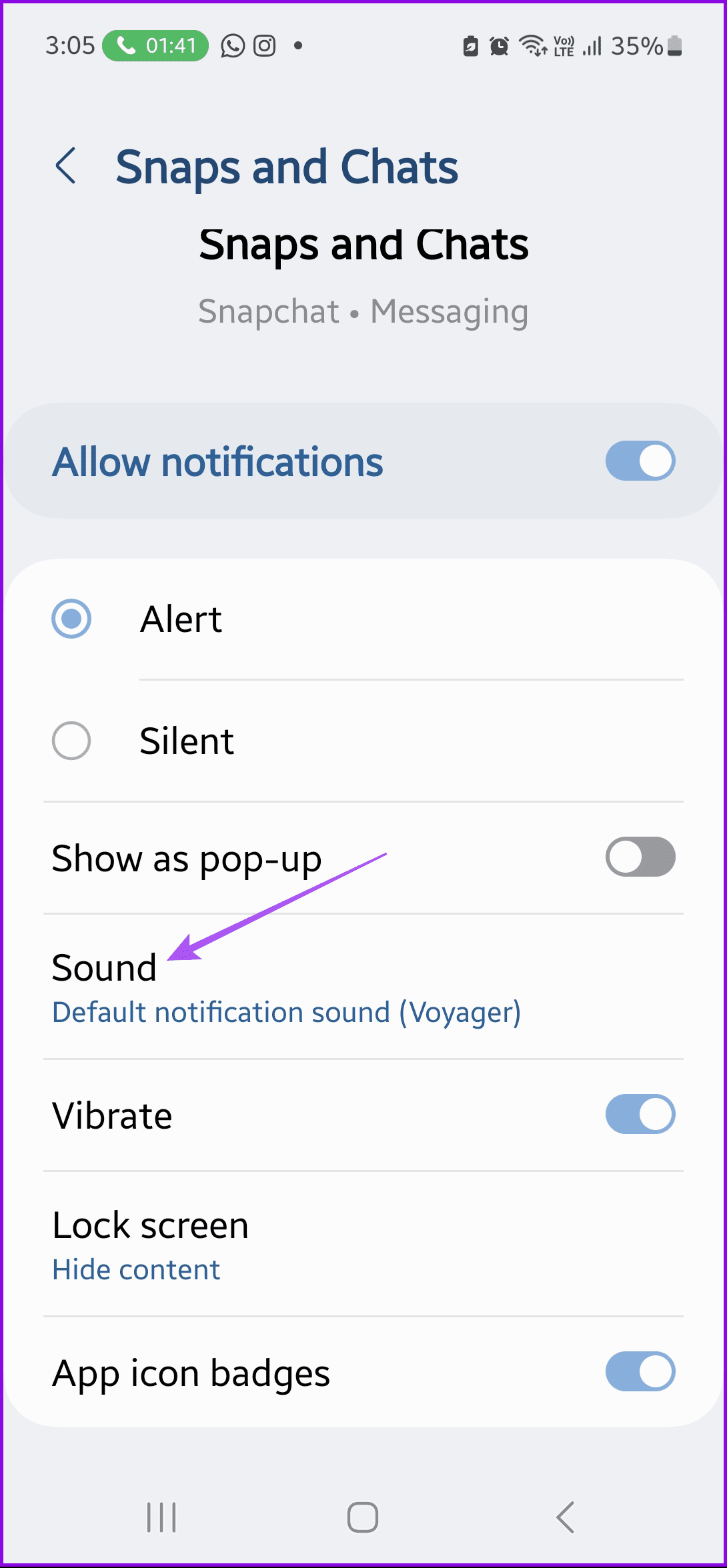

Tip: You can refer to our post if the Snapchat notification sound is not working.
Was this helpful?
Last updated on 30 August, 2024
Read Next
 5 Ways to Fix Snapchat Notification Sound Not Working
Basic Fixes Disable the silent profile: Press the Volume Up physical button on your Android phone and tap the sound profile icon to disable the silent mode.
5 Ways to Fix Snapchat Notification Sound Not Working
Basic Fixes Disable the silent profile: Press the Volume Up physical button on your Android phone and tap the sound profile icon to disable the silent mode.
 How to Change Zoom App Ringtone and Notification Sound
How to Change Zoom Incoming Call Ringtone on Android, iPhone, and iPad If you use Zoom daily, you might be bored of its same ringtone or notification sound.
How to Change Zoom App Ringtone and Notification Sound
How to Change Zoom Incoming Call Ringtone on Android, iPhone, and iPad If you use Zoom daily, you might be bored of its same ringtone or notification sound.
 How to Change Instagram Notification Sound (iPhone and Android)
Change Instagram Notification Sound on iPhone Unfortunately, iOS doesn't allow you to change the notification sound for individual apps.
How to Change Instagram Notification Sound (iPhone and Android)
Change Instagram Notification Sound on iPhone Unfortunately, iOS doesn't allow you to change the notification sound for individual apps.
 How to Change Microsoft Teams Notification Sound
Change Microsoft Teams Notification Sound on Android Step 1: Find and long-press the Microsoft Teams icon.
How to Change Microsoft Teams Notification Sound
Change Microsoft Teams Notification Sound on Android Step 1: Find and long-press the Microsoft Teams icon.
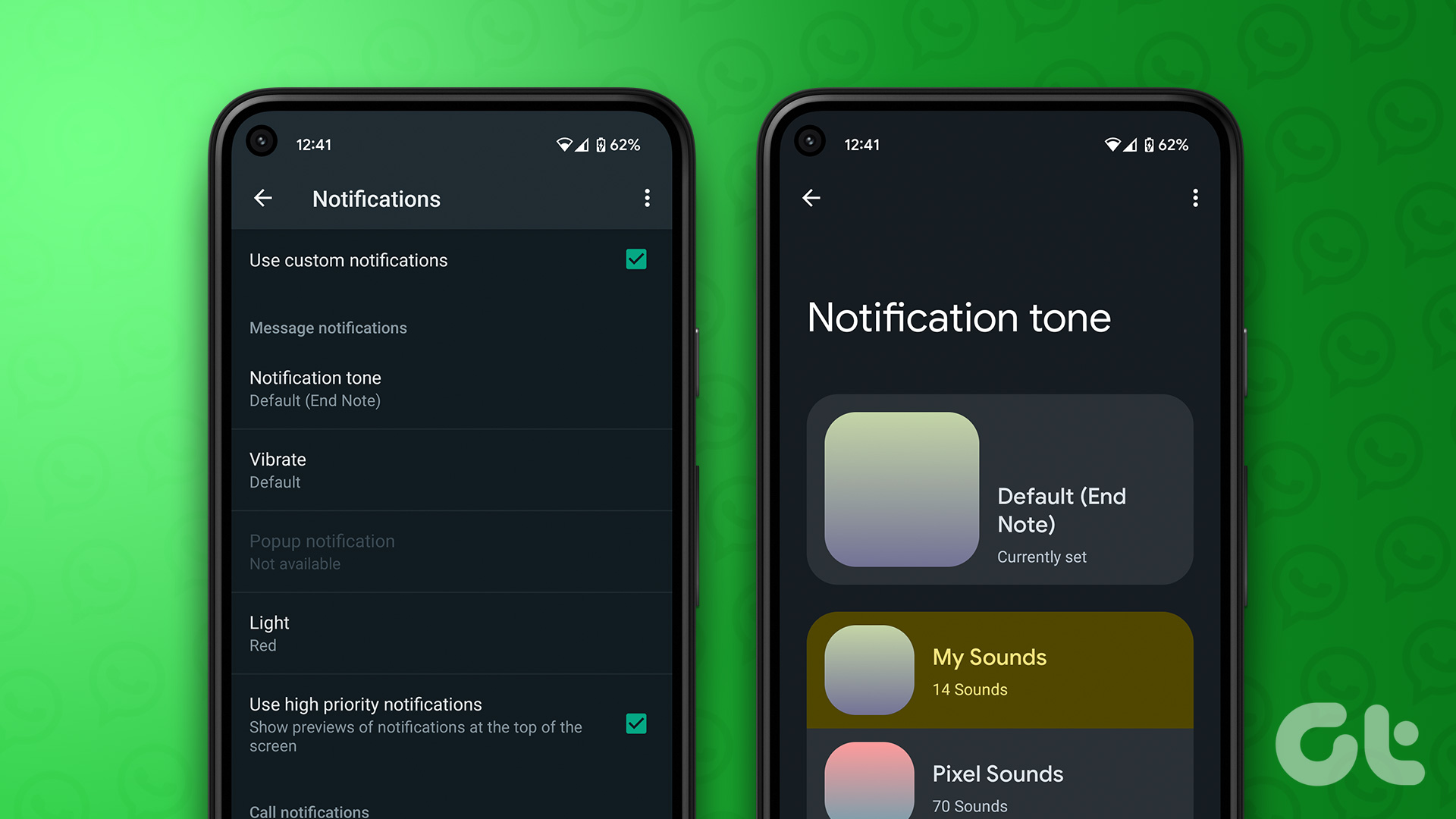 How to Set Custom Notification Sound for Specific Contacts on WhatsApp
Set Specific Tones on WhatsApp iOS You can set different notification tones on WhatsApp for all contacts or groups and custom tones for individual contacts or groups.
How to Set Custom Notification Sound for Specific Contacts on WhatsApp
Set Specific Tones on WhatsApp iOS You can set different notification tones on WhatsApp for all contacts or groups and custom tones for individual contacts or groups.
 4 Ways to Fix Facebook Messenger Notification Sound Not Working
Try Basic Fixes Close the Messenger app on your computer: If you have the Messenger app open on your computer, notifications may appear there instead of on your phone, and
4 Ways to Fix Facebook Messenger Notification Sound Not Working
Try Basic Fixes Close the Messenger app on your computer: If you have the Messenger app open on your computer, notifications may appear there instead of on your phone, and
 4 Fixes for Telegram Notification Sound Not Working on Android and iPhone
Try Basic Fixes Close Telegram on your computer: If you have the Telegram app open on your computer, Telegram notifications may not appear or make a sound on your phone.
4 Fixes for Telegram Notification Sound Not Working on Android and iPhone
Try Basic Fixes Close Telegram on your computer: If you have the Telegram app open on your computer, Telegram notifications may not appear or make a sound on your phone.
 3 Fixes for Gmail Notification Sound Not Working on Android and iPhone
Try Basic Fixes Check your phone’s notification volume: Make sure you haven't lowered the notification volume level on your phone unintentionally.
3 Fixes for Gmail Notification Sound Not Working on Android and iPhone
Try Basic Fixes Check your phone’s notification volume: Make sure you haven't lowered the notification volume level on your phone unintentionally.
The article above may contain affiliate links which help support Guiding Tech. The content remains unbiased and authentic and will never affect our editorial integrity.