Change Microsoft Teams Notification Sound on Android
Step 1: Find and long-press the Microsoft Teams icon. Then, tap i to open the app info menu.
Step 2: Select Notifications. By default, all the Teams notifications are enabled with the default alert sound.
Step 3: Change the notification sound for apps on Teams, calls, channels, chats, @Everyone messages, files, meetings, @mentions, reactions, and tasks.
Step 4: Let’s select Chats (since it’s the most used notification category on Teams).


Step 5: Tap Sound from the following menu. It opens the default sound picker menu on your phone.
Step 6: Pick a relevant sound from a category, and you are good to go.


Step 7: Go back and select Calls. Tap Sound and set another audio file as a ringtone for Teams calls.


Similarly, you can change the sound for all Teams notifications on Android. You can tweak the same settings for all your organization and work accounts.
Change Microsoft Teams Notification Sound on iPhone
Unlike Android, you need to use Teams app settings on your iPhone to change the notification sound. The company offers a decent number of tones to pick from. Here’s what you need to do.
Step 1: Open the Microsoft Teams app on your iPhone.
Step 2: Tap on your profile picture in the top-left corner.
Ensure you are signed into a relevant account or organization.
Step 3: Tap Notifications.


Step 4: Select Sound.
Step 5: Apart from the Default tone, you can select from over 10 sound alerts.


There is no way to change the Teams call ringtone on the iPhone app. The functionality is limited to Android and desktop apps only. You can block notifications during quiet hours when the desktop app is active or during meetings from the same menu.
Change Microsoft Teams Notification Sound on Windows
In terms of customizing Teams notification sound on the desktop, the experience isn’t as flexible as the mobile apps. You can customize the call ringtone, but with the chat notifications, you need to tweak the system sound on Windows. Let’s check it in action.
Tweak Teams Calls Ringtone
Since Teams uses the same user interface on Windows and Mac apps, you can use the steps below to change Teams call ringtone on Mac too.
Step 1: Open Teams on the desktop, click the three horizontal dots menu, and open Settings.

Step 2: Select Calls from the sidebar.
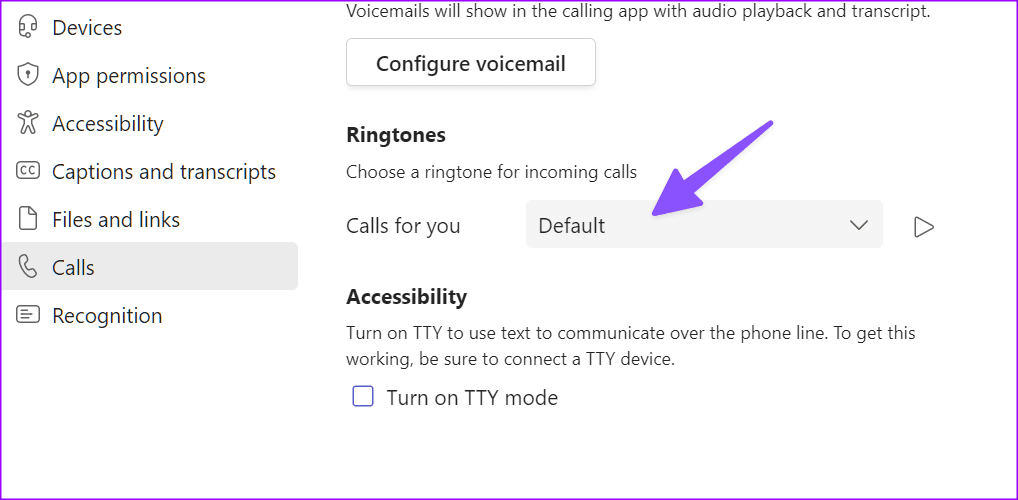
Step 3: Expand the Calls for you menu and pick another ringtone for incoming calls.
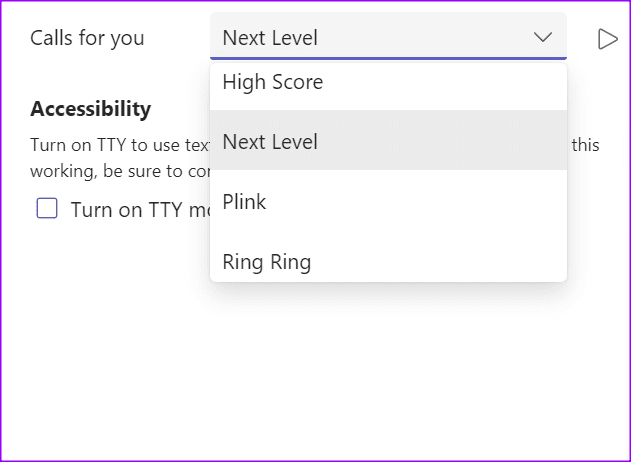
Step 4: Hit the play icon to check the tone. Close Settings.
Change Teams Message Sound
Microsoft Teams uses the default Windows notification sound to alert users. You need to tweak the system notification sound from the Control Panel menu.
Step 1: Press the Windows key, type Change system sounds, and hit Enter.
Step 2: It opens the Sound menu. Scroll to System Notification in the Program Events menu.
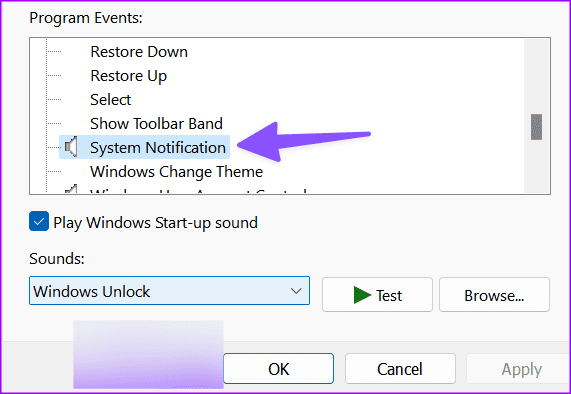
Step 3: Expand the Sounds menu and select another sound.
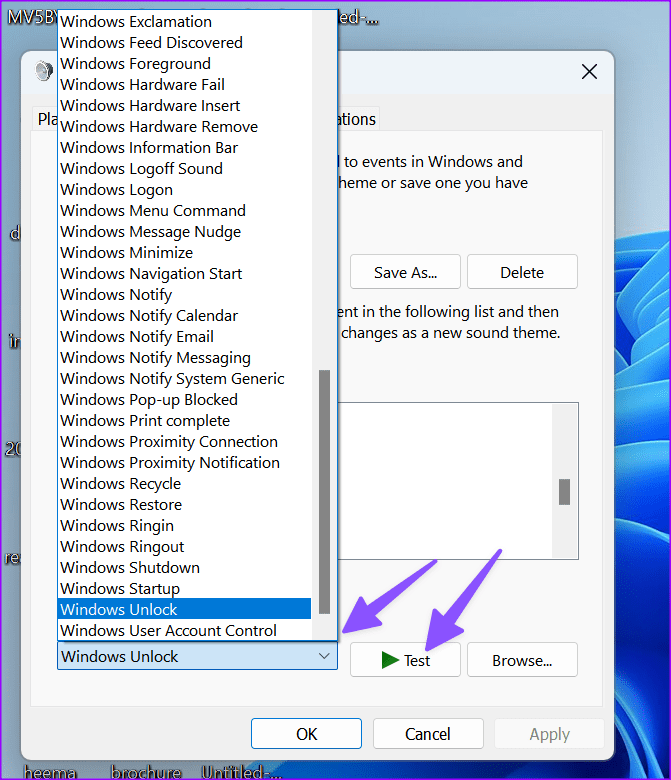
You can also click Browse to use a local file as the default notification sound. Click Test to check the sound and hit Apply. Select OK and close the menu.
FAQ on Changing Microsoft Teams Notification Sound
Microsoft Teams uses a custom notification style and sound on Mac. There is no way to change the app alert sound on Mac.
Teams power users should dig into app settings and change the notification sound to their preference.
Was this helpful?
Last updated on 23 July, 2024
Read Next
 How to Fix Microsoft Teams Notification Sound Not Working
On Windows Method 1: Check Notifications Options in the Settings App Step 1: Press the Windows + I keys shortcut to open the Settings app.
How to Fix Microsoft Teams Notification Sound Not Working
On Windows Method 1: Check Notifications Options in the Settings App Step 1: Press the Windows + I keys shortcut to open the Settings app.
 4 Fixes for Microsoft Teams Notification Won’t Go Away on Windows
Fix 1: Open the Chat App and Clear Notifications (Windows 11 Only) Your Windows 11 PC includes a dedicated Chat app that can help you access and respond to your
4 Fixes for Microsoft Teams Notification Won’t Go Away on Windows
Fix 1: Open the Chat App and Clear Notifications (Windows 11 Only) Your Windows 11 PC includes a dedicated Chat app that can help you access and respond to your
 How to Change Zoom App Ringtone and Notification Sound
How to Change Zoom Incoming Call Ringtone on Android, iPhone, and iPad If you use Zoom daily, you might be bored of its same ringtone or notification sound.
How to Change Zoom App Ringtone and Notification Sound
How to Change Zoom Incoming Call Ringtone on Android, iPhone, and iPad If you use Zoom daily, you might be bored of its same ringtone or notification sound.
 How to Change Instagram Notification Sound (iPhone and Android)
Change Instagram Notification Sound on iPhone Unfortunately, iOS doesn't allow you to change the notification sound for individual apps.
How to Change Instagram Notification Sound (iPhone and Android)
Change Instagram Notification Sound on iPhone Unfortunately, iOS doesn't allow you to change the notification sound for individual apps.
 How to Change Snapchat Notification Sound
Change Snapchat Notification Sound on iPhone The default alert sound on your iPhone is used for Snapchat notifications.
How to Change Snapchat Notification Sound
Change Snapchat Notification Sound on iPhone The default alert sound on your iPhone is used for Snapchat notifications.
 How to Share Video With Sound on Zoom, Microsoft Teams, and Google Meet
How to Share Video With Audio in Microsoft Teams The feature to share your screen containing the video and its sound in Microsoft Teams is limited to the Windows app
How to Share Video With Sound on Zoom, Microsoft Teams, and Google Meet
How to Share Video With Audio in Microsoft Teams The feature to share your screen containing the video and its sound in Microsoft Teams is limited to the Windows app
 3 Ways to Fix the Notification Sound Not Working on Windows 11
Basic Fixes: Unmute your Windows PC: You might have muted your Windows PC and forgotten to unmute it after an important meeting or work hours.
3 Ways to Fix the Notification Sound Not Working on Windows 11
Basic Fixes: Unmute your Windows PC: You might have muted your Windows PC and forgotten to unmute it after an important meeting or work hours.
 How to Change Name, Profile, and Team Picture in Microsoft Teams
How to Change Your Name and Profile Picture in Microsoft Teams The process differs slightly for mobile apps.
How to Change Name, Profile, and Team Picture in Microsoft Teams
How to Change Your Name and Profile Picture in Microsoft Teams The process differs slightly for mobile apps.
The article above may contain affiliate links which help support Guiding Tech. The content remains unbiased and authentic and will never affect our editorial integrity.