Change Input Source on Samsung TV
First, let us look at how you can change the input source by using your TV remote or the new Smart Remote.
Method 1: Using Remote
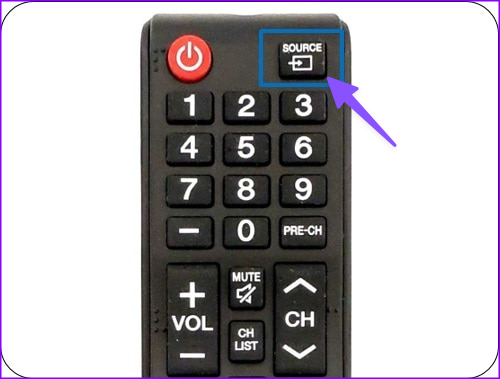
Step 1: Find and press the Source button on your Samsung TV.
Step 2: Select another HDMI or USB input using the arrow keys and hit OK.
Method 2: Using Smart Remote
Samsung’s smart TV remote is minimal and doesn’t offer a dedicated source button. You must follow the steps below to change the source using a smart remote.
Step 1: Press the home button on your Samsung TV.
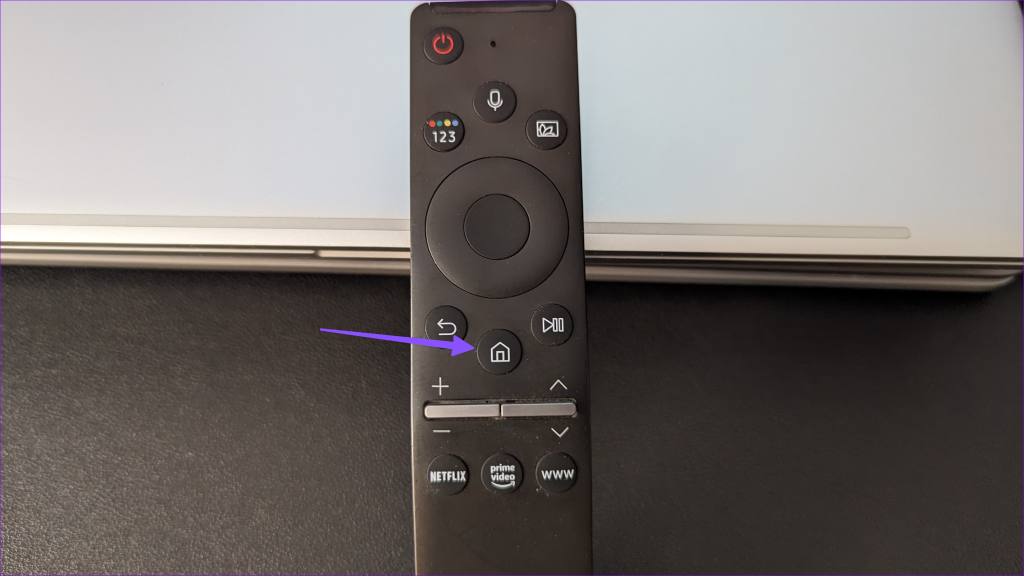
Step 2: Move to the Source menu – indicated by connection ports. Select the relevant input mode.

Change Input on Your Samsung TV Without Remote
If you can’t find the physical remote, you can use the physical buttons on your Samsung TV or the SmartThings mobile app.
Method 1: Use Physical Buttons on a Samsung TV
Some Samsung TVs have a dedicated control button on the side or bottom bezel. You can use it to change the input on your Samsung TV.
Step 1: Find and press the control button on your Samsung TV.
Step 2: Press the control button repeatedly to navigate the source menu.
Step 3: Highlight the input you want to use, and the Samsung TV displays the content from the relevant source.
Method 2: Use the SmartThings Mobile App
Step 1: Download the SmartThings app on your Android or iPhone. Ensure to keep your phone and TV on the same Wi-Fi network.
Step 2: Open SmartThings > tap Add device > scan for nearby devices.
Step 3: Select your Samsung TV from the following menu. You may be asked to log in with your Samsung account details. Rename your Samsung TV if you want to.
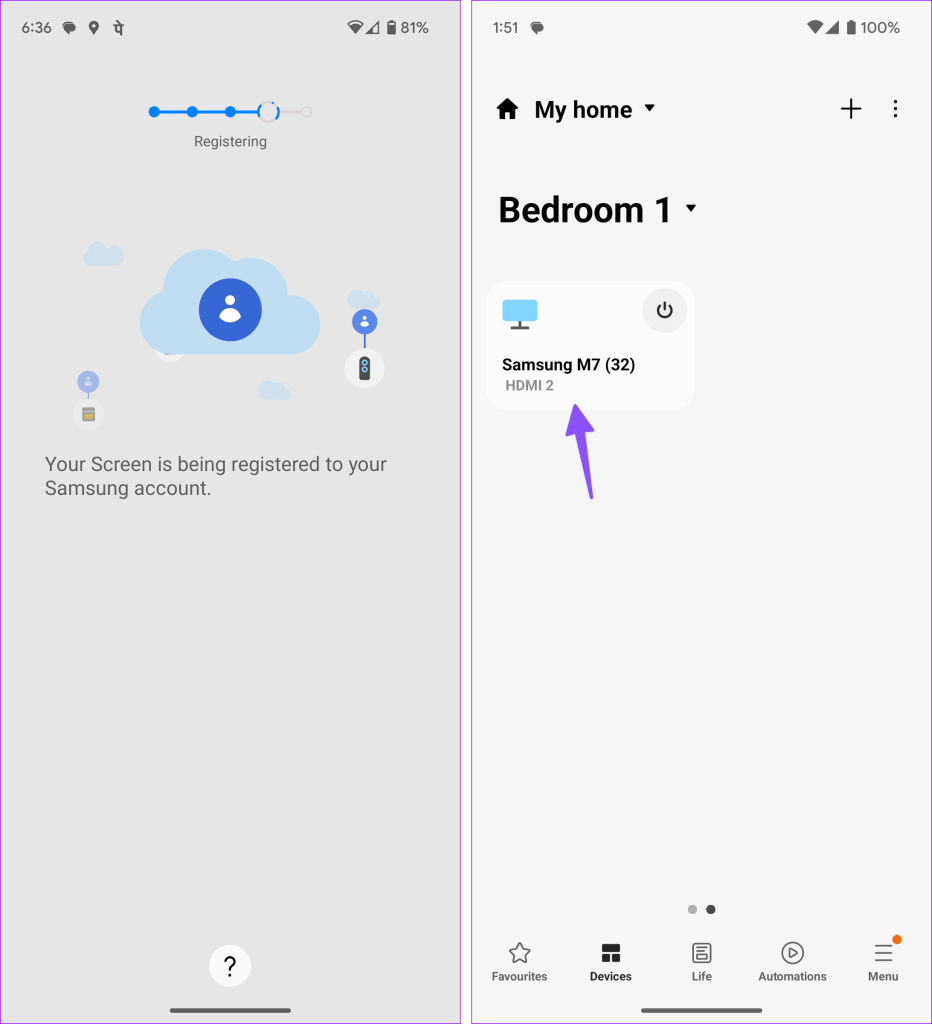
Step 4: Open the software remote from the app. Tap the Home button and use the trackpad to change the source on your Samsung TV.
Rename Sources on Your Samsung TV
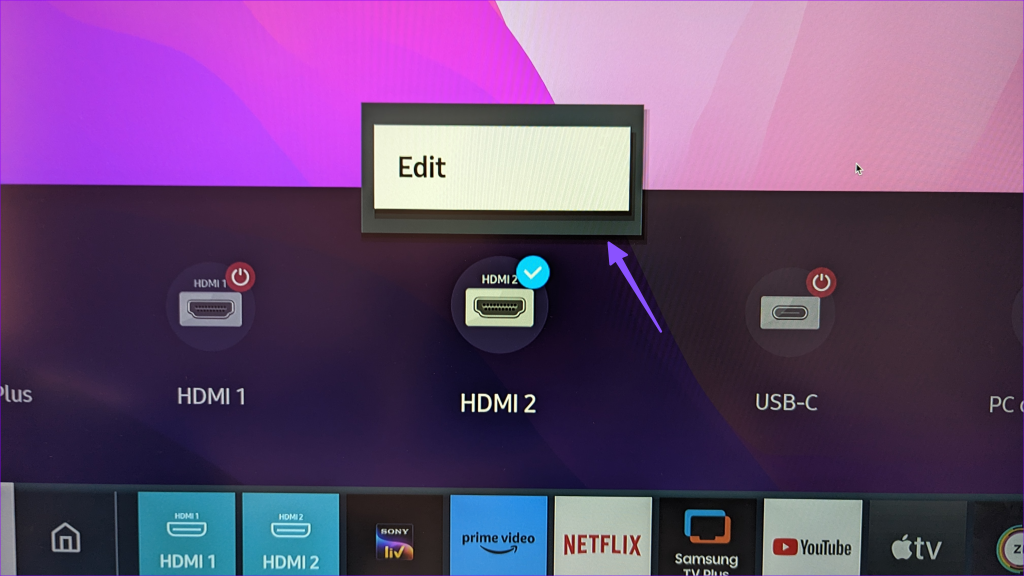
Do you often connect your PlayStation to HDMI 1 and your home theatre system to HDMI 2? You can rename the input options to your preference to avoid any confusion.
Step 1: Open the Source menu on your Samsung TV.
Step 2: Select HDMI 2 > hit the up-arrow key > click on Edit.
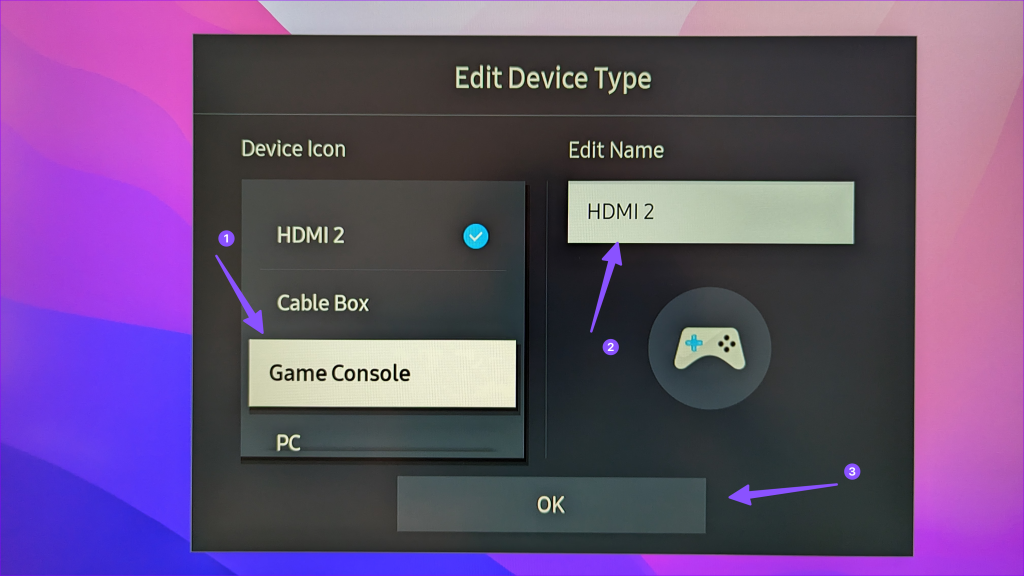
Step 3: Select the relevant device icon (Cable Box, Game Console, PC, Blu-ray player, or Home Theatre System). Edit the name and click OK.
You can now easily switch between relevant HDMI and USB inputs on your Samsung TV.
Was this helpful?
Last updated on 06 June, 2024
Read Next
 Top 6 Bluetooth Speakers With AUX Input
Speakers with AUX input can cut through the hassle of pairing a device over Bluetooth and allow you to listen to tunes quickly.
Top 6 Bluetooth Speakers With AUX Input
Speakers with AUX input can cut through the hassle of pairing a device over Bluetooth and allow you to listen to tunes quickly.
 Top 3 Ways to Change App Drawer on Samsung Galaxy Phones
https://youtu.be/A_ni2sV14uM 1.
Top 3 Ways to Change App Drawer on Samsung Galaxy Phones
https://youtu.be/A_ni2sV14uM 1.
 How to Change Lock Screen Shortcuts on Samsung Galaxy Phones
https://youtu.be/UAEMzgi_Ju0 How to Change Lock Screen Shortcuts in One UI The new One UI offers a few native settings to modify the lock screen shortcuts.
How to Change Lock Screen Shortcuts on Samsung Galaxy Phones
https://youtu.be/UAEMzgi_Ju0 How to Change Lock Screen Shortcuts in One UI The new One UI offers a few native settings to modify the lock screen shortcuts.
 How to Change Status Bar Clock Position or Remove It on Samsung Phone
Change or Remove Status Bar Clock Position on Samsung Phone Currently, the clock is at the top-left corner of the Samsung Galaxy phone.
How to Change Status Bar Clock Position or Remove It on Samsung Phone
Change or Remove Status Bar Clock Position on Samsung Phone Currently, the clock is at the top-left corner of the Samsung Galaxy phone.
 5 Fixes for Samsung Health App Not Tracking Steps
Basic Fixes Ensure that step counter is enabled: Open the Health app > Tap on Steps > Three dots in the top-right corner > Check and ensure that the step
5 Fixes for Samsung Health App Not Tracking Steps
Basic Fixes Ensure that step counter is enabled: Open the Health app > Tap on Steps > Three dots in the top-right corner > Check and ensure that the step
 5 Ways to Delete and Reinstall Apps on Samsung Smart TV
Is your Samsung TVs storage full or do you want to troubleshoot an app?
5 Ways to Delete and Reinstall Apps on Samsung Smart TV
Is your Samsung TVs storage full or do you want to troubleshoot an app?
 2 Ways to Fix Samsung TV Remote Not Working
Basic Fixes: Restart the TV: Unplug your Samsung TV and plug it back in.
2 Ways to Fix Samsung TV Remote Not Working
Basic Fixes: Restart the TV: Unplug your Samsung TV and plug it back in.
 13 Ways to Fix Apple TV App Not Working on Samsung TV
Apple and Samsung have never been on good terms, which reflects when they are supposed to be working together.
13 Ways to Fix Apple TV App Not Working on Samsung TV
Apple and Samsung have never been on good terms, which reflects when they are supposed to be working together.
The article above may contain affiliate links which help support Guiding Tech. The content remains unbiased and authentic and will never affect our editorial integrity.