


Method 1: How to Blur Certain Parts of a Picture on Samsung
Step 1: Launch the Samsung Gallery app on your phone.
Step 2: Open the picture in which you want to blur something.
Step 3: Tap on the Pencil (Edit) icon at the bottom, followed by the Smiley icon.
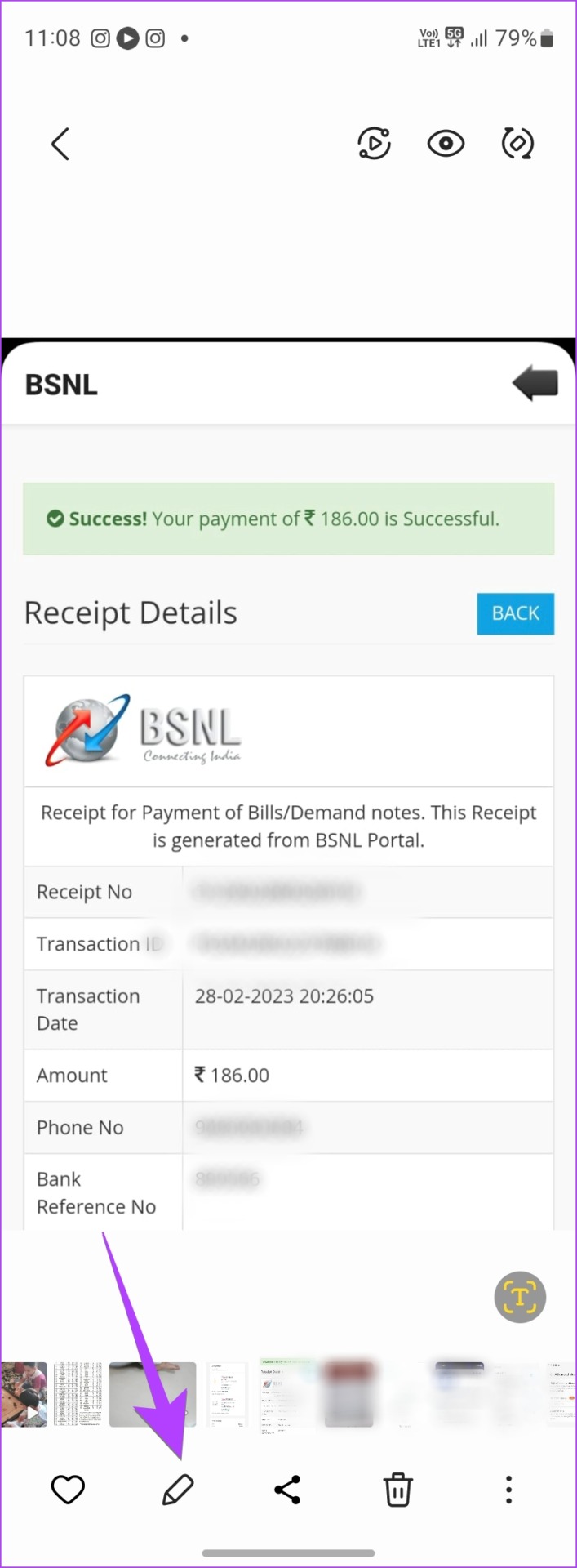

Step 4: Tap on the Mosaic pen to activate the blur mode. Then, tap on the same pen again to choose from different blur styles and effects.
Step 5: Tap on the blur style that you want to use. Use the Slider to increase or decrease the size of the blur pen.
Note: On older Samsung phones, tap on the regular Pen icon, and you will find the Mosaic tool inside it.
Step 6: Using your finger, blur out the parts of a photo you want to hide. You can use it to blur someone out or hide some information in a photo.
Tip: You can even select the Pattern pen to draw patterns on your picture.


Step 7: Tap on the Save button to save the image.
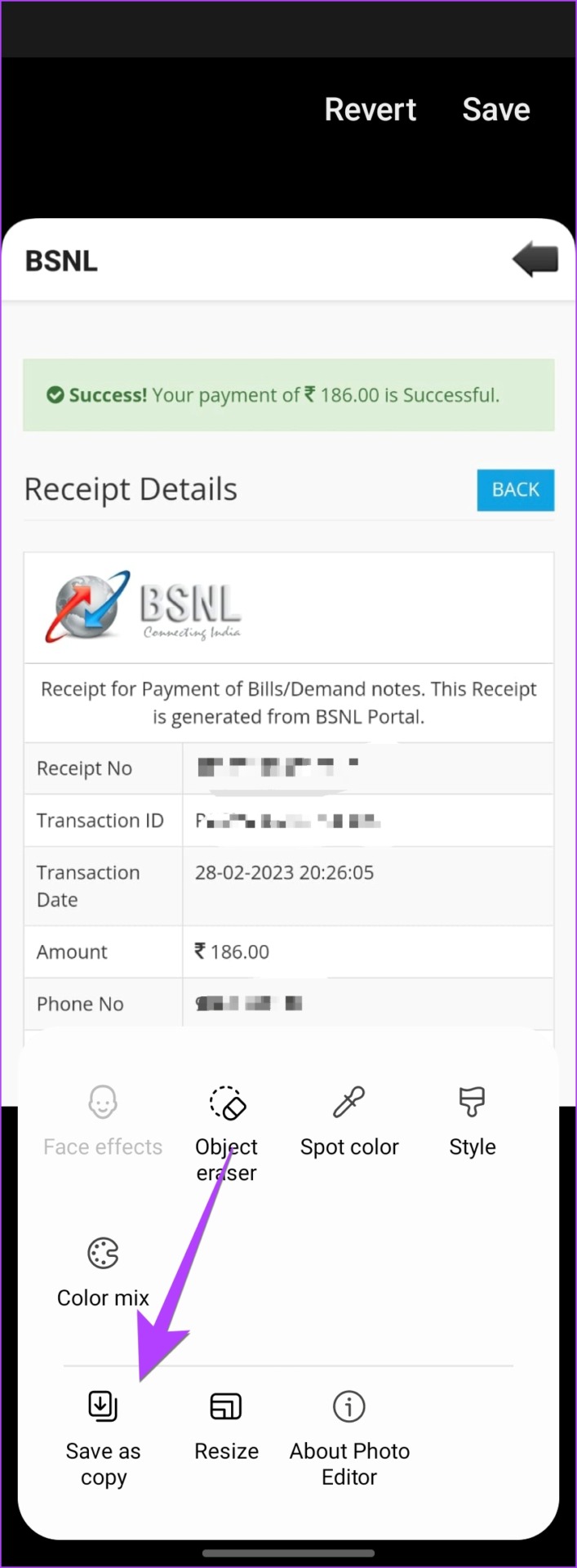
Note: Doing so will replace the original image with the edited image. If you want to keep the original image, tap on the three-dot icon at the bottom and select Save as copy. This will create a copy of your original image with selected parts blurred out.

Method 2. How to Blur the Background of a Photo Using the Samsung Camera App
Step 1: Open the Samsung Camera app on your phone.
Step 2: Scroll through the modes available at the bottom and stop on the Portrait mode.
Note: On older Samsung Galaxy phones, you will have to select the Live Focus mode instead of Portrait to blur the background.
Step 3: Tap on the Blur icon.


Step 4. Select the blur style from the available options and change the blur effect using the slider at the bottom.
Step 5: Tap on the Capture button to take the photo with blurred background.
You can adjust the intensity or change the blur effect after capturing the photo as well as shown in the next method.
Method 3: How to Change the Background Blur Effect of a Picture in Samsung Gallery
Note: This method only works for Portrait pictures captured using the Samsung Camera app. You cannot change the blur style for photos taken via any other mode or for existing pictures in your gallery.
Step 1: Launch the Samsung Gallery app on your phone.
Step 2: Open the portrait-mode picture whose background blur style you want to change.
Step 3: Tap on the Change background effect button at the bottom.
Step 4: Select the area of the picture that you want to focus on and choose the blur style from the given options. Use the Effect strength slider to adjust the intensity of the blur.
Step 5: Tap on the Apply button to save the changes.


Method 4: How to Blur the Background of a Picture in Samsung Gallery
Want to blur the background of an old photo or a picture received on WhatsApp? Fortunately, the Samsung Gallery app lets you blur the background of any photo.
Step 1: Launch the Samsung Gallery app and open the picture whose background you want to blur.
Step 2: Tap on the three-dot icon and select Add portrait effect from the menu.


Step 3: Use the Blur slider to increase or decrease the portrait effect on your photo.
Step 4: Tap on the Apply button to replace the photo with the blurred background. Or, tap on the three-dot icon and select Save as copy to create a new picture without affecting the original one.


Tip: Know how to blur the background in WhatsApp calls.
FAQs About Blurring Photos on Samsung Galaxy Phones
If you share a photo in which you have blurred something, others cannot remove the blur from the photo.
Yes, you can use third-party apps like Point Blur to blur something in a photo or Blur Photo to blur the background of a photo. You can also use online tools like cutout.pro, etc., to blur the background.
Edit Image Background
In addition to blurring the background of a picture, you can even replace the background completely or change the background to white color. So, what are you waiting for? Go ahead and become a photo editing pro!
Was this helpful?
Last updated on 14 July, 2024
1 Comment
Leave a Reply
Read Next
 3 Ways to Blur a Part of a Picture on Android
Method 1: Use Google Photos to Blur a Face In a Photo The default gallery app on Android – Google Photos – is quite feature-rich, with ample image editing options.
3 Ways to Blur a Part of a Picture on Android
Method 1: Use Google Photos to Blur a Face In a Photo The default gallery app on Android – Google Photos – is quite feature-rich, with ample image editing options.
 4 Ways to Blur Out a Part of Picture on Mac
Method 1.
4 Ways to Blur Out a Part of Picture on Mac
Method 1.
 5 Ways to Blur a Part of Picture on iPhone and iPad
Method 1: Use Markup Tools in the Photos App While the default markup option in the Photos app doesn’t come with a blur tool, you can get creative and use
5 Ways to Blur a Part of Picture on iPhone and iPad
Method 1: Use Markup Tools in the Photos App While the default markup option in the Photos app doesn’t come with a blur tool, you can get creative and use
 How to Blur a Part of Picture in Paint 3D
At times, you would want to blur a portion of a photo to conceal details.
How to Blur a Part of Picture in Paint 3D
At times, you would want to blur a portion of a photo to conceal details.
 4 Fixes When Google Meet Background Blur Is Not Working
Basic Fix: Use Google Chrome: Because not all browsers meet the requirements for blur, Google Chrome is the safest choice.
4 Fixes When Google Meet Background Blur Is Not Working
Basic Fix: Use Google Chrome: Because not all browsers meet the requirements for blur, Google Chrome is the safest choice.
 How to Use Background Blur in Microsoft Teams
Microsoft answered Slack’s growing popularity with the introduction of the Microsoft Teams in 2016.
How to Use Background Blur in Microsoft Teams
Microsoft answered Slack’s growing popularity with the introduction of the Microsoft Teams in 2016.
 How to Blur Background in WhatsApp Video Calls on iPhone and Android
https://youtu.be/QC0vCCGNfsA How to Blur WhatsApp Video Call Background on iPhone You can blur the background of your WhatsApp video call right from the Control Center on your iPhone.
How to Blur Background in WhatsApp Video Calls on iPhone and Android
https://youtu.be/QC0vCCGNfsA How to Blur WhatsApp Video Call Background on iPhone You can blur the background of your WhatsApp video call right from the Control Center on your iPhone.
 3 Fixes for Background Blur Not Working in Zoom App
Basic Fixes Clean camera lens: This is something that can cause issues with background blur on the Zoom app.
3 Fixes for Background Blur Not Working in Zoom App
Basic Fixes Clean camera lens: This is something that can cause issues with background blur on the Zoom app.
The article above may contain affiliate links which help support Guiding Tech. The content remains unbiased and authentic and will never affect our editorial integrity.

I have a Samsung S22, I am trying to blur a picture but I don’t have the 3 dots at the bottom right hand corner.
How do I blur the picture?
Thank you
Sheri