Method 1: Block a YouTube Channel From Appearing on Your Feed
If you want to stop a YouTube channel from appearing in your feed without fully blocking it, you can use the “Don’t recommend channel” option. This will prevent videos from that channel from showing up on your home page, but you’ll still be able to view the channel through search results. Here’s how to do it:
Desktop
Step 1: Open YouTube in your web browser.
Step 2: Either scroll through the page to look for a video from the relevant channel or use the search bar to find it.
Step 3: Go to the video, click the three-dot icon, and select Don’t recommend channel.

Mobile
Step 1: Open the YouTube app on your phone.
Step 2: Find a video uploaded by the relevant channel or use the search bar to look for the channel.
Step 3: Tap the three-dot icon underneath the video and select Don’t recommend channel.


Unblock YouTube Channels From Appearing on Your Feed
Since YouTube doesn’t provide a direct option to unblock channels you’ve previously blocked from appearing in your feed, you’ll need to use your Google account’s activity settings. Here’s how you can do it:
Step 1: Open the Google My Activity page.
Step 2: Click on Other activity.

Step 3: Scroll down to the YouTube “Not interested” feedback section and click Delete.

This will unblock all the YouTube channels previously banned from your feed.
Method 2: Block a Channel on YouTube by Using the Block User Option
If you’re looking to completely block a YouTube channel so that it doesn’t appear in your search results and can’t interact with your content, you can manually block the channel. Here’s how to do it:
Desktop
Step 1: Open YouTube and head to the channel that you want to block.
Step 2: Go to the About. Then, scroll down, click the Flag icon and select Block user.
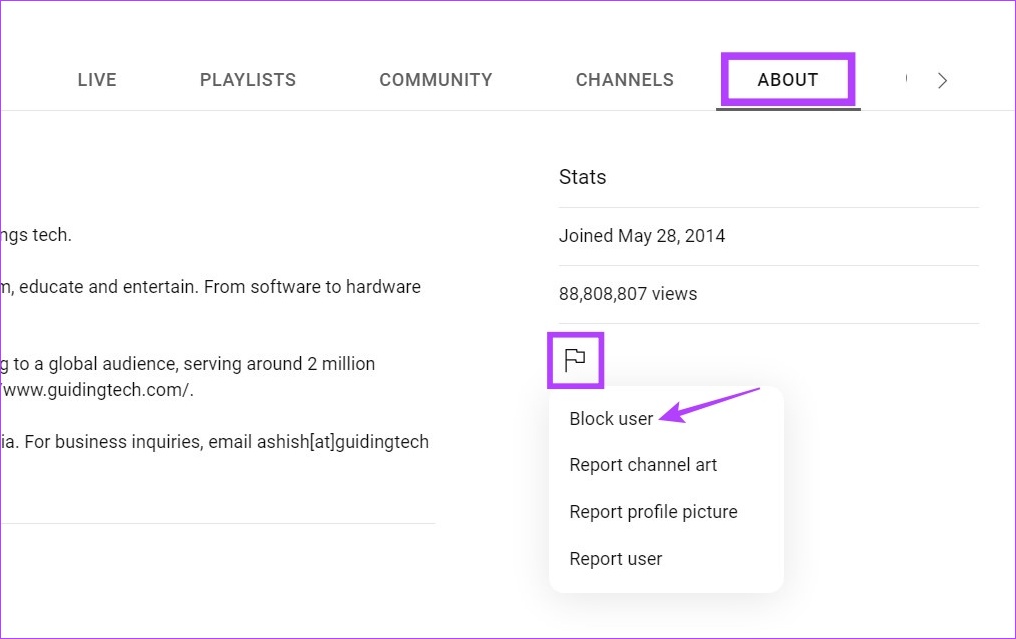
Step 3: Click Submit to confirm.

This will block the channel from appearing in your search results. Now, if you ever need to unblock the blocked channel, simply follow the above steps and after clicking the Flag icon, click on Unblock.
Mobile
Step 1: Open the YouTube mobile app and go to the channel that you want to block.
Step 2: Tap the three-dot icon in the top right corner and select Block. Then, choose Block again to confirm.
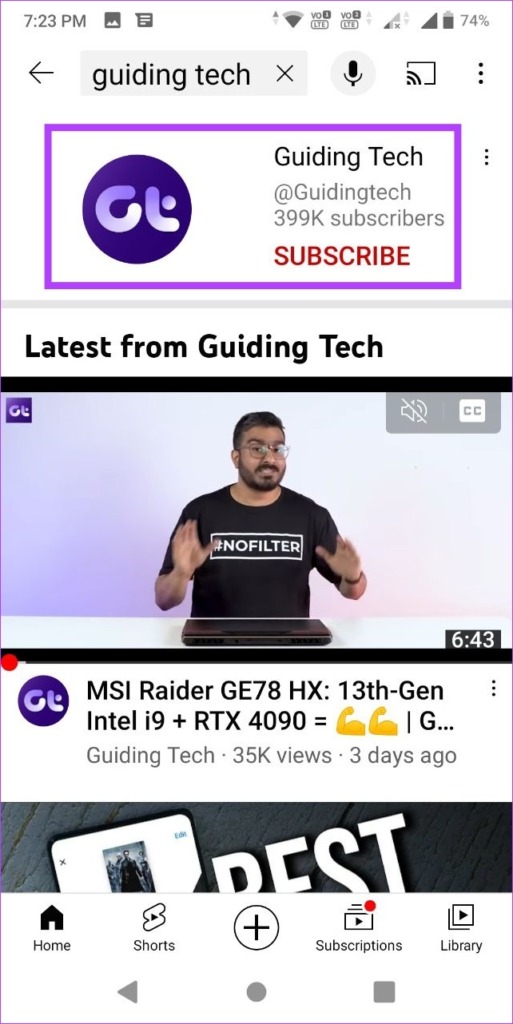


If you want to unblock a channel later, open it, tap the menu icon, and select Unblock. This will unblock the channel and allow them to leave comments on your videos again.
Was this helpful?
Last updated on 03 September, 2024
Read Next
 WhatsApp Channels vs Telegram Channels: Know the Differences
WhatsApp Channels vs Telegram Channels: Key Differences Feature WhatsApp Channels Telegram ChannelsEngagement and Interaction One-way broadcast One-way broadcastSix basic emojisOptional group linking for discussionsSubscribers vs.
WhatsApp Channels vs Telegram Channels: Know the Differences
WhatsApp Channels vs Telegram Channels: Key Differences Feature WhatsApp Channels Telegram ChannelsEngagement and Interaction One-way broadcast One-way broadcastSix basic emojisOptional group linking for discussionsSubscribers vs.
 10 Best Live YouTube Channels From Around The World
YouTube is the biggest and the most widely-used global video platform on the Internet.
10 Best Live YouTube Channels From Around The World
YouTube is the biggest and the most widely-used global video platform on the Internet.
 How to Unsubscribe From All YouTube Channels at Once
 Using Extension If you are using a browser with extension support, you can use the help of an extension to mass
How to Unsubscribe From All YouTube Channels at Once
How to Unsubscribe From All YouTube Channels at Once Using Extension If you are using a browser with extension support, you can use the help of an extension to mass
 How to Allow or Block Pop-ups in Chrome (Desktop and Mobile)
Enable or Disable Pop-up Blocker in Chrome for Desktop Enabling the pop-up blocker on Chrome ensures that Google screens every website you visit for pop-ups by default.
How to Allow or Block Pop-ups in Chrome (Desktop and Mobile)
Enable or Disable Pop-up Blocker in Chrome for Desktop Enabling the pop-up blocker on Chrome ensures that Google screens every website you visit for pop-ups by default.
 How to Delete YouTube Playlist on Desktop or Mobile
Are you thinking of decluttering your YouTube playlists but wondering how to proceed with it and its potential consequences?
How to Delete YouTube Playlist on Desktop or Mobile
Are you thinking of decluttering your YouTube playlists but wondering how to proceed with it and its potential consequences?
 How to Go Frame by Frame on YouTube on Desktop and Mobile
Ever found yourself engrossed in a YouTube video, wanting to catch every detail, every frame?
How to Go Frame by Frame on YouTube on Desktop and Mobile
Ever found yourself engrossed in a YouTube video, wanting to catch every detail, every frame?
 How to Search for Telegram Groups and Channels
How to Find and Join Public Telegram Groups and Channels Joining public groups or channels on Telegram is easy if you know the exact name or username.
How to Search for Telegram Groups and Channels
How to Find and Join Public Telegram Groups and Channels Joining public groups or channels on Telegram is easy if you know the exact name or username.
 What Are WhatsApp Channels and How to Access and Join Them
A lot of work goes into managing your followers across different social media platforms.
What Are WhatsApp Channels and How to Access and Join Them
A lot of work goes into managing your followers across different social media platforms.
The article above may contain affiliate links which help support Guiding Tech. The content remains unbiased and authentic and will never affect our editorial integrity.