How to Archive Amazon Orders on Your Phone
You must use the desktop version of the Amazon website on your mobile browser app to archive your orders.
Step 1: Open any browser on your phone. We will use Google Chrome for this guide. You can use a web browser of your choice.
Step 2: Open Amazon’s official website and log in to your account.
Step 3: Tap on the three dots at the top-right corner and select Desktop Site from the drop-down.
Step 4: Now, tap on Accounts & Lists and select Your Orders from the drop-down menu.


Step 5: Locate the order you want to archive and tap on Archive order.
Step 6: In the Archive this order prompt, select Archive order.
How to Hide Orders on Amazon Orders on Desktop
Step 1: Visit Amazon and log in to your account.
Step 2: Now, hover the cursor over Accounts & Lists at the top and select Your Orders from the menu.
Step 3: Scroll down to find the Archive order and click on it.
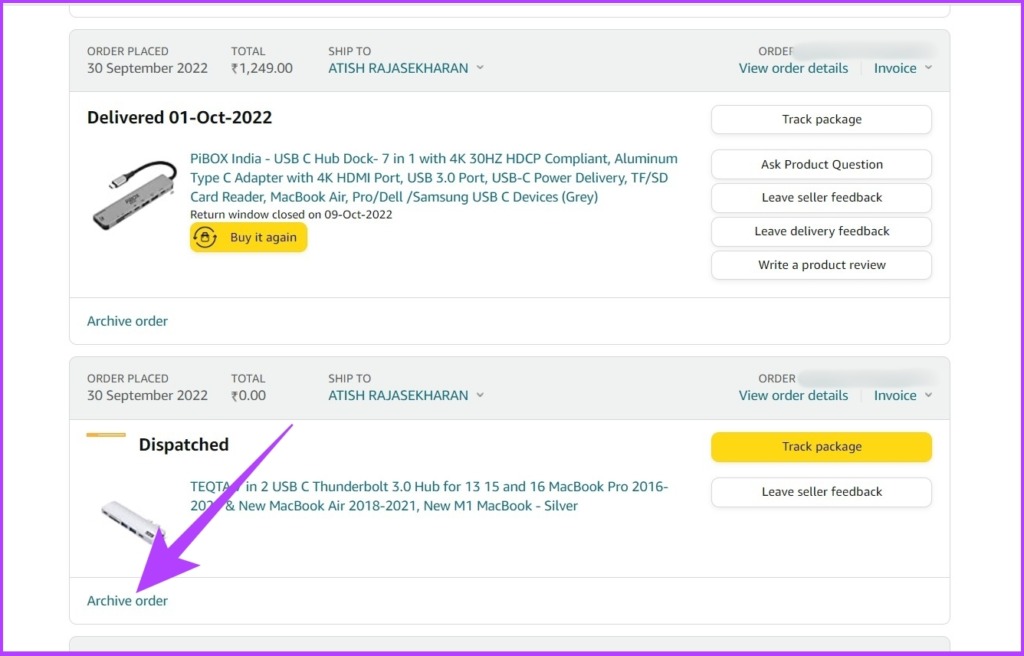
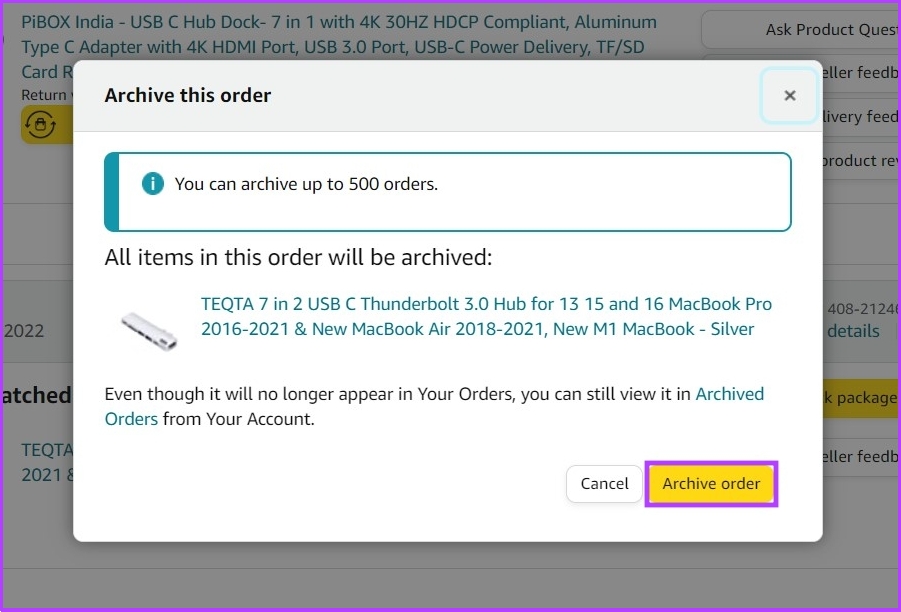
Step 4: Click on Archive order.
Tip: Learn how to find and download Amazon order history
How to Find Archived Orders on Amazon
Archiving an order doesn’t mean it will be deleted. Instead, it can be viewed in a different section. Here’s how to view archived orders on Amazon.
Step 1: Open any browser, visit Amazon’s official website, and log in.
Step 2: Hover the cursor over Accounts & Lists and select Your Orders from the drop-down menu.
Step 3: Tap the timeline drop-down, scroll down, and select Archived Orders.
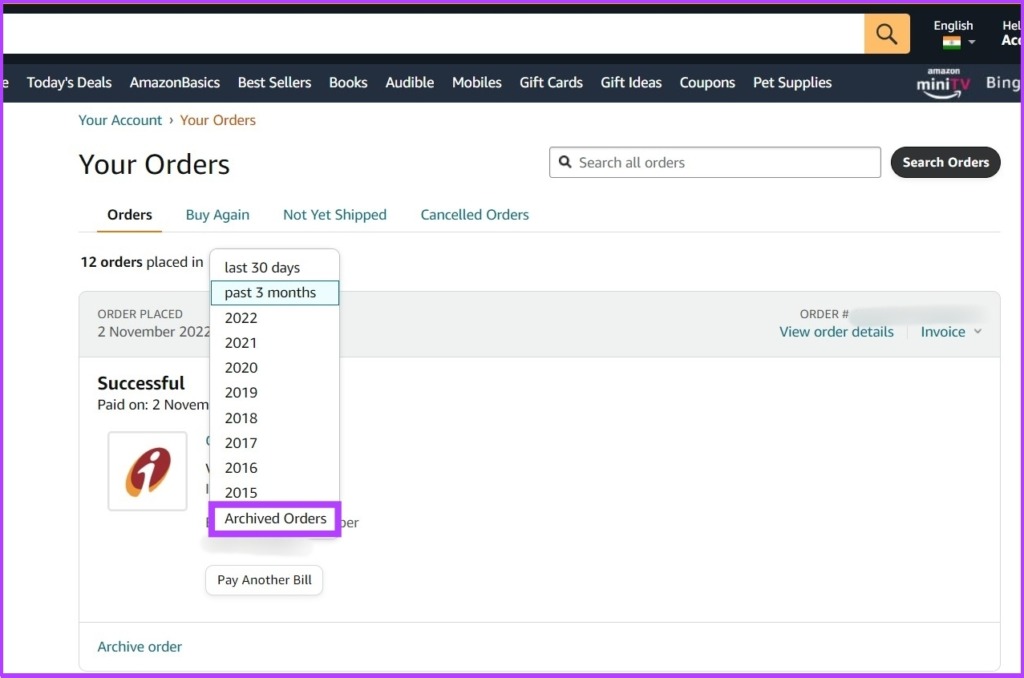
With this, you can view all your archived orders.
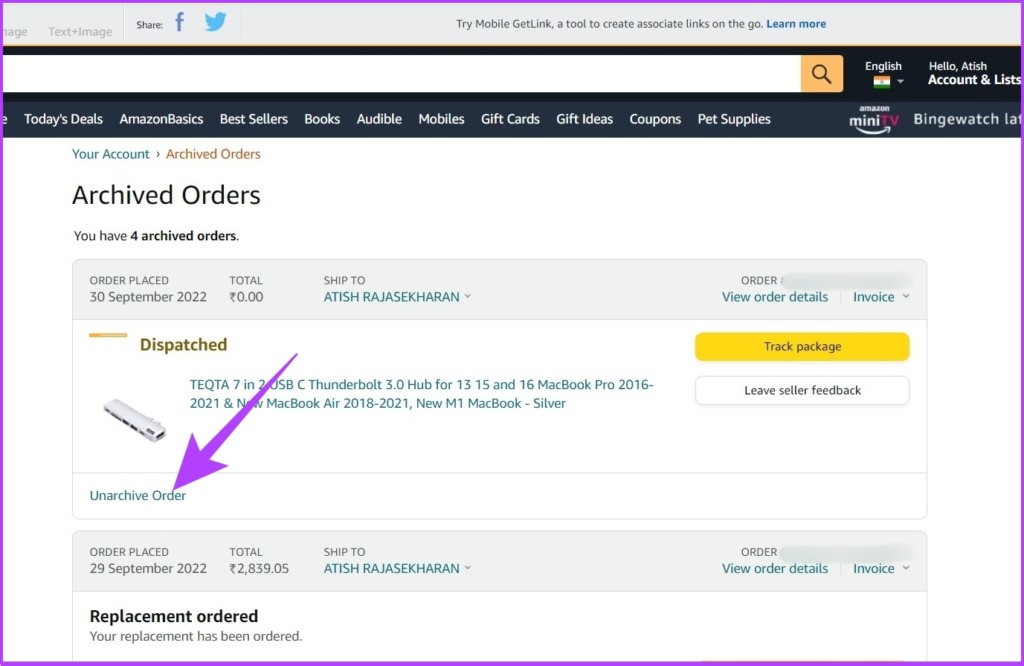
If you want to unarchive an order from the lists, click on Unarchive Order. The order will move back to the default Orders section.
Tip: Refer to our post if the Amazon app is not working on your phone.
Was this helpful?
Last updated on 06 June, 2024
Read Next
 What is Archive in WhatsApp and What Happens When You Archive a Chat
What is Archive in WhatsApp Archive is a chat organization and privacy feature that lets you hide WhatsApp chats from the main list (chats tab).
What is Archive in WhatsApp and What Happens When You Archive a Chat
What is Archive in WhatsApp Archive is a chat organization and privacy feature that lets you hide WhatsApp chats from the main list (chats tab).
 Facebook Messenger Delete vs Archive: Which One to Use
While technology helps us in different ways, it’s also getting confusing.
Facebook Messenger Delete vs Archive: Which One to Use
While technology helps us in different ways, it’s also getting confusing.
 Facebook Story Archive: How to Enable, View, Delete and Reuse
How to View Archived Story on FaceBook Once a Story has been active for more than 24 hours, it disappears but may be found in the Story Archive.
Facebook Story Archive: How to Enable, View, Delete and Reuse
How to View Archived Story on FaceBook Once a Story has been active for more than 24 hours, it disappears but may be found in the Story Archive.
 How to Archive or Unarchive Emails in Gmail
What Does Archive in Gmail Mean?
How to Archive or Unarchive Emails in Gmail
What Does Archive in Gmail Mean?
 How to Archive or Unarchive Messages in Messenger
What Happens When You Archive a Chat in Messenger?
How to Archive or Unarchive Messages in Messenger
What Happens When You Archive a Chat in Messenger?
 How to Archive or Delete a Class in Google Classroom
How to Archive a Class in Google Classroom Archiving a class in Google Classroom can help you remove the class from your Classes dashboard while still having access to all
How to Archive or Delete a Class in Google Classroom
How to Archive a Class in Google Classroom Archiving a class in Google Classroom can help you remove the class from your Classes dashboard while still having access to all
 WhatsApp Mute vs. Archive: Understand the Differences
What Is Mute on WhatsApp Muting someone on WhatsApp stops message notifications from them.
WhatsApp Mute vs. Archive: Understand the Differences
What Is Mute on WhatsApp Muting someone on WhatsApp stops message notifications from them.
 What Happens When You Archive a Post on Instagram?
What Happens When You Archive Instagram Post?
What Happens When You Archive a Post on Instagram?
What Happens When You Archive Instagram Post?
The article above may contain affiliate links which help support Guiding Tech. The content remains unbiased and authentic and will never affect our editorial integrity.