Method 1: Use the Dark Mode – Night Eye Browser Extension (Desktop)
The Dark Mode – Night Eye browser extension offers a promising way to get dark mode in Google Sheets, ensuring optimal readability and reducing eye strain while working from your desktop.
Step 1: Open the Dark Mode – Night Eye extension in the Chrome Web Store, and click Add to Chrome.

Step 2: Select Add extension when prompted to add it to your browser. The extension should automatically enforce dark mode on all websites (including Google Sheets).

Step 3: If the extension doesn’t apply the dark theme automatically in Google Sheets, click the Extensions button in the toolbar, and select Dark Mode – Night Eye.

Step 4: Select Dark to get the dark mode in Google Sheets.

Method 2: Enable Dark Mode in Google Sheets (Phone)
Besides extensions, the Google Sheets app on your phone has a built-in dark mode to help reduce eye strain when working in low-light environments. Here’s how to enable it:
Step 1: Open the Google Sheets app, tap the Hamburger menu at the top left, and select Settings.


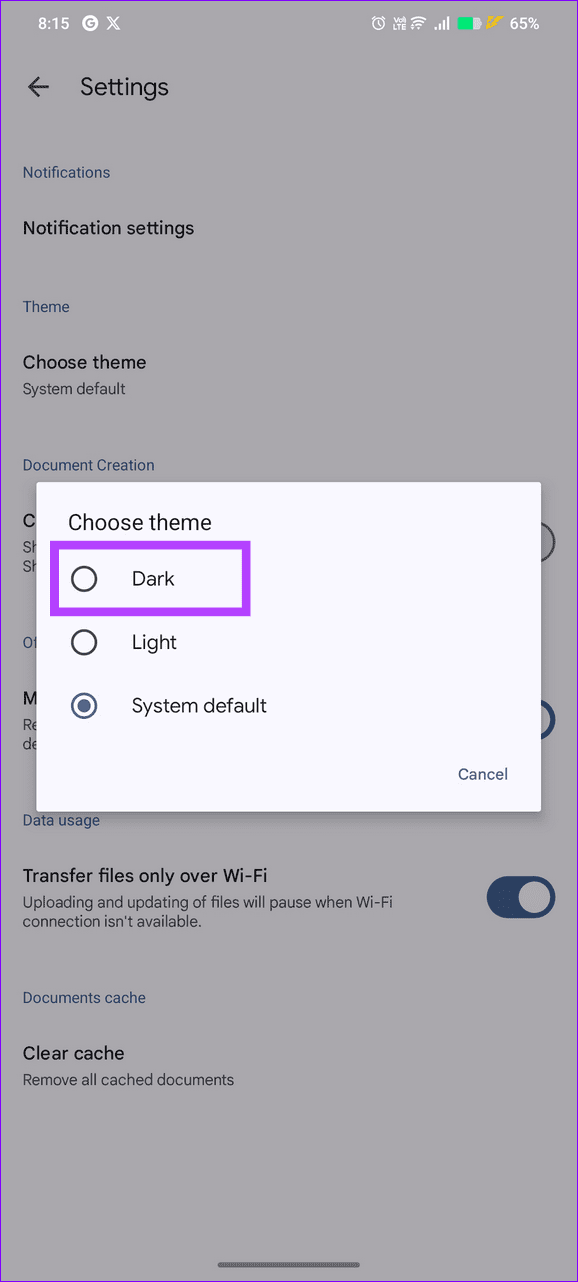
Step 2: Select Choose theme (Theme on iOS), and pick Dark.

Method 3: Turn on System-Wide Dark Mode (Phone)
If enabling the dark mode in the Google Sheets app doesn’t work, turn on the system-wide dark theme and reopen Google Sheets.
On Android: Open the Settings app, select Display and brightness, and turn on Dark theme.


On iOS: Open iPhone Settings, select Display & Brightness, and tap Dark under ‘Appearance’ to enable system-wide dark mode.


If the dark mode doesn’t kick in automatically on Google Sheets after enabling the system-wide dark theme, open Google Sheets Settings, select Choose theme, and set it to System default.


Was this helpful?
Last updated on 07 August, 2024
Read Next
 2 Best Ways to Import Questions Into Google Forms From Google Sheets
Typically, when you create a Google Form, you need to perform several steps.
2 Best Ways to Import Questions Into Google Forms From Google Sheets
Typically, when you create a Google Form, you need to perform several steps.
 How to Insert a Date Picker in Google Sheets and Google Docs
Google Sheets and Google Docs provide a free, online alternative to Microsoft Office, along with unique features.
How to Insert a Date Picker in Google Sheets and Google Docs
Google Sheets and Google Docs provide a free, online alternative to Microsoft Office, along with unique features.
 How to Disable Dark Mode in Windows 10, macOS, Android, and iOS
Disable Dark Mode in Windows 11 The system-level color scheme is customizable so that it can display darker tones on menus and backgrounds, making it easier on your eyes.
How to Disable Dark Mode in Windows 10, macOS, Android, and iOS
Disable Dark Mode in Windows 11 The system-level color scheme is customizable so that it can display darker tones on menus and backgrounds, making it easier on your eyes.
 How to Enable Dark Mode in Microsoft Edge on Desktop and Mobile
How to Enable Dark Mode in Microsoft Edge on Desktop There are multiple ways to enable dark mode in Microsoft Edge.
How to Enable Dark Mode in Microsoft Edge on Desktop and Mobile
How to Enable Dark Mode in Microsoft Edge on Desktop There are multiple ways to enable dark mode in Microsoft Edge.
 How to Enable OneNote Dark Mode on Any Device
How to Change OneNote to Dark Mode in the Windows App To turn on Dark Mode on the OneNote Windows app, go to the account settings and change the app's
How to Enable OneNote Dark Mode on Any Device
How to Change OneNote to Dark Mode in the Windows App To turn on Dark Mode on the OneNote Windows app, go to the account settings and change the app's
 3 Fixes for Google Sheets Not Loading in Chrome
Basic Fixes: Restart Chrome: In some cases, a simple restart should fix the issue.
3 Fixes for Google Sheets Not Loading in Chrome
Basic Fixes: Restart Chrome: In some cases, a simple restart should fix the issue.
 How to See Edit History in Google Sheets
How to View Google Sheets Version History Step 1: In the second toolbar above the spreadsheet, click on the clock icon at the top right section.
How to See Edit History in Google Sheets
How to View Google Sheets Version History Step 1: In the second toolbar above the spreadsheet, click on the clock icon at the top right section.
 How to Add and Customize a Trendline on a Chart in Google Sheets
How to Add a Trendlline in Google Sheets The purpose of a trendline is to highlight the patterns in data.
How to Add and Customize a Trendline on a Chart in Google Sheets
How to Add a Trendlline in Google Sheets The purpose of a trendline is to highlight the patterns in data.
The article above may contain affiliate links which help support Guiding Tech. The content remains unbiased and authentic and will never affect our editorial integrity.