Basic Fixes
- Switch to 5GHz Wi-Fi: If you have a dual-band router, try switching to a 5GHz frequency band to get faster internet speeds.
- Force quit and relaunch Telegram: This will give the app a fresh start on your Mac or Windows PC.
- Update Telegram app: Install the latest version of the desktop app from the Mac App Store or Microsoft Store.
Fix 1: Check Microphone and Camera Settings
Next, look at the call settings in the Telegram Desktop app on your Mac or Windows PC. If your internet connection is strong and stable, there may be issues with your Mac’s Microphone or Webcam settings. Here’s how to check them.
Step 1: Open Telegram on your Mac or Windows PC.
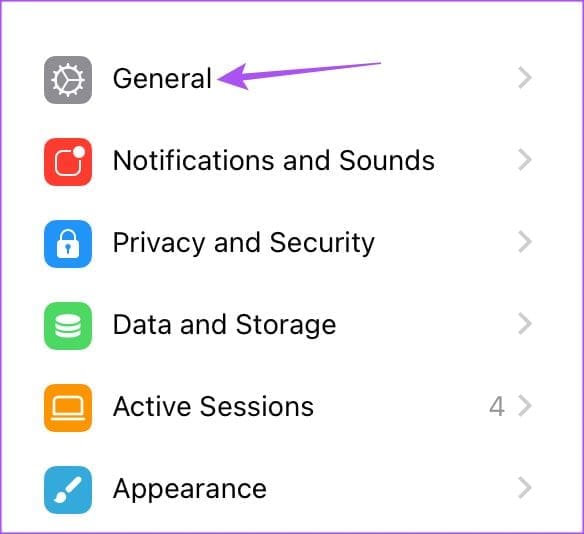
Step 2: Go to Settings and click on General.
Step 3: Select Call Settings.
Step 4: Under Camera, click on Default and ensure to select default webcam.

Step 5: Under Microphone, click on Default and check your audio source.

Fix 2: Check if Your Contact Has Allowed Video Calls
If you still can’t make Telegram video calls on your Mac, your contact may have restricted video calls from you and other contacts. Telegram allows you to restrict voice calls and voice messages as a part of its privacy settings.
Step 1: Open Telegram on your Mac or Windows PC > go to Settings.
Step 2: Click on Privacy and Security from the Settings menu.

Step 3: Under Privacy, click on Calls. Then, check whether you have allowed video calls from your contact.
Step 4: To remove a contact’s video call restriction, click on Never Allow under Who Can Call Me.

Step 5: Click on Edit > minus icon next to the contact name.

Step 6: Click on Done to confirm.
Fix 3: Run Windows Store App Troubleshooter
Running the Windows Store Apps troubleshooter on Windows 11 effectively solves issues with Telegram Desktop and other installed applications. It is a built-in tool for checking and fixing such issues with apps downloaded from the Microsoft Store.
Step 1: Open Settings > System > select Troubleshoot.
Step 2: Select Other Troubleshooter.
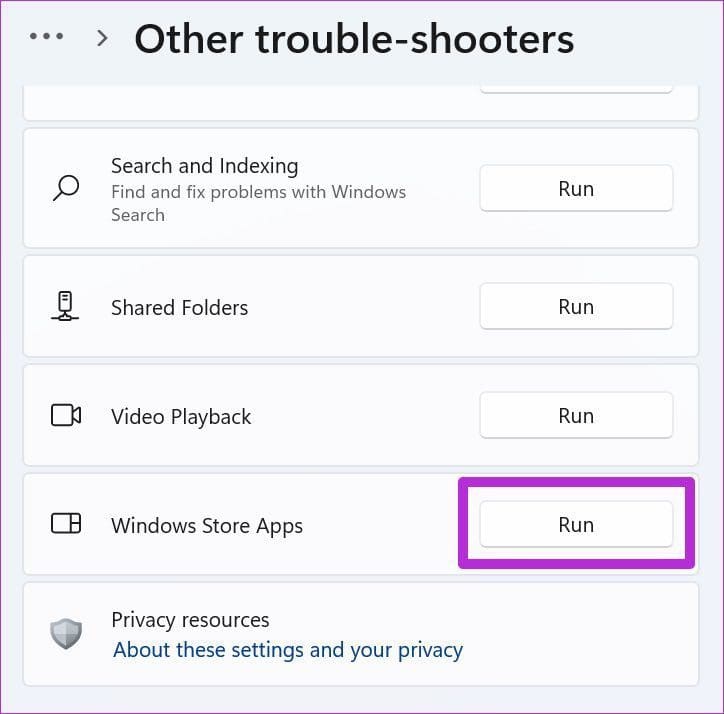
Step 3: Scroll down, click Run beside the Windows Store Apps troubleshooter, and wait a few seconds to let it resolve the problem.
Relaunch Telegram to check if the problem is solved.
Refer to our post if you see an Error Occurred While Loading the Troubleshooter on Windows 11.
Fix 4: Disable Low Data Mode or Metered Connection Over Wi-Fi
On Mac, you can disable the Low Data Mode (Mac) or Metered Connection (Windows 11) for your connected Wi-Fi network.
On Mac
Open Settings > Wi-Fi > click on Details next to your connected Wi-Fi network > disable Low Data Mode > click on OK.

On Windows 11
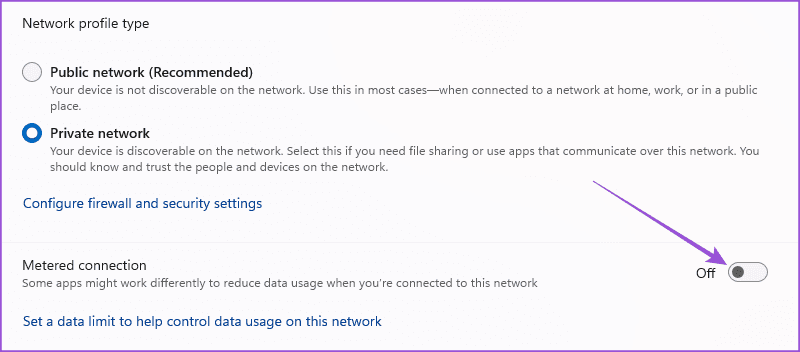
Open Settings > Network and internet > Wi-Fi > turn off Metered connection.
Fix 5: Repair and Reset Telegram App (Windows)
Another built-in tool to repair apps that can be used when such issues occur on your Windows 11 PC.
Step 1: Search Installed apps in the Windows search menu and click the associated system setting.
Step 2: Locate Telegram Desktop > click its three-dot menu > select Advanced options.
Step 3: Scroll down and click Repair. If repairing doesn’t solve the issue, click Reset and follow the on-screen instructions.

Note: Resetting the Telegram Desktop app will clear all its data.
Was this helpful?
Last updated on 18 July, 2024
Read Next
 How to Make Group Video Calls on Telegram
Make a Group Video Calls on Telegram on Android & iOS Step 1: Open your Telegram Android app's existing group.
How to Make Group Video Calls on Telegram
Make a Group Video Calls on Telegram on Android & iOS Step 1: Open your Telegram Android app's existing group.
 How to Send a Video Message (Bubble) on Telegram
Record and Send Telegram Video Messages on iPhone and Android A Video Message on Telegram is an alternative to sending a voice message to your contact.
How to Send a Video Message (Bubble) on Telegram
Record and Send Telegram Video Messages on iPhone and Android A Video Message on Telegram is an alternative to sending a voice message to your contact.
 How to Send High Quality Photos and Video on Telegram
Send High-Quality Photos and Videos on Telegram on Mobile Let us show you the steps to send photos and videos without losing quality on your iPhone and Android using Telegram.
How to Send High Quality Photos and Video on Telegram
Send High-Quality Photos and Videos on Telegram on Mobile Let us show you the steps to send photos and videos without losing quality on your iPhone and Android using Telegram.
 6 Ways to Fix Telegram Calls Not Ringing on iPhone
Basic Fixes: Allow anyone to call you: Telegram offers excellent privacy and security options.
6 Ways to Fix Telegram Calls Not Ringing on iPhone
Basic Fixes: Allow anyone to call you: Telegram offers excellent privacy and security options.
 3 Ways to Fix Telegram Calls Not Switching to Speaker on iPhone
Common Fixes Check volume levels - Go to Settings > Sounds & Haptics and maximize the Ringtone and Alerts volume slider.
3 Ways to Fix Telegram Calls Not Switching to Speaker on iPhone
Common Fixes Check volume levels - Go to Settings > Sounds & Haptics and maximize the Ringtone and Alerts volume slider.
 How to Fix Messenger Video Calls Not Working on Windows 11
Basic Fixes Login again to your Messenger account: The very first thing you should do is to log out and then back into your Messenger account.
How to Fix Messenger Video Calls Not Working on Windows 11
Basic Fixes Login again to your Messenger account: The very first thing you should do is to log out and then back into your Messenger account.
 4 Fixes for Telegram Calls Not Connecting on Android and iPhone
Basic Fixes Blocked by recipient: You might have been blocked by the contact on Telegram.
4 Fixes for Telegram Calls Not Connecting on Android and iPhone
Basic Fixes Blocked by recipient: You might have been blocked by the contact on Telegram.
 2 Ways to Fix WhatsApp Calls Not Working on Mac
Basic Fixes Check your internet speed: WhatsApp calls need a stable internet connection.
2 Ways to Fix WhatsApp Calls Not Working on Mac
Basic Fixes Check your internet speed: WhatsApp calls need a stable internet connection.
The article above may contain affiliate links which help support Guiding Tech. The content remains unbiased and authentic and will never affect our editorial integrity.