Basic Fixes
- Check account restrictions: The Restricted Mode might have been enabled by admin or parent account. Further, if your Google account is connected to the Family Link app, your parent can enable Restricted mode for your account.
- Check network restrictions: Open Content Restrictions and then you will be notified about the restrictions. You might see the Restricted mode button at the bottom of the page. Click on it to unlock Restricted mode.
- Force quit and relaunch YouTube app: This will give the app a fresh start on your mobile or desktop.
- Update YouTube app version: Install the latest app version on your device to get rid of bugs or glitches that might be causing the issue.
Fix 1: Follow the Correct Steps to Disable Restrict Mode
Whenever some users play a video, they are bombarded with an error message saying, This video is unavailable with Restricted mode enabled. To view this video, you will need to disable Restricted mode.
On Desktop
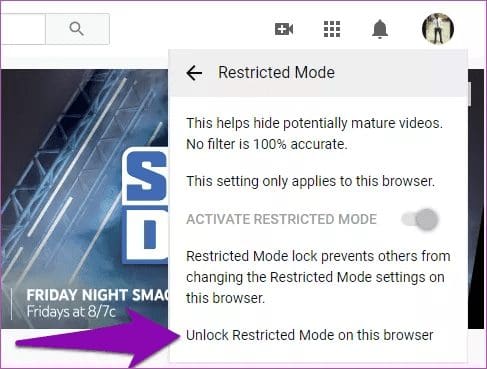
Step 1: Go to YouTube > Sign in to your account > Account icon > Restricted Mode.

Step 2: Disable the toggle next to Activate Restricted mode.
In case the Activate Restricted mode is greyed out, click on Unlock Restricted mode on this browser option present below the same setting. You will need to enter your Google account password. Enter the password. Reload your browser. If that doesn’t happen, you will need to disable the toggle next to Activate Restricted mode.
On Mobile
On the YouTube Android app > Tap on the account icon > Go to Settings > General > Turn off the toggle for Restricted mode.
On iPhone and iPad too, tap the Profile icon > Go to Settings > Turn off the toggle next to Restricted mode.
Fix 2: Clear YouTube Browser and App Cache
Several YouTube users were able to disable Restricted mode by clearing their browser’s cache and cookies. We have mentioned the steps for the Chrome browser, but the steps would be almost similar for the other browsers.
On Desktop
Check out our post to learn how to clear YouTube cache on Chrome browser.
On Safari, go to Settings > Privacy > Manage Website Data > Search for YouTube > Click on Remove Selected.

On Mobile
On Android, open YouTube app info > Storage and cache > Clear cache.


On iPhone, simply uninstall and reinstall the YouTube app.
Fix 3: Log out From Google Account
If you are unable to disable Restricted mode on your computer, you should try logging out from your Google account. For that, open YouTube.com > click on the account icon at the top > Click on Sign out.

After signing out, close the browser and log in again. Now you should be able to turn off Restricted mode on YouTube.
On mobile, you need to remove your Google account altogether and then sign in again.
Tip: You can try logging out from your Google account on mobile as well. However, read our post on what happens when you remove your Google account from your phone before you do that. The post also mentions the steps for both Android and iPhone.
Was this helpful?
Last updated on 26 July, 2024
Read Next
 Why Is My Facebook Account Restricted and How to Fix It
What Facebook Account Restriction There are two types of restrictions on Facebook.
Why Is My Facebook Account Restricted and How to Fix It
What Facebook Account Restriction There are two types of restrictions on Facebook.
 How to Know if Someone Restricted You on Facebook Messenger
What Does Restrict Mean on Facebook Messenger?
How to Know if Someone Restricted You on Facebook Messenger
What Does Restrict Mean on Facebook Messenger?
 4 Cool Sites to Watch YouTube Videos Without YouTube
1.
4 Cool Sites to Watch YouTube Videos Without YouTube
1.
 4 Ways to Fix Cast Button Missing on YouTube
Basic Fixes Connect devices to the same Wi-Fi network: Ensure your computer or smartphone is connected to the same Wi-Fi network as the cast device (e.g.
4 Ways to Fix Cast Button Missing on YouTube
Basic Fixes Connect devices to the same Wi-Fi network: Ensure your computer or smartphone is connected to the same Wi-Fi network as the cast device (e.g.
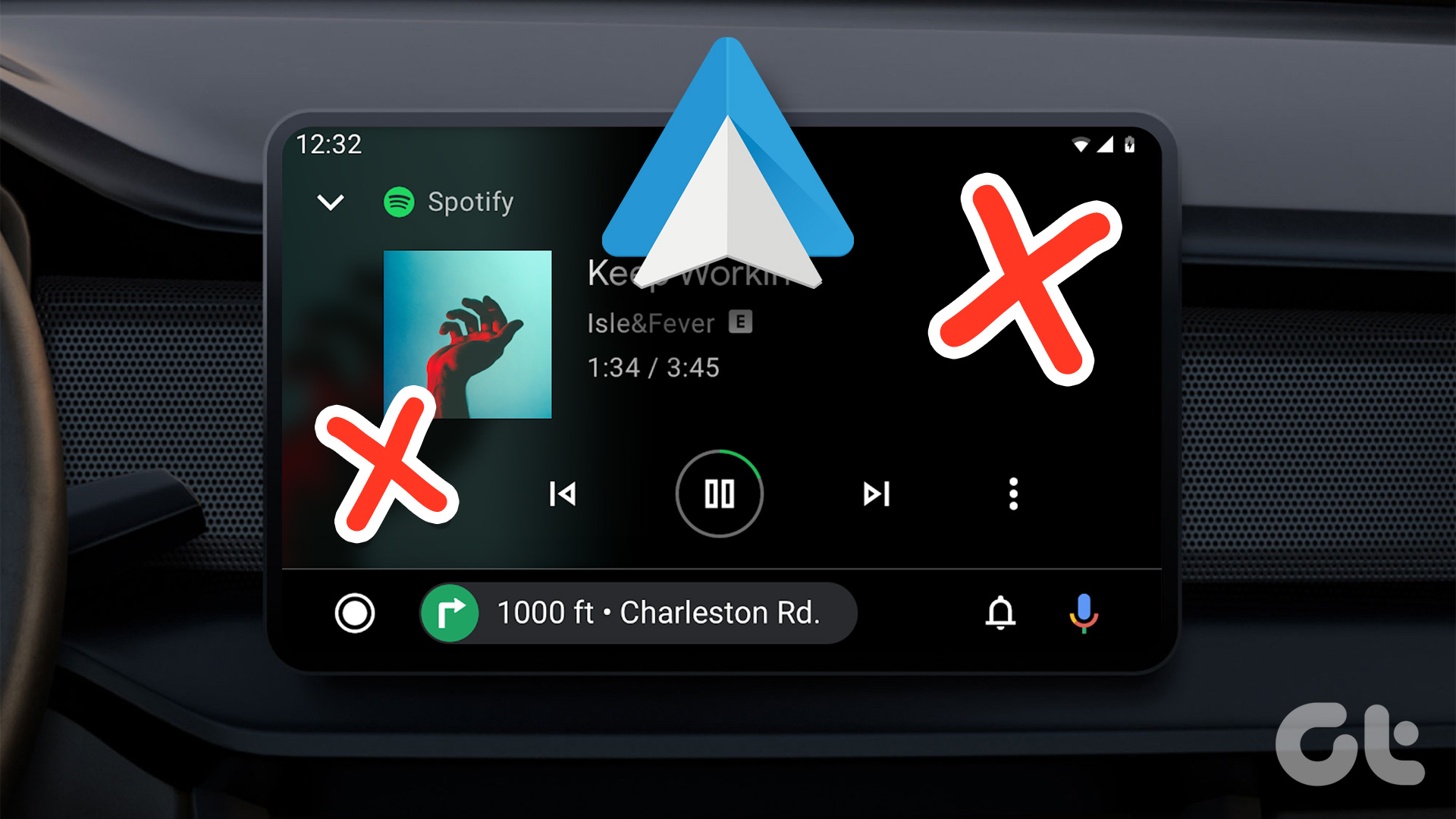 4 Fixes for Android Auto Not Playing Music From Spotify or YouTube Music
Fix 1: Change the Default Music Streaming Service Say you have a Spotify subscription.
4 Fixes for Android Auto Not Playing Music From Spotify or YouTube Music
Fix 1: Change the Default Music Streaming Service Say you have a Spotify subscription.
 3 Fixes for YouTube Premium Not Downloading Videos Offline
Basic Fixes Check Internet Connectivity: Ensure your device is connected to a Wi-Fi network or cellular data with good signal strength and an active plan.
3 Fixes for YouTube Premium Not Downloading Videos Offline
Basic Fixes Check Internet Connectivity: Ensure your device is connected to a Wi-Fi network or cellular data with good signal strength and an active plan.
 5 Fixes for Closed Captions Not Working on YouTube
Fix 1: Check Captions Font and Style Settings YouTube provides several options for customizing caption colors, styles, sizes, and more.
5 Fixes for Closed Captions Not Working on YouTube
Fix 1: Check Captions Font and Style Settings YouTube provides several options for customizing caption colors, styles, sizes, and more.
 3 Fixes for Can’t Post Comments on YouTube Videos and Shorts
Try Basic Fixes The creator may have blocked your account: YouTube gives creators the option to block specific users from commenting on their videos.
3 Fixes for Can’t Post Comments on YouTube Videos and Shorts
Try Basic Fixes The creator may have blocked your account: YouTube gives creators the option to block specific users from commenting on their videos.
The article above may contain affiliate links which help support Guiding Tech. The content remains unbiased and authentic and will never affect our editorial integrity.