Basic Fixes
- Check your internet connection: YouTube lets you watch 4K content in Dolby Vision and HDR. Though the platform’s compression algorithm is great, you must ensure a good internet connection
- Use HDMI 2.0 cable: To stream content in 4K resolution, you must have an HDMI 2.1 cable that offers a higher bandwidth of 18Gbps and a peak resolution of 3840 × 2160p @60fps (4K@60fps).
- Update YouTube: Install the latest version of the YouTube app on your Apple TV 4K.
- Update the tvOS version: Open Settings > System > Software Updates > Update Software.
Fix 1: Check Video Quality Settings
While watching a video, YouTube can automatically improve the video resolution and bump it up to 2160p Ultra HD 4K. But if that is still not happening on your Apple TV 4K, check and manually switch to 4K resolution to watch your selected video. Here’s how.
Step 1: Open YouTube on your Apple TV 4K.
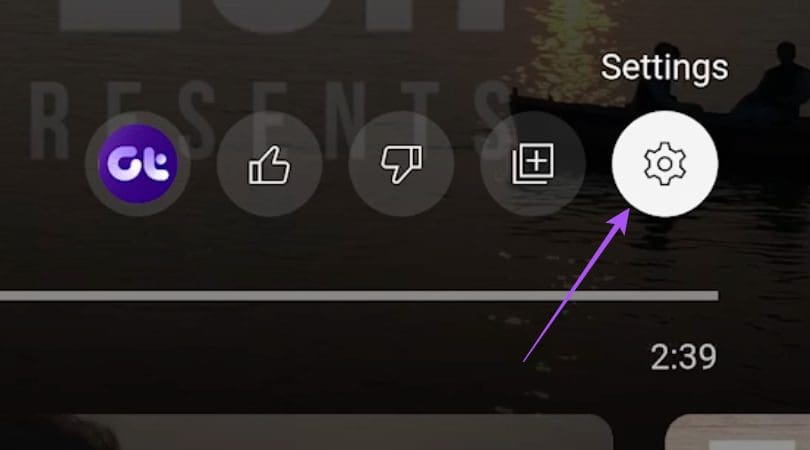
Step 2: Play a video. Then, select the Settings icon on the right side.
Step 3: Select Quality.
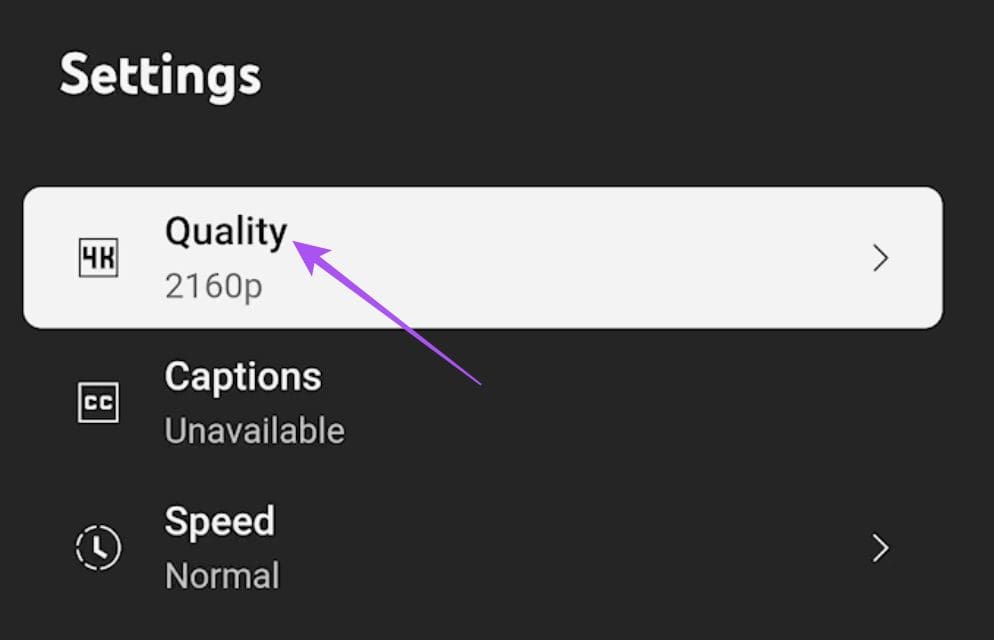
Step 4: Instead of Auto, select 2160p. The video should now start playing in 4K resolution.
Fix 2: Disable Match Content and Frame Rate
Many users complain that their TV screen goes black for the first five seconds of playing a YouTube video. This might happen due to the Match Content and Frame Rate settings being enabled for your TV. This can further impact the improvement of video quality on YouTube. So, we suggest disabling Match Content and Frame Rate to check if that solves the issue.
Step 1: Open Settings on your Apple TV 4K.
Step 2: Scroll down and select Video and Audio.

Step 3: Select Match Content.
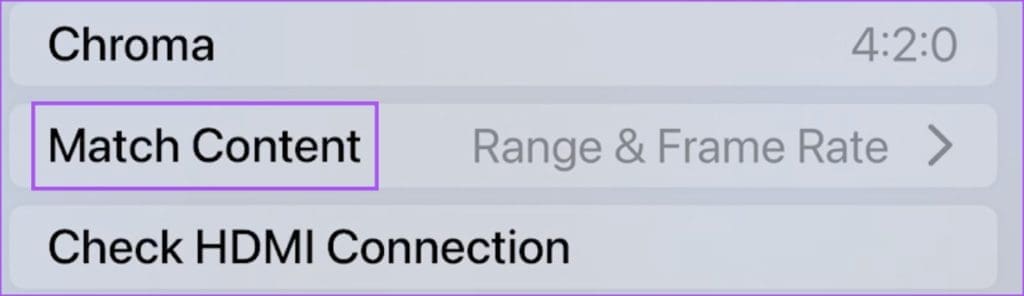
Step 4: Turn off the option for Match Dynamic Range.
Note: You can keep Match Frame Rate enabled to watch YouTube content that is available at high-frame rates.
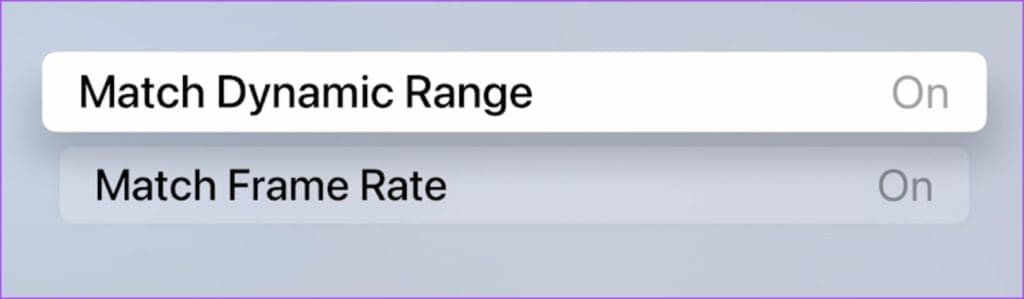
Step 5: Close Settings and open YouTube to check if the problem is solved.
Fix 3: Reset Apple TV 4K
This will remove all your content and preferences from Apple TV 4K. You can reinstall YouTube after setting up your Apple TV 4K to see if the problem is solved.
Open Settings > System > Reset > follow the on-screen instructions.

Was this helpful?
Last updated on 02 July, 2024
Read Next
 3 Fixes for Google TV Not Playing 4K Videos
Basic Fixes Ensure your TV supports 4K resolution: This is the first and most obvious solution you must consider.
3 Fixes for Google TV Not Playing 4K Videos
Basic Fixes Ensure your TV supports 4K resolution: This is the first and most obvious solution you must consider.
 4 Ways to Fix YouTube Not Playing Videos on PC
Basic Fixes Check your network connection: Ensure your device has a good internet connection.
4 Ways to Fix YouTube Not Playing Videos on PC
Basic Fixes Check your network connection: Ensure your device has a good internet connection.
 4 Fixes for Google Drive Videos Not Playing or Processing Error
Basic Fixes File size is too large: Google Drive supports up to 5TB file size.
4 Fixes for Google Drive Videos Not Playing or Processing Error
Basic Fixes File size is too large: Google Drive supports up to 5TB file size.
 5 Fixes When Videos Are Not Playing on Firefox
Basic Fixes: Try Incognito mode: Open the website you're trying to access in an incognito window.
5 Fixes When Videos Are Not Playing on Firefox
Basic Fixes: Try Incognito mode: Open the website you're trying to access in an incognito window.
 4 Fixes When Videos in PowerPoint Are Not Playing
Basic Fixes: Confirm if the video plays outside PowerPoint: You want to ensure the video file isn't corrupt.
4 Fixes When Videos in PowerPoint Are Not Playing
Basic Fixes: Confirm if the video plays outside PowerPoint: You want to ensure the video file isn't corrupt.
 5 Fixes for X (Twitter) Videos Not Playing on iPhone and Android
Basic Fixes Check network connection: If there's a problem with your Wi-Fi or cellular connection, X may be unable to play the video.
5 Fixes for X (Twitter) Videos Not Playing on iPhone and Android
Basic Fixes Check network connection: If there's a problem with your Wi-Fi or cellular connection, X may be unable to play the video.
 3 Fixes for HDR Videos Not Playing on Instagram
Basic Fixes Check internet connection: Ensure that you have a stable internet connection on your device.
3 Fixes for HDR Videos Not Playing on Instagram
Basic Fixes Check internet connection: Ensure that you have a stable internet connection on your device.
 4 Fixes for Android Auto Not Playing Music From Spotify or YouTube Music
Fix 1: Change the Default Music Streaming Service Say you have a Spotify subscription.
4 Fixes for Android Auto Not Playing Music From Spotify or YouTube Music
Fix 1: Change the Default Music Streaming Service Say you have a Spotify subscription.
The article above may contain affiliate links which help support Guiding Tech. The content remains unbiased and authentic and will never affect our editorial integrity.