

Basic Fixes
- Check Internet Connectivity: Ensure your device is connected to a Wi-Fi network or cellular data with good signal strength and an active plan.
- Update YouTube Music: Update the YouTube Music app from the Play Store or App Store for a bug-free experience.
- Reinstall YouTube Music: If you face persistent issues with background playback, it may occur due to a few corrupted files, and reinstalling the app will help you fix it.
Fix 1: Buy YouTube Premium
You can’t play music in the background unless you purchase YouTube Music or YouTube Premium membership. Using the Premium Version of YouTube also provides you access to all features of YouTube Music.
Fix 2: Check Background App Permissions for YouTube Music
Playing music without using YouTube Music is a background operation. Therefore, if you have disabled YouTube Music to run in the background, you can’t play music without opening the app.
Enable autostart for YouTube Music in the background on Android devices and Background App Refresh for YouTube Music on iPhone.
On Android
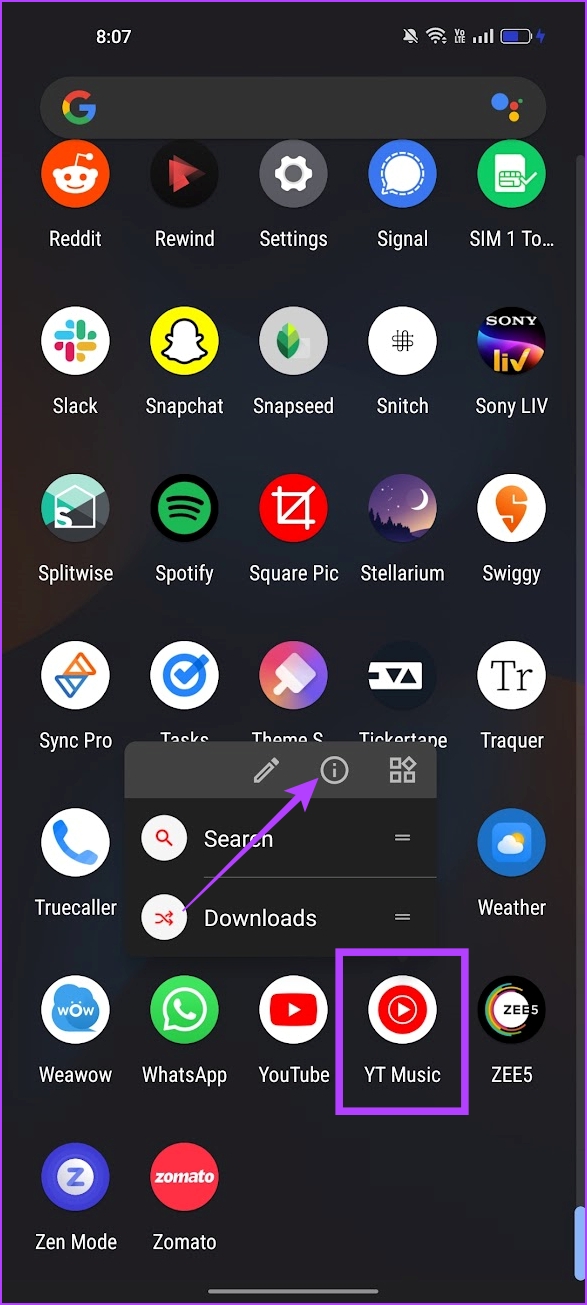
Step 1: Tap and hold the YouTube Music app in the app launcher and tap on App Info.
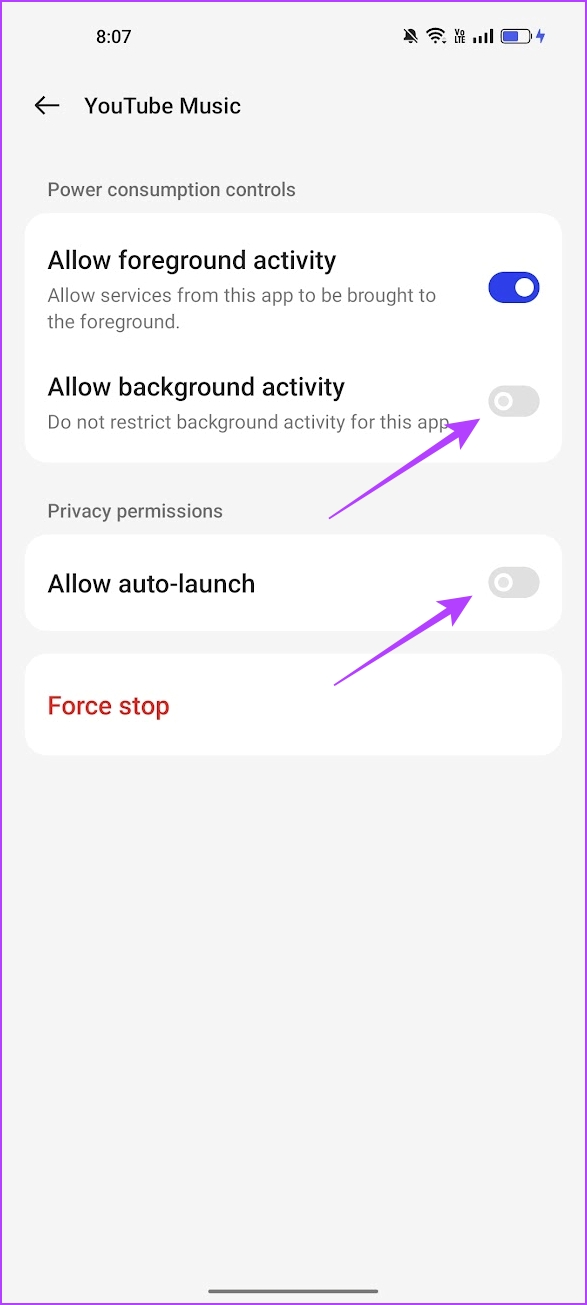
Step 2: Tap on Battery Usage.
Step 3: Turn on Allow Background Activity and Allow auto-launch.

On iPhone
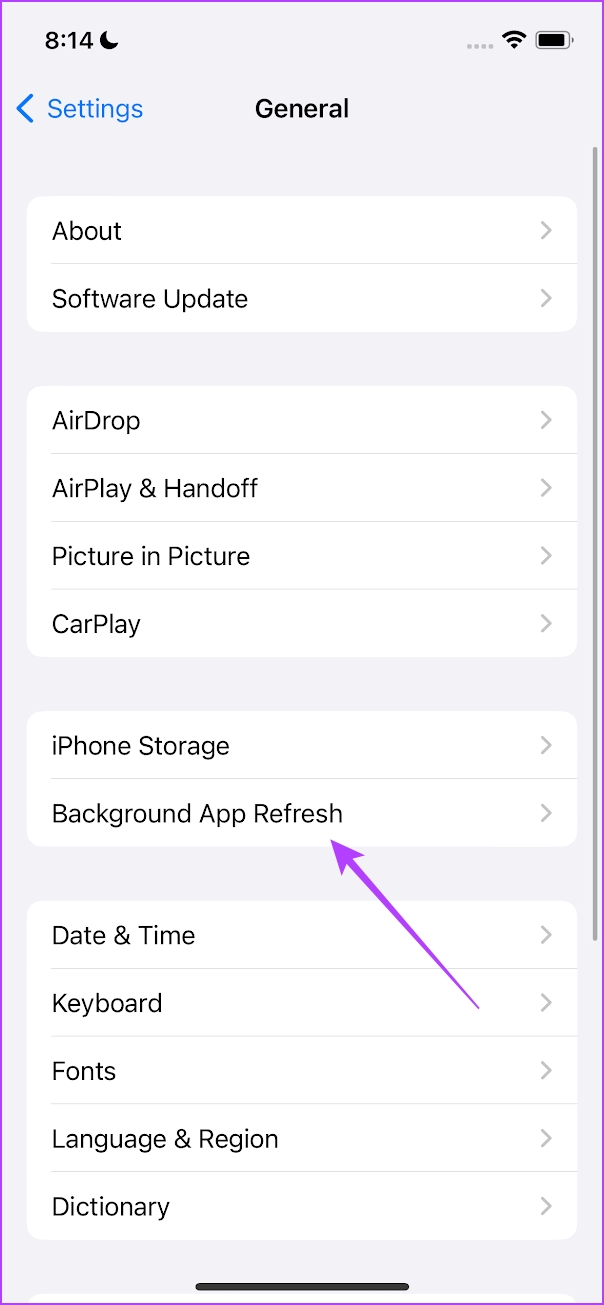
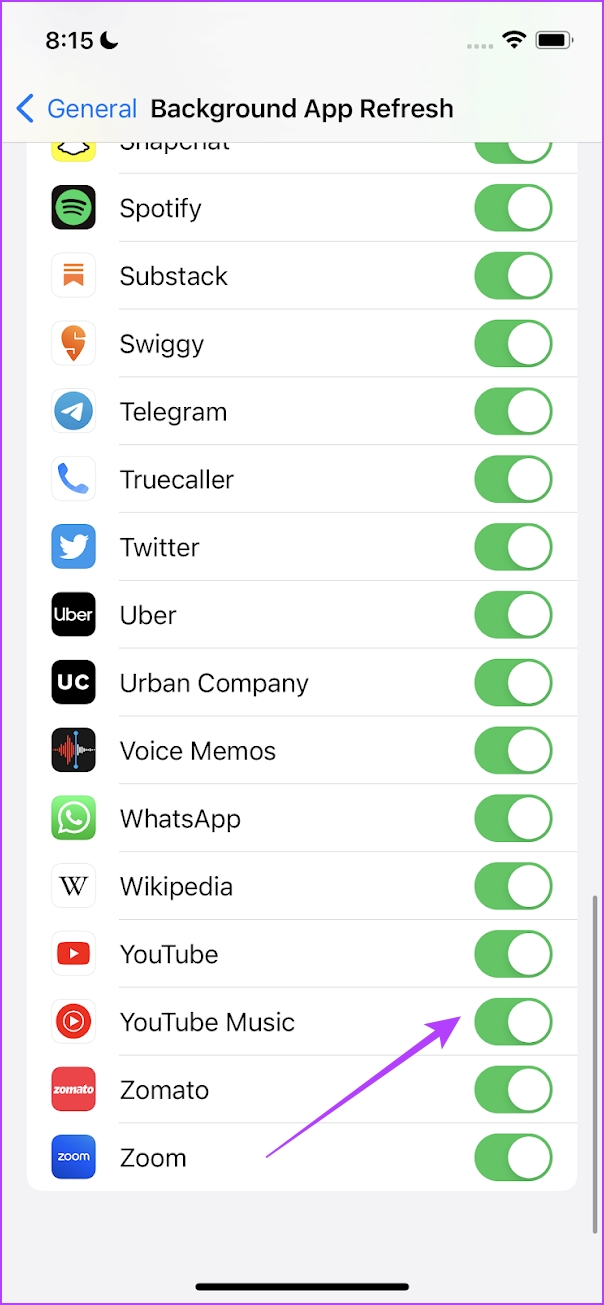
Open the Settings app, go to General > Background App Refresh, and enable it for YouTube.

Fix 3: Clear Cache
YouTube Music may be affected by bugs present in cache files, and clearing it might enable you to listen to audio in the background again.
On iPhone
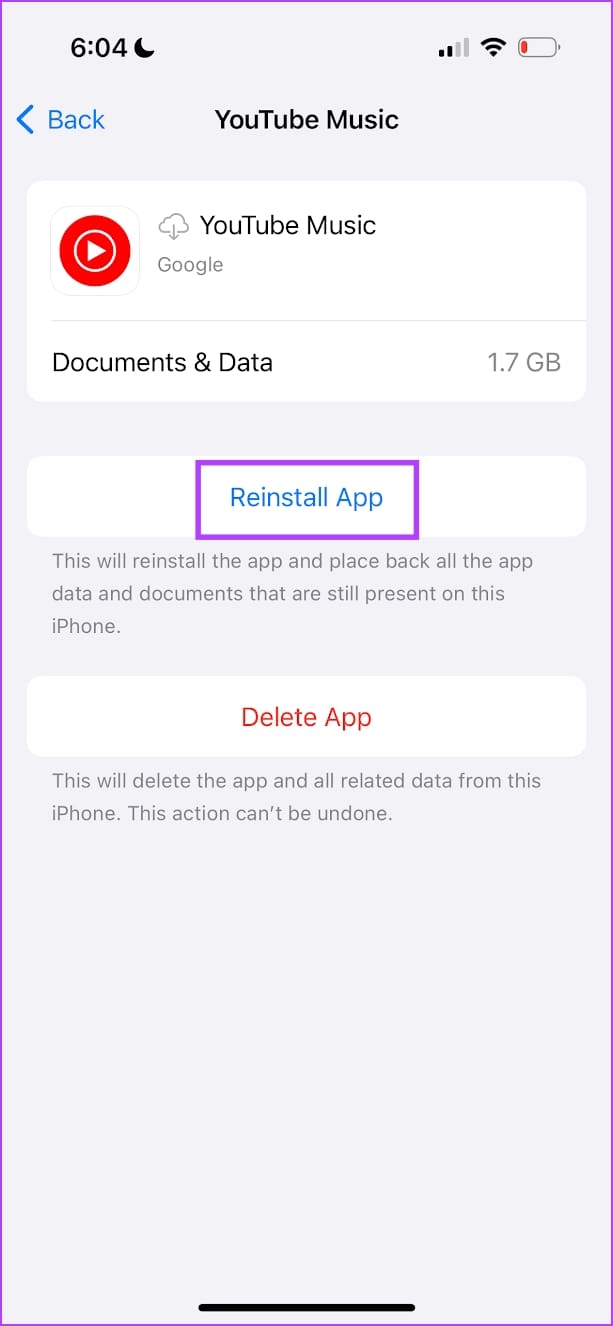
Offloading an application on your iPhone removes temporary data, including cache and junk files. However, it maintains all the other essential data, such as your sign-in information, in-app downloads and purchases, etc.
Step 1: Open the Settings app and tap on General > iPhone Storage
Step 2: Scroll down, select the YouTube Music app, and tap on Offload App. Tap on the Offload App once again to confirm.
Step 3: Now, tap on Reinstall App.

On Android
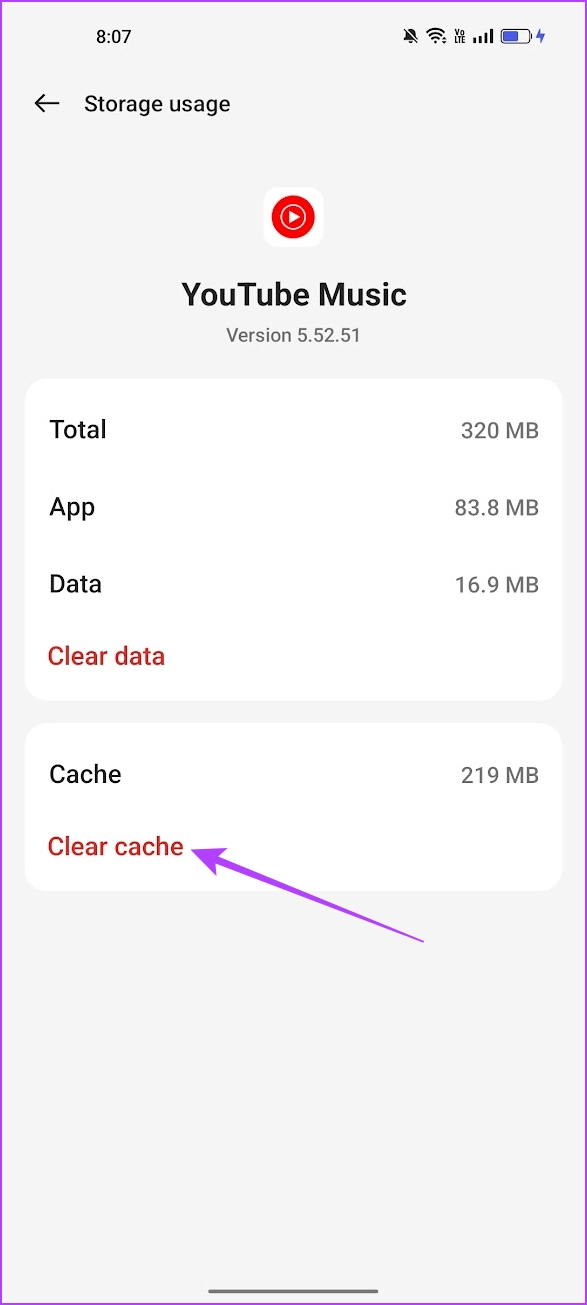
Step 1: Tap and hold the YouTube Music app in the app drawer.
Step 2: Tap on App Info > Storage Usage and select Clear Cache.

Was this helpful?
Last updated on 30 June, 2024
1 Comment
Leave a Reply
Read Next
 4 Fixes for Android Auto Not Playing Music From Spotify or YouTube Music
Fix 1: Change the Default Music Streaming Service Say you have a Spotify subscription.
4 Fixes for Android Auto Not Playing Music From Spotify or YouTube Music
Fix 1: Change the Default Music Streaming Service Say you have a Spotify subscription.
 Top 7 Ways to Fix Siri Not Playing Music from Apple Music
Siri not recognizing your voice and not playing music from Apple Music can lead to an undesirable experience.
Top 7 Ways to Fix Siri Not Playing Music from Apple Music
Siri not recognizing your voice and not playing music from Apple Music can lead to an undesirable experience.
 3 Ways to Transfer Playlists From YouTube Music to Apple Music
There are three services you can use to perform the transfer based on your preferences.
3 Ways to Transfer Playlists From YouTube Music to Apple Music
There are three services you can use to perform the transfer based on your preferences.
 5 Ways to Fix YouTube Shorts Not Playing in Google Chrome
Fix 1: Turn Off Hardware Acceleration When you enable hardware acceleration in Google Chrome, the browser uses your GPU instead of your CPU to perform specific graphic-intensive tasks.
5 Ways to Fix YouTube Shorts Not Playing in Google Chrome
Fix 1: Turn Off Hardware Acceleration When you enable hardware acceleration in Google Chrome, the browser uses your GPU instead of your CPU to perform specific graphic-intensive tasks.
 3 Ways to Fix YouTube Shorts Not Playing on Android and iPhone
Try These Basic Fixes Temporarily disable your VPN connection: Issues with the VPN service might prevent the YouTube app from connecting to the internet and playing videos.
3 Ways to Fix YouTube Shorts Not Playing on Android and iPhone
Try These Basic Fixes Temporarily disable your VPN connection: Issues with the VPN service might prevent the YouTube app from connecting to the internet and playing videos.
 4 Ways to Fix “Song Is Unavailable” Error in YouTube Music App
Try Basic Fixes Try playing other songs or playlists: The availability of songs on YouTube Music can vary depending on your geographical location and YouTube's agreements with music copyright owners.
4 Ways to Fix “Song Is Unavailable” Error in YouTube Music App
Try Basic Fixes Try playing other songs or playlists: The availability of songs on YouTube Music can vary depending on your geographical location and YouTube's agreements with music copyright owners.
 8 Ways to Fix Alexa Not Playing Amazon Music
Some Basic Fixes Restart your Echo device: You should start the troubleshooting process of Alexa not playing Amazon Music by restarting your Echo.
8 Ways to Fix Alexa Not Playing Amazon Music
Some Basic Fixes Restart your Echo device: You should start the troubleshooting process of Alexa not playing Amazon Music by restarting your Echo.
 4 Ways to Fix Alexa Not Playing Apple Music
Basic Fixes Make playlists public on Apple Music: Go to Apple Music > profile icon > Edit > enable your playlists to make them public.
4 Ways to Fix Alexa Not Playing Apple Music
Basic Fixes Make playlists public on Apple Music: Go to Apple Music > profile icon > Edit > enable your playlists to make them public.
The article above may contain affiliate links which help support Guiding Tech. The content remains unbiased and authentic and will never affect our editorial integrity.
I’m looking for help in making YouTube videos on an iPhone 14 pro. The whole iPhone thing is new to me and the videos I have been making aren’t working the same way on this phone. So maybe you know how to fix the issue for me? I add the video, chose music and it’s when I want to adjust the music that the video no longer plays so I can’t sync the music to the action. Any suggestions? Thank you.