


Try These Things First
- Try to force shutdown: Sometimes the problem can occur due to a temporary bug or glitch. So, you can force shut down your computer by holding down the power button. Once your computer is off, press the power button again to turn it back on and check for the problem.
- Update the operating system: Ensure that you are using the latest Windows update on your computer. To check for and download available Windows updates, open the Settings menu > choose Windows Update > click the Check for updates button on the right.
- Close background running applications: It might be possible that the applications running in the background prevent your computer from shutting down. So, open the Task Manager and close all the applications running in the background to fix the problem.
Fix 1: Disable Fast Startup
One of the main reasons your Windows 11 computer could get stuck on the shutdown screen is the fast startup option. You must disable it to fix the problem. Here’s how:
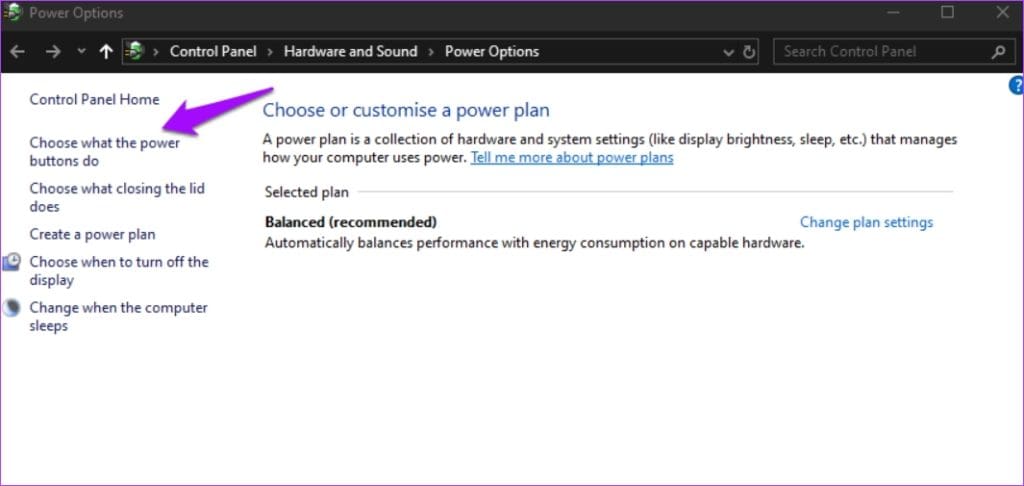
Step 1: Open the Start menu, type Control Panel in the search bar and hit Enter. Then, in the Control Panel, navigate to System and security > Power Options > Choose what the power buttons do.
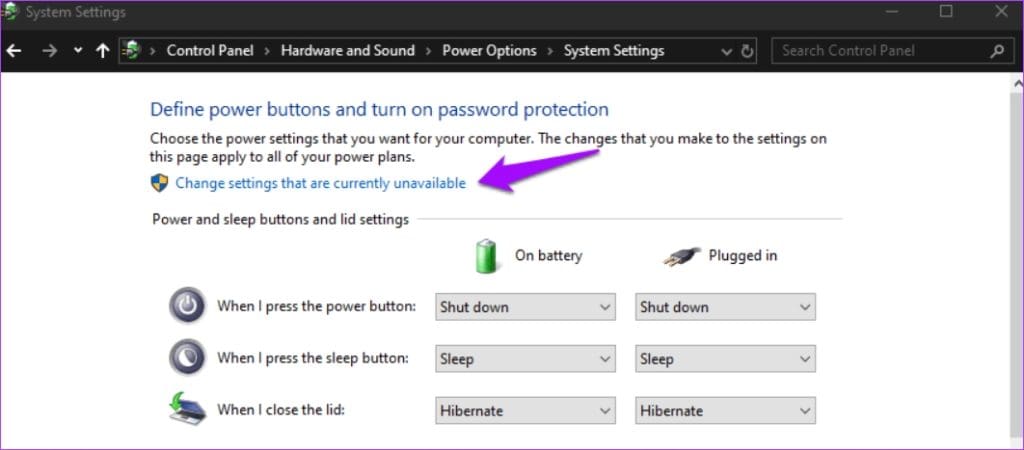
Step 2: Choose Change settings that are currently unavailable.
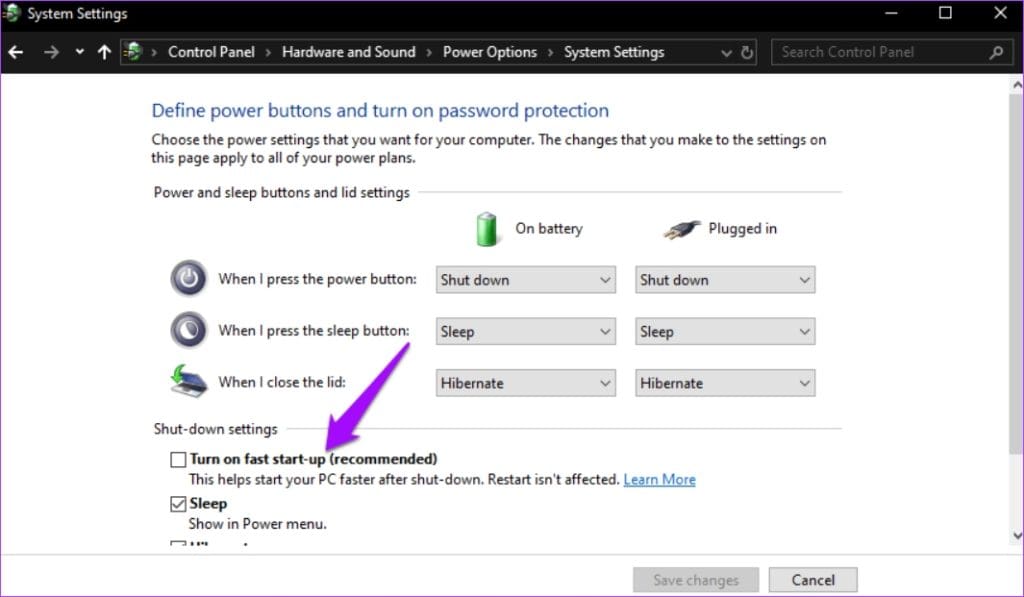
Step 4: Uncheck Turn off fast startup (recommended) > click Save changes.
Fix 2: Reset the BIOS to Default Settings
The problem can also originate from your motherboard. So, reset the BIOS to its default settings to fix the issue. Here’s how:
Step 1: First, boot into UEFI BIOS on your Windows computer.
Tip: If you are unsure, check our guide to learn how to enter BIOS on Windows without restarting.
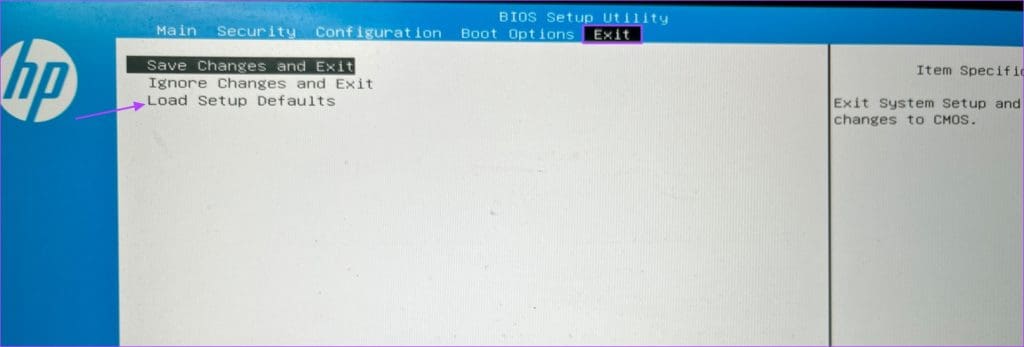
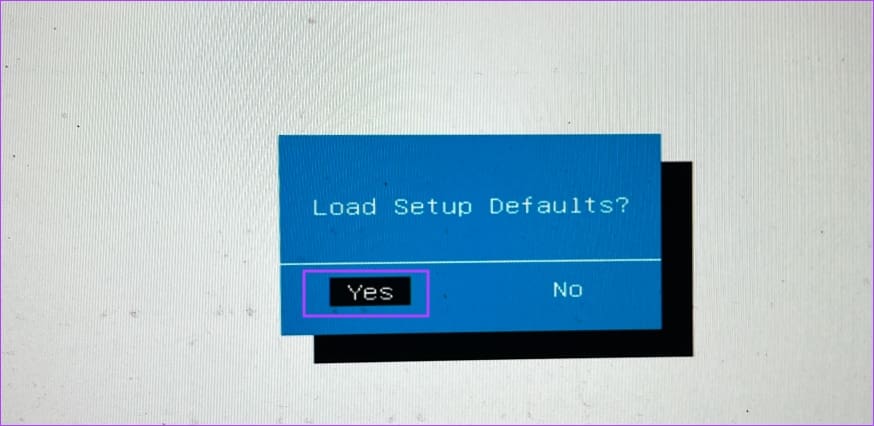
Step 2: Switch to the Exit window and click Load Setup Defaults. The wording of this option might differ on your computer.
Step 3: Click Yes to confirm your decision.
Fix 3: Turn off Hibernate
Windows 11 might get stuck on the shutdown screen if you have hibernation mode enabled on your computer. To solve this, disable hibernation mode. Follow the steps below to do that:
Step 1: Open the Start menu > type Command Prompt in the search bar > choose Run as administrator.
Step 2: Type the following command in Command Prompt and press Enter.
powercfg /hibernate off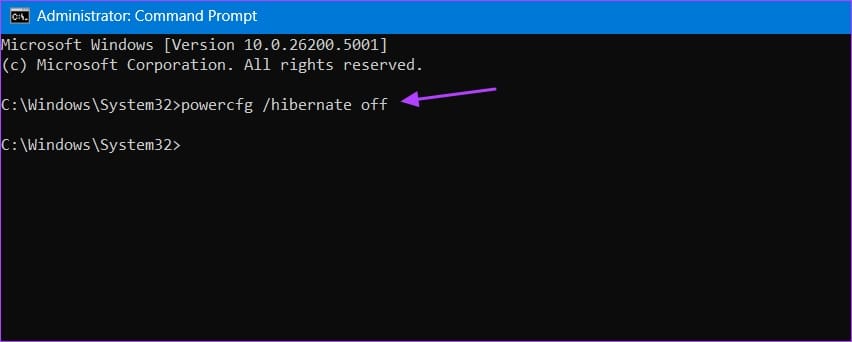
After that, check if you still face the issue. If yes, it probably has something to do with the Intel(R) Management Engine Interface.
Fix 4: Disable and Re-enable Intel (R) Management Engine Interface
Many users on Reddit mentioned that disabling and re-enabling the Intel(R) Management Engine Interface solved the problem for them. So, try this and check if it fixes the problem. Here’s how:
Step 1: Open the Power User menu > choose Device Manager.
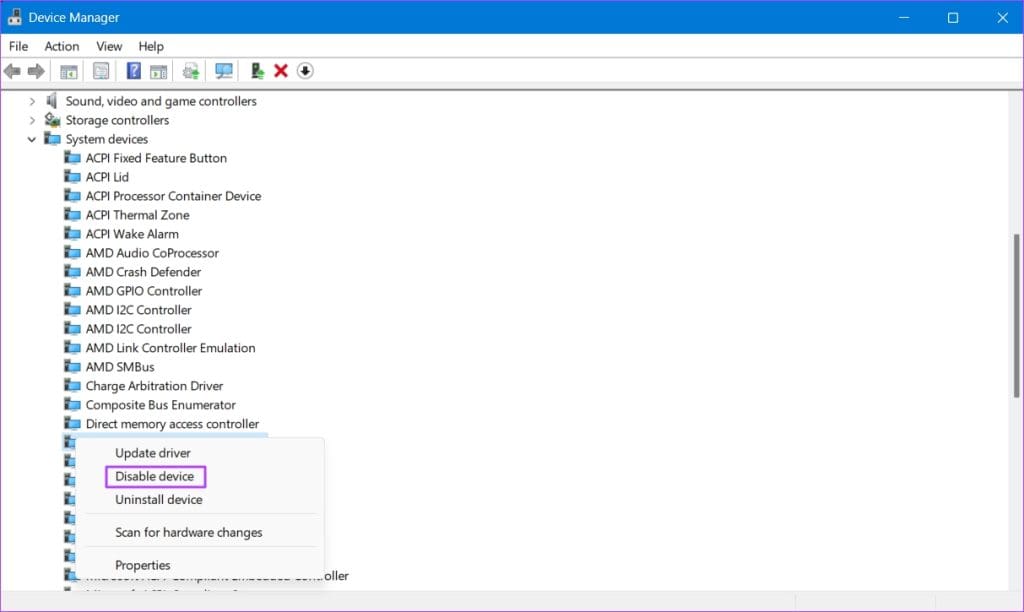
Step 2: In the Device Manager, double-click System devices > right-click Intel(R) Management Engine Interface > choose Disable device > click Yes to confirm your decision.
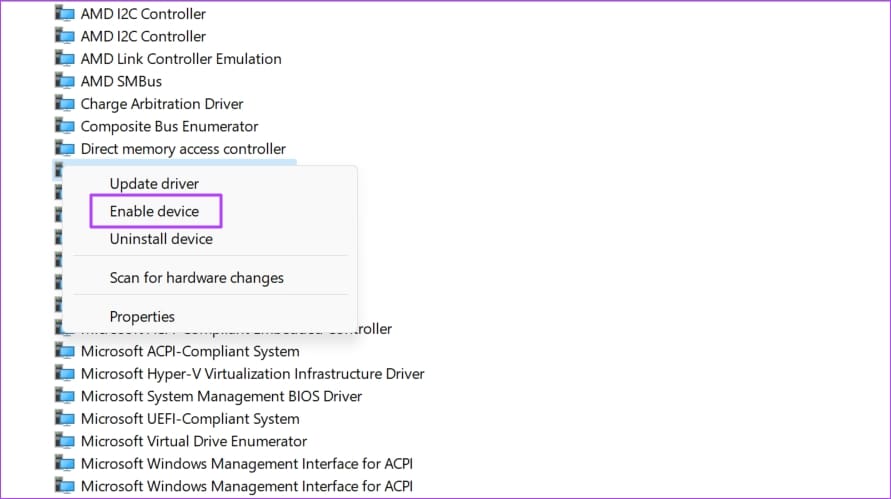
Step 3: After that, force shut down your computer (as the normal shutdown window is stuck) > right-click Intel(R) Management Engine Interface again > choose Enable device.
That’s about it. You should no longer be facing the problem.
Also Read: How to fix Windows PC not turning off after shutdown
Was this helpful?
Last updated on 12 August, 2024
Read Next
 5 Ways to Fix Windows 11 PC Not Shutting Down
Fix 1: Try Alternative Methods If you can’t shut down your PC using the Start menu, press Alt + F4 to bring up the "Shut Down Windows" dialog box and
5 Ways to Fix Windows 11 PC Not Shutting Down
Fix 1: Try Alternative Methods If you can’t shut down your PC using the Start menu, press Alt + F4 to bring up the "Shut Down Windows" dialog box and
 Top 5 Ways to Fix Windows 10 Stuck on Welcome Screen
It’s common for Windows computers to get stuck during usage or on either end of the power spectrum—startup and shutdown.
Top 5 Ways to Fix Windows 10 Stuck on Welcome Screen
It’s common for Windows computers to get stuck during usage or on either end of the power spectrum—startup and shutdown.
 5 Ways to Fix Windows 11 Stuck on Restarting Screen
Try Basic Fixes Perform a force shutdown: While your Windows PC is stuck on restarting, press and hold the Windows key + X + power button until it turns off
5 Ways to Fix Windows 11 Stuck on Restarting Screen
Try Basic Fixes Perform a force shutdown: While your Windows PC is stuck on restarting, press and hold the Windows key + X + power button until it turns off
 6 Ways to Fix Windows PC Stuck on Please Wait for GPSVC Screen
Fix 1: Restart Your PC Sometimes, temporary glitches with your system can cause Windows to become stuck on the "Please wait for the gpsvc" screen.
6 Ways to Fix Windows PC Stuck on Please Wait for GPSVC Screen
Fix 1: Restart Your PC Sometimes, temporary glitches with your system can cause Windows to become stuck on the "Please wait for the gpsvc" screen.
 3 Eays to Fix Windows 10 Full Screen Start Menu When It’s Stuck
Fix 1: Turn off the Full-Screen Setting Microsoft offers a native setting that allows users to switch from the normal Start Menu to the expanded one.
3 Eays to Fix Windows 10 Full Screen Start Menu When It’s Stuck
Fix 1: Turn off the Full-Screen Setting Microsoft offers a native setting that allows users to switch from the normal Start Menu to the expanded one.
 4 Fixes When the Windows 11 Volume Slider Is Stuck on the Screen
Basic Fixes: Restart the computer: A reboot forces all services and processes to shut down, fixing glitches and temporary bugs.
4 Fixes When the Windows 11 Volume Slider Is Stuck on the Screen
Basic Fixes: Restart the computer: A reboot forces all services and processes to shut down, fixing glitches and temporary bugs.
 3 Ways to Fix Fire TV Stick Stuck on Amazon Logo Screen
Basic Fixes Use the official accessories: Your Fire TV Stick comes with official accessories that help ensure your device gets sufficient power and can work properly.
3 Ways to Fix Fire TV Stick Stuck on Amazon Logo Screen
Basic Fixes Use the official accessories: Your Fire TV Stick comes with official accessories that help ensure your device gets sufficient power and can work properly.
 7 Ways to Fix Android TV Stuck on Loading Screen
Fix 1: Replace the HDMI Cable Are you using an Android TV box/stick with your TV?
7 Ways to Fix Android TV Stuck on Loading Screen
Fix 1: Replace the HDMI Cable Are you using an Android TV box/stick with your TV?
The article above may contain affiliate links which help support Guiding Tech. The content remains unbiased and authentic and will never affect our editorial integrity.

