


Basic Fixes:
- Check WhatsApp Server Status: WhatsApp servers can randomly go down for maintenance or other reasons. In this case, use Downdetector to check if WhatsApp is down. If so, wait a while.
- Check Your Internet Connection: WhatsApp requires a working internet connection to download the files you receive. Hence, ensure you have a reliable internet connection before proceeding.
- Ensure WhatsApp Is Up-To-Date: WhatsApp consistently releases updates to address such issues. So, if this is a widespread bug, you can check and install the app update currently available.
- Restart WhatsApp: If WhatsApp has been operating in the background for a while, you can end the process from the recent apps menu. Then, reopen the app to see if the issue has been fixed.
Fix 1: Try Downloading the Video Manually
If you are constantly facing internet issues or if the videos are too big in size, it is recommended you download the video locally on your device. Then, either go to your phone’s Gallery or view it from the WhatsApp app. This can help keep the ‘This Video Is Not Available’ error at bay on WhatsApp.
Fix 2: Log Out and Log Back Into WhatsApp Web
If you see the error on WhatsApp web, it might be because the information is not able to sync properly on your desktop. In this case, you can log out of the relevant linked device and then log back in. This should force the WhatsApp web app to sync information afresh, resolving the issue. Here’s how.
Step 1: Open the WhatsApp Android app and tap on the three-dot icon in the top-right corner. Then, tap on Linked devices.
Note: iOS users can tap on the Settings icon in the bottom-right corner and then tap on Linked devices.
Step 2: Here, tap on the relevant device.

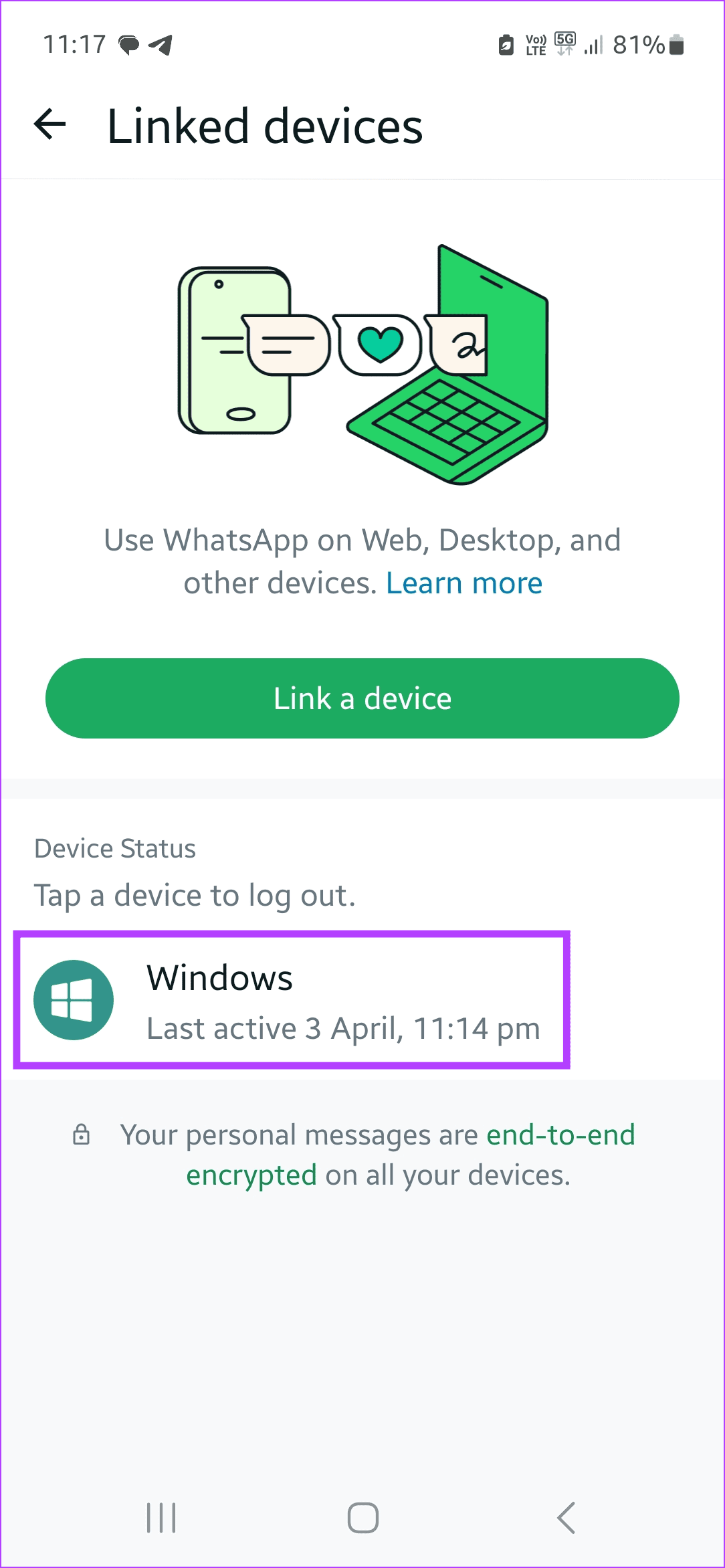
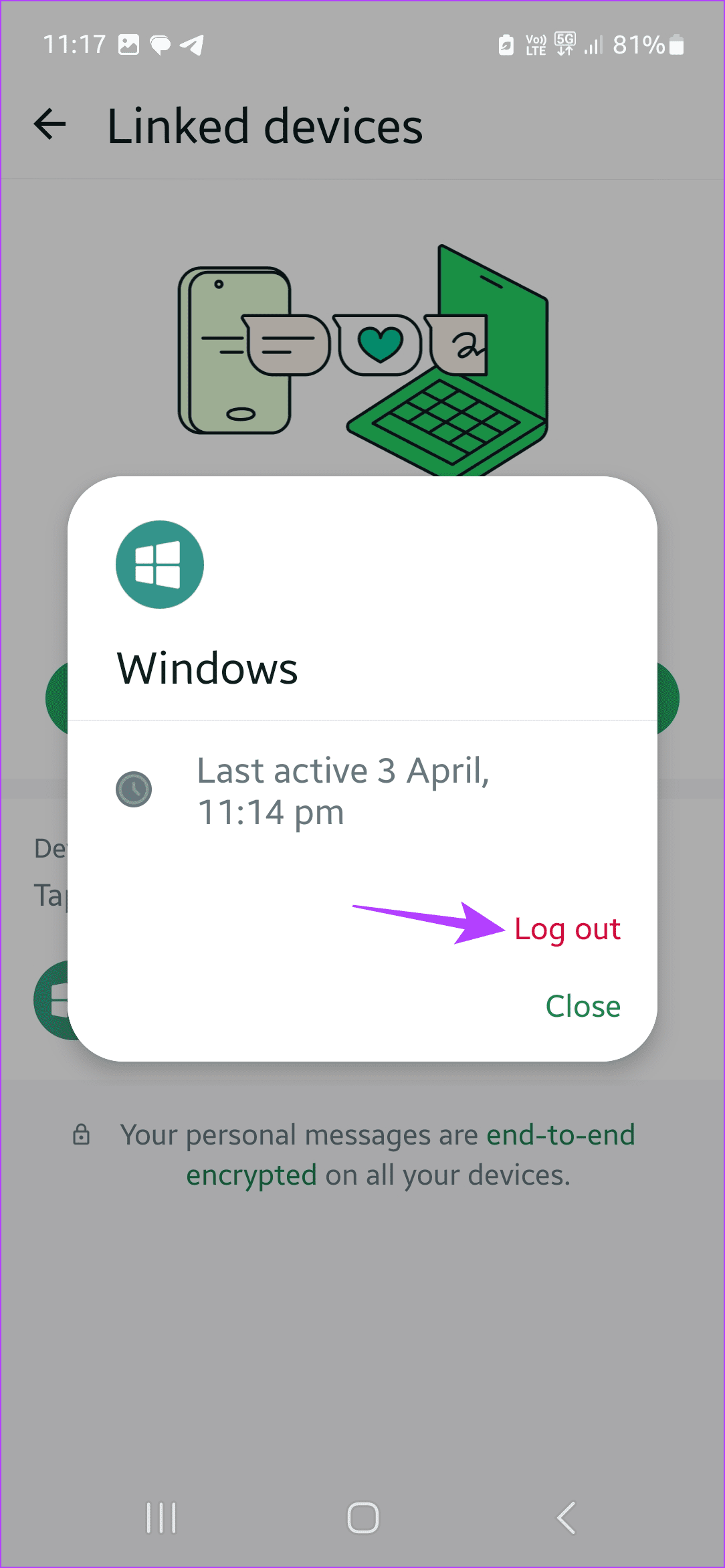
Step 3: Once the options appear, tap on Log out. Wait for the device to finish logging out.
Step 4: Now, on the same page, tap on Link a device.
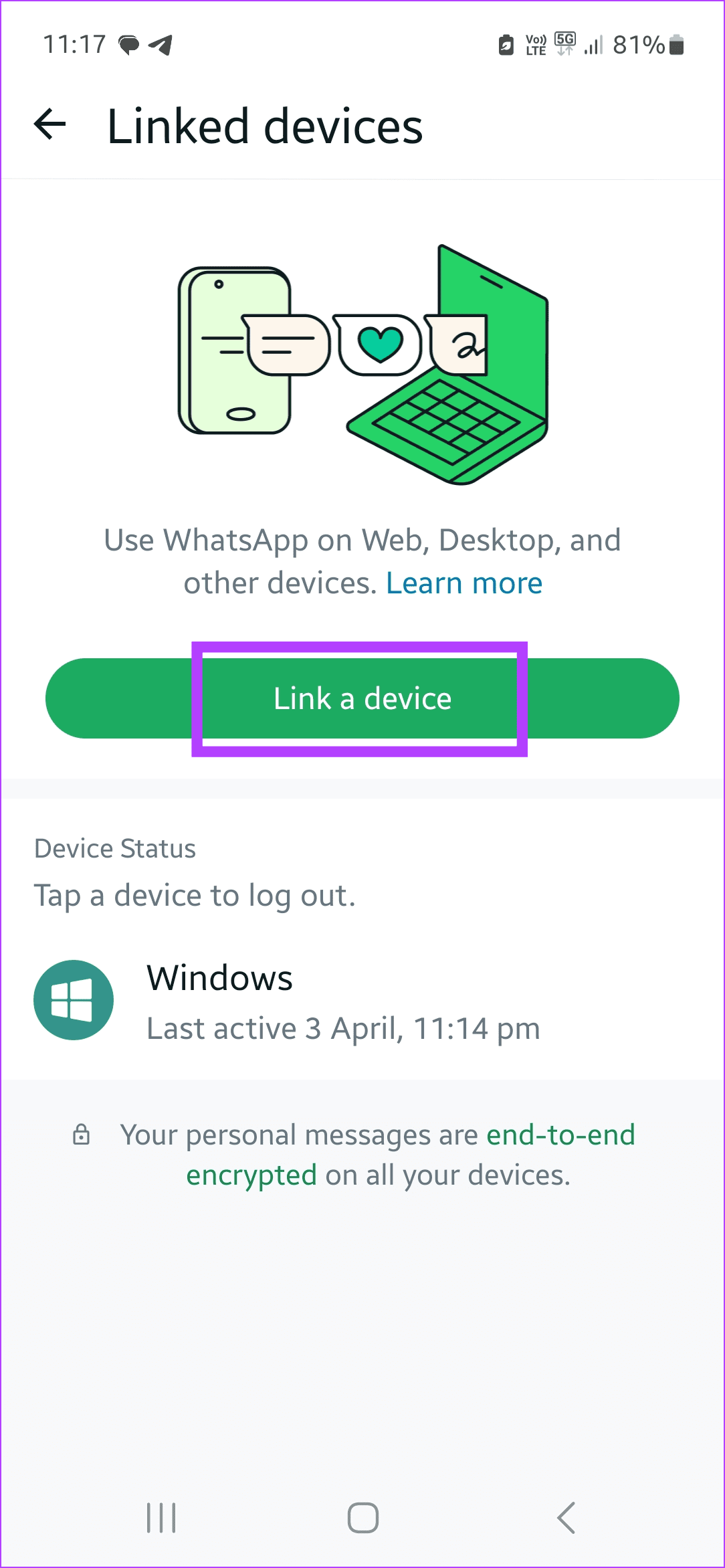
Once the scanner opens, scan the QR Code currently visible on the WhatsApp Web app to log back in. Then, try playing the video again.
Also Read: How to fix WhatsApp web not syncing
Fix 3: Grant All App Permissions on Android
If you have revoked the storage permissions for WhatsApp, it will show the ‘This Video Is Not Available’ message when you play any video. Here’s how you can check and re-enable it on your Android device.
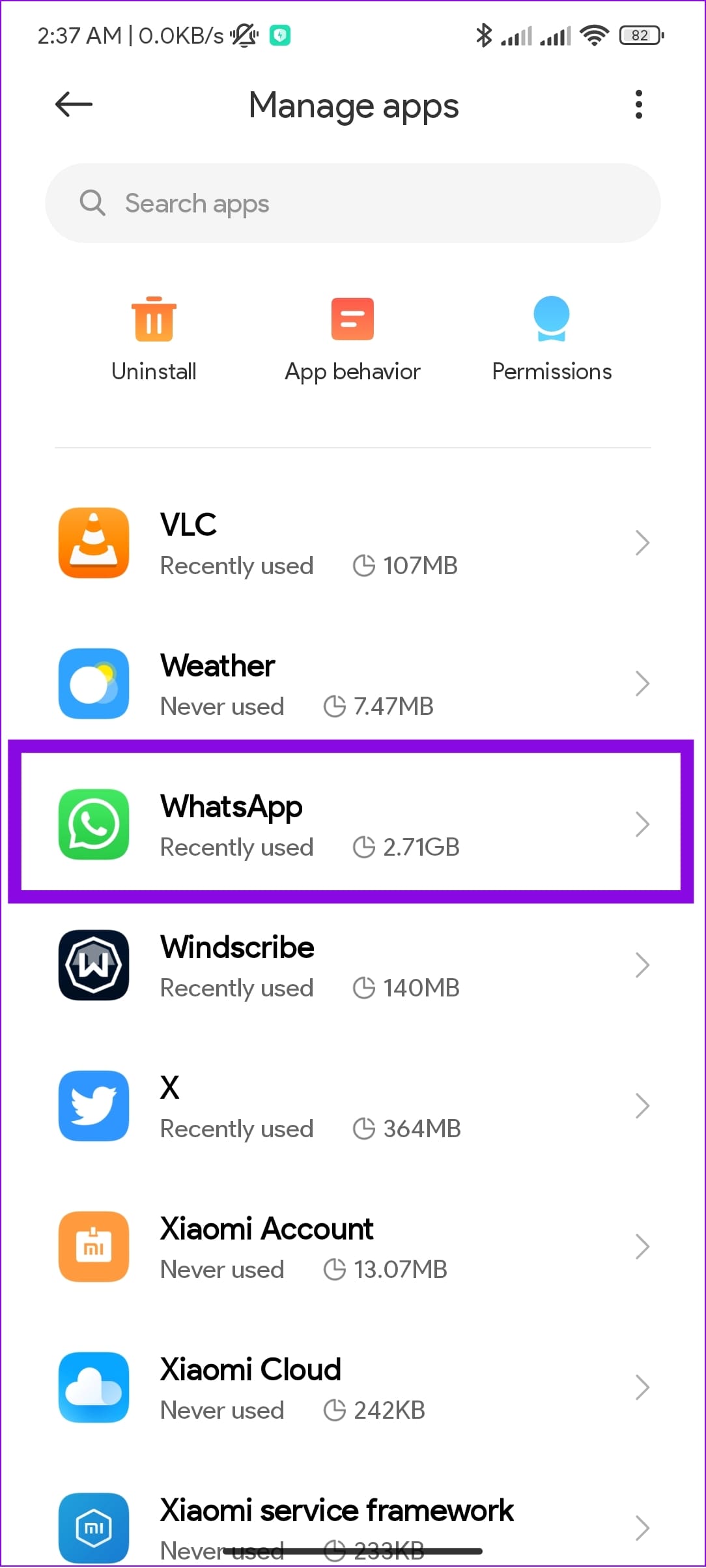
Step 1: Go to Settings and tap on Apps > Manage apps.

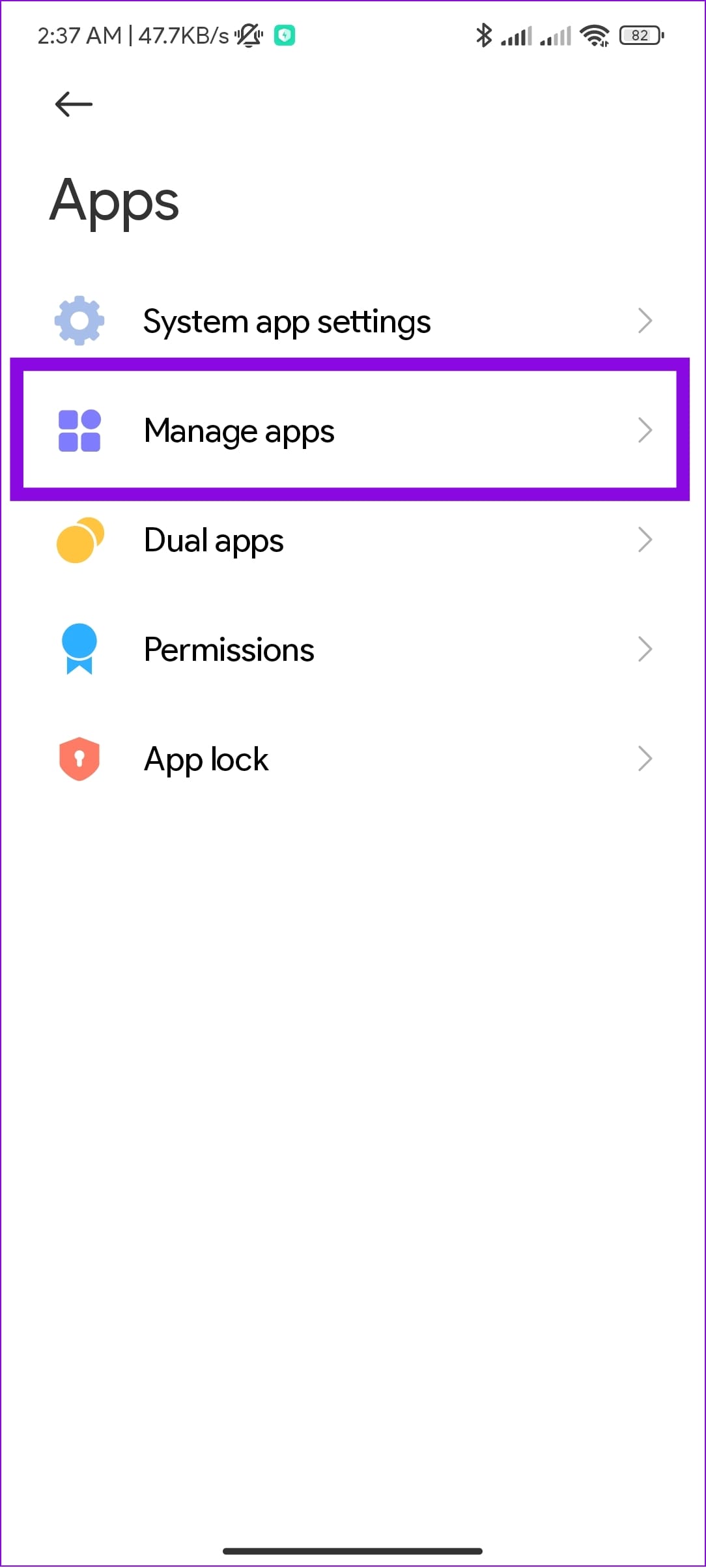
Step 2: Scroll down and tap on WhatsApp. Then, tap on Permissions.

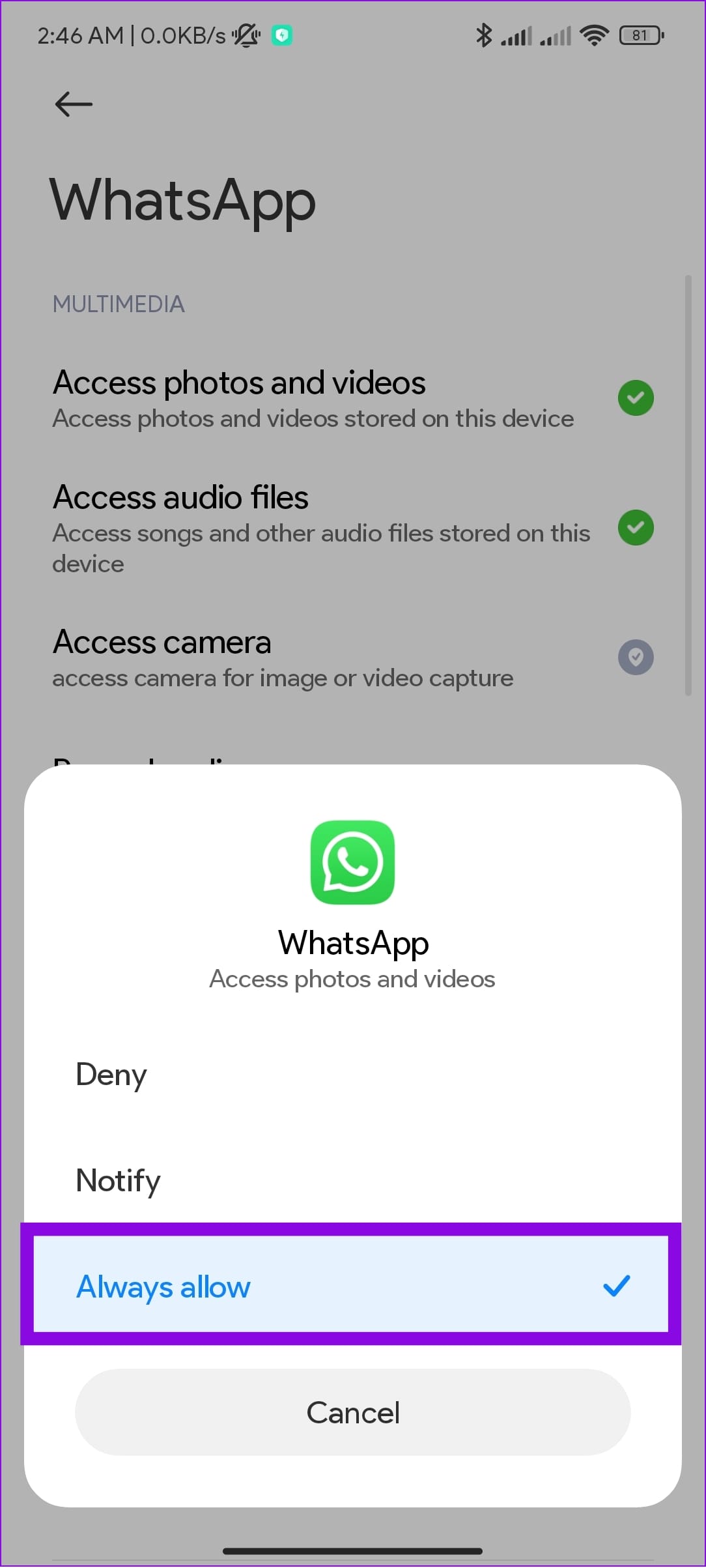
Step 3: Here, tap on Access photos and videos and select Always allow.

Fix 4: Clear WhatsApp Cache on Android
Accumulated cache files can lead to problems like videos not loading or working on WhatsApp. Therefore, it’s advisable to clear the WhatsApp cache on Android at regular intervals. Here’s how.
Tip: If you’re an iOS user, consider offloading the WhatsApp app instead as there is no native way to clear the app cache.
Step 1: Open Settings and tap on Apps. Then, tap on Manage apps.
Step 2: Scroll down and tap on WhatsApp. Then, tap on Clear data.
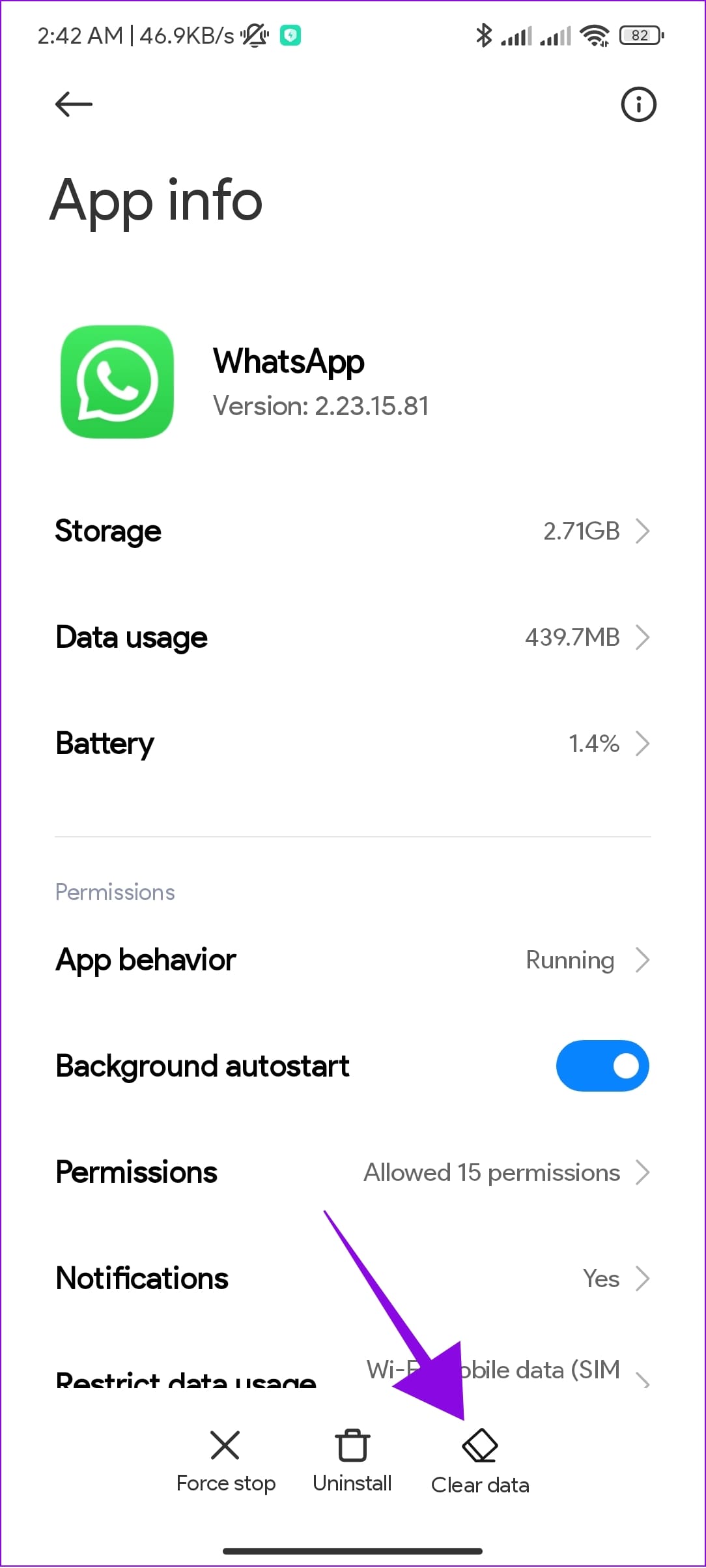
Step 3: Here, tap on Clear cache and, when prompted, tap OK to confirm.


Fix 5: Ask User to Re-Send the Video
If you have recently switched devices or if the video is a bit old, you might not be able to open it on your device. In this case, you can always ask the other person to send you the video again, if possible.
Was this helpful?
Last updated on 05 April, 2024
1 Comment
Leave a Reply
Read Next
 5 Ways to Fix Video Unavailable in Amazon Prime Video
Basic Fixes Check network connection: Playing Prime without any problems requires an optimum internet speed.
5 Ways to Fix Video Unavailable in Amazon Prime Video
Basic Fixes Check network connection: Playing Prime without any problems requires an optimum internet speed.
 How to Fix Poor Video Call Quality in WhatsApp for Android and iPhone
Try Basic Fixes Disable battery and data saver mode: Enabling battery and data saver mode can affect WhatsApp's ability to use the internet freely and result in poor video call
How to Fix Poor Video Call Quality in WhatsApp for Android and iPhone
Try Basic Fixes Disable battery and data saver mode: Enabling battery and data saver mode can affect WhatsApp's ability to use the internet freely and result in poor video call
 Amazon Prime Video – How to Fix Error Code 5004 or 5005
What Does Amazon Prime Video Error 5004 or 5005 Mean?
Amazon Prime Video – How to Fix Error Code 5004 or 5005
What Does Amazon Prime Video Error 5004 or 5005 Mean?
 5 Ways to Fix Waiting for This Message Error on WhatsApp
Why Do I See the 'Waiting for This Message' Error?
5 Ways to Fix Waiting for This Message Error on WhatsApp
Why Do I See the 'Waiting for This Message' Error?
 6 Ways to Fix WhatsApp Media Download Failed Error on Phone
Basic Fixes: Use a strong network connection: Large media files require a stable and strong network connection for a smooth download process in WhatsApp.
6 Ways to Fix WhatsApp Media Download Failed Error on Phone
Basic Fixes: Use a strong network connection: Large media files require a stable and strong network connection for a smooth download process in WhatsApp.
 4 Ways to Fix Unable to Load Video or Photo Error on iPhone
Basic Fixes Turn off Low Power Mode: Unless your iPhone is running really low on battery, it's best to turn off Low Power Mode since it limits background activities like
4 Ways to Fix Unable to Load Video or Photo Error on iPhone
Basic Fixes Turn off Low Power Mode: Unless your iPhone is running really low on battery, it's best to turn off Low Power Mode since it limits background activities like
 3 Fixes for WhatsApp Video Call Not Working on iPhone and Android
Basic Fixes: Check your internet connection: WhatsApp requires an active internet connection to make video calls.
3 Fixes for WhatsApp Video Call Not Working on iPhone and Android
Basic Fixes: Check your internet connection: WhatsApp requires an active internet connection to make video calls.
 How to Send Instant Video Messages on WhatsApp on iPhone and Android
Send WhatsApp Instant Video Message Just so you know, this feature is unavailable for desktop users.
How to Send Instant Video Messages on WhatsApp on iPhone and Android
Send WhatsApp Instant Video Message Just so you know, this feature is unavailable for desktop users.
The article above may contain affiliate links which help support Guiding Tech. The content remains unbiased and authentic and will never affect our editorial integrity.


HD is not supported.
There is no HD resolution for this video
Honor x9a phone.