How to Adjust Subtitle Timing in VLC on Windows PC and Mac
While your video is running, you can use the keyboard shortcuts to speed up (or down) the subtitles. This is the easiest way to slow down or speed up the subtitles based on your audio.
On Mac: Pressing H will decrease the subtitle speed by 50 milliseconds, and pressing J will increase the subtitle speed by 50 milliseconds.
On Windows: Press G to decrease the subtitle delay, and press H to increase the delay in subtitles.
How to Sync Subtitle Delay in VLC on Android or iPhone
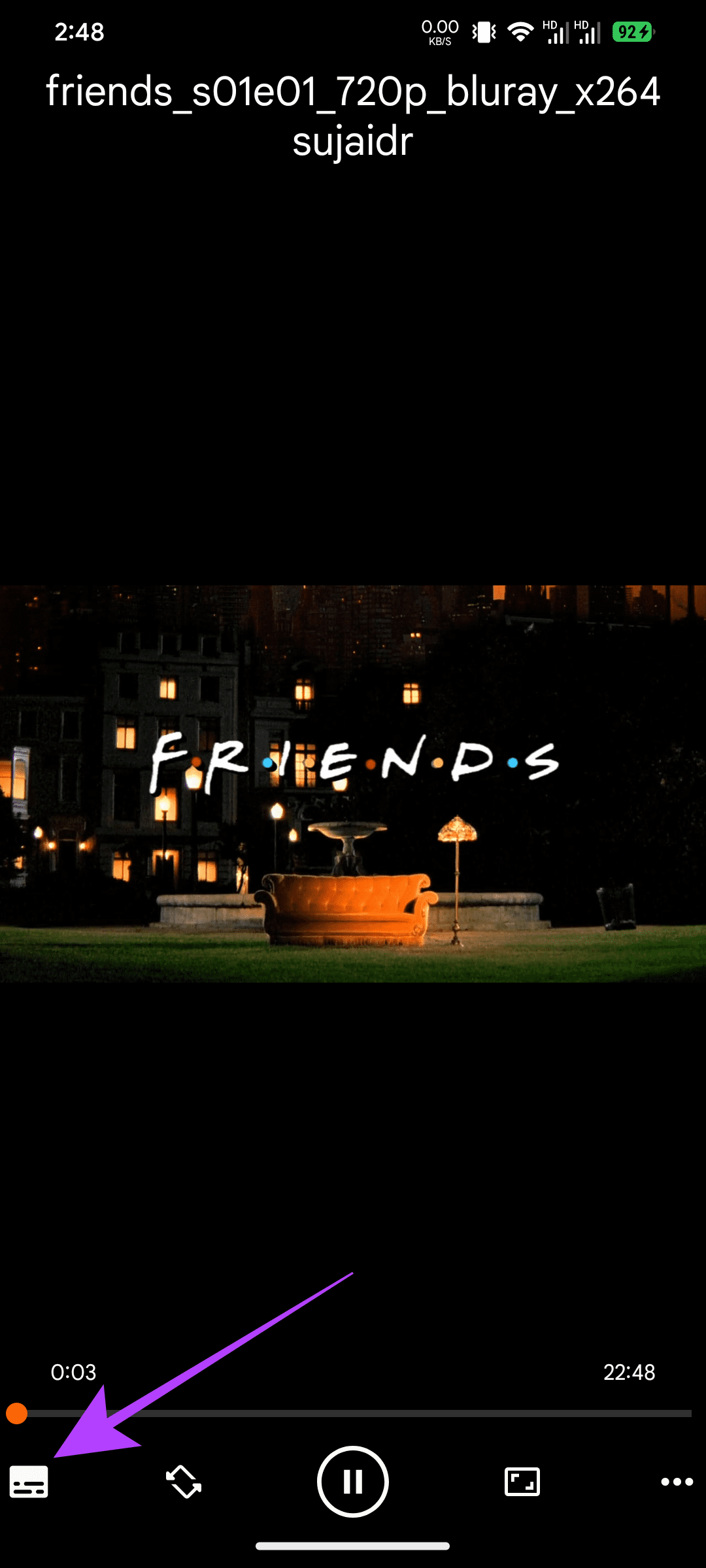
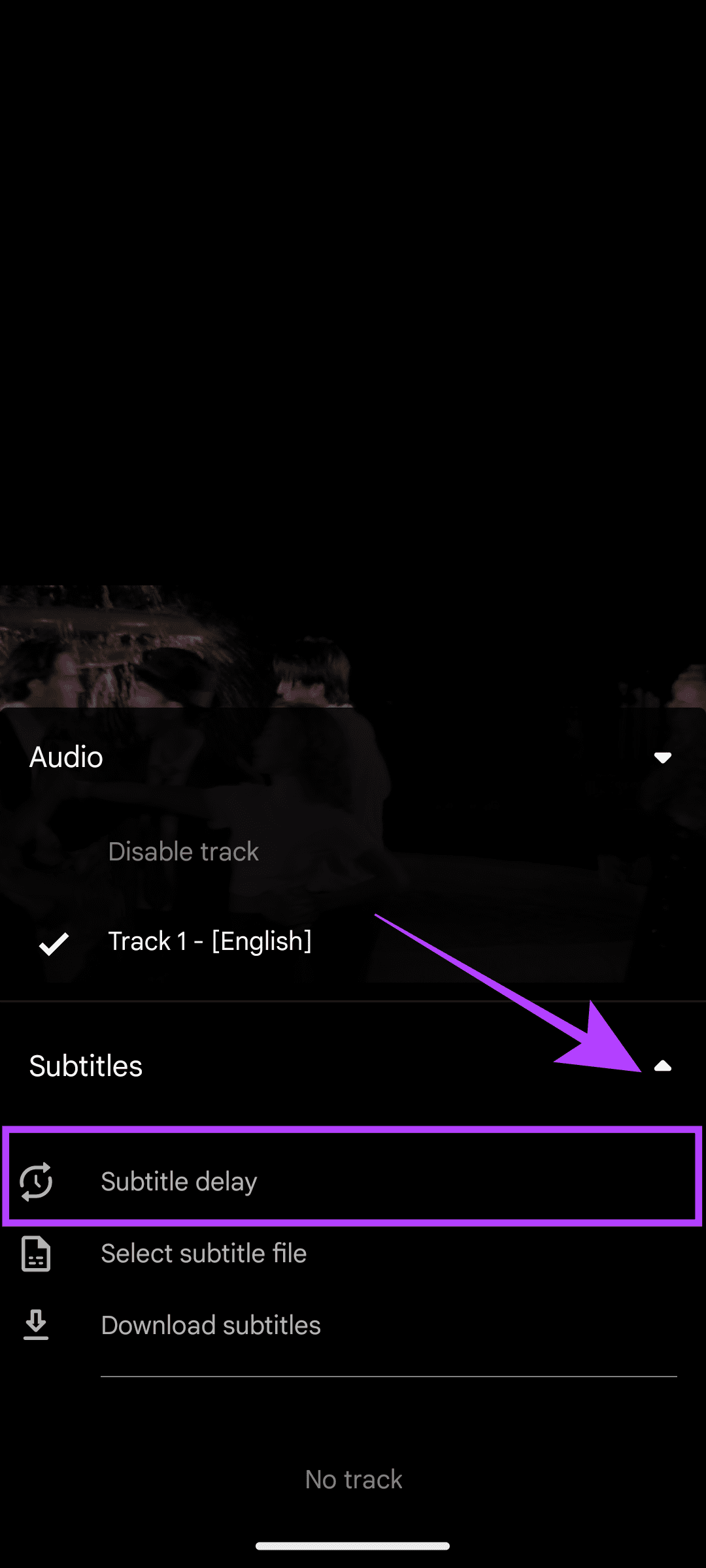
Step 1: Tap on the subtitle icon. Tap the drop-down arrow next to Subtitles, and select Subtitle Delay.
Step 2: Adjust the subtitle according to your preference.

This should sync the audio and subtitles. However, if the issue persists, you can move on to the fixes in the next section.
How to Fix Subtitles Sync Issue in VLC
Fix 1: Download and Use a Different Subtitle File
There can be issues syncing the subtitles with the content either because the file is corrupted or you might have downloaded the incorrect format.
On Smartphone
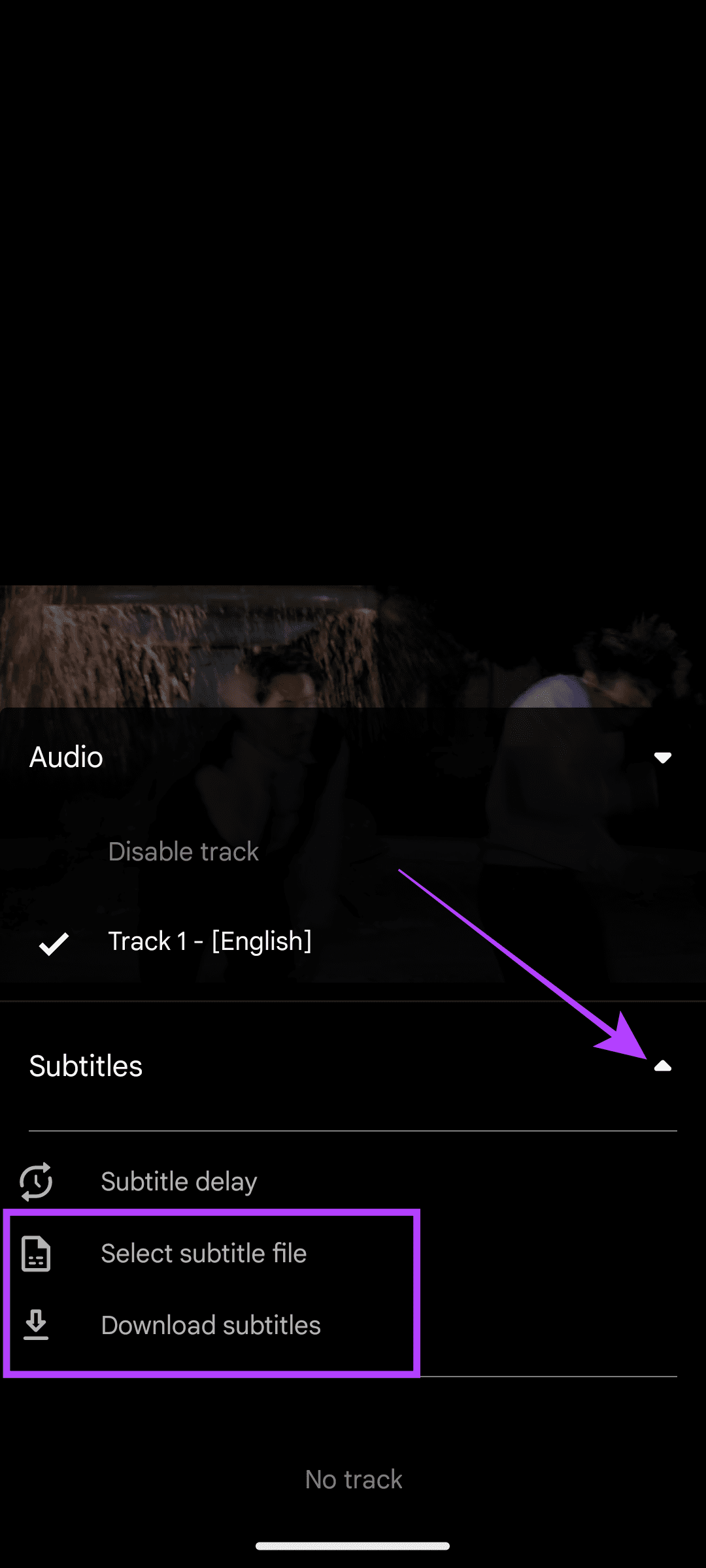
Step 1: Open VLC and tap the subtitle icon > tap the down arrow next to Subtitles.
Step 2: Choose between:
- Select subtitle file: Choose a downloaded subtitle file.
- Download subtitle: Here, you can download suitable subtitle files from the internet within VLC.
On PC
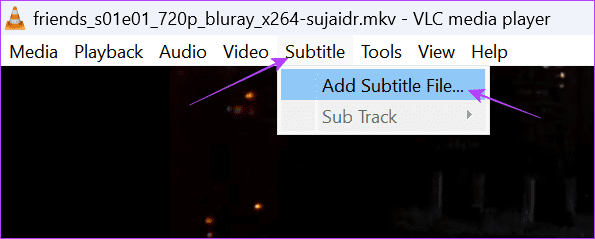
Step 1: Open VLC and click Subtitle (you can also use the V key) at the top bar.
Step 2: Choose Add Subtitle File.
Also Read: How to use VLC Media Player on Android TV
Fix 2: Use a Different Video Format or Quality
Besides changing the subtitle file, try using a different format or resolution of the same video. As mentioned earlier, the file might have been created for another format or video quality; hence, if you can find the right one, you can solve the issue.
Fix 3: Use Track Synchronization on PC
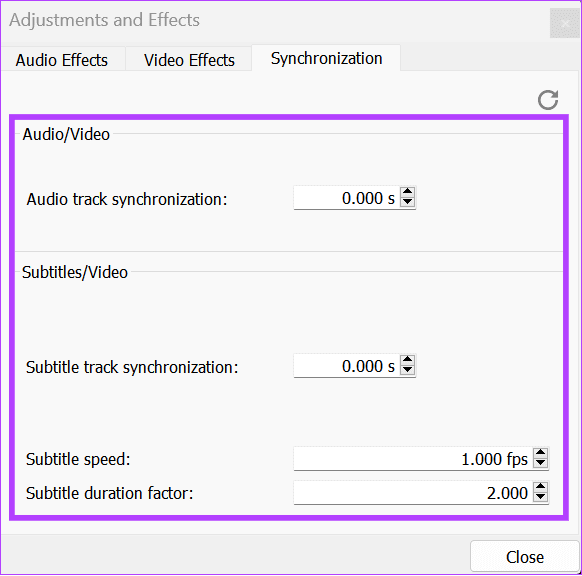
The VLC Media Player app for PC has a unique feature called Track Synchronization, which can help you quickly sync the audio and subtitle files.
Step 1: Open VLC and click Tools > Track Synchronization.

Step 3: Adjust Audio track and Subtitle track synchronization along with Subtitle speed and Subtitle duration factor.
Also Read: How to fix VLC not playing MKV files
Was this helpful?
Last updated on 27 June, 2024
Read Next
 4 Ways to Fix Zoom Audio Delay on Windows 11
Basic Fixes Check your network connection: Ensure your PC has a good internet connection.
4 Ways to Fix Zoom Audio Delay on Windows 11
Basic Fixes Check your network connection: Ensure your PC has a good internet connection.
 5 Ways to Fix Microsoft Teams Delay When Typing
Fix 1: Close Background Apps Microsoft Teams may sometimes cause high CPU and memory usage, which could easily lead to lag problems.
5 Ways to Fix Microsoft Teams Delay When Typing
Fix 1: Close Background Apps Microsoft Teams may sometimes cause high CPU and memory usage, which could easily lead to lag problems.
 4 Best YouTube Subtitle Translator Chrome Extensions
Recommended: Use Built-In Captions Translator If you don't want to install an extension, you can use the built-in subtitle translation tool on YouTube.
4 Best YouTube Subtitle Translator Chrome Extensions
Recommended: Use Built-In Captions Translator If you don't want to install an extension, you can use the built-in subtitle translation tool on YouTube.
 How to Manage Netflix Subtitle Settings on Any Device
Method 1: Change Netflix Subtitles Style and Size on iPhone and iPad While the Netflix iOS app does not have any native options to change the subtitle settings, you can
How to Manage Netflix Subtitle Settings on Any Device
Method 1: Change Netflix Subtitles Style and Size on iPhone and iPad While the Netflix iOS app does not have any native options to change the subtitle settings, you can
 6 Best Ways to Fix Bluetooth Delay on Windows 10
Say you're watching a movie or playing a game on your Windows PC.
6 Best Ways to Fix Bluetooth Delay on Windows 10
Say you're watching a movie or playing a game on your Windows PC.
 4 Ways to Fix Bluetooth Audio Delay on iPhone and Android
How to Fix Bluetooth Audio Lag on Your Smartphones Minimize interference: If you notice an audio delay only when other wireless devices are around, turn off the device that is
4 Ways to Fix Bluetooth Audio Delay on iPhone and Android
How to Fix Bluetooth Audio Lag on Your Smartphones Minimize interference: If you notice an audio delay only when other wireless devices are around, turn off the device that is
 4 Ways to Fix Mouse Delay in Games on Windows 11
Basic Fixes Switch to a wired or gaming mouse: Most wired and gaming mice have higher DPI (dots per inch), allowing fast cursor movement.
4 Ways to Fix Mouse Delay in Games on Windows 11
Basic Fixes Switch to a wired or gaming mouse: Most wired and gaming mice have higher DPI (dots per inch), allowing fast cursor movement.
 3 Ways to Fix iPhone Lock/Wake Screen Delay
https://youtu.be/94mfnn8hCSw Why Is There a Delay When Locking or Waking up Your iPhone If you have mapped a double/triple click shortcut to the power button of your iPhone, and when
3 Ways to Fix iPhone Lock/Wake Screen Delay
https://youtu.be/94mfnn8hCSw Why Is There a Delay When Locking or Waking up Your iPhone If you have mapped a double/triple click shortcut to the power button of your iPhone, and when
The article above may contain affiliate links which help support Guiding Tech. The content remains unbiased and authentic and will never affect our editorial integrity.