

Try Basic Fixes
- Temporarily disable VPN connection: Instagram might flag your login attempts as suspicious if it detects unusual network activity. This can happen if you use a VPN service and switch servers frequently. It’s best to turn off your VPN connection if Instagram keeps throwing network errors during login.
- Check if Instagram is down: Instagram’s servers may be having a rough day. If that’s the case, you might run into errors while logging into your Instagram account. Visit a website like Downdetector to check if Instagram servers are facing an outage.
- Update the app: You may have trouble logging into your account if the Instagram app on your phone is old or buggy. Hence, it’s best to update the Instagram app from the Play Store (Android) or App Store (iPhone).
Fix 1: Log in With Facebook
Another thing you can do is sign into your Instagram account using your Facebook credentials. Of course, this is only possible if you’ve previously linked both accounts.
On the Instagram login page, tap on Log in with Facebook. If you’re already logged into the Facebook app, you’ll be logged in automatically. If not, you’ll need to enter your Facebook login information.


Fix 2: Check Date and Time Settings
Having your phone set to an incorrect time or date could prevent Instagram from communicating with the servers. To avoid discrepancies, it’s best to configure your phone to use the network-provided date and time.
Android
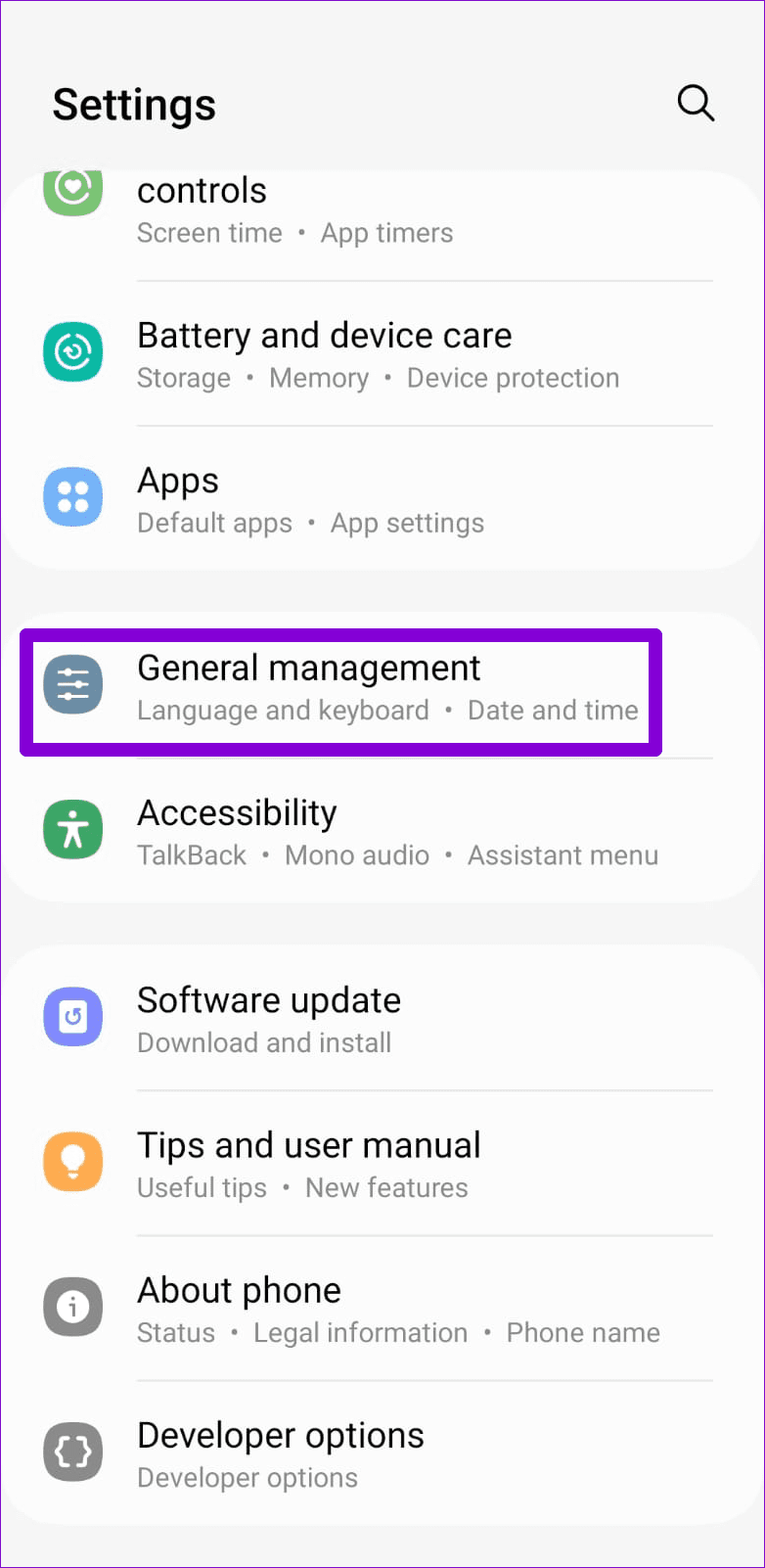
Step 1: Open the Settings app and navigate to General Management.
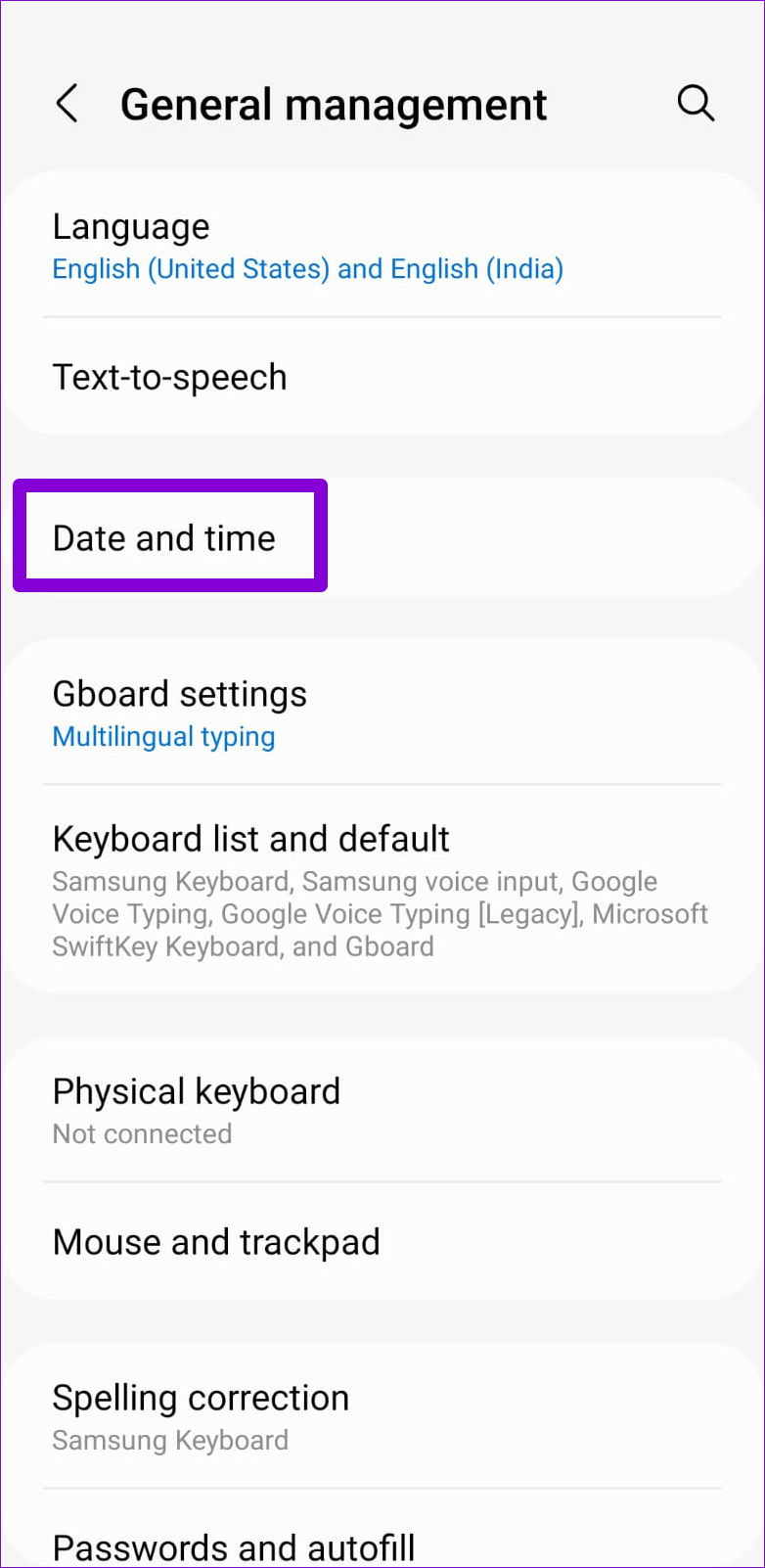
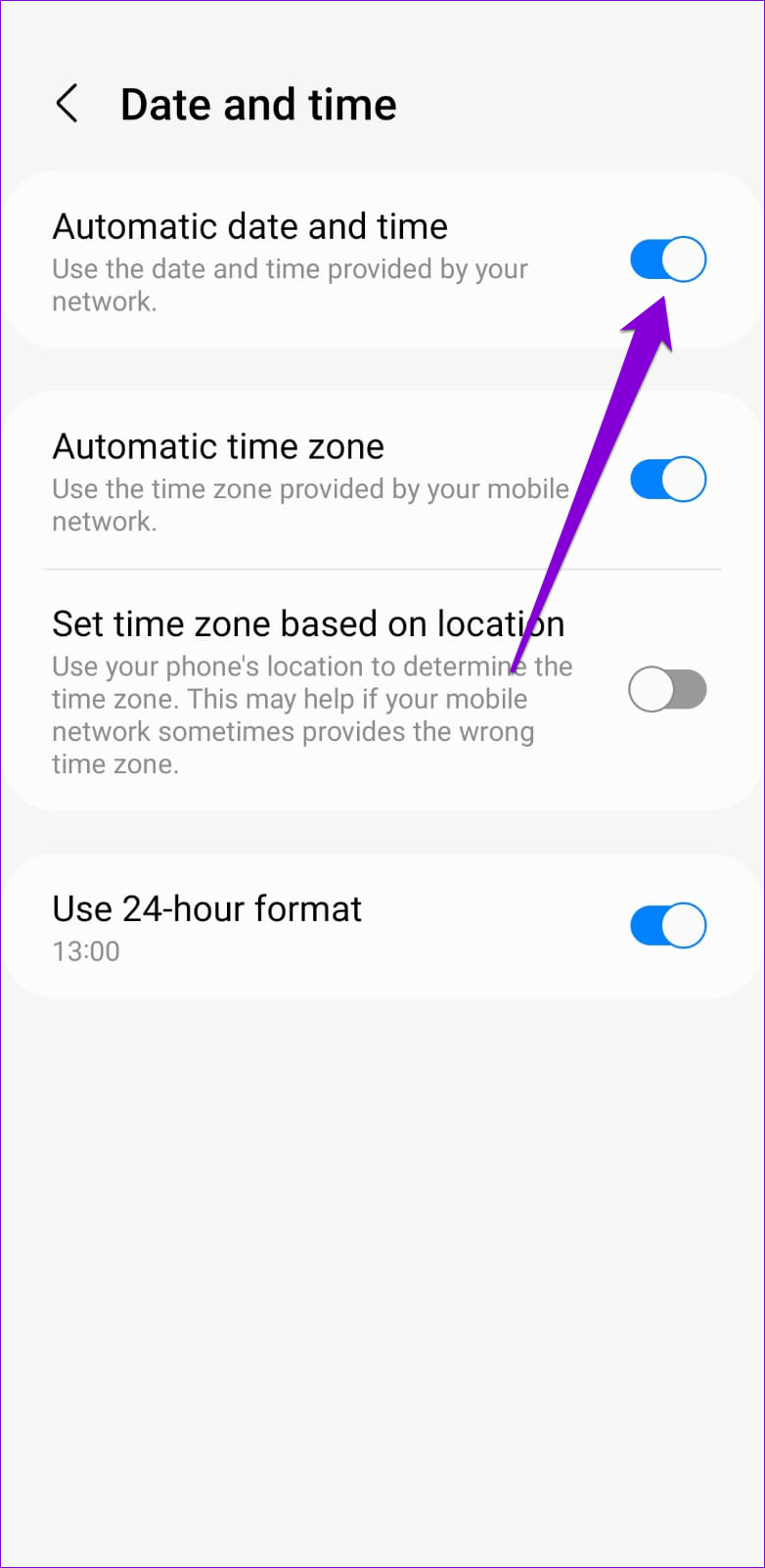
Step 2: Tap on Date and time. Then, enable the toggle for Automatic date and time.
iPhone
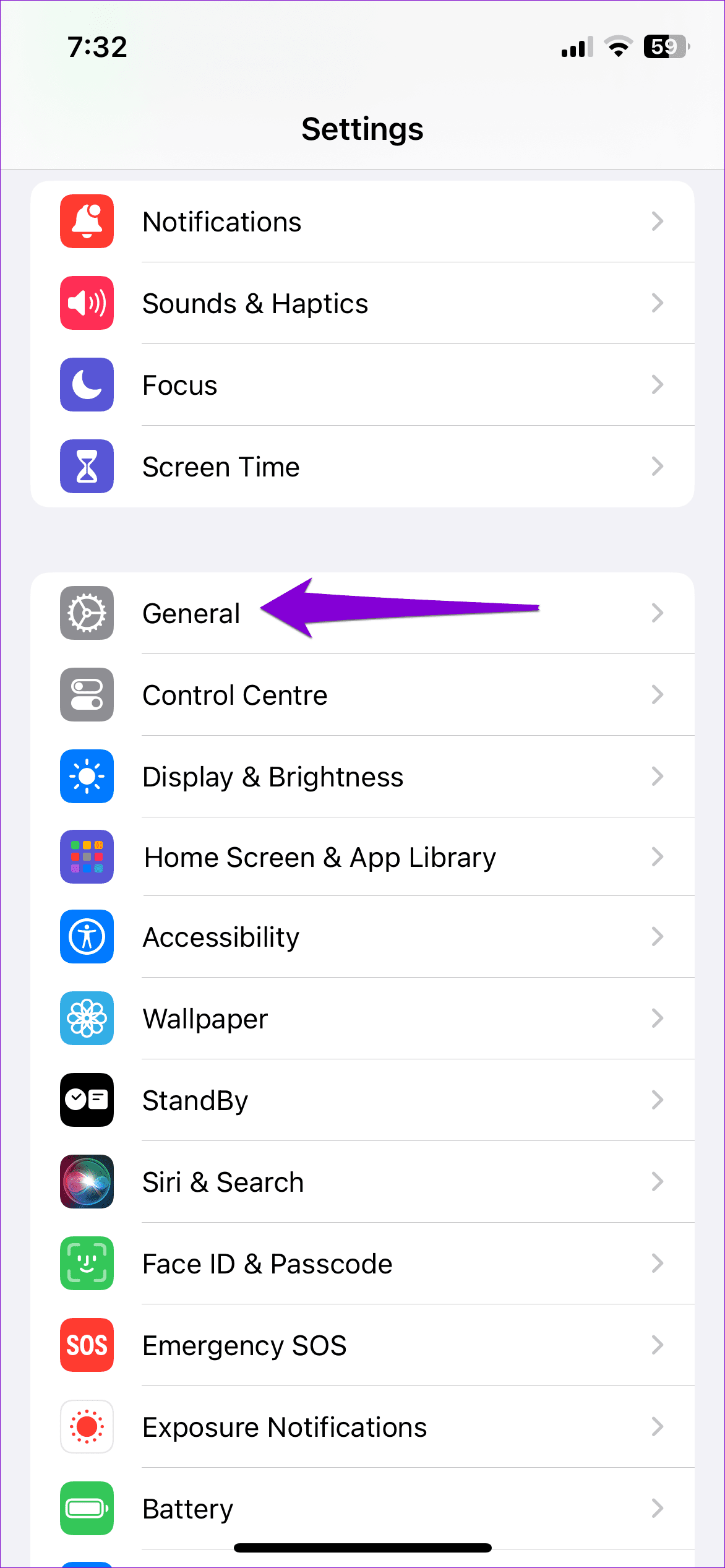
Step 1: Launch the Settings app on your iPhone and navigate to General.
Step 2: Tap on Date & Time. Toggle on the switch next to Set Automatically.


Fix 3: Clear App Cache (Android)
If you’ve been using the Instagram app for a while, it may have accumulated a significant amount of cache. Although this data helps improve app performance, it can cause issues if corrupted. Hence, purging that old cache is important if the problem persists.
Step 1: Long-press on the Instagram app icon and tap the info icon from the menu that appears.
Step 2: Go to Storage and tap the Clear cache option at the bottom.
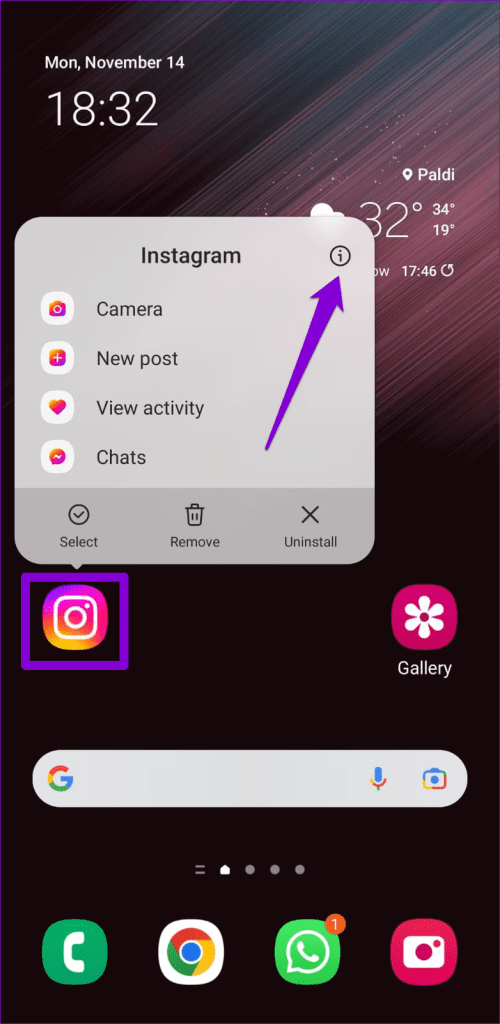


Restart the Instagram app after this, and try to log in to your account one more time.
Was this helpful?
Last updated on 05 July, 2024
4 Comments
Leave a Reply
Read Next
 3 Ways to Fix Unable to Log In to Spotify on Android and iPhone
Try Basic Fixes Update the app: The Spotify app on your phone may be outdated or buggy.
3 Ways to Fix Unable to Log In to Spotify on Android and iPhone
Try Basic Fixes Update the app: The Spotify app on your phone may be outdated or buggy.
 3 Ways to Fix Unable to Log in to Snapchat on Android and iPhone
Try Basic Fixes Check Snapchat's server status: It’s not uncommon for popular social media services like Snapchat to experience server outages.
3 Ways to Fix Unable to Log in to Snapchat on Android and iPhone
Try Basic Fixes Check Snapchat's server status: It’s not uncommon for popular social media services like Snapchat to experience server outages.
 4 Fixes for Unable to Log in to Apple Music for Android
Try Basic Fixes Check your Apple ID and password: Accidentally entering an incorrect Apple ID or password in the Apple Music app might be causing the failure to sign in
4 Fixes for Unable to Log in to Apple Music for Android
Try Basic Fixes Check your Apple ID and password: Accidentally entering an incorrect Apple ID or password in the Apple Music app might be causing the failure to sign in
 4 Ways to Fix Unable to Use WhatsApp on Two Devices on iPhone and Android
Before you begin, ensure there are no problems with the network connectivity on your device, and install the latest version of WhatsApp from the Play Store or App Store.
4 Ways to Fix Unable to Use WhatsApp on Two Devices on iPhone and Android
Before you begin, ensure there are no problems with the network connectivity on your device, and install the latest version of WhatsApp from the Play Store or App Store.
 2 Ways to Fix Facebook Messenger Won’t Let Me Log In on Android and iPhone
Try Basic Fixes Update the Messenger app: The Messenger app may not let you sign in if you’re using an outdated version of the app.
2 Ways to Fix Facebook Messenger Won’t Let Me Log In on Android and iPhone
Try Basic Fixes Update the Messenger app: The Messenger app may not let you sign in if you’re using an outdated version of the app.
 3 Ways to Fix YouTube Won’t Let Me Log In on Android and iPhone
Try Basic Fixes Temporarily disable VPN connection: A Virtual Private Network (VPN) connection may cause issues with the YouTube app's sign-in process, especially if you switch servers frequently.
3 Ways to Fix YouTube Won’t Let Me Log In on Android and iPhone
Try Basic Fixes Temporarily disable VPN connection: A Virtual Private Network (VPN) connection may cause issues with the YouTube app's sign-in process, especially if you switch servers frequently.
 2 Ways to Fix Can’t Log in to Telegram on Android and iPhone
Try Basic Fixes Authenticate login via phone call: Occasionally, Telegram may be unable to deliver an authentication code to your phone for various reasons.
2 Ways to Fix Can’t Log in to Telegram on Android and iPhone
Try Basic Fixes Authenticate login via phone call: Occasionally, Telegram may be unable to deliver an authentication code to your phone for various reasons.
 Top 7 Ways to Fix Google Docs Unable to Load File Issue
Google Docs is one of the popular word-processing software out there.
Top 7 Ways to Fix Google Docs Unable to Load File Issue
Google Docs is one of the popular word-processing software out there.
The article above may contain affiliate links which help support Guiding Tech. The content remains unbiased and authentic and will never affect our editorial integrity.

My Instagram not login
Hyyyy
My instagram account was disabled
my account has been hacked.i cant log in to appeal